

Add your custom domain to the Authsignal Portal
Decide on the subdomain you want to use.For example, if your app is hosted on
example.com, you might want to use auth.example.com as
your custom domain.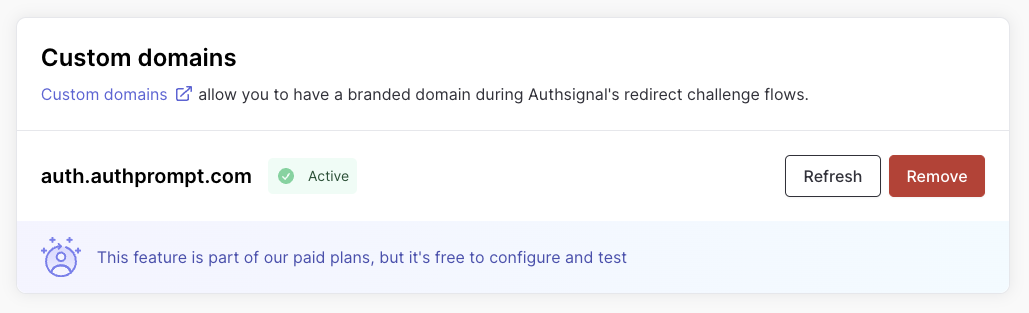
An active custom domain in the Authsignal Portal.
Multiple custom domains
If you have multiple applications or brands, you can configure additional custom domains. Each domain can be used independently with Authsignal’s pre-built UI.Use cases
Multiple custom domains offers flexibility for organizations managing diverse branding, regional requirements, or partner integrations, all from a single Authsignal tenant.-
Multiple brands, single tenant: Organizations owning several brands can maintain separate branded authentication experiences (e.g.,
auth.brand1.comandauth.brand2.com) while sharing a centralized Authsignal configuration. -
Regional domains: Businesses requiring different domains for regional operations can serve users across jurisdictions (e.g.,
auth.example.com,auth.example.co.uk,auth.example.com.au). -
White-labeled B2B SaaS: SaaS providers offering white-labeled solutions can give each customer their own branded authentication domain (e.g.,
auth.client-a.com,auth.client-b.com) while maintaining a single tenant.
Adding additional domains
Once the multiple custom domains feature is enabled for your account, you’ll see an Add another custom domain option on the custom domains page. Follow the same setup process as your first domain:- Enter the subdomain (e.g.,
mfa.anotherbrand.com) - Add the CNAME record to your DNS provider
- Wait for verification
- Click Activate custom domain
Default domain
One of your custom domains is designated as the default. This is the domain used when you don’t explicitly specify which domain to use in your integration. To change the default domain, click Set as default on any active domain.Using a specific domain
To redirect a user to a specific domain, you can include acustomDomain attribute in your track action request.
The
customDomain attribute must be the full URL of the domain you want to use, including the protocol (e.g. https://auth.example.com).customDomain is specified or the domain is not active, the default domain will be used.