

Prerequisites
- An Authsignal tenant
- An authenticator configured (in this example we use Email OTP)
Configuration
Enter URL
Enter the relevant OpenAPI specification URL in the import dialog.Links to OpenAPI specifications can be found in the relevant API reference overviews.For now, we will enter the URL for the Server API
https://docs.authsignal.com/server-api.json and the Client API https://docs.authsignal.com/client-api.json.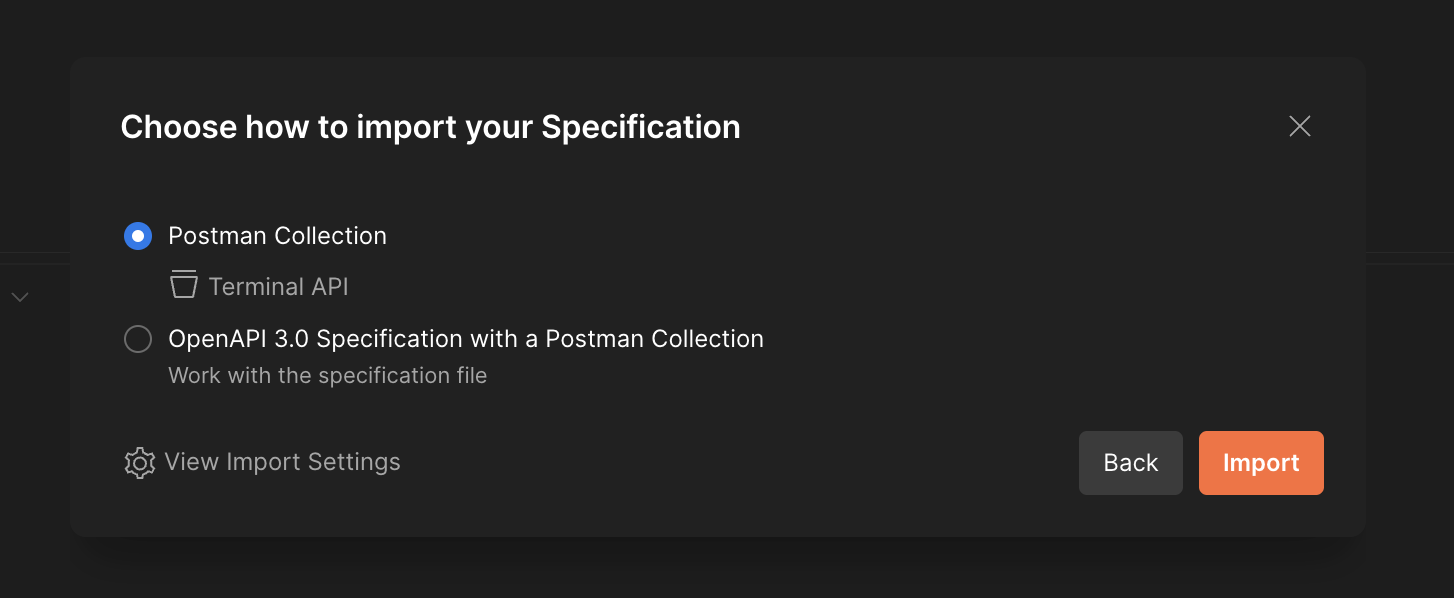
Server API
Set up variables - Server API
Double-click on the Server API collection.In the Authorization tab, enter your Server API secret from the Authsignal settings page .In the Variables tab, ensure the 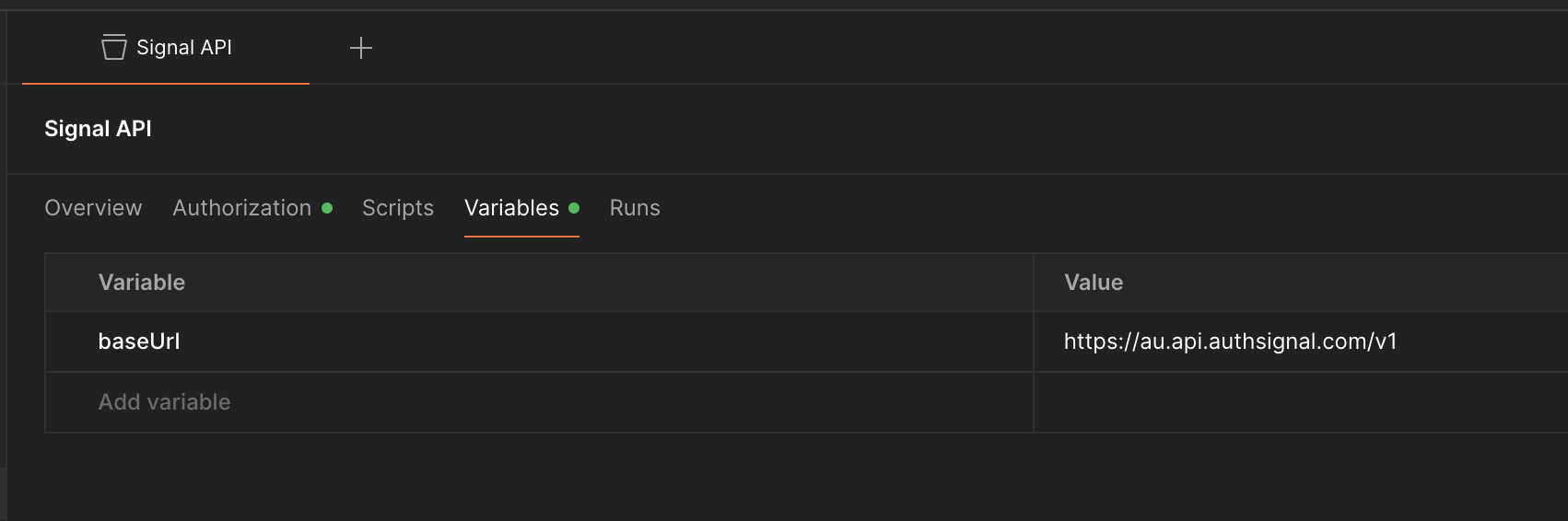
baseUrl matches the correct regional URL for your tenant’s configuration.Set up your Track Action request
In the Server API workspace, select 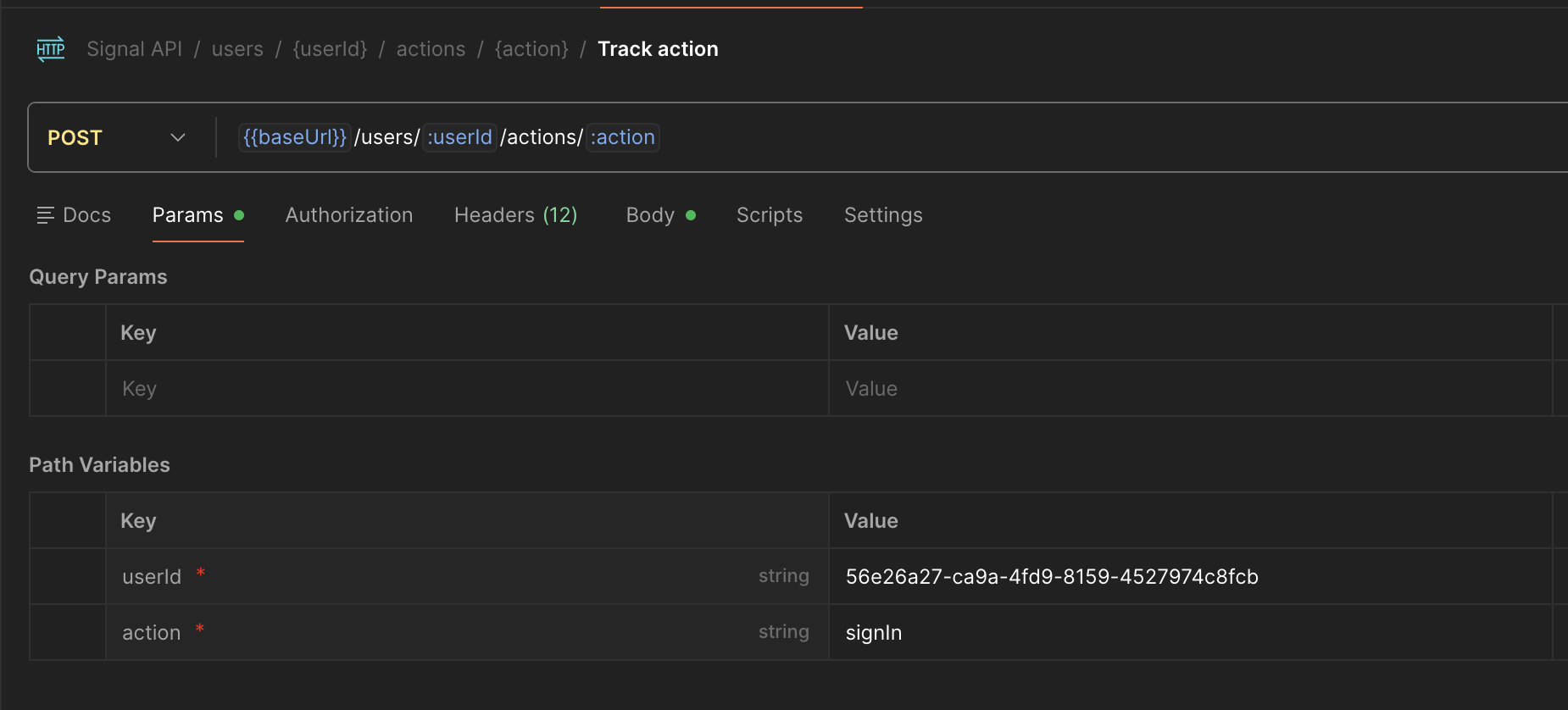
users -> actions -> {action} -> Track Action.Be sure to update the variables to match a relevant user ID and action code.For the purposes of this tutorial, use a random GUID as the userId, and signIn as your action code. The relevant values here may differ depending on your Authsignal Tenant’s configuration.Client API
Set up variables - Client API
Now that we have a token generated by our track action call, next we will set up the Client API to simulate a front end application.Double click on Client API in the workspace menu.On the Authorization tab, enter the token obtained from the previous step as the
bearerToken value.On the Variables tab, ensure the baseUrl matches the correct regional URL for your tenant’s configuration.Set up your Authenticator enrollment
In this example, we will enroll the user with an Email OTP authenticator.In the Client API workspace select
user-authenticators -> email-otp -> Start Email OTP enrollment.Head to the body of the request, and enter your email address.
Click Send to start the enrollment.Complete Email OTP enrollment
You should now have received an email with the OTP code.
In the Client API workspace select 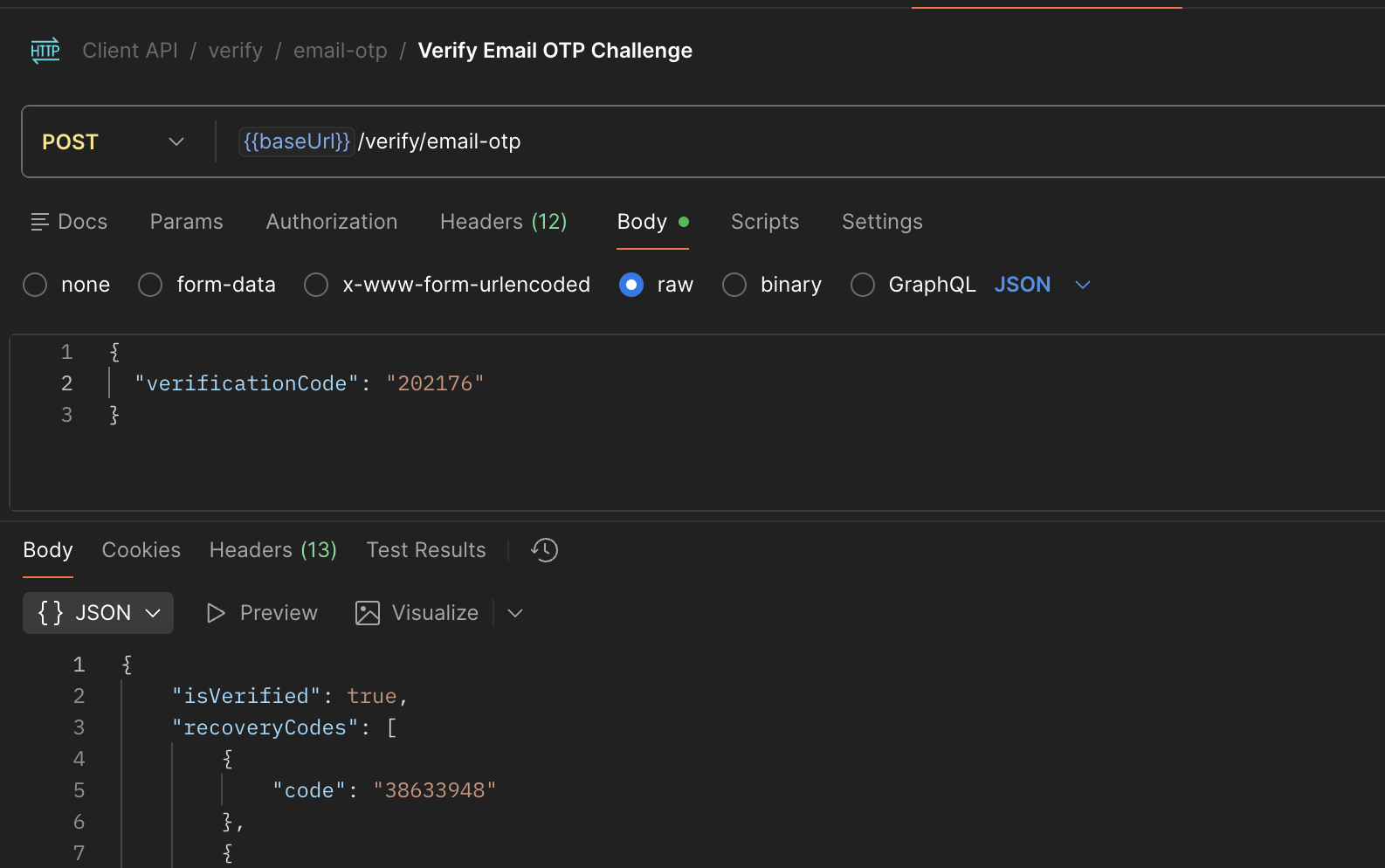
verify -> email-otp -> Verify Email OTP Challenge.Head to the body of the request, and enter the OTP code from the email.Click Send to verify the enrollment.The response should include recovery codes, and an accessToken that can be used to call the Session API.