

ServiceNow Store - Authsignal Call Connect
View the ServiceNow Store listing for Authsignal Call Connect
Prerequisites
- ServiceNow instance with API Key and HMAC Authentication (
com.glide.tokenbased_auth) plugin installed and configured. - ServiceNow instance with the Authsignal Call Connect app installed from the ServiceNow Store
- Twilio or Bird account with SMS enabled and configured in Authsignal
- ServiceNow ITSM module with a contact that has at least a mobile phone number
Configuration
1. Create a ServiceNow API key record
Create a ServiceNow API key record with a generated key. This key will be used for the callback from Authsignal to ServiceNow.1
Create Service Account
In your ServiceNow instance, navigate to All -> Organization -> Users and select New.Enter user details: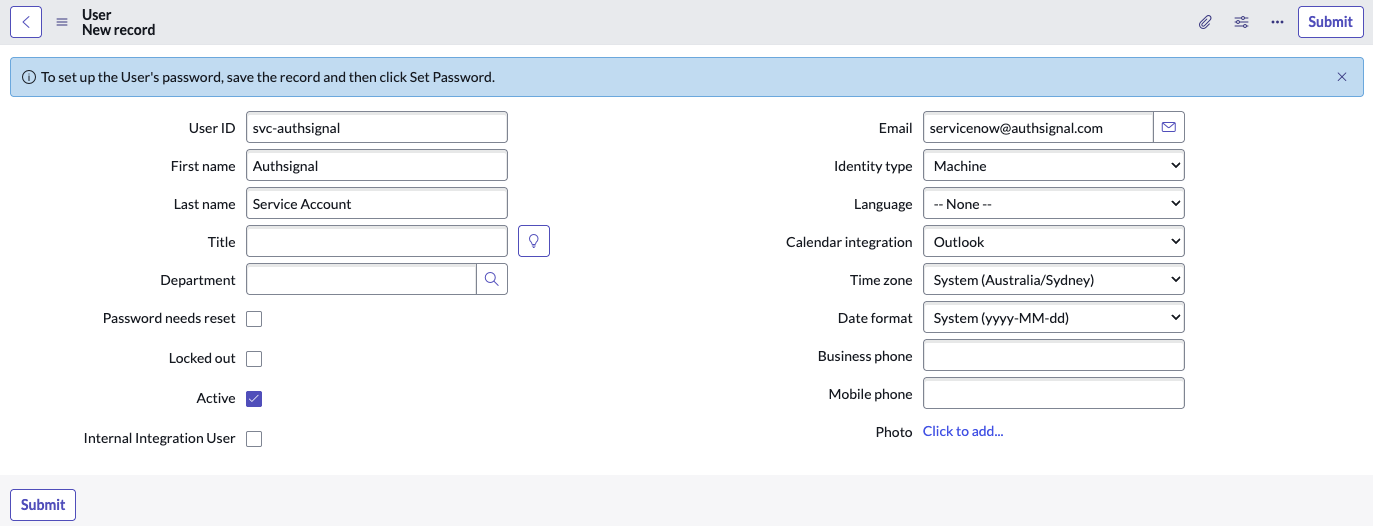
2
Give Service Account correct permissions
Navigate to your newly created User.
Select Roles and then EditAdd the following roles: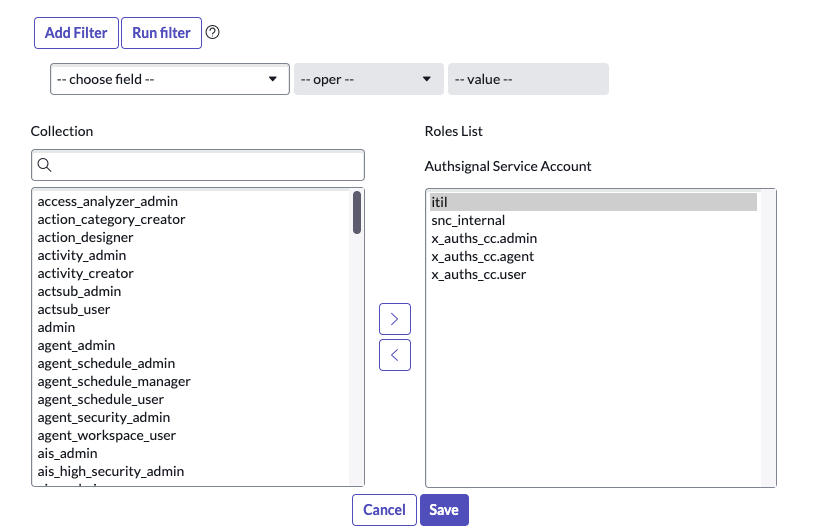
itilsnc_internalx_auths_cc.adminx_auths_cc.agentx_auths_cc.user
3
Navigate to REST API Key settings
In your ServiceNow instance, navigate to All -> System Web Services -> API Access Policies -> REST API Key.
4
Create a new API key
Select New, fill in the name “Authsignal Call Connect Webhook”.Select the service account you made earlier, set the Auth Scope to 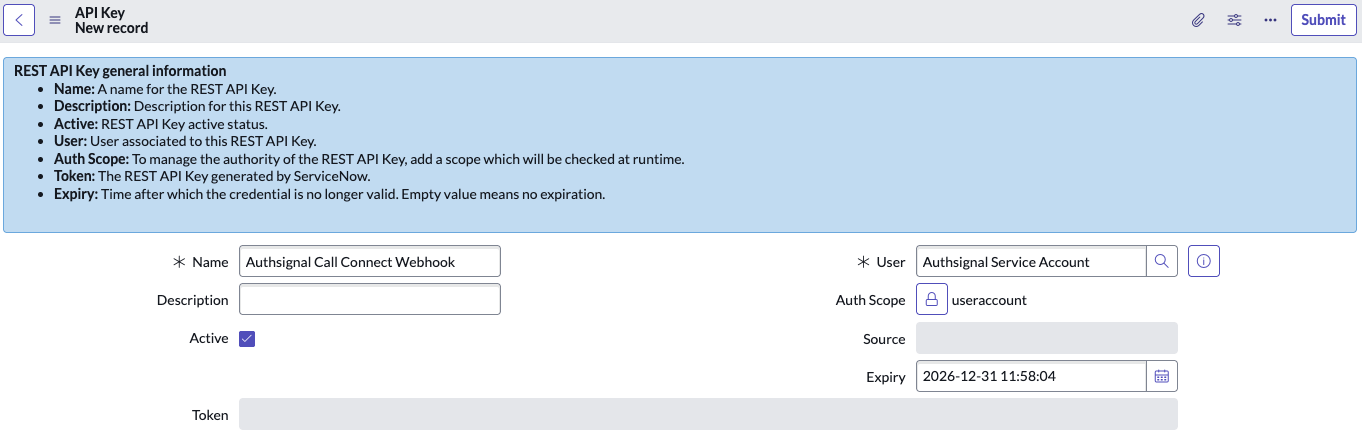
useraccount, and set an expiry date for the API key.5
Copy the token value
Click on the newly created record and reveal the token value. Copy this value - you’ll need it for the Authsignal configuration in the next step.Additionally, right click on the API key name and click Copy sys_id and save this for later.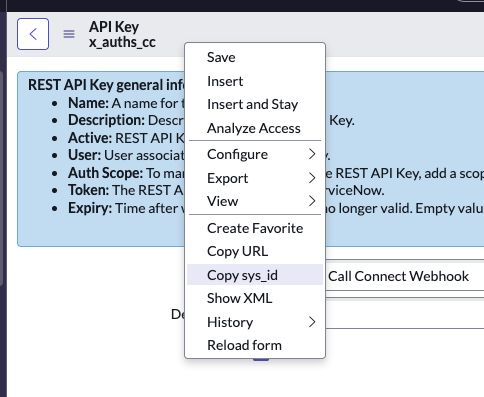
2. Configure Call Connect in Authsignal portal
1
Select ServiceNow integration
Navigate to the Call Connect section in the Authsignal portal (Settings > Call Connect) and select the ServiceNow option.
2
Enter ServiceNow instance name
Fill in the ServiceNow instance name field. The instance name is usually the subdomain of your ServiceNow instance URL.
3
Add the webhook API key
Paste the API key token from the previous step into the ServiceNow webhook API key field.
4
Activate the integration
Click the Activate Call Connect button to activate the integration.
3. Complete ServiceNow configuration
In your ServiceNow instance, navigate to All > Authsignal Call Connect > Call Connect Tracking > Properties and configure the following mandatory properties:
1
Set the Call Connect URL
Based on the region of your Authsignal tenant, copy the following URL and paste it into the Authsignal Call Connect URL with path field:
2
Add your Authsignal API key
Paste the API key from the Authsignal portal for the Call Connect API into the Authsignal API key field.
3
Add the webhook API key Sys ID
Paste the Sys ID of the webhook API key record created in step 1 into the Sys ID of the webhook API key record field.
4
Save your changes
Click Save to complete the configuration.
4. Final configuration
Complete the setup by ensuring:- All callers in the
sys_usertable have phone numbers in E.164 format (e.g.,+61417888999) - All engaged agents have the agent role assigned (
x_auths_cc.agent) to appropriate groups and/or users