
For the default values, see Defaults and allowed values.
How rate limits work
- A limit is a number of sends or submissions in a window, such as 6 every 10 minutes.
- The window looks back from each new request. For a limit of 6 every 10 minutes, Authsignal counts the sends in the last 10 minutes. The count doesn’t reset at fixed times, such as on the hour.
- Authsignal blocks a request that goes over a limit. A blocked request doesn’t count toward the limit.
- When more than one limit applies, a request must pass all of them.
Sending limits
A sending limit sets how many codes or links Authsignal sends to one phone number or email address in a window. For push, the limit counts the requests sent to one user. Use sending limits to stop a script or an impatient user from flooding one phone or inbox. They also help control your SMS costs for each number. You can set more than one sending limit on an authenticator. For example, set 6 every 10 minutes to stop bursts, and 20 every 24 hours to stop slow, steady abuse.Cooldown
A cooldown is the shortest wait between two sends to the same phone number or email address, such as 10 seconds. It’s a sending limit of 1 send in a short window. For the default wait, see Defaults and allowed values. Use a cooldown to stop duplicate messages from double taps and repeated Re-send code clicks. In the pre-built UI, the Re-send code link stays disabled until the cooldown ends. A cooldown doesn’t change the code expiry, which sets how long a code stays valid.Change sending limits
- Portal
- Management API
- Open Authenticators and select the authenticator.
- In Rate limit settings, under Sending, edit Rate limits. For SMS OTP, this setting is under Per number.
- To add a second limit, click Add rate limit.
- To add a cooldown, turn on Cooldown and enter the wait in seconds, up to 60.
- Click Save changes.
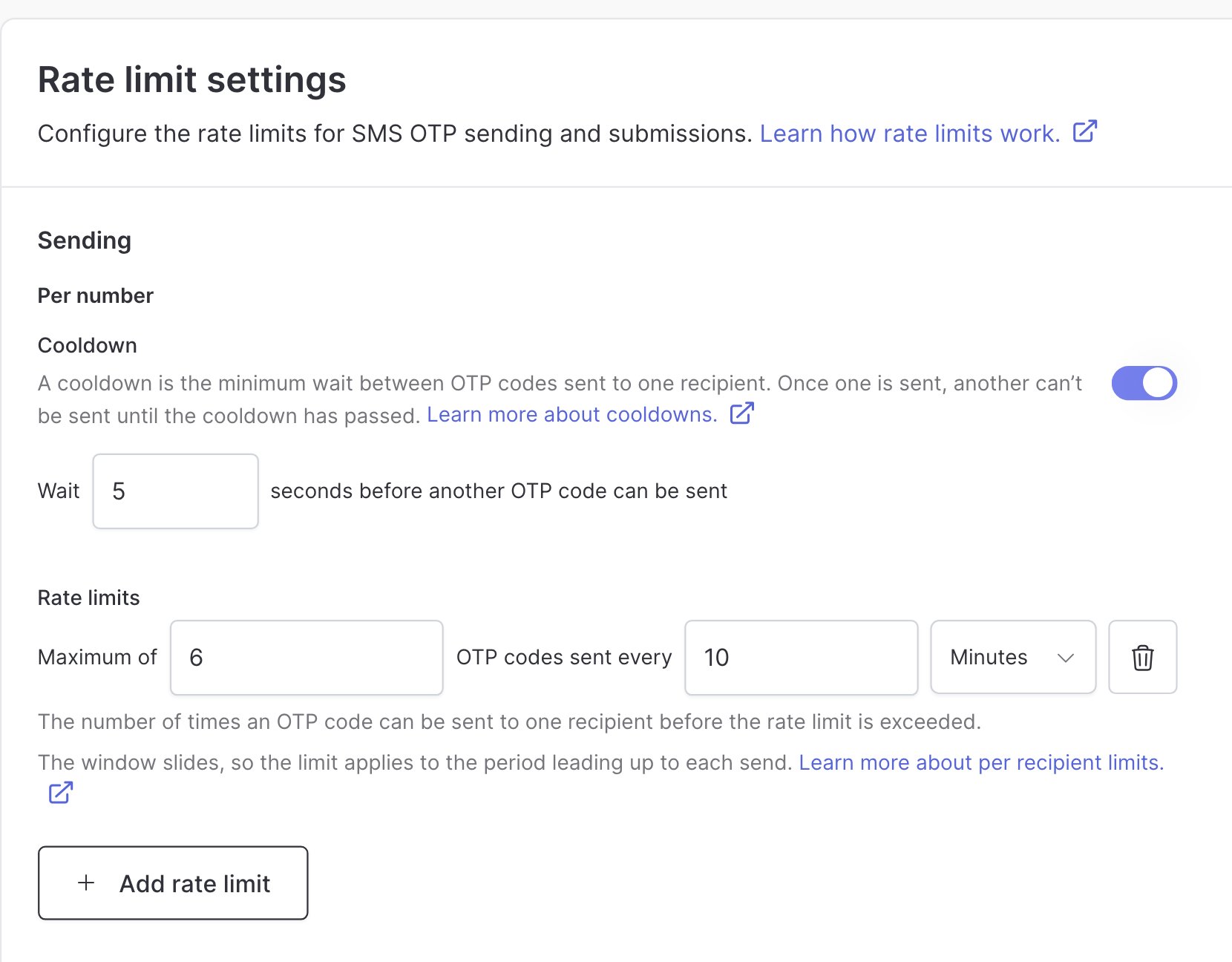
An SMS OTP cooldown of 5 seconds, above a sending limit of 6 codes every 10 minutes
Country limits
A country limit sets how many SMS codes Authsignal sends to the numbers in a country, in a window. There’s no default country limit. Use country limits to stop SMS pumping. In SMS pumping, attackers request codes to high-cost numbers and take a share of the charges. A country limit counts numbers in one of two ways:- Any number: one count for the whole country. Set a strict limit for countries you don’t serve, and a looser limit for your main markets.
- Groups of numbers: one count for each group of 1,000, 10,000, or 100,000 numbers in sequence. Use groups to stop attacks that go through a range of numbers. Each number stays under its sending limit, but the group reaches its limit.
- A limit for a specific country replaces the All countries limits for numbers in that country. So you can give a country a looser limit, not only a stricter one.
- When a user verifies a code, Authsignal removes that send from the count. Codes that users verify don’t use up the limit.
Change country limits
- Portal
- Management API
- Open Authenticators and select SMS OTP.
- In Rate limit settings, click Show advanced settings.
- Under Per country, click Add country limit.
- Set Numbers covered to any number, or to a group size.
- Choose the countries and set the limit. The portal suggests 100 every 60 minutes.
- Click Save changes.
Submission limits
A submission limit sets how many codes a user can enter in a window. Every submission counts, correct or not. When a user reaches the limit, Authsignal rejects the next code, even a correct one. Use submission limits to stop attackers from guessing codes. A 6-digit code has a million possible values. In a flow, each user has a separate count for each authenticator.Change submission limits
Portal: in Rate limit settings, edit Submission. Management API: setsubmissionRateLimitConfiguration on the SMS OTP or Email OTP authenticator.
When a limit blocks a request
A blocked send returns this body.
retryAfterSeconds is the number of seconds to wait before you try again.
too_many_requests. See Web SDK error handling and server SDK error handling.
Show a re-send countdown
A successful send can also returnretryAfterSeconds. It’s present when the next send must wait, for example during a cooldown. The value covers all of the sending limits.
Use it to disable your re-send button and show a countdown. See Start SMS challenge and Initiate challenge.
Monitor blocked requests
Authsignal records an event when a limit blocks a request:- A blocked send records an event such as
SMS_RATE_LIMIT_EXCEEDED. - A blocked submission records an event such as
SMS_MAX_ATTEMPTS_EXCEEDED.
challenge.log_created webhook. You can also see them in user activity.
Sandbox codes
Limits also apply in sandbox mode. Sends count toward the sending limits, and each sandbox code you enter counts toward the submission limit. For large automated test runs, use several test users, or raise the submission limit on your test tenant.Defaults and allowed values
The portal adds the cooldown when you turn on an authenticator. Authenticators that you create with the Management API, and some older authenticators, have no cooldown until you add one.
Country limits have no default.