

SSO does not provision new users. Team members must first be invited to your organization, and are matched to your identity provider by email address. Users who have been invited but haven’t yet accepted can sign in directly via SSO, and their invitation is accepted automatically.
Configuration
From the top right menu, navigate to Organization settings > SSO to access your SAML 2.0 configuration.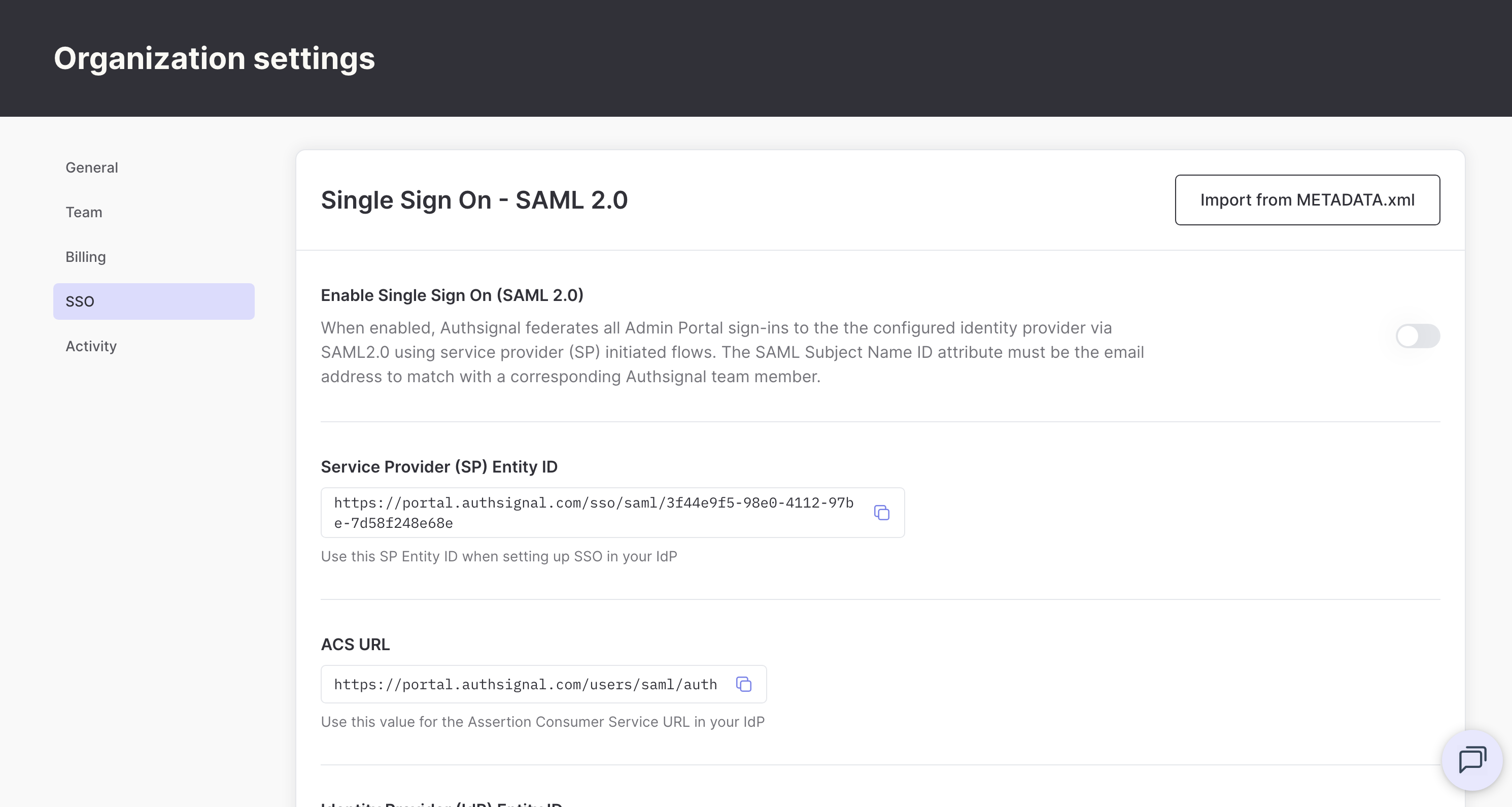
Import from metadata
If your identity provider provides a metadata XML file, you can automatically populate your SSO configuration.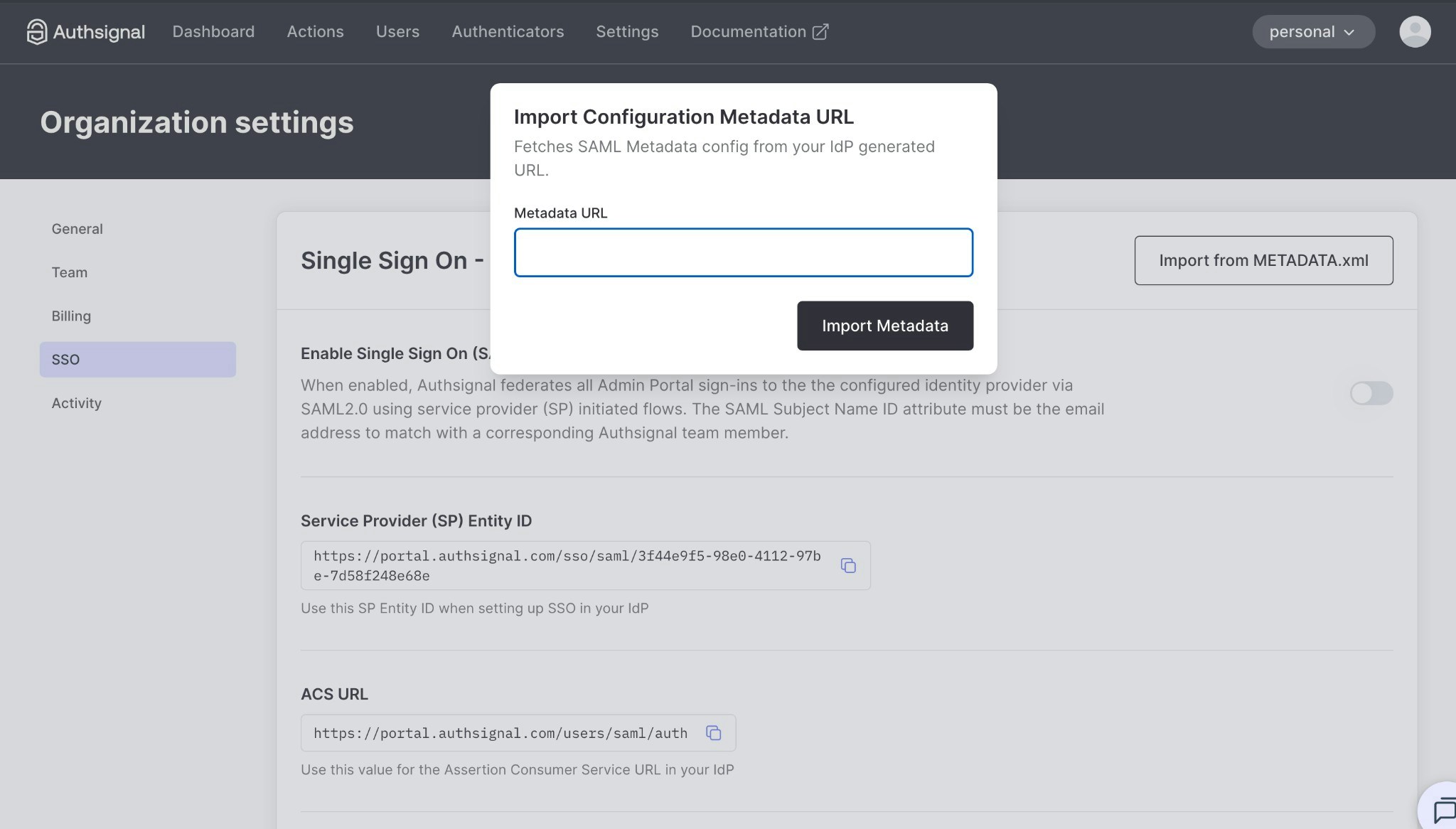
- Click Import from METADATA.xml
- Enter your identity provider’s metadata URL
- Click Import Metadata
Manual configuration
Alternatively, you can manually configure SSO by following these steps:1
Get your service provider details
You’ll need the following values to configure SSO in your identity provider: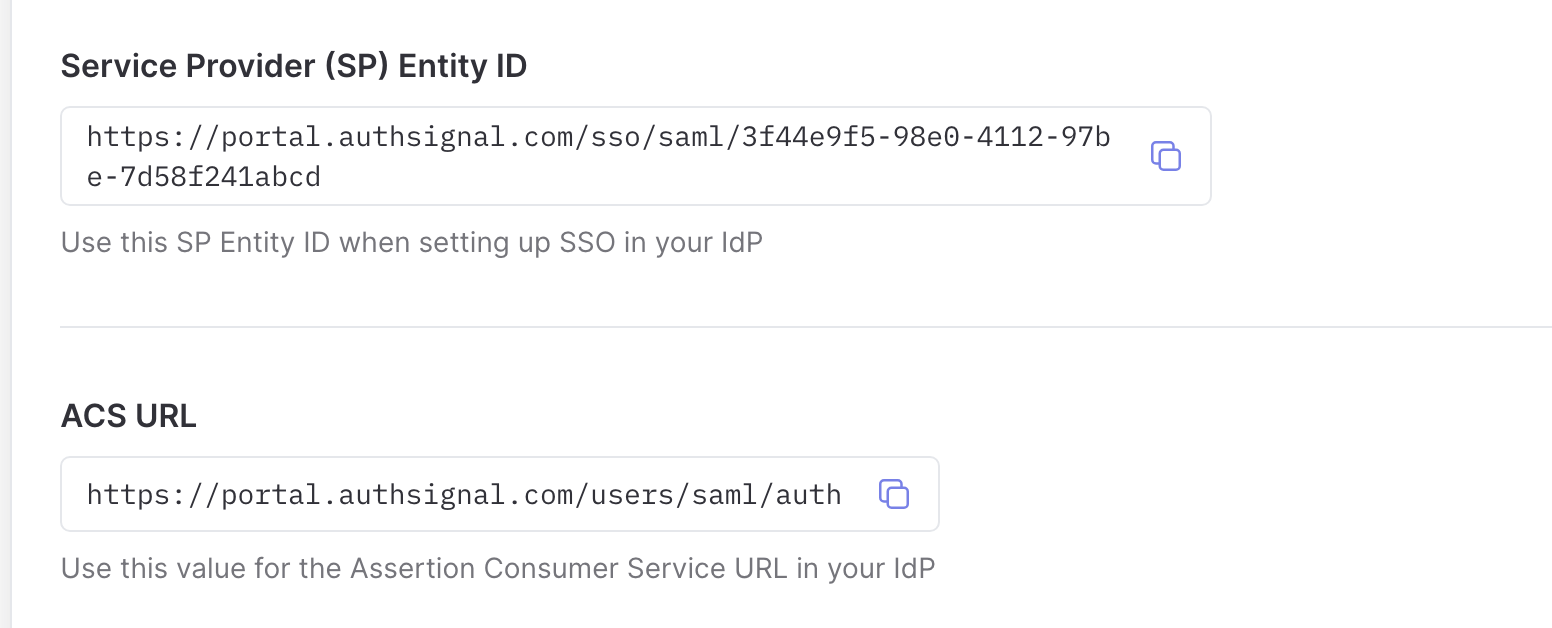
2
Configure your identity provider
Configure SAML 2.0 in your identity provider using the service provider details above.Key configuration requirements:
- Entity ID / Audience: Use the SP Entity ID
- ACS URL / Reply URL: Use the ACS URL
- Name ID format: Email address
- Name ID value: User’s email address
The specific configuration steps will vary depending on your identity provider. See your IdP’s documentation for detailed instructions on adding a SAML application.
3
Configure Authsignal
Once you’ve configured your identity provider, provide the following information in the Authsignal admin portal:Identity provider (IdP) entity IDYour identity provider’s generated entity ID. This is typically a URL that uniquely identifies your IdP.Identity provider (IdP) SSO target URLYour identity provider’s SSO target URL that will receive SAML requests. This is sometimes called the “Single Sign-On URL” or “SAML 2.0 Endpoint”.Identity provider (IdP) public x509 certificateYour identity provider’s public x509 certificate used to verify SAML responses.
User attributes (optional)
In addition to the Name ID, Authsignal can populate team members’ full names from SAML attributes. Configure your identity provider to send:
Or, if your identity provider has a single full-name attribute, send
displayName instead. If both are sent, displayName takes precedence.
Attribute names are matched exactly and are case-sensitive. The standard claim formats are also accepted, including the LDAP attribute OIDs (urn:oid:2.5.4.42, urn:oid:2.5.4.4, urn:oid:2.16.840.1.113730.3.1.241) and the default Microsoft Entra ID claims (.../claims/givenname, .../claims/surname), so Entra ID applications typically need no additional configuration.
Names are updated from your identity provider on each sign-in. Name attributes are optional. If none are sent, sign-in works normally and existing names are unchanged.
Okta
Okta
In your SAML app’s settings, add two attribute statements:
firstName mapped to user.firstName, and lastName mapped to user.lastName.Microsoft Entra ID
Microsoft Entra ID
No additional configuration is needed. Entra ID sends the user’s given name and surname claims by default.
Enable single sign-on
Once you’ve configured your SSO settings (either via metadata import or manual configuration), enable the Enable Single Sign On (SAML 2.0) toggle to activate SSO.