

Prerequisites
- Access to the Authsignal Portal.
- Correct permissions to allow managing authenticators (
Support analystorAdmin).
Steps
Find user
1
Navigate to user search
In the Authsignal Portal, click on the Users tab.
2
Search for user
Using the search box, enter the user’s Email address or User ID and click Search.
The user list will be filtered to show all users with the address or ID you entered.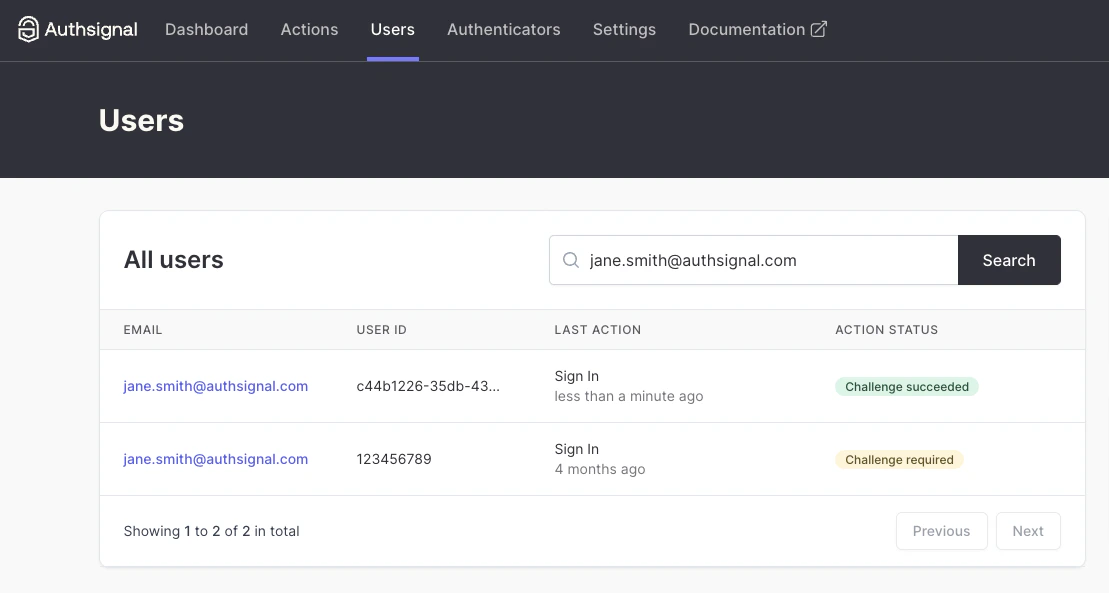
3
View user details
Click on the relevant user.You will be presented with an overview of key details of the user, including their Authenticators and Latest activity.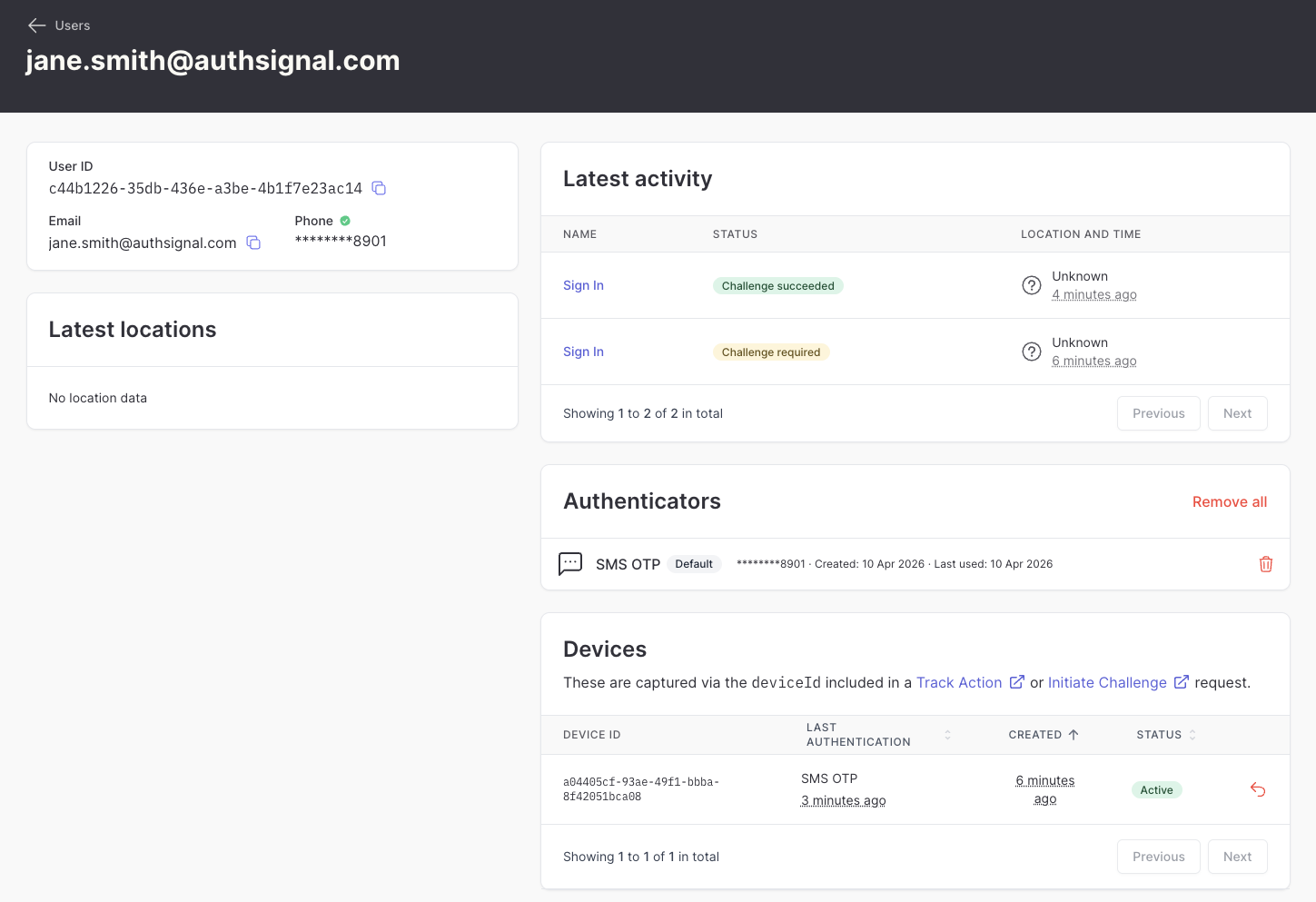
Delete relevant authenticator
1
Delete the relevant authenticator
Under Authenticators, find the relevant Authenticator for the method you want to remove.Click the trash can button. Alternatively, you can use the Remove all to reset the user back to a fresh state.In the dialog that pops up, select Continue.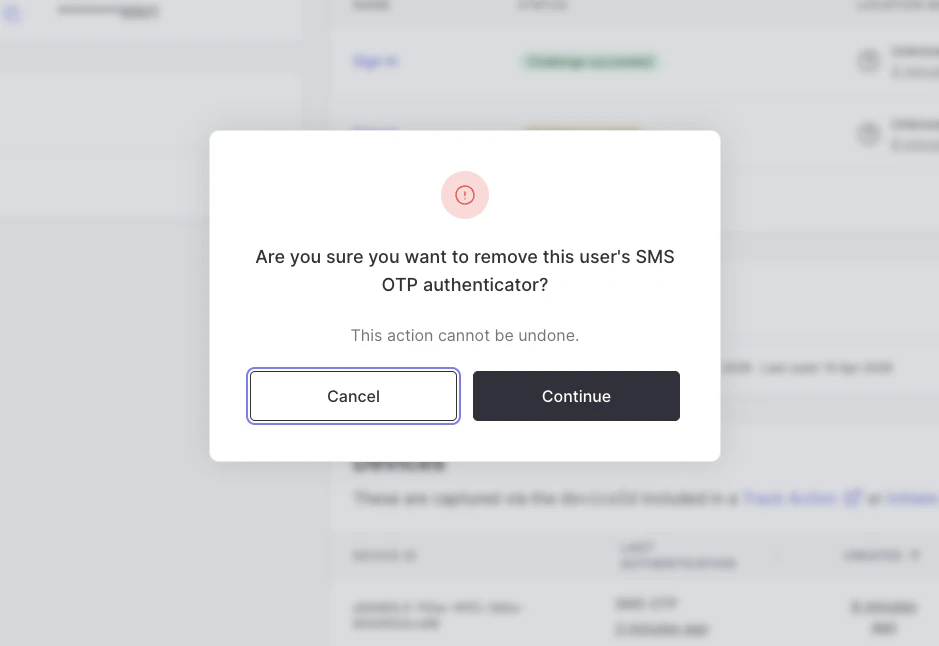
2
Confirm
The authenticator will now be deleted. Check that the authentication method has been removed from the list.