

Prerequisites
- A separate Authsignal tenant for development or automated testing.
- At least one supported authentication method configured on the tenant.
- An application integrated with Authsignal’s pre-built UI or a custom challenge UI.
- A test user that can reach the authentication challenge.
Supported authentication methods
Static sandbox codes are supported for:- Email OTP
- SMS OTP
- Authenticator app (TOTP)
Enable sandbox mode on the tenant
- In the Authsignal Portal, open Settings and select General.
- In the Danger zone, find Enable sandbox mode and click Enable.
- Enter
ENABLE SANDBOXin the confirmation dialog and click Confirm.
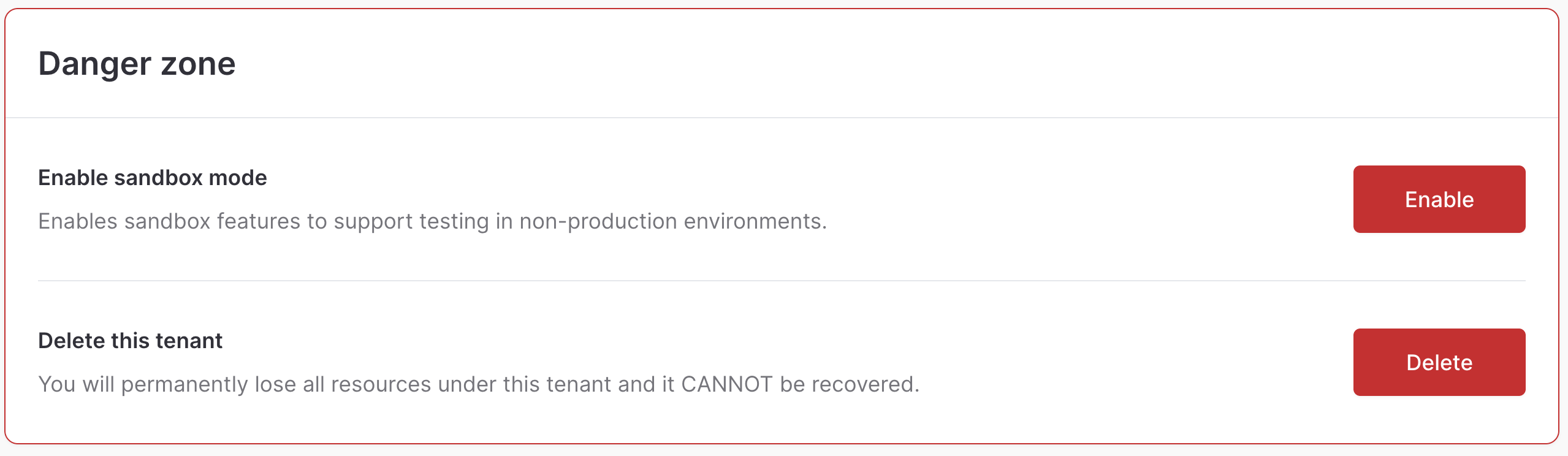
Enable sandbox mode in the tenant Danger zone
Configure a sandbox code
Configure each authentication method that your automated tests use:- Open Authenticators and select Email OTP, SMS OTP, or Authenticator app (TOTP).
- In the Sandbox section, turn on Sandbox mode.
- Enter a six-digit Sandbox code.
- Click Save.
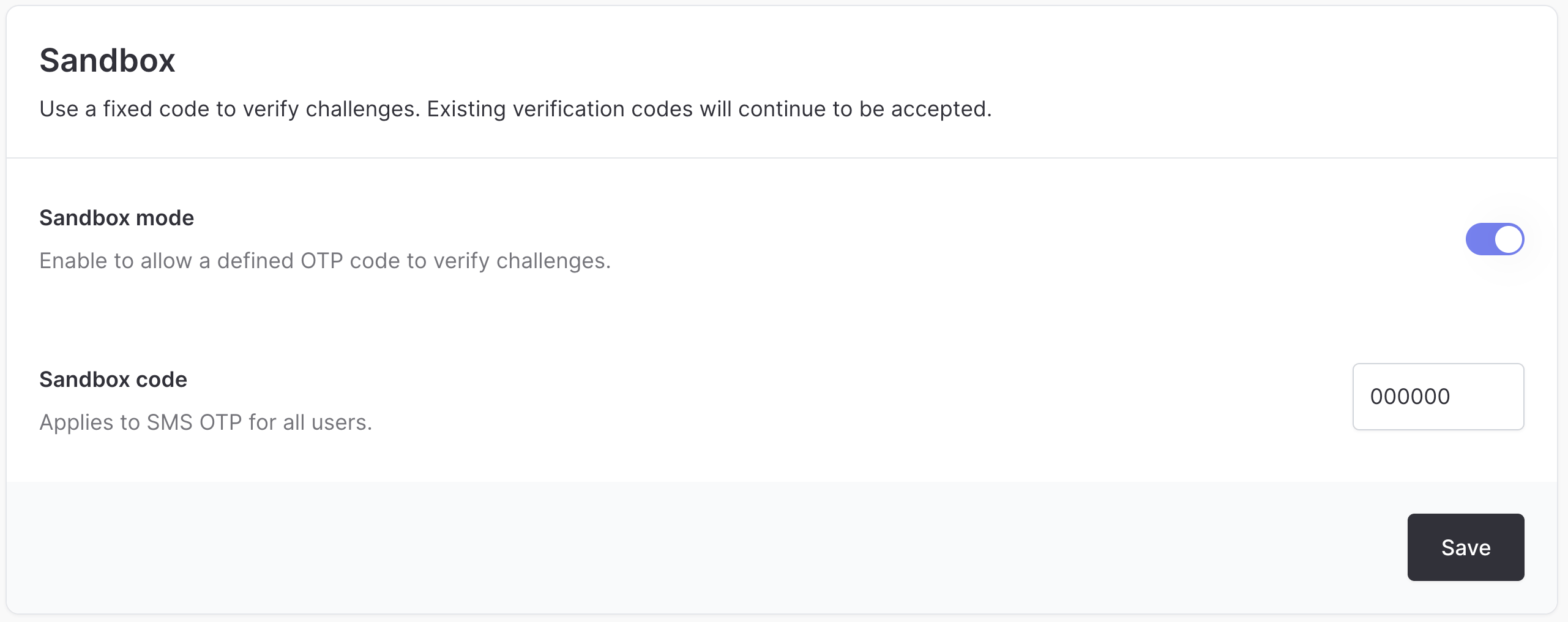
Sandbox mode and a sandbox code configured for SMS OTP
Use the code in an automated test
- Start the action or flow for a test user as your application normally would.
- Launch Authsignal’s pre-built UI, or present the challenge in your custom UI.
- Start or reach the configured Email OTP, SMS OTP, or Authenticator app (TOTP) challenge.
- Enter the configured sandbox code.
- Continue the test using the successful challenge result.