
Create a yes/no rule
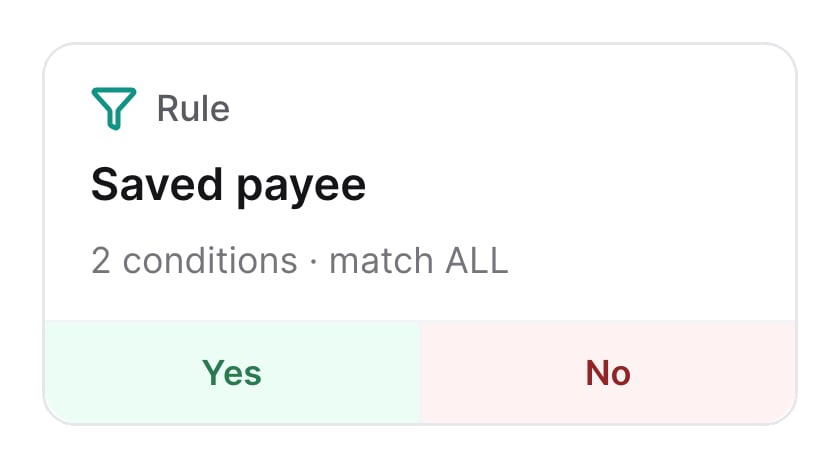
A node with one rule has Yes and No branches. Users who match the rule follow Yes, and everyone else follows No.- Select the rule node, then select Add rule and choose Blank rule. To reuse an existing rule’s conditions, pick it under Start from a copy.
- Enter a Name.
- Select Add condition, pick a field, then choose an operator and a value.
- Choose AND to match when all conditions are true. Choose OR to match when any is true. To mix both, select Add group and set the group’s own choice.
- Select Create rule.
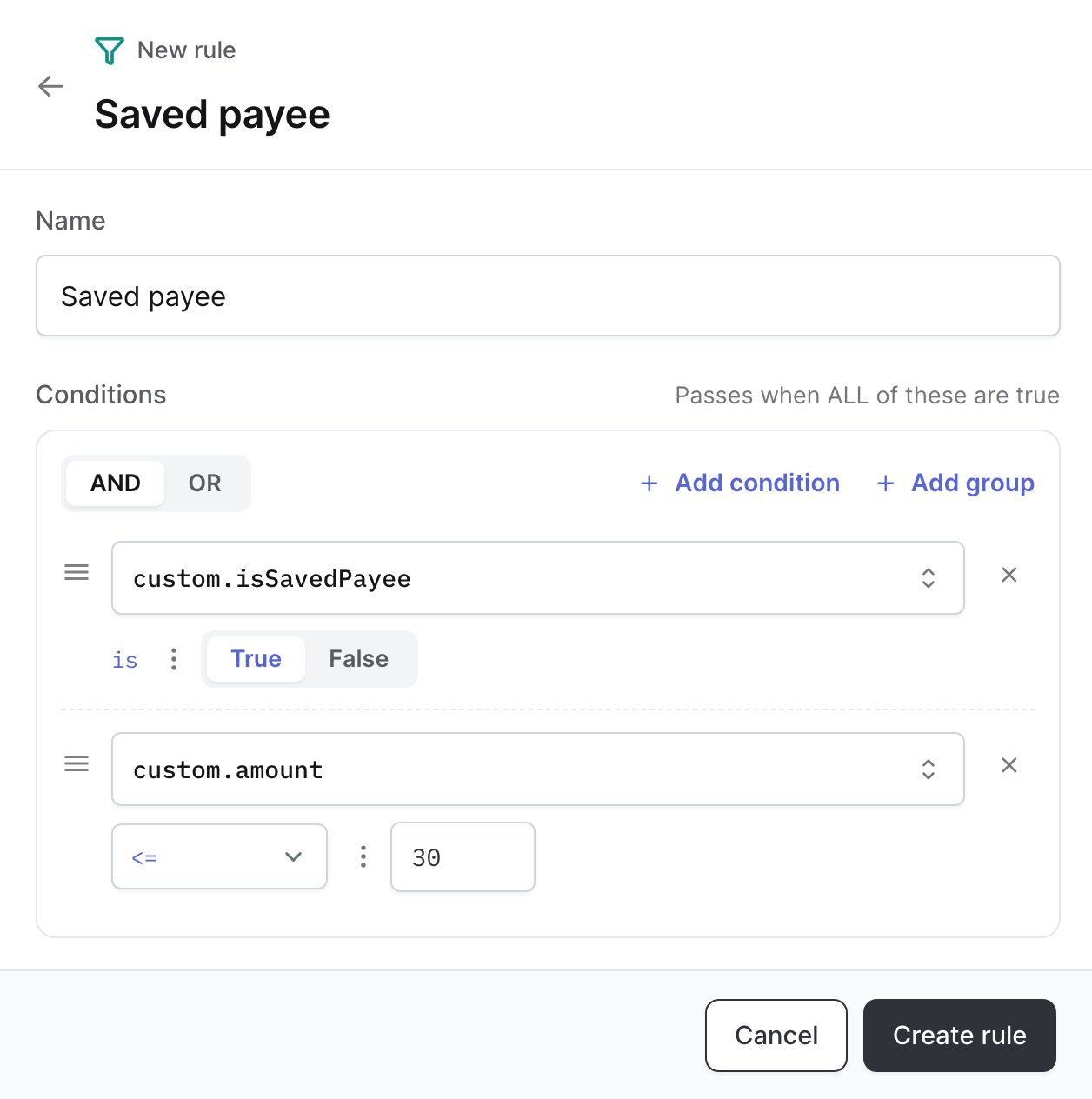
This rule matches when both conditions are true
Add more rules
Add more rules to send users down more than two paths. Each rule gets its own branch, labeled with the rule’s name, and users who match none follow Else.- Select the rule node, then select Add rule.
- Create the rule the same way as a yes/no rule.
- Use the arrows next to each rule to change the order. The node checks rules from top to bottom, and the first match decides the path.
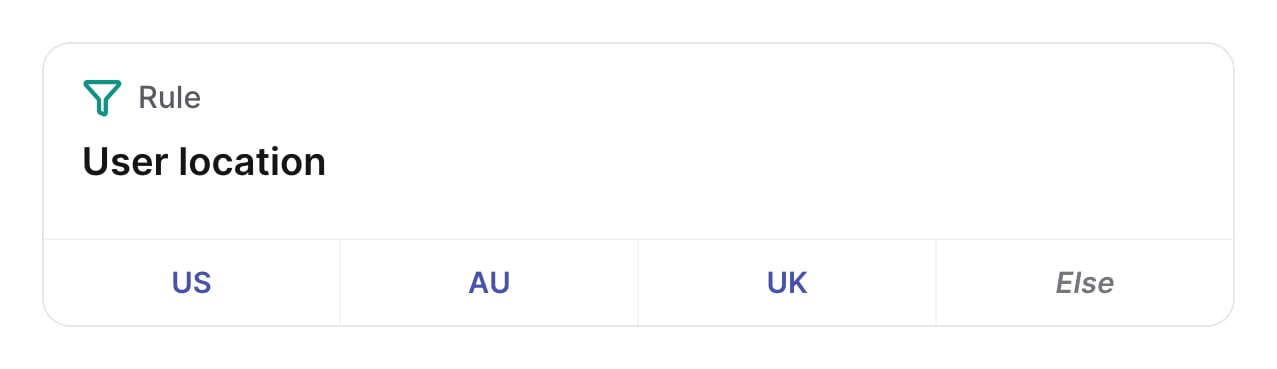
Users in the US, Australia and the UK each get their own branch
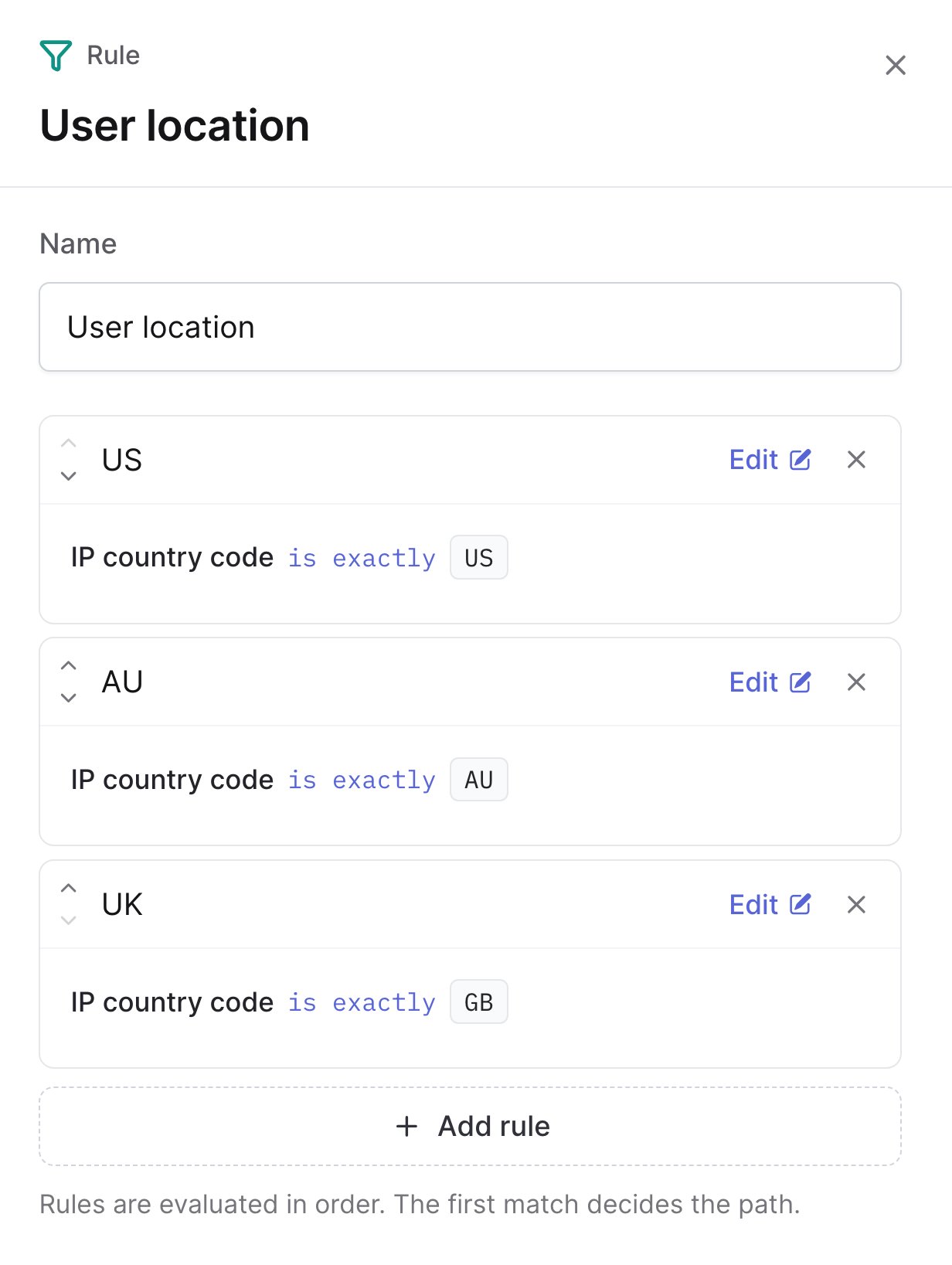
The node checks US first
Fields
Fields are grouped into categories in the field picker. Some need data that you pass in Start Flow’sattributes.
See risk signals for how Authsignal calculates signals such as impossible travel.
Operators
The operators you can choose depend on the field’s type.
In List and Not in list check a custom list. To compare a field with another field instead of a fixed value, open the menu next to the operator and choose Feature.