

Overview
WSO2 Identity Platform’s Custom Authentication lets you plug in an external authentication service as a step in any login flow. The Authsignal adapter implements that contract and delegates challenge orchestration to Authsignal, so users are redirected to the Authsignal pre-built UI to complete an MFA challenge before being returned to WSO2 Identity Platform to finish signing in.Prerequisites
- A WSO2 Identity Platform organization with an application configured for login.
- An Authsignal tenant with at least one authenticator enabled.
Authsignal configuration
1
Enable authenticators
In the Authenticators section of the Authsignal Portal, enable the authentication methods you want to offer as MFA factors (for example, SMS OTP, Email OTP, or Passkeys).
2
Get your API key
In the API Keys section of the Authsignal Portal, copy your tenant’s Server API key. You will paste this into the WSO2 Identity Platform connection in the next section.
WSO2 Identity Platform configuration
1. Create the Authsignal connection
In the WSO2 Identity Platform Console, go to Connections, click New Connection, and choose Custom Authenticator (Service-based). This opens the Custom Authentication wizard, which has three steps.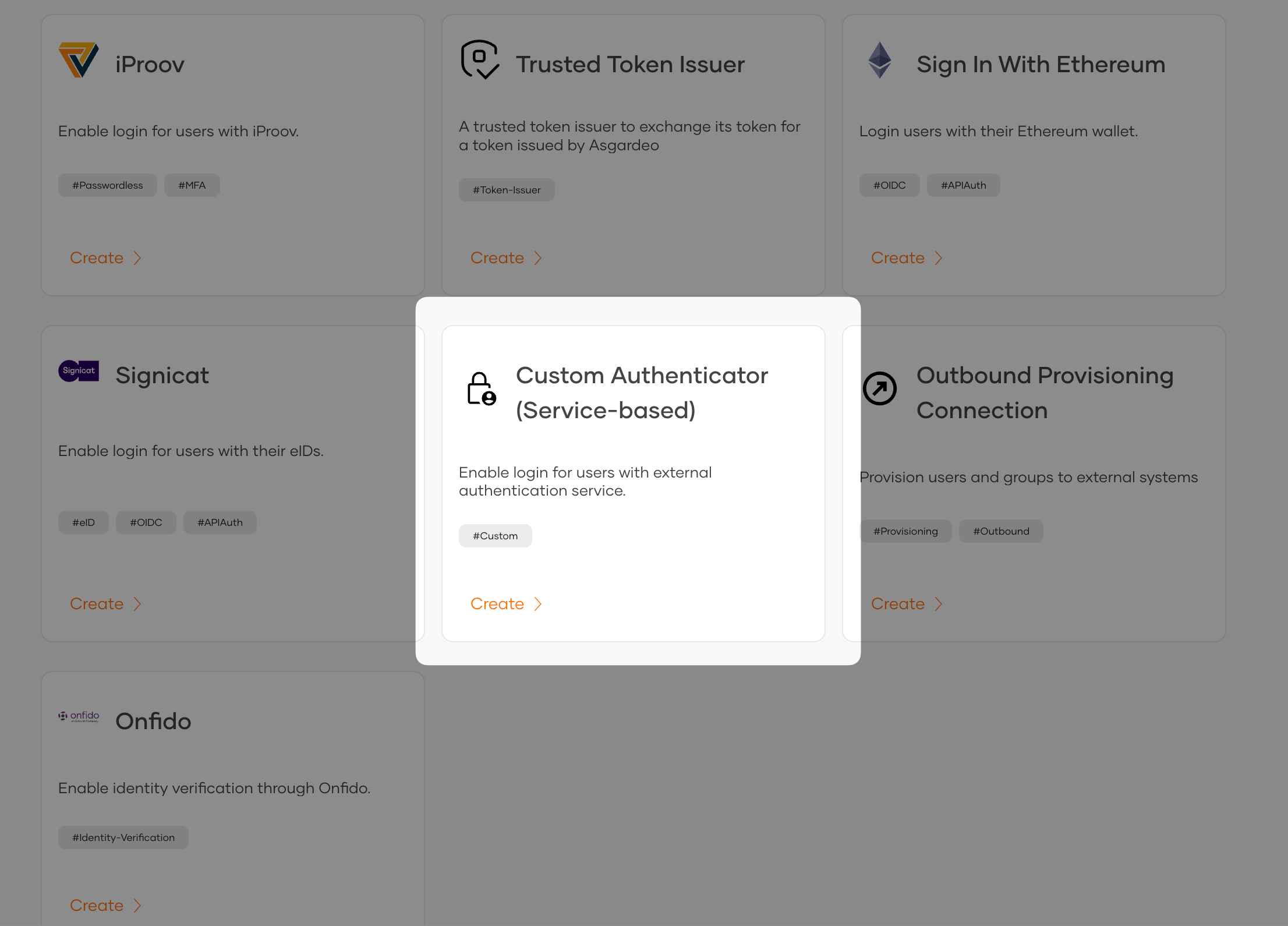
1
Authentication Type
Select 2FA Authentication and click Next.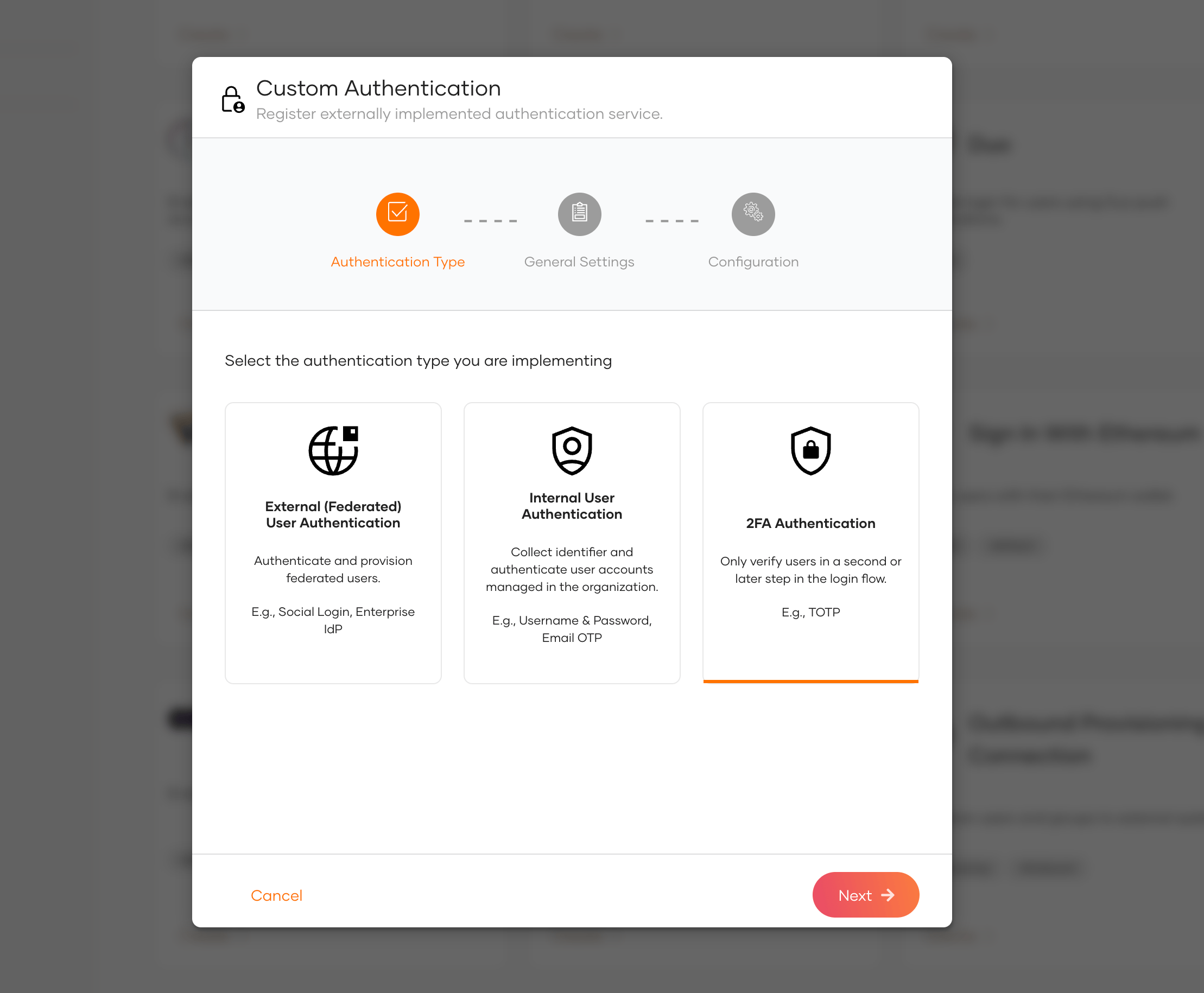
2
General Settings
Provide an Identifier and a Display Name.
3
Configuration
Set the Endpoint to the Authsignal adapter URL for your tenant’s region:Under Endpoint Authentication, select Basic as the scheme. Paste your Authsignal tenant’s Server API key into the Username field. The Password field is required by WSO2 Identity Platform but is not used by the adapter - enter any non-empty placeholder value. Click Finish.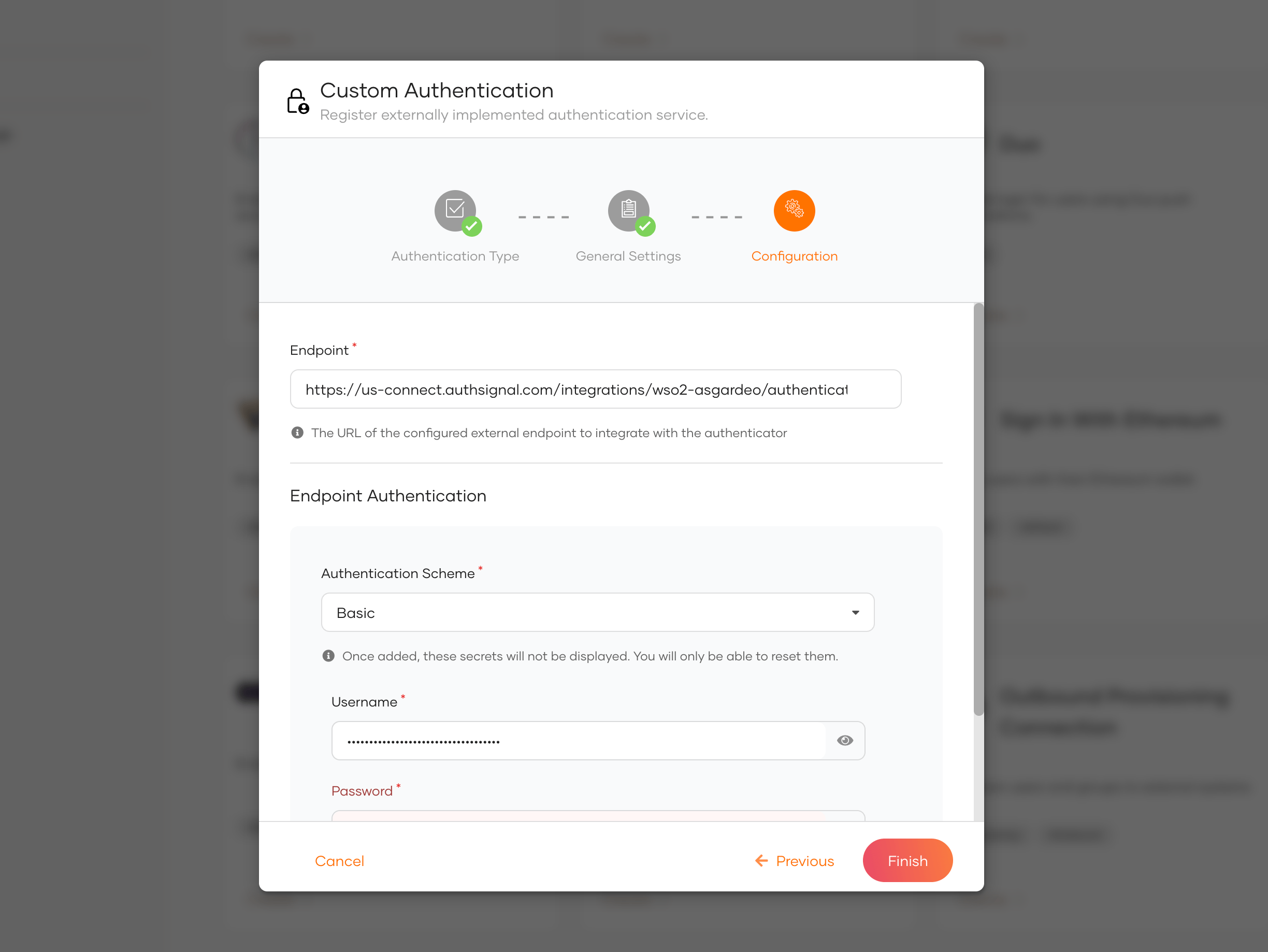
2. Add the connection to your login flow
1
Open your application
In the WSO2 Identity Platform Console, go to Applications and select the application you want to add MFA to.
2
Edit the login flow
On the Login Flow tab, keep your existing first step (for example, username and password) and add a new step.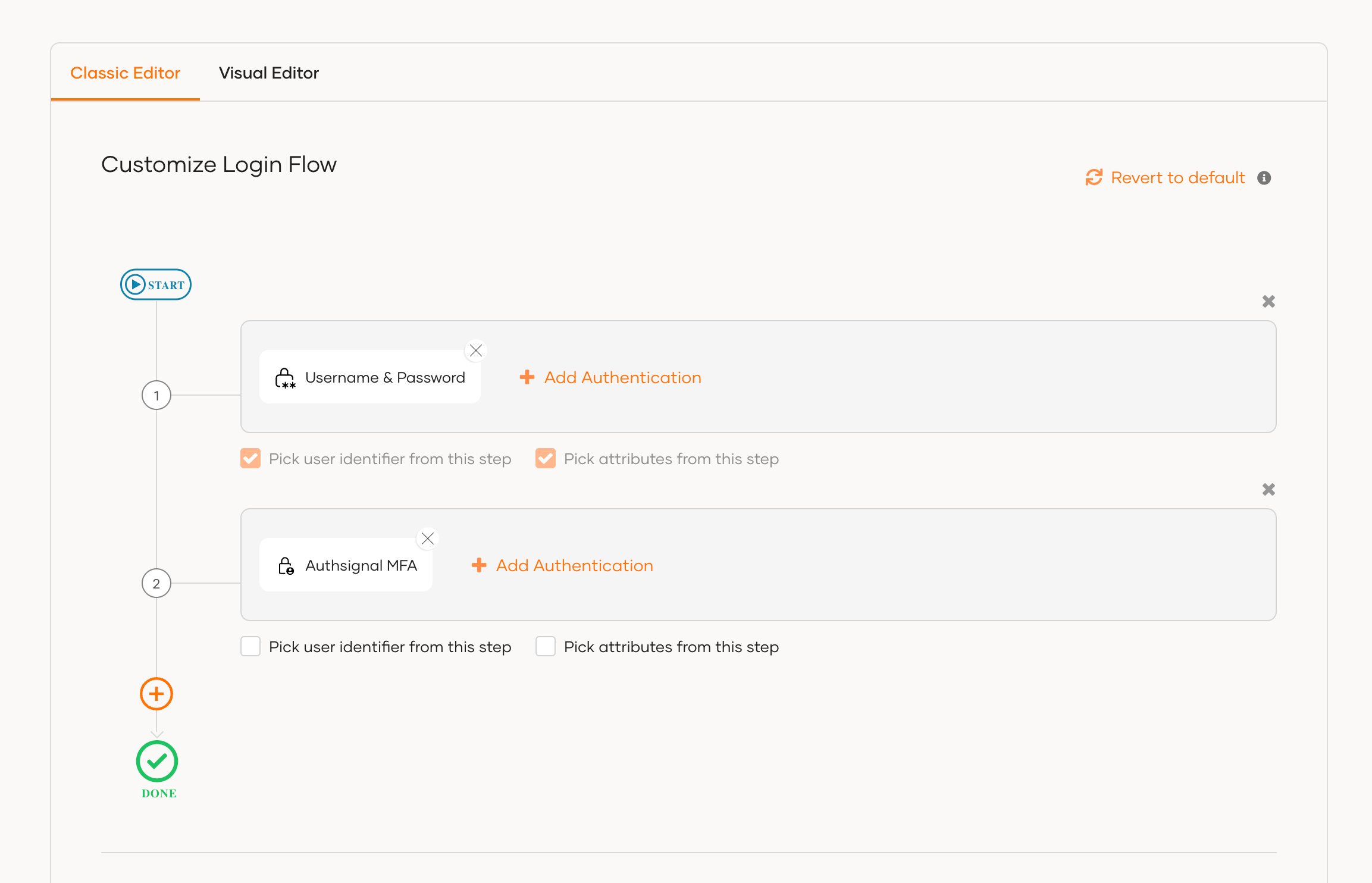
3
Add the Authsignal authenticator
In the new step, add the
Authsignal MFA connection you created. This step will run after the user completes the first factor. Then click Update to save the flow.