
Push delivery is best-effort. A challenge can always be completed from inside your app without a
notification - the notification is only a prompt to open the app. If a send fails, the challenge is
not failed; the failure is recorded as a timeline event so you can monitor delivery.
Choosing a provider
When you enable push verification you choose a push notification provider. The managed options are Default and Firebase. (The Webhook and Airship options keep the existing self-hosted delivery behavior - see Push verification.)
With the Default provider, the device platform decides the route: iOS devices are sent via APNs and all other devices via FCM. You only need to configure credentials for the platforms you target - APNs-only and FCM-only configurations are both valid.
Portal setup
Enable push verification for your tenant, then choose a push notification provider.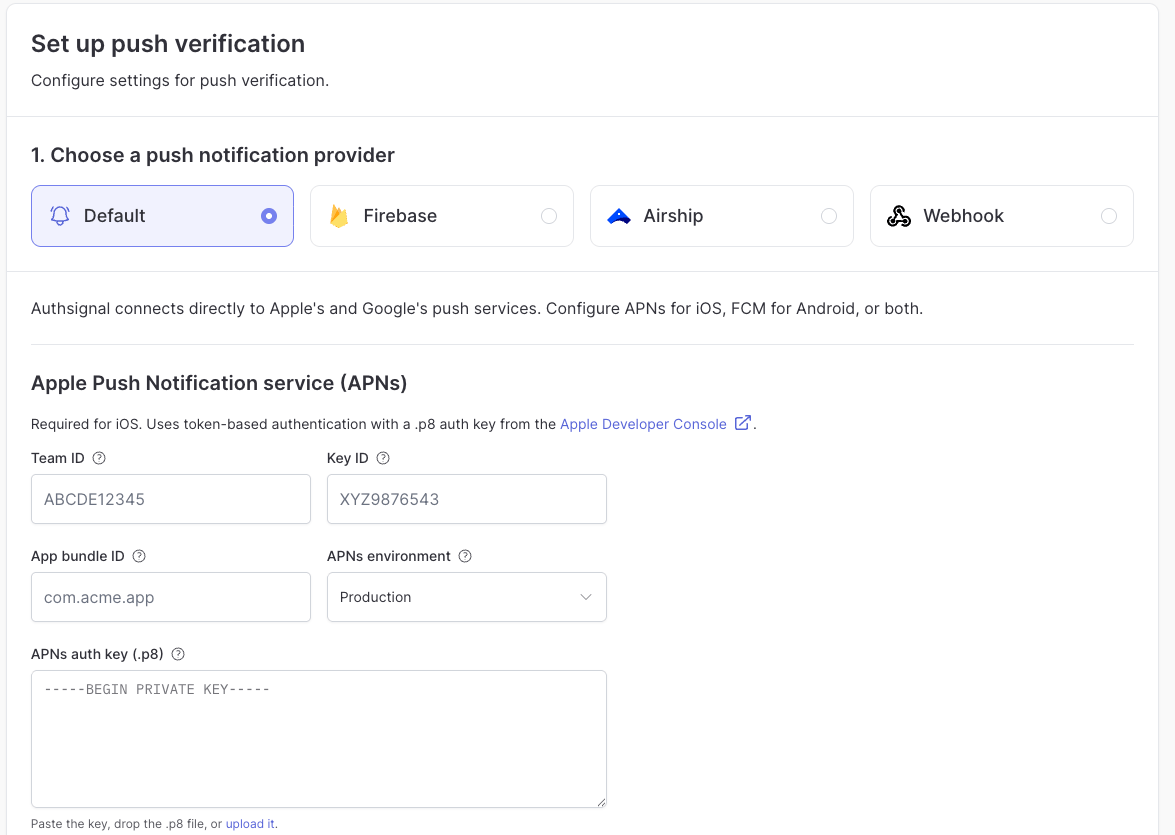
Choosing a managed push notification provider.
Default provider
Select Default to have Authsignal connect directly to Apple’s and Google’s push services. Configure the credentials for the platforms you support.Apple Push Notification service (APNs)
Required for iOS. Authsignal uses token-based authentication with a.p8 auth key downloaded from the Apple Developer Console.
To create the key, open the Apple Developer Console and go to Certificates, Identifiers & Profiles > Keys, then register a new key with Apple Push Notifications service (APNs) enabled. Download the
.p8 file when prompted, and note the Key ID shown alongside the key.
Firebase Cloud Messaging (FCM)
Required for Android. Authsignal uses the FCM HTTP v1 API with a service account JSON downloaded from the Firebase Console.
To get the JSON, open your project in the Firebase Console and go to Project settings > Service accounts, then click Generate new private key.
Firebase provider
Select Firebase if you use FCM as a cross-platform solution. Authsignal sends every notification - including to iOS devices - through Firebase Cloud Messaging.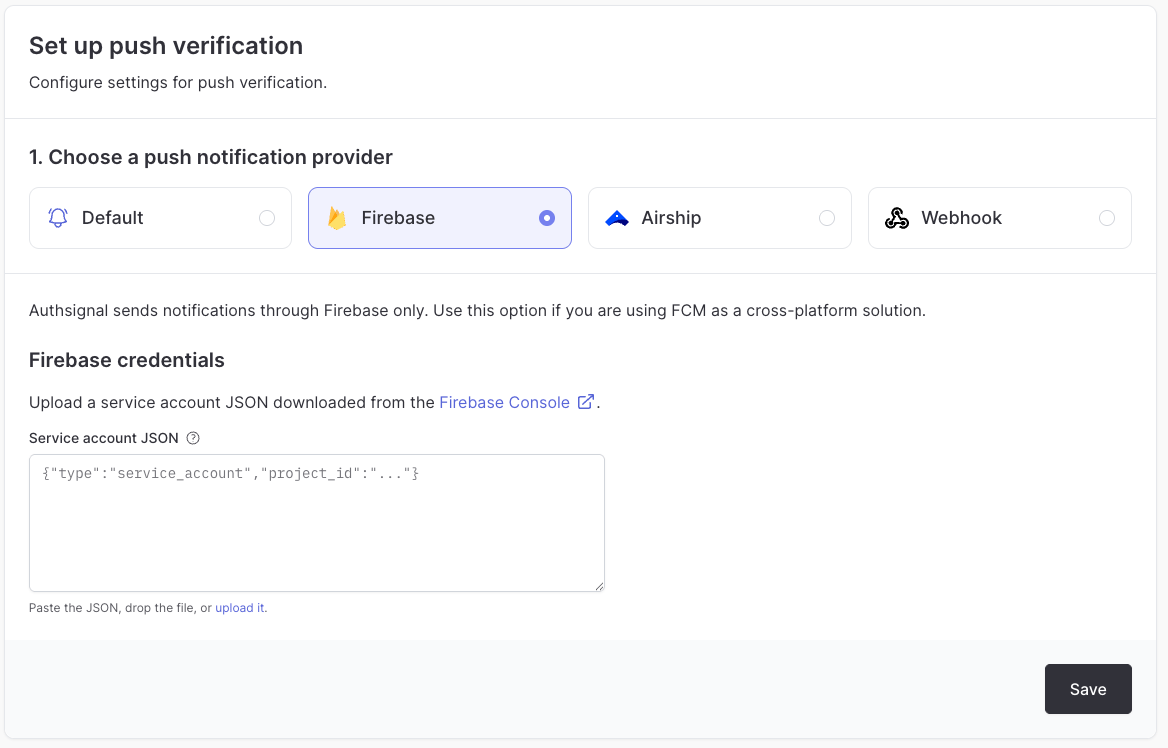
Configuring the Firebase provider with a service account JSON.
Registering push tokens
For Authsignal to deliver a notification, each enrolled device must have a push token registered against its credential. When you enroll a device for push verification with the Mobile SDK, pass the device’s push token toaddCredential. Authsignal stores the token with the credential and uses it, along with the device platform, to route the notification to the correct service.
Which token to register
The token you register must match the provider configured for your tenant:- Default provider - register the raw device push token. On iOS this is a raw APNs token, on Android it is an FCM token. Authsignal sends to APNs directly on iOS and FCM on Android.
- Firebase provider - register an FCM registration token on both platforms, including iOS.
Passing the token to the SDK
Pass the token you obtained toaddCredential:
Passing the push token is supported on the iOS SDK from
v2.7.1, the Android SDK from v3.8.1, the React Native SDK from v2.12.0, and the Flutter SDK from v2.6.0.Keeping the token current
Push tokens rotate over time - on reinstall, restore, or expiry - and a notification sent to a stale token is silently dropped. Both Apple and Google recommend registering the new token with your server as soon as the OS hands it to you. With Authsignal, register it (typically from a token-refresh callback and on app launch) using the SDK’s Update credential method, which refreshes the token on the existing credential without re-enrolling the device.Updating a credential’s push token requires the iOS SDK
v2.11.0, the Android SDK v4.1.0, or the React Native SDK v3.1.0 (or later).What gets sent
The notification payload is intentionally minimal. It carries a generic alert and thechallengeId of the pending challenge:
- APNs - an
alertnotification with a default sound, plus thechallengeIdin the payload. - FCM - a notification with the title
Authentication request, plus thechallengeIdin the message data.
challengeId to fetch the pending challenge with the Mobile SDK’s Get Challenge method, then presents the approve/reject prompt as described in Push verification.
Monitoring delivery
Because delivery is best-effort, failed sends never fail a challenge. Instead, Authsignal records a timeline event when a send fails - including the downstream provider name, status code, and an error description from APNs or FCM - so you can monitor and debug delivery issues. A successful send is also recorded as aPUSH_SENT event.
You can see these events on the user’s event timeline in the portal. Expand View more on a failed send to see the provider, status code, and error description returned by APNs or FCM.
Delivery outcomes are also available programmatically - see Detecting invalid push tokens.
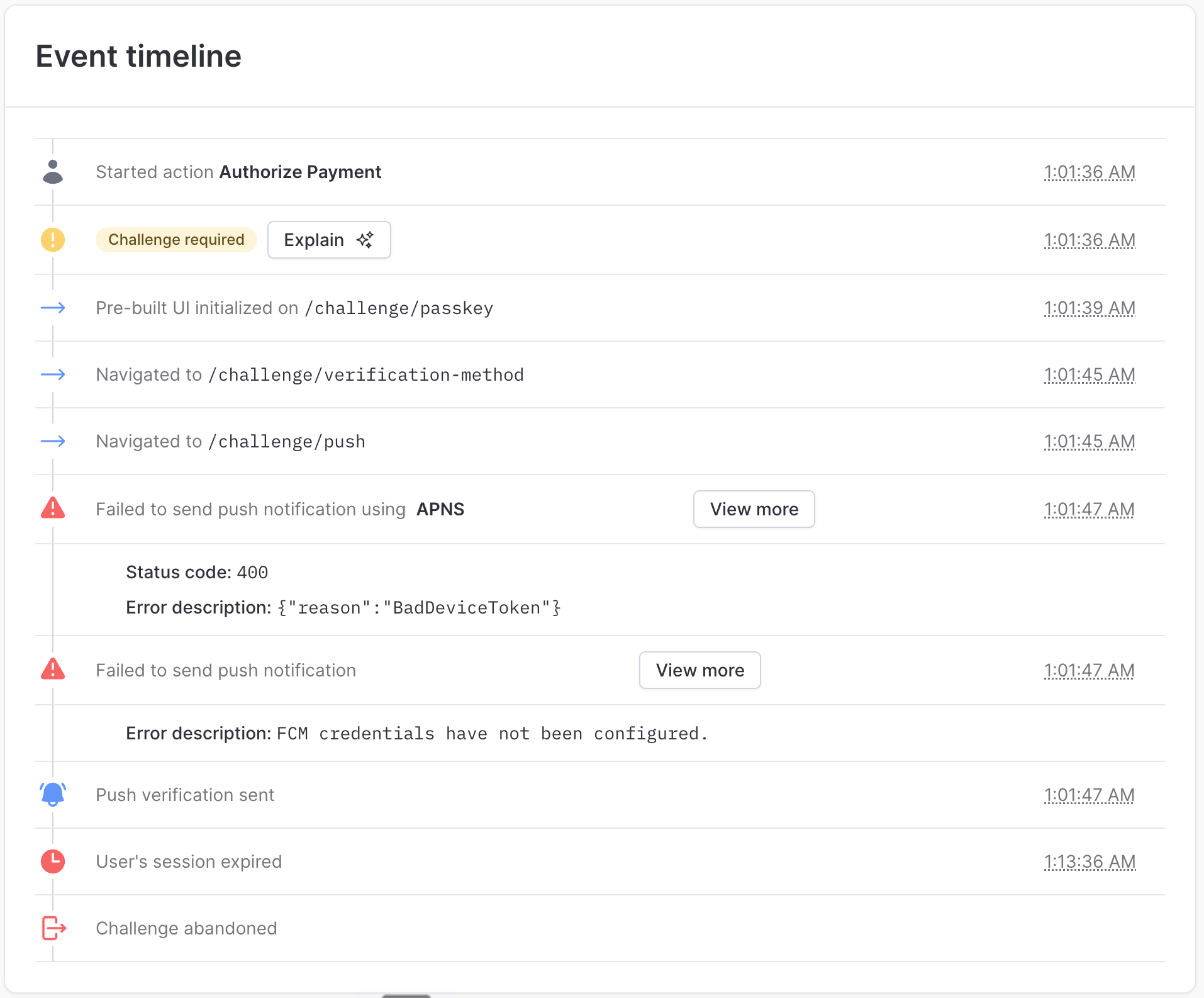
Failed push sends recorded on the event timeline, with the challenge still completable from the app.
Next steps
- Push verification - The full push verification flow, including enrollment and adaptive MFA
- Enrollment lifecycle - When to add credentials and register push tokens in your app
- Adaptive MFA - Trigger push verification based on risk