
- iOS: Uses Apple’s App Attest service to generate an attestation bound to the device.
- Android: Uses Google’s Play Integrity API to generate an integrity token. Authsignal uses the classic request type, which is suited to one-off checks of high-value actions such as credential enrollment.
Attestation requires the following minimum SDK versions: iOS 2.5.0, Android 3.6.0,
React Native 2.9.0.
Portal setup
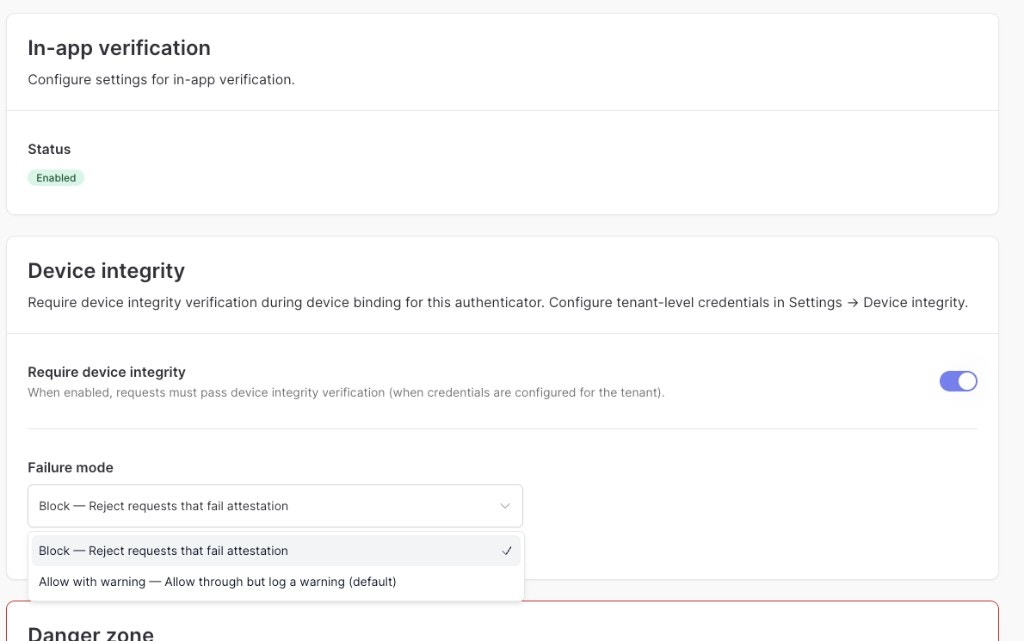
Enable attestation for your tenant in the Authsignal Portal.Configuration
Controls how the server handles attestation results during credential enrollment.
- Block - Enrollment is rejected if attestation fails or is not provided. When validating the challenge on your backend, the
statewill beBLOCK- your backend should handle this by denying access or preventing the user from proceeding. - Review required - Enrollment is allowed but the credential is flagged for review if attestation fails. When validating the challenge on your backend, the
statewill beREVIEW_REQUIRED- your backend should handle this appropriately, for example by restricting access to certain features or flagging the user for manual review.
boolean
When enabled, accepts attestations from development builds. This should be enabled during development and testing, and disabled in production.
- iOS: Accepts attestations from apps signed with a development provisioning profile (App Attest sandbox environment).
- Android: Not applicable - Play Integrity requires distribution via the Google Play Store (including internal testing tracks). For local development builds not distributed via Play, set
performAttestationtofalsein your SDK calls.
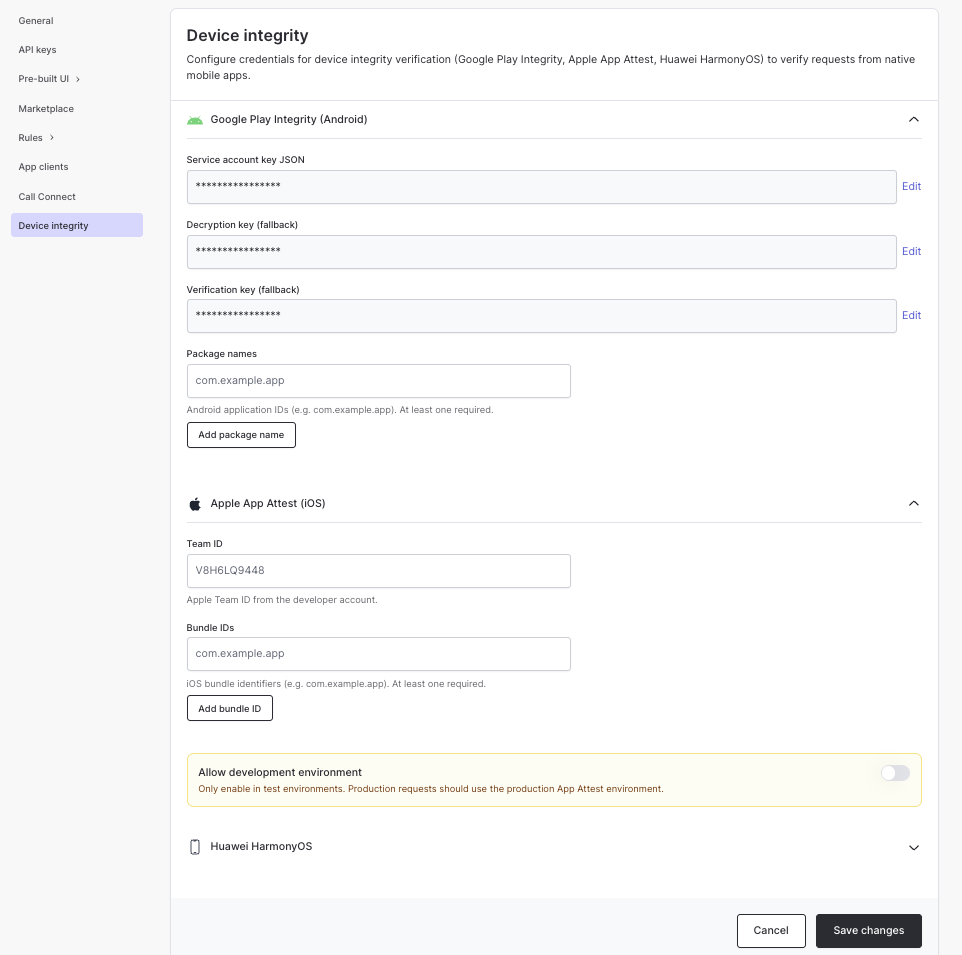
Platform-specific configuration
- iOS (App Attest)
- Android (Play Integrity)
string
required
Your Apple Developer Team ID. Found in the Apple Developer Portal under Membership details.
string[]
required
The bundle identifiers of apps which are permitted to enroll credentials. Must match the bundle ID of your app as configured in Xcode.
SDK integration
To enable attestation, passperformAttestation: true when adding a credential. The token parameter is a short-lived token obtained by tracking an action from your backend.
On the client side, call addCredential with performAttestation: true. The example below uses the push namespace. If you’re implementing QR code or in-app verification, replace push with qr or inapp.
addCredential method, refer to the SDK documentation for in-app verification or push verification.
Handling client errors
If attestation fails (e.g. unsupported device, emulator, or network issue),addCredential will return an error.
You can safely ignore this error on the client side - the action will remain in a
non-
CHALLENGE_SUCCEEDED state, and your backend will handle it when calling validate
challenge.Server-side validation
Authsignal verifies the attestation server-side during credential enrollment. However, it is up to your backend to decide what to do with the result. After a user completes app verification, call validate challenge from your backend using the enrollment token. The response includes astate field that reflects the outcome of the attestation.
Your backend should use this state to make business logic decisions - for example, provisioning services, issuing vouchers, or granting access to sensitive features.
Attestation result
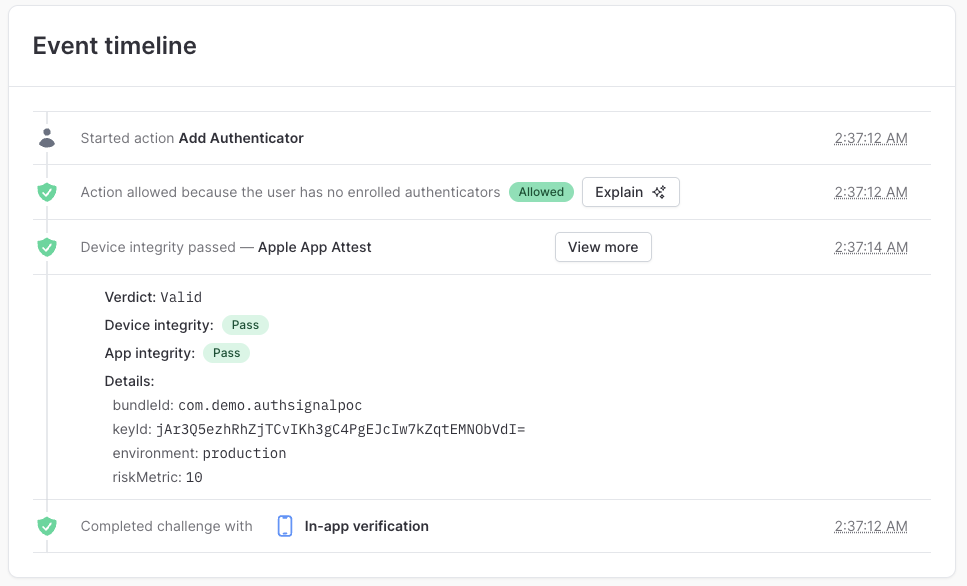
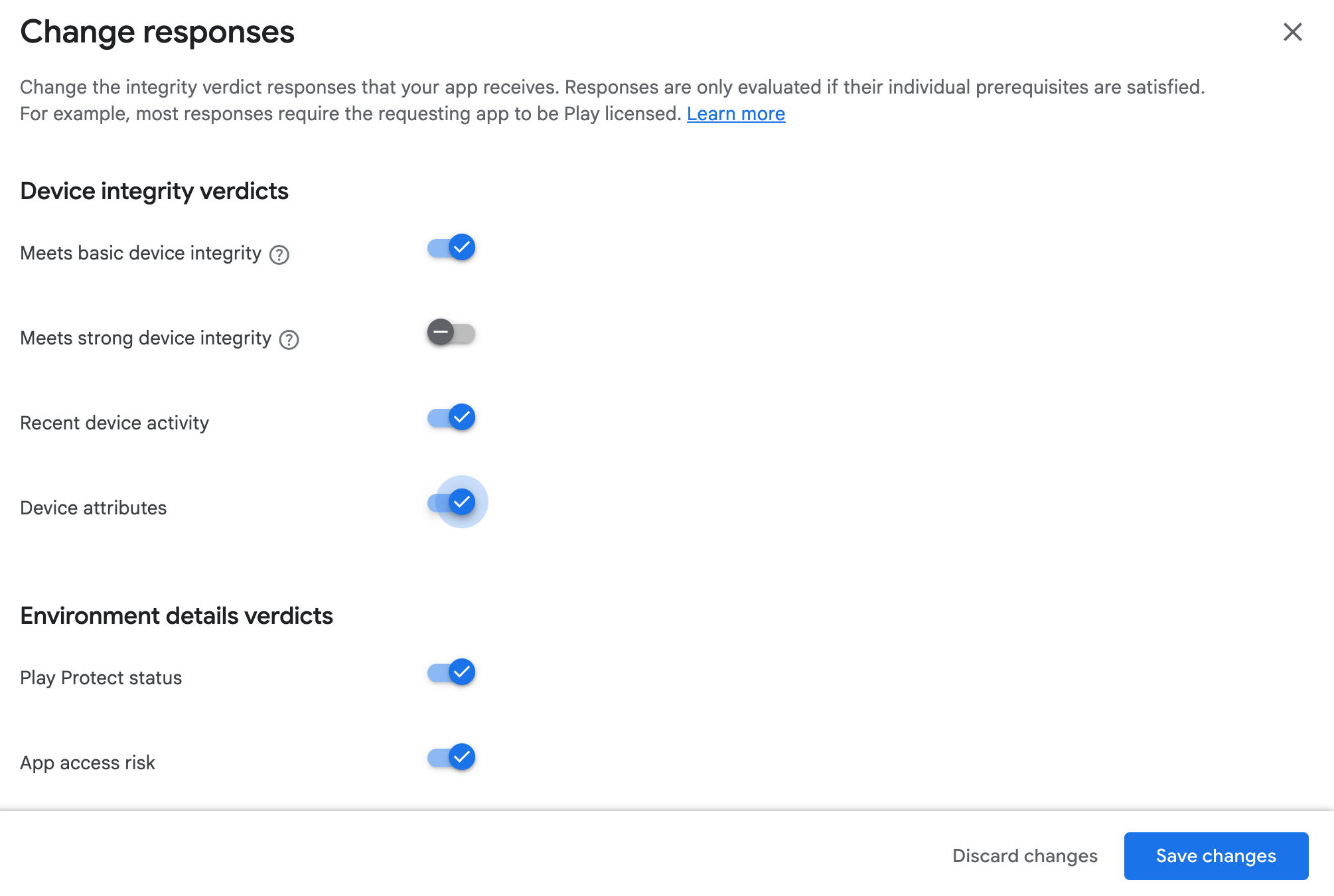
On your server, after calling validate challenge, you can retrieve the full attestation result by calling getAction before allowing the user to continue. The following fields are returned in theoutput.device.attestationResult object of the getAction response. The fields present depend on the platform and what verdicts are enabled.
- iOS (App Attest)
- Android (Play Integrity)
Fraud risk metric
You can optionally configure a DeviceCheck-enabled key to fetch a fraud risk metric from Apple after attestation.To enable this, add your DeviceCheck Key ID and private key in the Authsignal Portal under the iOS (App Attest) configuration. Create the key in the Apple Developer portal under Keys with the DeviceCheck service enabled.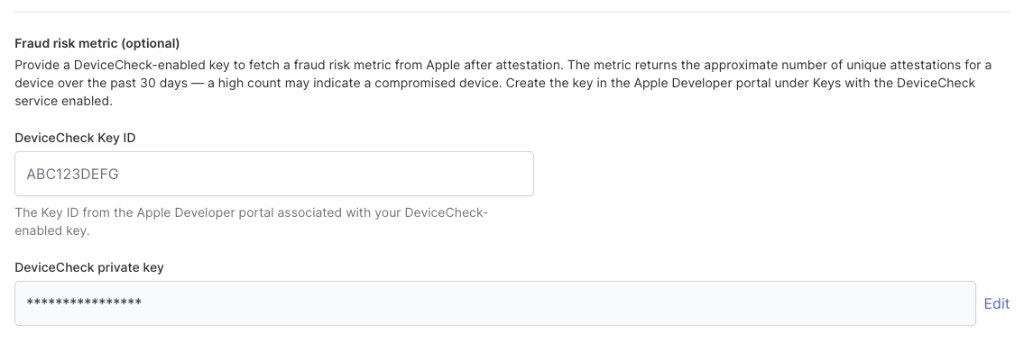
Response
getAction response: output.device.attestationResult
Next steps
- In-app verification - Set up in-app verification for your mobile app
- Push verification - Set up push verification for your mobile app
- Enrollment lifecycle - Learn when to enroll and un-enroll users
- Adaptive MFA - Set up rules to trigger authentication based on risk