> ## Documentation Index
> Fetch the complete documentation index at: https://docs.authsignal.com/llms.txt
> Use this file to discover all available pages before exploring further.
# Use static OTP codes to complete challenges
> Configure sandbox mode and a fixed OTP code for automated authentication tests.
Sandbox mode lets automated tests complete supported challenges with a static OTP code, called a **Sandbox code** in the Authsignal Portal. Unlike [bypassing challenges with rules](/knowledge-base/testing/bypass-challenges-with-rules), this approach lets the test follow the authentication journey through Authsignal's [pre-built UI](/implementation-options/prebuilt-ui/overview) or your custom UI.
Never enable sandbox mode on a production tenant. Use a separate tenant for development or
automated testing. The configured sandbox code can complete challenges for that authenticator
across the tenant while sandbox mode is enabled.
## Prerequisites
* A separate Authsignal tenant for development or automated testing.
* At least one supported authentication method configured on the tenant.
* An application integrated with Authsignal's pre-built UI or a custom challenge UI.
* A test user that can reach the authentication challenge.
## Supported authentication methods
Static sandbox codes are supported for:
* **Email OTP**
* **SMS OTP**
* **Authenticator app (TOTP)**
Other authentication methods do not support a static sandbox code.
## Enable sandbox mode on the tenant
1. In the Authsignal Portal, open **Settings** and select **General**.
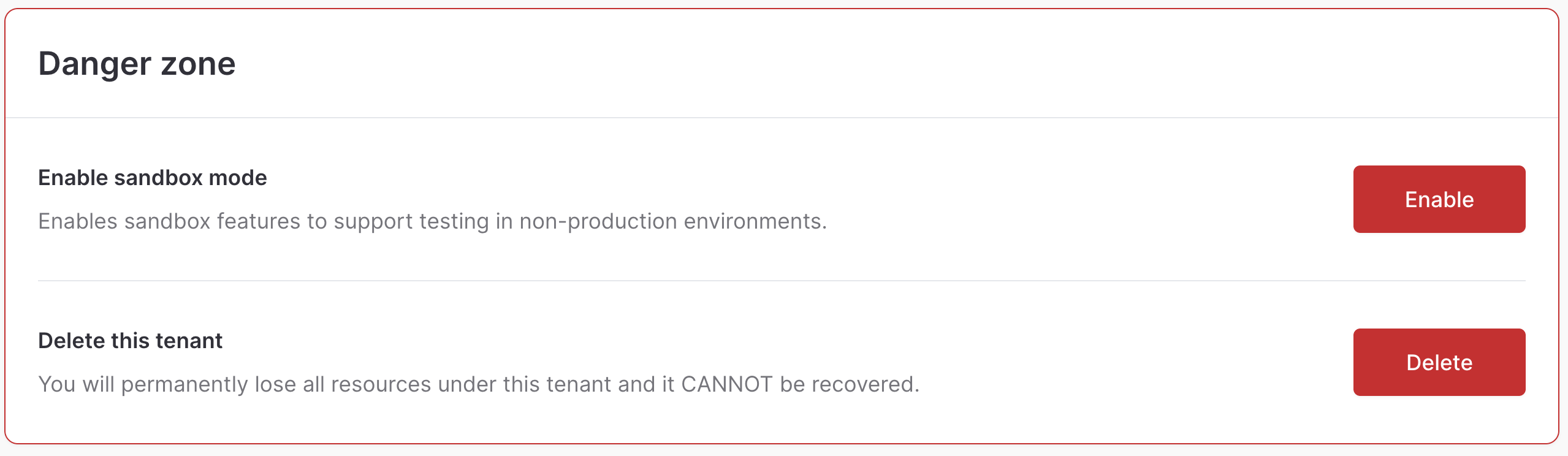
2. In the **Danger zone**, find **Enable sandbox mode** and click **Enable**.
3. Enter `ENABLE SANDBOX` in the confirmation dialog and click **Confirm**.
 ## Configure a sandbox code
Configure each authentication method that your automated tests use:
1. Open **Authenticators** and select **Email OTP**, **SMS OTP**, or **Authenticator app (TOTP)**.
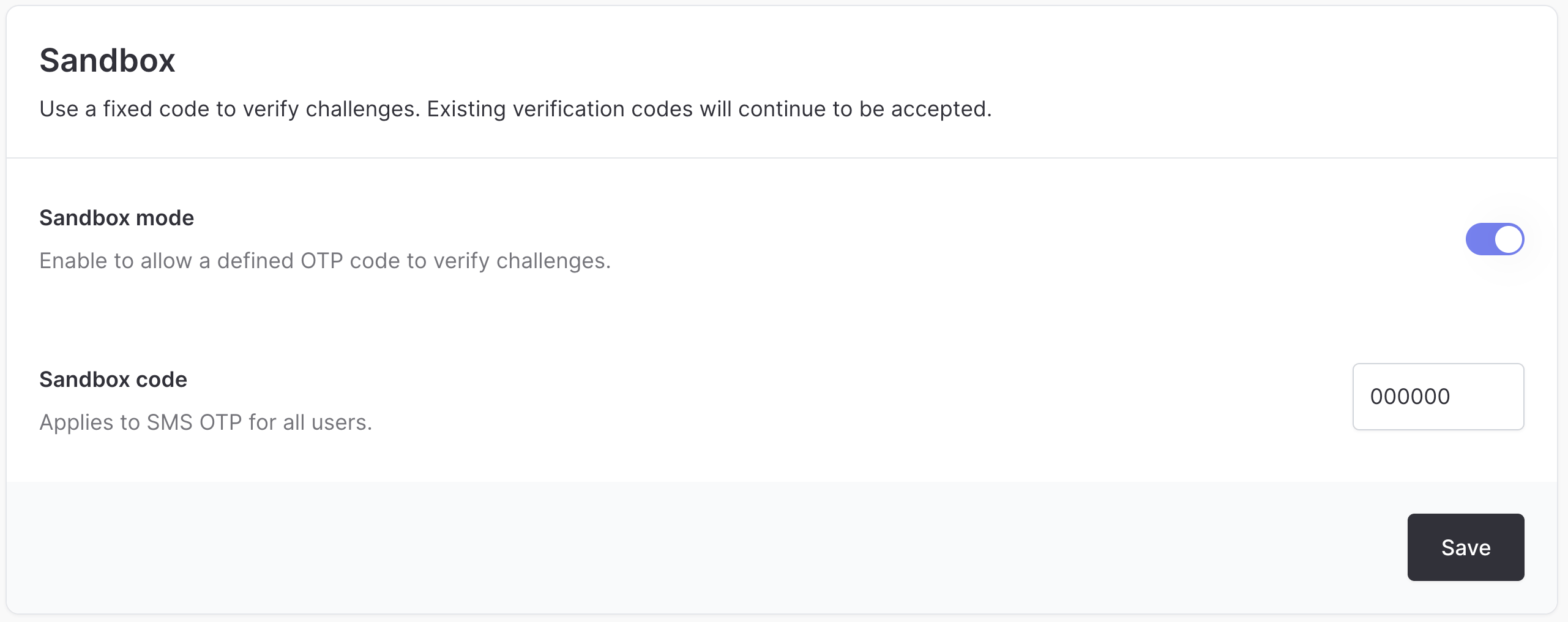
2. In the **Sandbox** section, turn on **Sandbox mode**.
3. Enter a six-digit **Sandbox code**.
4. Click **Save**.
You can configure a different code for each supported authenticator. Both tenant sandbox mode and authenticator sandbox mode must be enabled for a sandbox code to work.
## Configure a sandbox code
Configure each authentication method that your automated tests use:
1. Open **Authenticators** and select **Email OTP**, **SMS OTP**, or **Authenticator app (TOTP)**.
2. In the **Sandbox** section, turn on **Sandbox mode**.
3. Enter a six-digit **Sandbox code**.
4. Click **Save**.
You can configure a different code for each supported authenticator. Both tenant sandbox mode and authenticator sandbox mode must be enabled for a sandbox code to work.
 ## Use the code in an automated test
1. Start the action or flow for a test user as your application normally would.
2. Launch Authsignal's pre-built UI, or present the challenge in your custom UI.
3. Start or reach the configured Email OTP, SMS OTP, or Authenticator app (TOTP) challenge.
4. Enter the configured sandbox code.
5. Continue the test using the successful challenge result.
The one-time code generated by Authsignal for an Email OTP or SMS OTP challenge remains accepted while a sandbox code is configured, as does a current code from an enrolled authenticator app. Disable sandbox mode when the tenant is no longer being used for automated testing.
Using a sandbox code does not verify that an OTP was delivered by your email or SMS provider. Test message delivery separately if it is part of your test coverage.
## Use the code in an automated test
1. Start the action or flow for a test user as your application normally would.
2. Launch Authsignal's pre-built UI, or present the challenge in your custom UI.
3. Start or reach the configured Email OTP, SMS OTP, or Authenticator app (TOTP) challenge.
4. Enter the configured sandbox code.
5. Continue the test using the successful challenge result.
The one-time code generated by Authsignal for an Email OTP or SMS OTP challenge remains accepted while a sandbox code is configured, as does a current code from an enrolled authenticator app. Disable sandbox mode when the tenant is no longer being used for automated testing.
Using a sandbox code does not verify that an OTP was delivered by your email or SMS provider. Test message delivery separately if it is part of your test coverage.