> ## Documentation Index
> Fetch the complete documentation index at: https://docs.authsignal.com/llms.txt
> Use this file to discover all available pages before exploring further.
# Bypass challenges using rules
> Skip Authsignal challenges for test users with an ALLOW outcome or Complete node.
You can use a rule to let automated test users proceed without completing an authentication challenge. This approach skips the challenge screen entirely, so it is useful when you want to test the surrounding application journey rather than the authentication flow.
This approach does not test Authsignal's [pre-built
UI](/implementation-options/prebuilt-ui/overview), your custom challenge UI, the redirect to and
from Authsignal, or the configured authentication methods. To include those parts of the journey,
use [static OTP codes](/knowledge-base/testing/static-otp-codes) instead.
## Prerequisites
* A Classic or Flow action that your application uses for testing.
* A dedicated user ID, or set of user IDs, for automated tests.
* Access to edit rules and, for a Flow action, publish the flow in the Authsignal Portal.
## Choose the action type
The configuration differs by action type:
* A **Classic action** uses rules to return a single outcome, such as `ALLOW` or `CHALLENGE`.
* A **Flow action** follows connected nodes in the flow editor. A rule node selects the next branch when its conditions match.
## Identify test users
Use dedicated user IDs for automated tests. For a single test user, a rule can compare `user.id` directly with that user's ID.
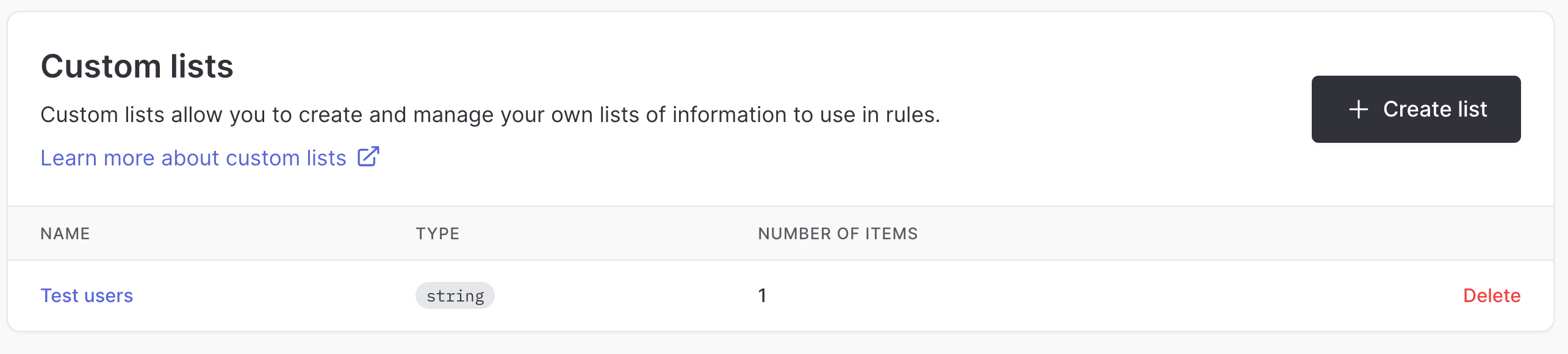
For multiple test users, create a string [custom list](/actions-rules/rules/custom-lists) and add each test user ID to it. The rule can then use the `user.id` feature with the `In List` operator. A custom list lets you add or remove test users without changing the rule.
 ## Bypass a Classic action
1. In the Authsignal Portal, open the Classic action and select **Rules**.
2. Create a rule for test users.
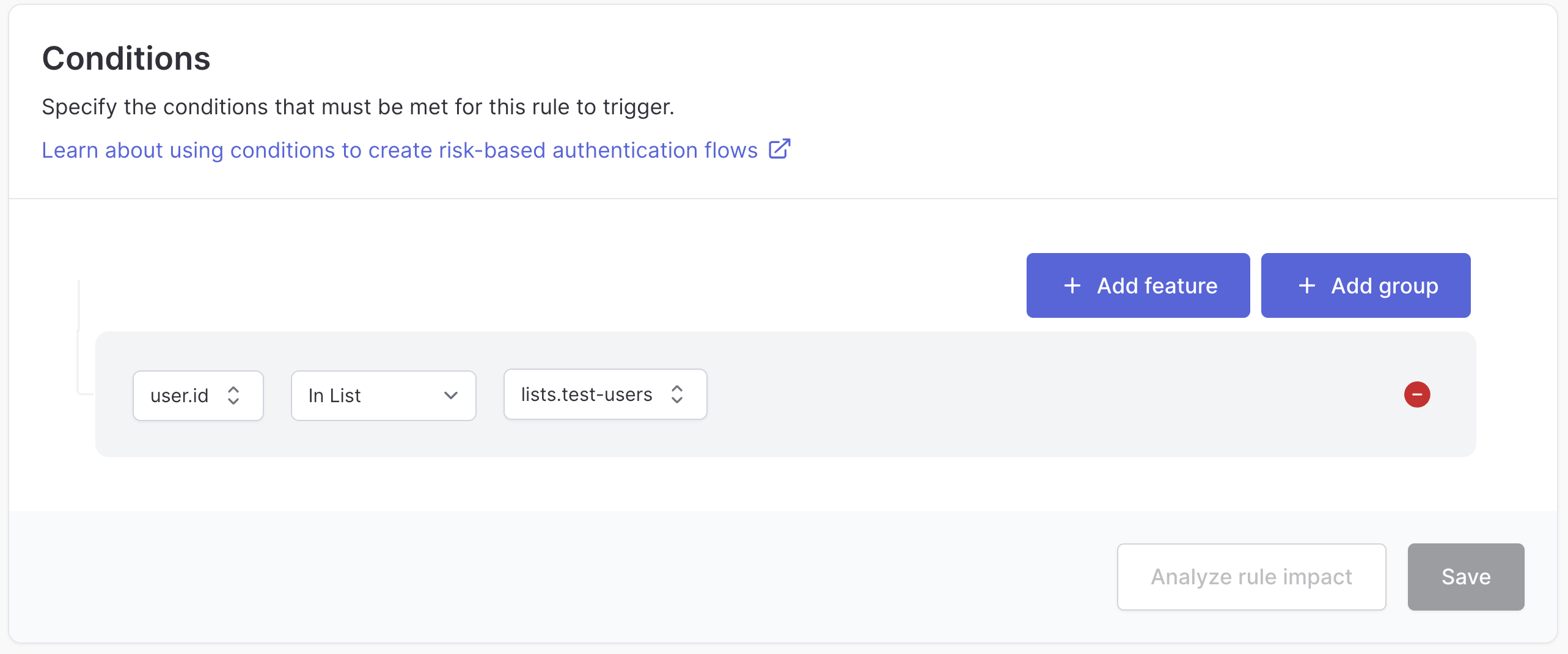
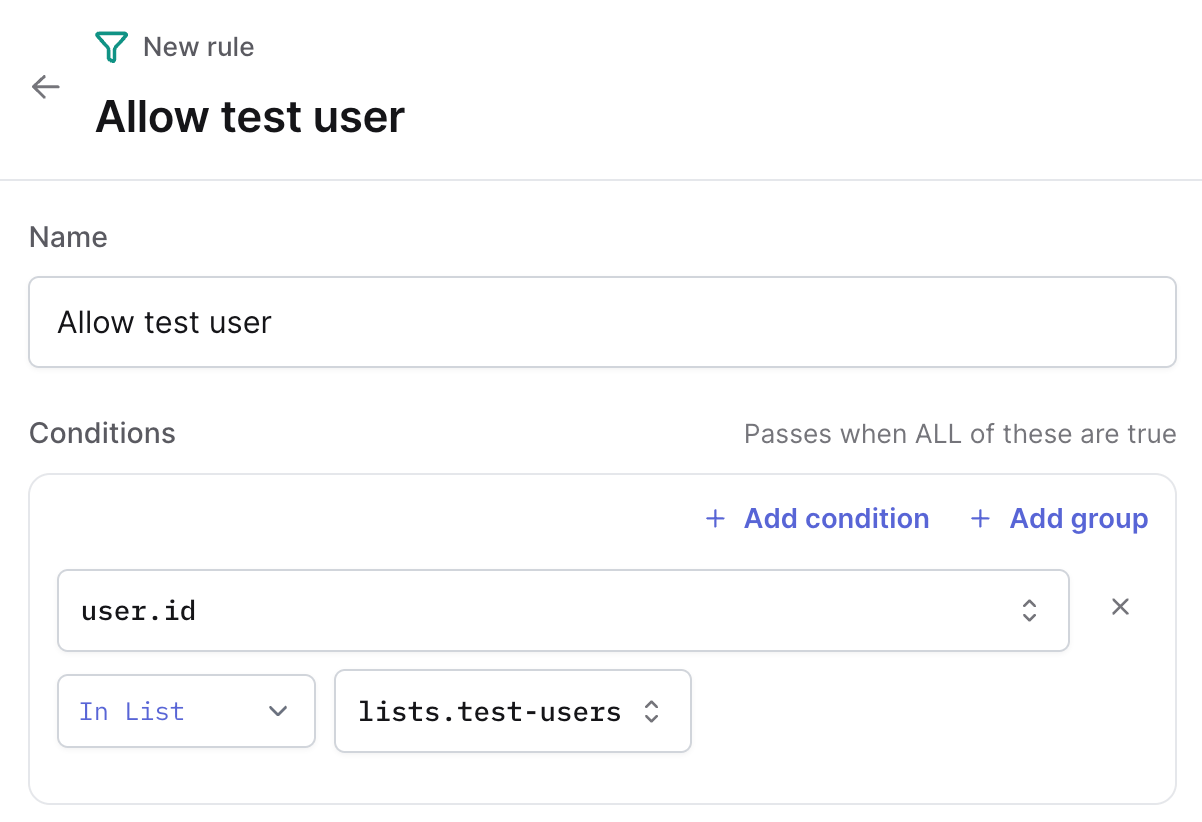
3. Add a condition that matches the test user ID. If you created a custom list, select `user.id`, choose `In List`, and select the list.
4. Set the rule's **Outcome** to `ALLOW`.
5. Save the rule.
When the condition matches, the action is allowed without showing a challenge.
## Bypass a Classic action
1. In the Authsignal Portal, open the Classic action and select **Rules**.
2. Create a rule for test users.
3. Add a condition that matches the test user ID. If you created a custom list, select `user.id`, choose `In List`, and select the list.
4. Set the rule's **Outcome** to `ALLOW`.
5. Save the rule.
When the condition matches, the action is allowed without showing a challenge.
 ## Bypass a Flow action
1. In the flow editor, add or select a rule node.
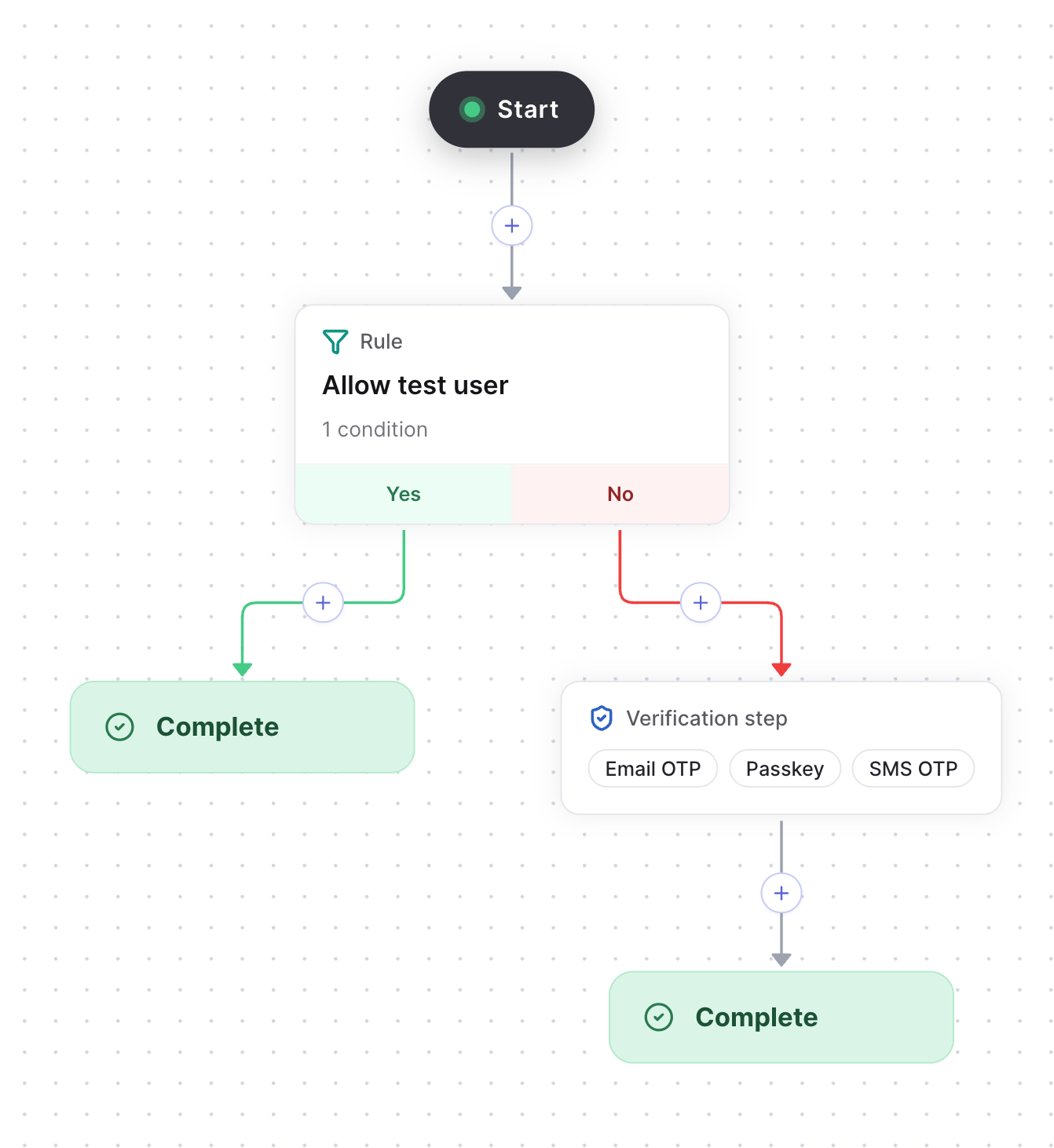
2. Configure the rule to match the test user ID or the custom list of test user IDs.
3. Connect the matching branch directly to a **Complete** node.
4. Publish the flow.
When the condition matches, the flow proceeds to **Complete** without showing a verification step.
## Bypass a Flow action
1. In the flow editor, add or select a rule node.
2. Configure the rule to match the test user ID or the custom list of test user IDs.
3. Connect the matching branch directly to a **Complete** node.
4. Publish the flow.
When the condition matches, the flow proceeds to **Complete** without showing a verification step.
 ## Keep the bypass limited to tests
* Do not add these rules to production environments.
* Use user IDs that are reserved for automated testing.
* Prefer a custom list when you have more than one test user.
* Review the list regularly and remove IDs that are no longer used.
## Keep the bypass limited to tests
* Do not add these rules to production environments.
* Use user IDs that are reserved for automated testing.
* Prefer a custom list when you have more than one test user.
* Review the list regularly and remove IDs that are no longer used.