> ## Documentation Index
> Fetch the complete documentation index at: https://docs.authsignal.com/llms.txt
> Use this file to discover all available pages before exploring further.
# Generate code from the dev tenant
> Configure the dev tenant in the Authsignal Portal and have Terraform generate the matching code.
Terraform reads the dev tenant and writes the matching code. You then tidy it into the module in [Build the module from the generated code](/knowledge-base/terraform/build-module).
Generating is the quickest way to start, but it's optional. The blocks can also be written by hand from the resource docs on the [Terraform Registry](https://registry.terraform.io/providers/authsignal/authsignal/latest/docs). In that case, configure dev as in step 1 below, then go straight to [Build the module from the generated code](/knowledge-base/terraform/build-module) and use its examples as the starting point.
## Prerequisites
* Terraform 1.11 or later.
* The dev tenant's ID and Management API secret key.
* The repository set up as in [How the repository is set up](/knowledge-base/terraform/repository-setup).
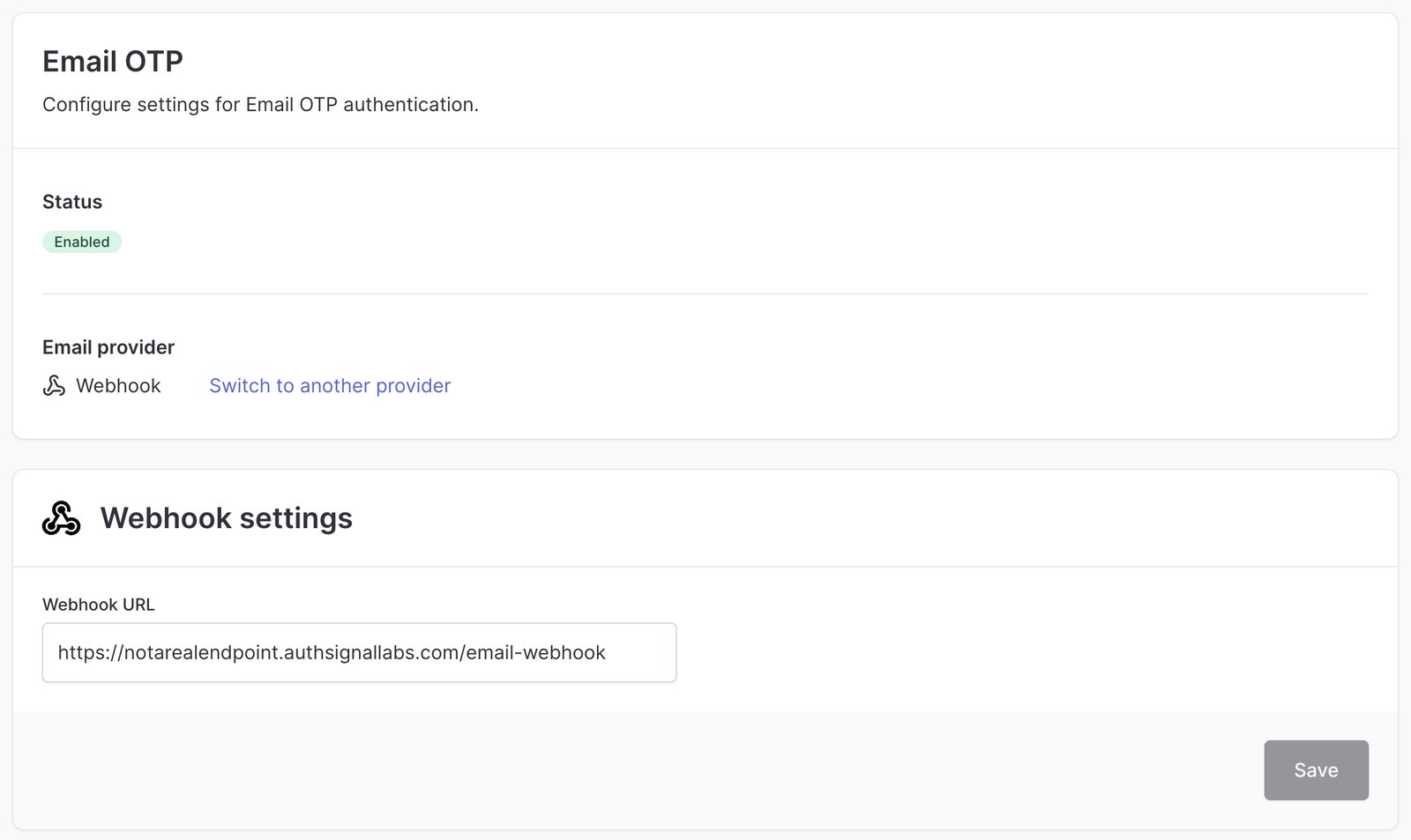
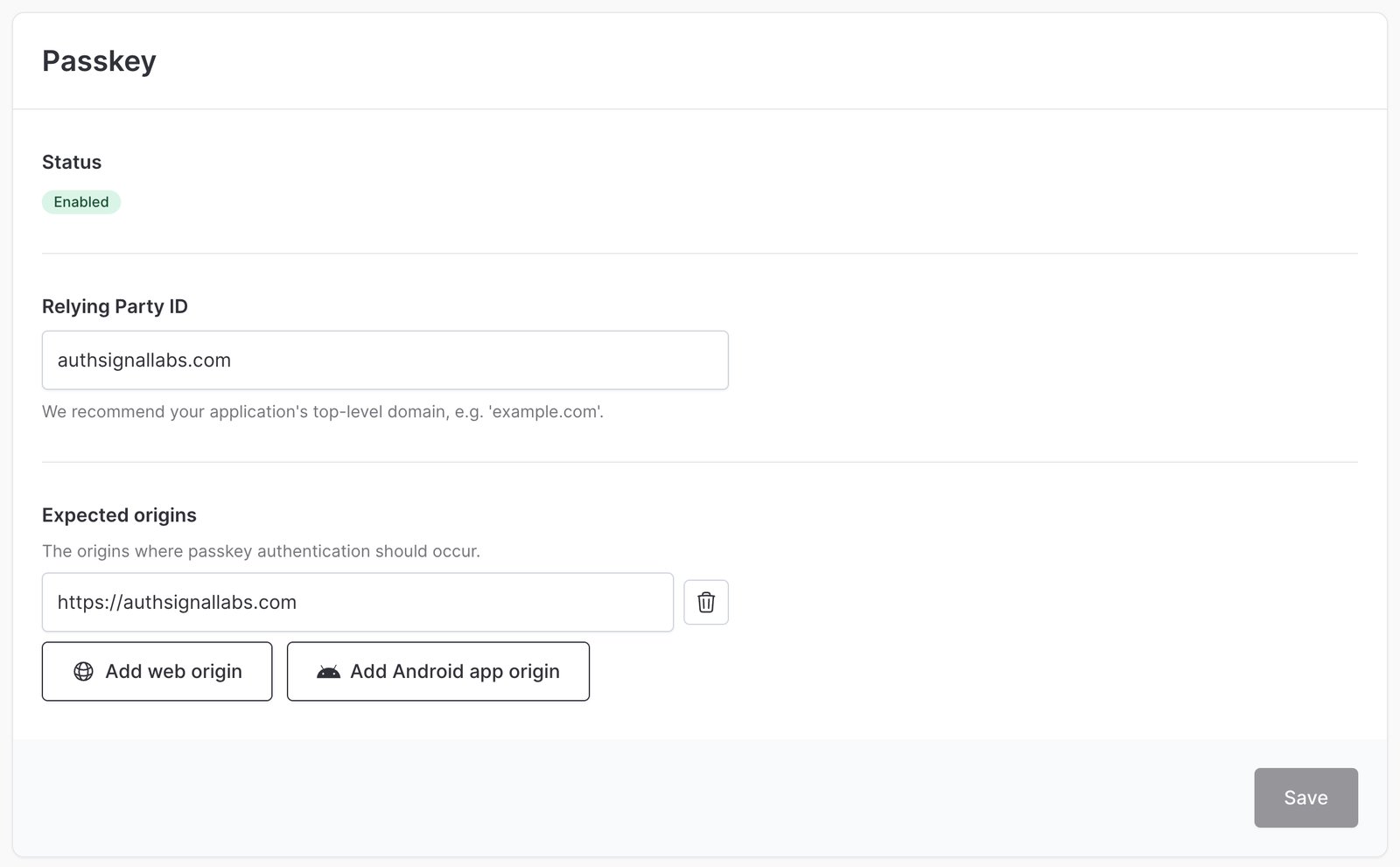
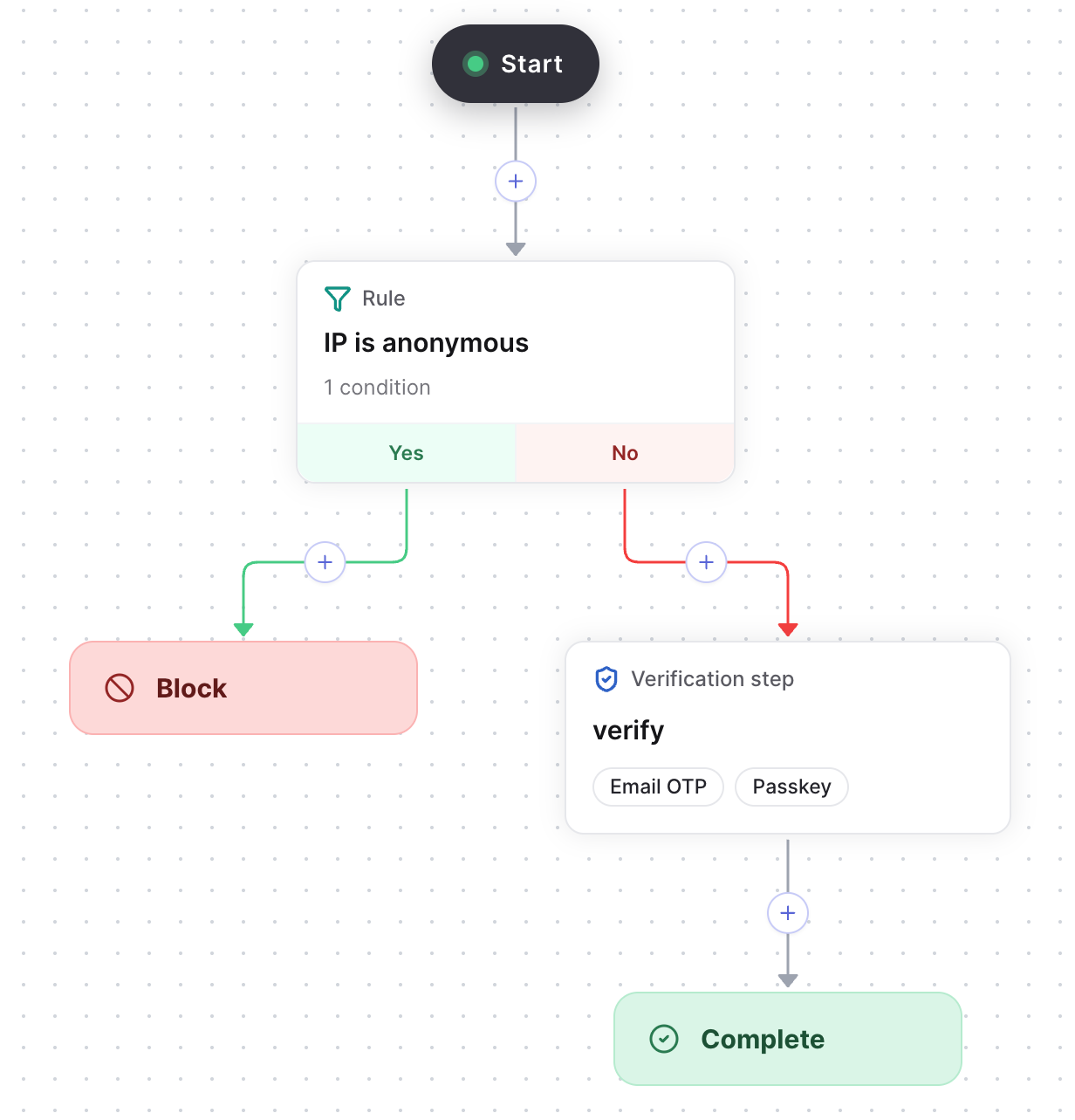
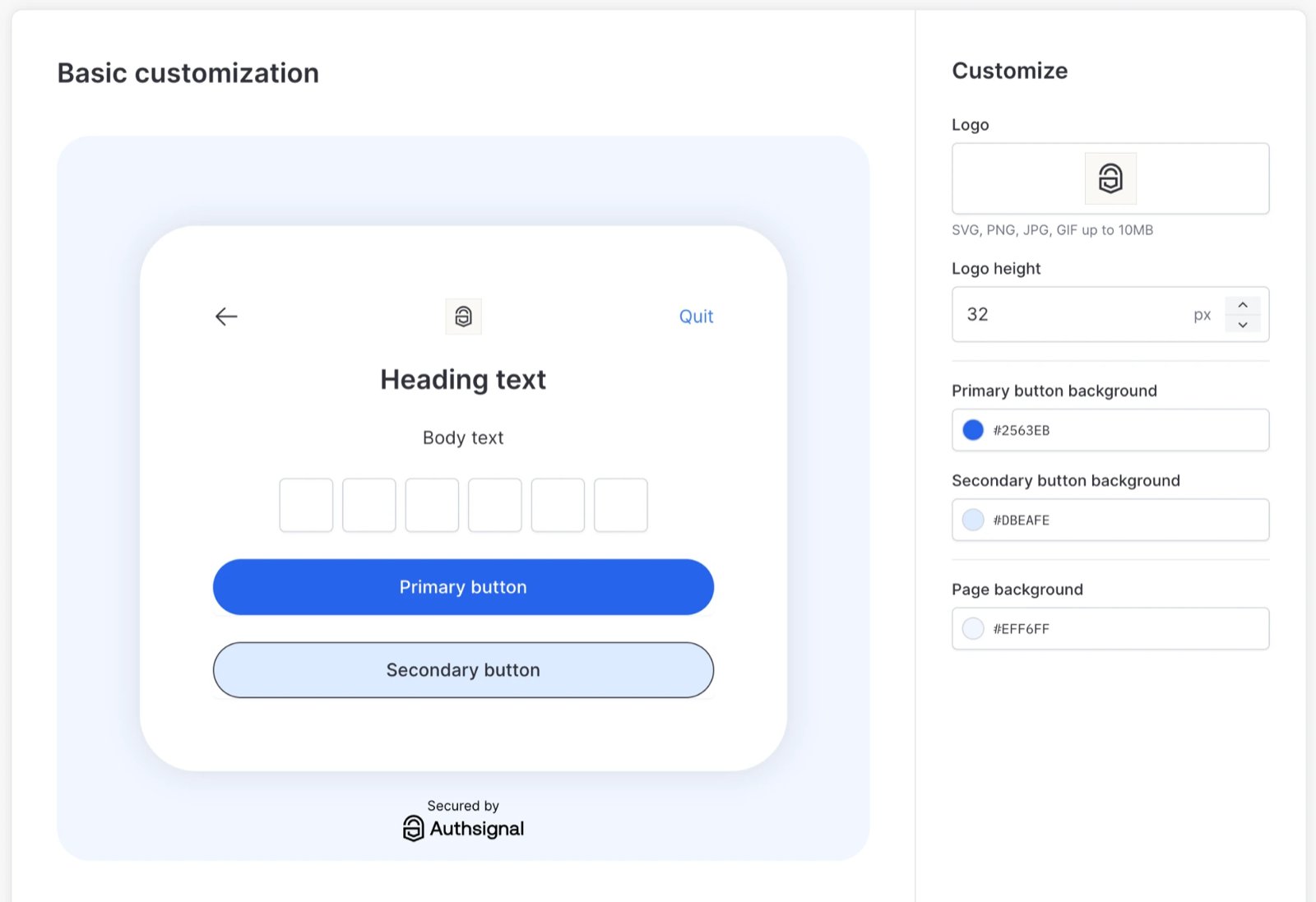
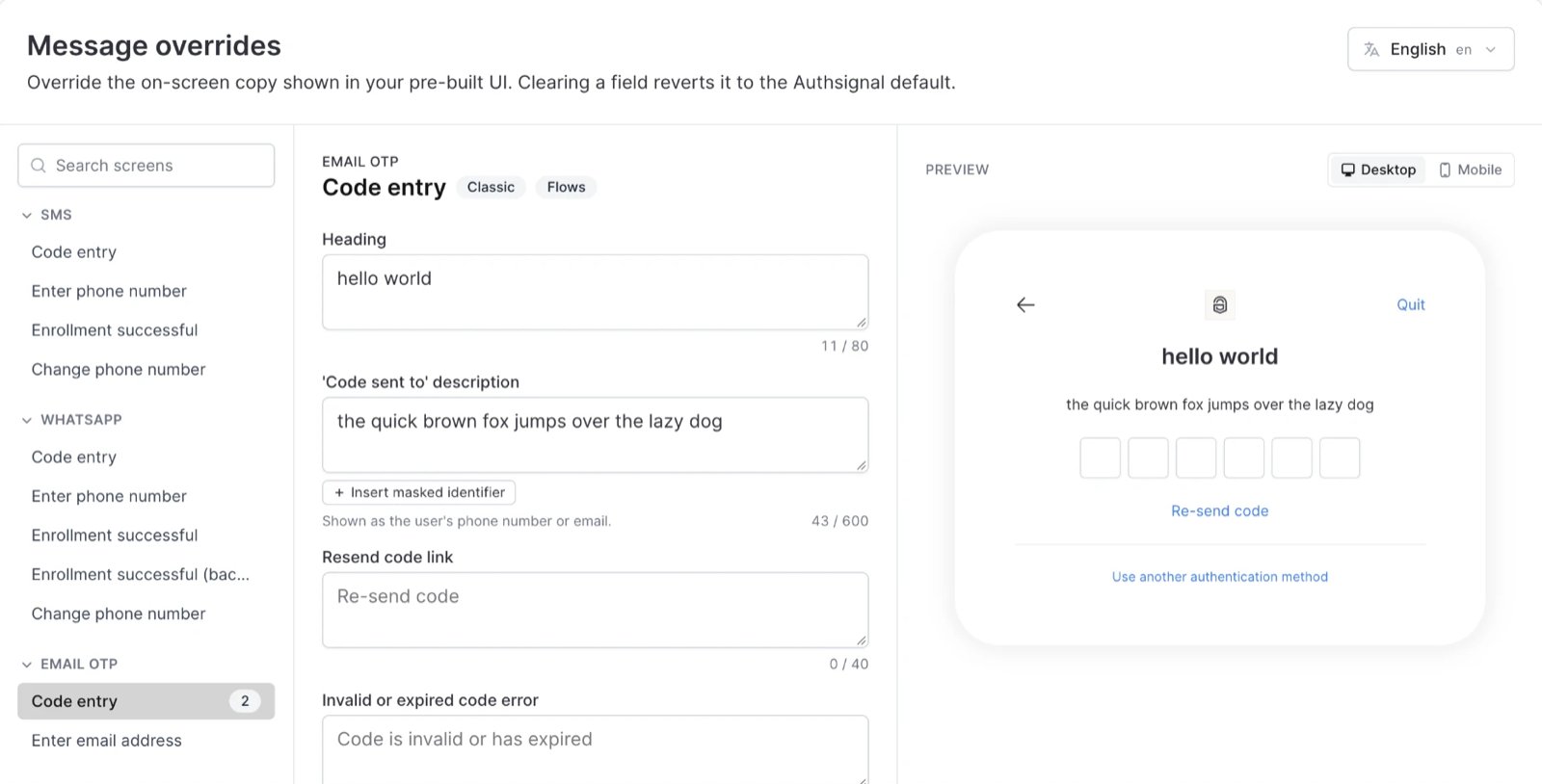
## 1. Configure dev in the portal
Create the dev tenant and configure it. Set up the authenticators before the flow, since the flow editor only offers verification methods that are already enabled.
 ## 2. Create a scratch folder
Terraform can only generate code for resources in the folder you run it from, not inside a module. Create a temporary `scratch` folder at the repository root, outside `envs/`, with this `main.tf`. It's in `.gitignore`, so it isn't committed.
The scratch folder is only a place for Terraform to write the generated code. Planning there reads the dev tenant but doesn't change it, and you delete the folder once the code is in the module.
```hcl theme={null}
# scratch/main.tf
terraform {
required_providers {
authsignal = {
source = "authsignal/authsignal"
version = "~> 3.12"
}
}
}
provider "authsignal" {}
import {
to = authsignal_email_otp_authenticator_configuration.email_otp
id = "email-otp"
}
import {
to = authsignal_passkey_authenticator_configuration.passkey
id = "passkey"
}
import {
to = authsignal_flow.sign_in
id = "sign-in" # the flow's action code
}
import {
to = authsignal_theme.theme
id = "theme"
}
import {
to = authsignal_message_overrides.messages
id = "messages"
}
```
Each `import` block tells Terraform to take over something that already exists in the tenant. `to` is the address the resource gets in the code: its resource type, then a name you choose, such as `authsignal_flow.sign_in`. `id` tells the provider which one to read from the tenant. Each resource's page on the [Terraform Registry](https://registry.terraform.io/providers/authsignal/authsignal/latest/docs) gives the import ID it takes.
## 3. Generate the code
Set the [environment variables](/knowledge-base/terraform/repository-setup#connecting-to-a-tenant) for the dev tenant, then run:
```bash theme={null}
cd scratch
terraform init
terraform plan -generate-config-out=generated.tf
```
`terraform init` downloads the Authsignal provider. `-generate-config-out` makes the plan write a resource block for each import into `generated.tf`. The plan ends with:
```text theme={null}
Plan: 5 to import, 0 to add, 0 to change, 0 to destroy.
```
Don't apply in this folder. It exists only to produce `generated.tf`, and applying would create a second state for dev here.
## Verify
`generated.tf` has five resource blocks, one per import. Keep the scratch folder until [Build the module from the generated code](/knowledge-base/terraform/build-module) is done.
If every import fails with `Cannot import non-existent remote object`, the host is wrong.
This documentation is built and hosted on [Mintlify](https://mintlify.com), a developer documentation platform.
## 2. Create a scratch folder
Terraform can only generate code for resources in the folder you run it from, not inside a module. Create a temporary `scratch` folder at the repository root, outside `envs/`, with this `main.tf`. It's in `.gitignore`, so it isn't committed.
The scratch folder is only a place for Terraform to write the generated code. Planning there reads the dev tenant but doesn't change it, and you delete the folder once the code is in the module.
```hcl theme={null}
# scratch/main.tf
terraform {
required_providers {
authsignal = {
source = "authsignal/authsignal"
version = "~> 3.12"
}
}
}
provider "authsignal" {}
import {
to = authsignal_email_otp_authenticator_configuration.email_otp
id = "email-otp"
}
import {
to = authsignal_passkey_authenticator_configuration.passkey
id = "passkey"
}
import {
to = authsignal_flow.sign_in
id = "sign-in" # the flow's action code
}
import {
to = authsignal_theme.theme
id = "theme"
}
import {
to = authsignal_message_overrides.messages
id = "messages"
}
```
Each `import` block tells Terraform to take over something that already exists in the tenant. `to` is the address the resource gets in the code: its resource type, then a name you choose, such as `authsignal_flow.sign_in`. `id` tells the provider which one to read from the tenant. Each resource's page on the [Terraform Registry](https://registry.terraform.io/providers/authsignal/authsignal/latest/docs) gives the import ID it takes.
## 3. Generate the code
Set the [environment variables](/knowledge-base/terraform/repository-setup#connecting-to-a-tenant) for the dev tenant, then run:
```bash theme={null}
cd scratch
terraform init
terraform plan -generate-config-out=generated.tf
```
`terraform init` downloads the Authsignal provider. `-generate-config-out` makes the plan write a resource block for each import into `generated.tf`. The plan ends with:
```text theme={null}
Plan: 5 to import, 0 to add, 0 to change, 0 to destroy.
```
Don't apply in this folder. It exists only to produce `generated.tf`, and applying would create a second state for dev here.
## Verify
`generated.tf` has five resource blocks, one per import. Keep the scratch folder until [Build the module from the generated code](/knowledge-base/terraform/build-module) is done.
If every import fails with `Cannot import non-existent remote object`, the host is wrong.
This documentation is built and hosted on [Mintlify](https://mintlify.com), a developer documentation platform.