> ## Documentation Index
> Fetch the complete documentation index at: https://docs.authsignal.com/llms.txt
> Use this file to discover all available pages before exploring further.
# FAQs
> Frequently asked questions.
## Getting started and concepts
**MFA (Multi-Factor Authentication):**
* Requires additional authentication after primary credentials (username/password)
* Applied consistently to all users or specific groups
* Example: Always require SMS OTP after password login
**Adaptive MFA:**
* Uses rules to intelligently determine when to challenge users based on risk factors
* Challenges users only when necessary (new device, suspicious location, etc.)
* Balances security with user experience
**Step-up Authentication:**
* Requires additional verification for sensitive operations, even if already logged in
* Applied to specific high-risk actions (payments, account changes)
* Example: Require passkey verification before processing a large transaction
Learn more about [implementing MFA](/actions-rules/actions/implementing-mfa) and [adaptive MFA](/actions-rules/rules/adaptive-mfa).
**Actions** represent security events in your application that may require additional verification:
* Login attempts, payments, account changes, data access
* Each action returns one of four outcomes: `ALLOW`, `CHALLENGE`, `REVIEW`, or `BLOCK`
* Have configurable default outcomes
**Rules** are conditional logic that determine when and how to challenge users:
* Evaluate risk factors like device characteristics, IP data, user behavior
* Can override action default outcomes based on context
* Enable adaptive authentication policies
Together, Actions define *what* to protect, while Rules define *when* to challenge users. See our guides for [Actions](/actions-rules/actions/getting-started) and [Rules](/actions-rules/rules/getting-started).
When you track an action, Authsignal returns one of four possible states:
* **`ALLOW`** - Action is permitted without additional authentication. Proceed with the user's request.
* **`CHALLENGE_REQUIRED`** - User must complete an authentication challenge before proceeding.
* **`BLOCK`** - Action is blocked for security reasons. Deny the user's request.
* **`REVIEW`** - Action requires manual review before proceeding.
Your application logic should handle each outcome appropriately. Most commonly, you'll redirect users to complete challenges when `CHALLENGE_REQUIRED` is returned.
## Configuration and setup
[Custom domains](/implementation-options/prebuilt-ui/custom-domains) are a pre-requisite when using passkeys. Outside of this scenario, custom domains are optional but highly recommended as they help to create a more branded and trusted user experience.
**As a standalone authentication method:**
* Users receive OTP codes directly via WhatsApp as their primary phone-based authentication
* Configured independently in the Authenticators section
* Follow our [WhatsApp OTP guide](/authentication-methods/whatsapp-otp) for implementation
**As a fallback for SMS OTP:**
* WhatsApp automatically delivers OTP codes when SMS delivery fails or is unavailable
* Helps reduce messaging costs while maintaining reliable delivery
* Configured within the SMS OTP settings as a backup channel
* See the [SMS OTP guide](/authentication-methods/sms-otp#use-whatsapp-as-a-fallback) for setup instructions
## Passkeys
The approach differs between web and mobile platforms:
**For web applications:**
Use the WebAuthn API's conditional UI feature (passkey autofill) which only shows passkeys when they're available on the device. This provides a seamless experience without requiring explicit detection.
**For mobile applications:**
Handle error codes when passkey authentication fails to provide graceful fallback experiences. Present a "Sign in" button that immediately displays the passkey prompt for the optimal experience when passkeys are available, then gracefully fall back to email authentication when they're not.
For detailed implementation guidance and code examples, see our [web best practices](/authentication-methods/passkey/best-practices-web#autofill) and [mobile best practices](/authentication-methods/passkey/best-practices-mobile#optimizing-sign-in-ux) guides.
Unlike traditional methods where you type your username first, passkeys can show you available accounts automatically without any typing.
**Traditional sign-in (username-initiated):**
* You enter your username/email first
* The site looks up your account
* Then sends you a code or prompts for a password
**Passkey sign-in (device-initiated):**
* Your device shows available passkeys automatically
* You select which account to use
* Authentication happens instantly with biometrics or device PIN
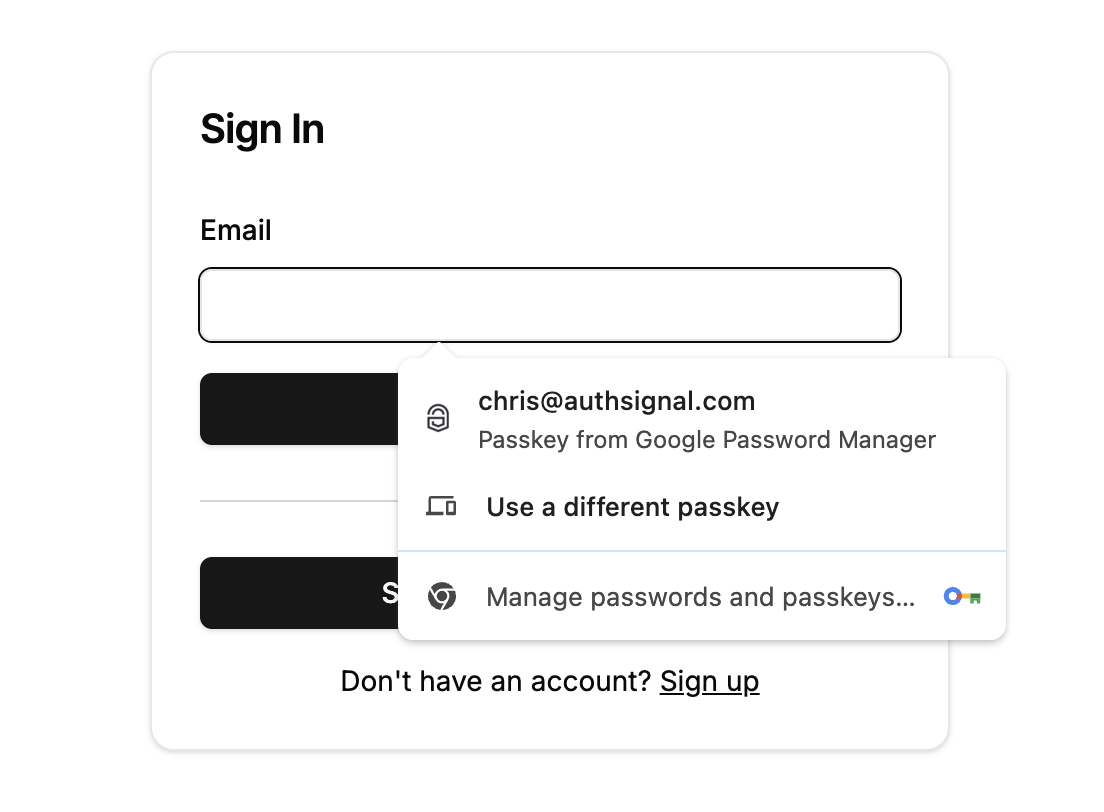 This shift from **username-initiated** to **device-initiated** authentication allows for more seamless flows, especially with [passkey autofill](/authentication-methods/passkey/best-practices-web#autofill) that can populate sign-in forms automatically.
Passkey uplift is the process of prompting users to create a passkey after they've successfully signed in using a traditional method like email OTP or password. It's the equivalent of an "add a new passkey" flow: it's how a user who doesn't yet have a passkey (or doesn't have one on their current device) gets one, optimized for adoption so users don't have to find a setting and enroll manually. This helps transition users gradually from legacy authentication to passkeys.
With the [pre-built UI](/implementation-options/prebuilt-ui/passkey-uplift-prompt), this prompt is shown automatically. You can also control its frequency, disable it, or trigger it per action or rule.
**When to show passkey uplift:**
* After a user completes email/SMS OTP authentication
* When a user signs in on a new device without a passkey
* During onboarding flows for new users
* After password-based sign-ins
**Best practices for uplift:**
* Explain the benefits clearly (faster, more secure, no passwords to remember)
* Make it optional, not mandatory
* Use timed cooldowns to avoid being intrusive
* Show the prompt at natural transition points in your app
This shift from **username-initiated** to **device-initiated** authentication allows for more seamless flows, especially with [passkey autofill](/authentication-methods/passkey/best-practices-web#autofill) that can populate sign-in forms automatically.
Passkey uplift is the process of prompting users to create a passkey after they've successfully signed in using a traditional method like email OTP or password. It's the equivalent of an "add a new passkey" flow: it's how a user who doesn't yet have a passkey (or doesn't have one on their current device) gets one, optimized for adoption so users don't have to find a setting and enroll manually. This helps transition users gradually from legacy authentication to passkeys.
With the [pre-built UI](/implementation-options/prebuilt-ui/passkey-uplift-prompt), this prompt is shown automatically. You can also control its frequency, disable it, or trigger it per action or rule.
**When to show passkey uplift:**
* After a user completes email/SMS OTP authentication
* When a user signs in on a new device without a passkey
* During onboarding flows for new users
* After password-based sign-ins
**Best practices for uplift:**
* Explain the benefits clearly (faster, more secure, no passwords to remember)
* Make it optional, not mandatory
* Use timed cooldowns to avoid being intrusive
* Show the prompt at natural transition points in your app
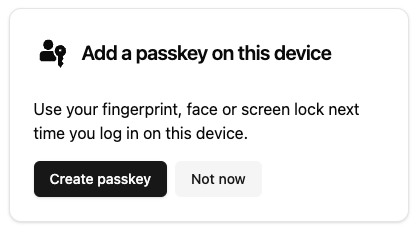 This approach helps increase passkey adoption while maintaining a smooth user experience for those not ready to switch immediately.
Passkeys may not be available on a device for several reasons:
* User created a passkey on one device but switched to a new device where it can't be synced
* User deleted the passkey from their password manager
* Switching between iOS and Android devices (cross-platform sync limitations)
**Always provide backup authentication options** and avoid leading users into dead ends. Your UI should clearly present alternatives like email OTP or SMS when passkeys aren't available.
For detailed implementation guidance, see our [web best practices](/authentication-methods/passkey/best-practices-web) and [mobile best practices](/authentication-methods/passkey/best-practices-mobile).
Yes. If a user has a passkey on one device (for example their phone) but is signing in on another device that doesn't have one (for example a laptop), the browser can use the cross-device flow: it displays a QR code that the user scans with the device that holds the passkey to complete sign-in.
Because the QR code prompt can be confusing for users who aren't familiar with how passkeys sync, we recommend restricting it to interactions where the user has explicitly chosen to use passkeys, such as a dedicated "Sign in with a passkey" button. See [web best practices](/authentication-methods/passkey/best-practices-web#sign-in-button) for the recommended UX.
To get the user a passkey on the device they're currently using, prompt them with the [uplift flow](/implementation-options/prebuilt-ui/passkey-uplift-prompt).
Both approaches have their benefits:
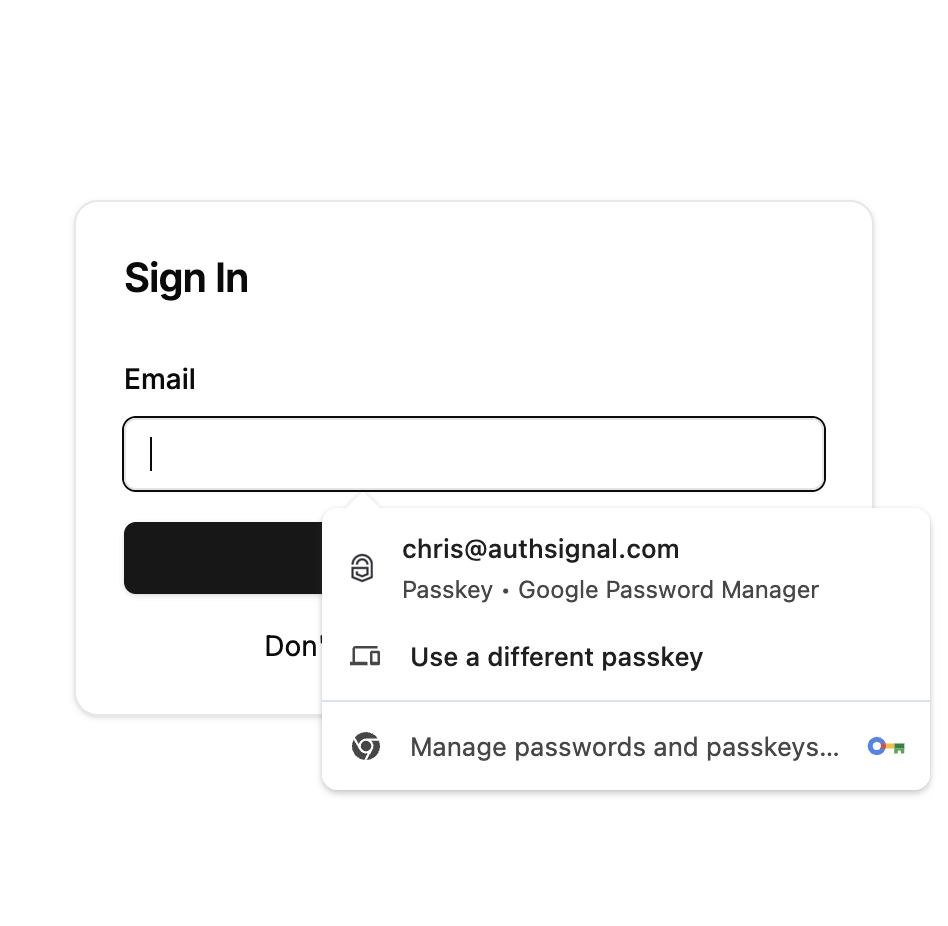
**Passkey Autofill (Recommended for Web)**
* Unobtrusive way to support passkeys while maintaining familiar UX
* Only shows passkeys if already created and available on device
* Users can manually enter username if no passkey is available
* Particularly good option when you already have a username input on your existing username and password login page
This approach helps increase passkey adoption while maintaining a smooth user experience for those not ready to switch immediately.
Passkeys may not be available on a device for several reasons:
* User created a passkey on one device but switched to a new device where it can't be synced
* User deleted the passkey from their password manager
* Switching between iOS and Android devices (cross-platform sync limitations)
**Always provide backup authentication options** and avoid leading users into dead ends. Your UI should clearly present alternatives like email OTP or SMS when passkeys aren't available.
For detailed implementation guidance, see our [web best practices](/authentication-methods/passkey/best-practices-web) and [mobile best practices](/authentication-methods/passkey/best-practices-mobile).
Yes. If a user has a passkey on one device (for example their phone) but is signing in on another device that doesn't have one (for example a laptop), the browser can use the cross-device flow: it displays a QR code that the user scans with the device that holds the passkey to complete sign-in.
Because the QR code prompt can be confusing for users who aren't familiar with how passkeys sync, we recommend restricting it to interactions where the user has explicitly chosen to use passkeys, such as a dedicated "Sign in with a passkey" button. See [web best practices](/authentication-methods/passkey/best-practices-web#sign-in-button) for the recommended UX.
To get the user a passkey on the device they're currently using, prompt them with the [uplift flow](/implementation-options/prebuilt-ui/passkey-uplift-prompt).
Both approaches have their benefits:
**Passkey Autofill (Recommended for Web)**
* Unobtrusive way to support passkeys while maintaining familiar UX
* Only shows passkeys if already created and available on device
* Users can manually enter username if no passkey is available
* Particularly good option when you already have a username input on your existing username and password login page
 **Dedicated Sign-in Button**
* Clear alternative authentication option
* Launches passkey prompt regardless of availability
* May show QR code if no passkey available (can be confusing for some users)
**Dedicated Sign-in Button**
* Clear alternative authentication option
* Launches passkey prompt regardless of availability
* May show QR code if no passkey available (can be confusing for some users)
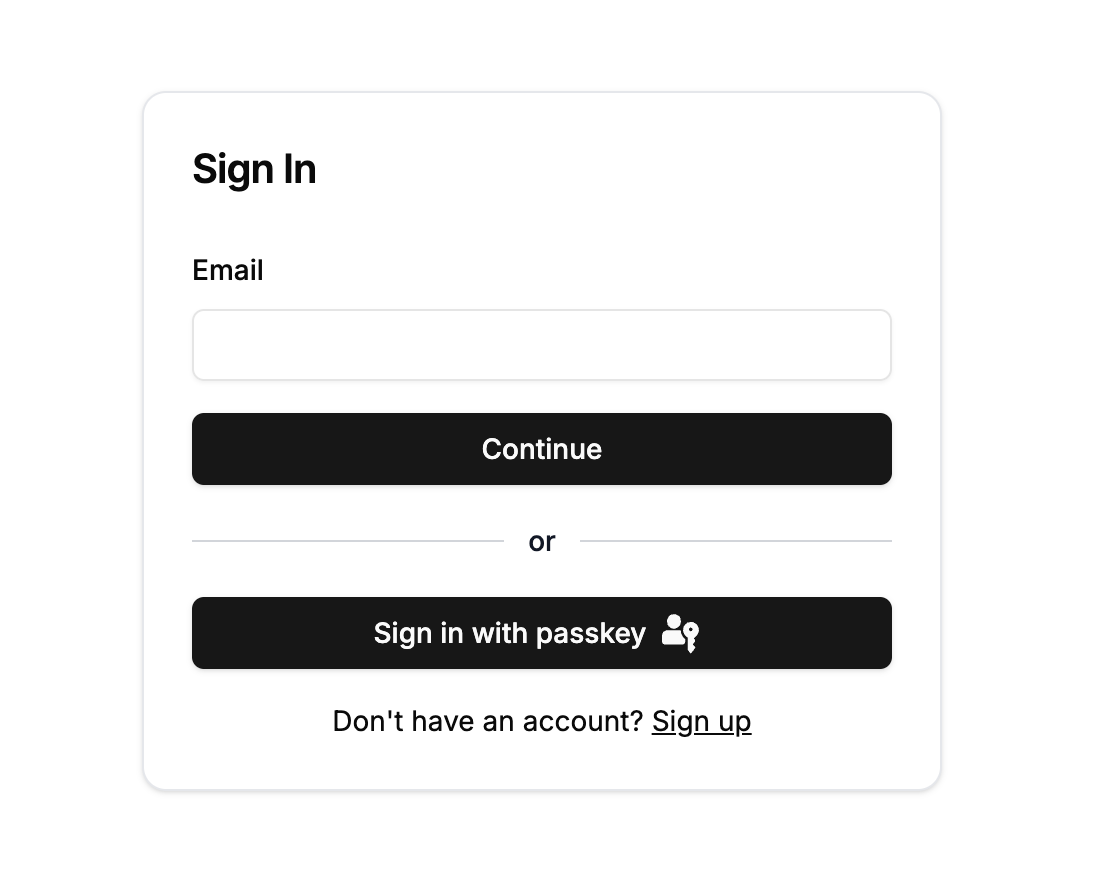 We recommend **restricting QR code flows** to explicit user interactions where they've chosen to use passkeys, as the QR code prompt can be jarring for unfamiliar users.
**For MFA (Secondary Factor):**
* Use `allowCredentials` parameter to restrict passkeys to the specific user's credentials
* Only show passkeys for one account to avoid confusion on shared devices
* Still provide backup options as the device may not have the user's passkeys
**For Primary Authentication:**
* Can show all available passkeys on device
* Device-initiated flow allows users to select from available credentials
* Focus on smooth fallback experience when no passkeys are present
We recommend **restricting QR code flows** to explicit user interactions where they've chosen to use passkeys, as the QR code prompt can be jarring for unfamiliar users.
**For MFA (Secondary Factor):**
* Use `allowCredentials` parameter to restrict passkeys to the specific user's credentials
* Only show passkeys for one account to avoid confusion on shared devices
* Still provide backup options as the device may not have the user's passkeys
**For Primary Authentication:**
* Can show all available passkeys on device
* Device-initiated flow allows users to select from available credentials
* Focus on smooth fallback experience when no passkeys are present
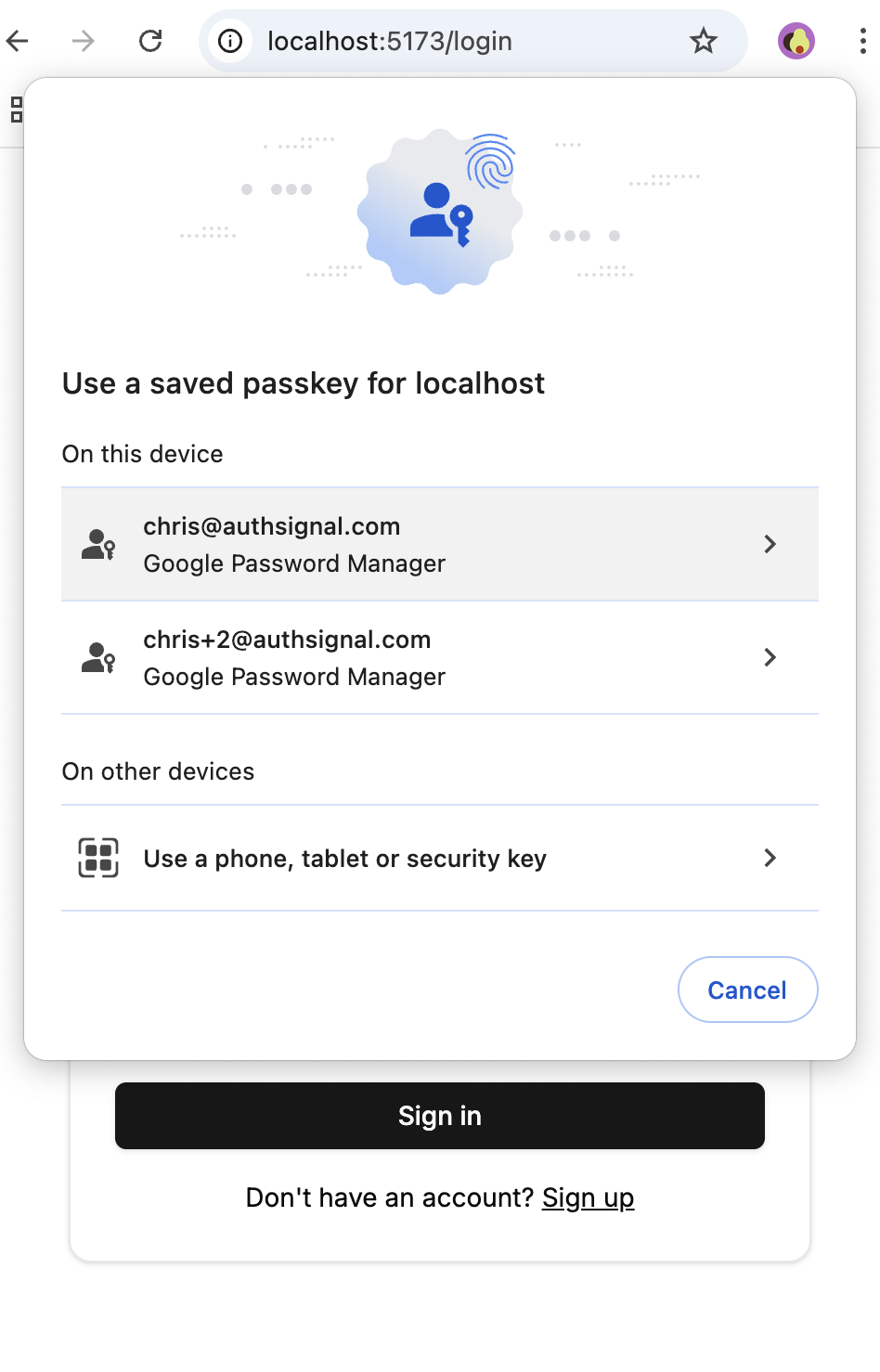 The [Authsignal pre-built UI](/authentication-methods/passkey/prebuilt-ui) automatically handles MFA scenarios by restricting credentials and providing clear fallback options.
**Gradual Introduction:**
* Prompt users to create passkeys after they sign in with existing methods
* Provide clear explanations of passkey benefits (faster, more secure, no passwords)
* Use gentle prompts rather than forcing immediate adoption
**Improve Device Coverage:**
* Prompt users to create passkeys when they authenticate on new devices
* Consider enrollment flows that create backup authentication methods first
* Use timed cooldowns or behavior-based prompts to avoid being intrusive
**Better Passkey Management:**
* Display passkeys using credential manager names (iCloud Keychain, Google Password Manager)
* Show appropriate icons using `webauthnCredential.aaguidMapping` data
* Help users understand which devices their passkeys are available on
The [Authsignal pre-built UI](/authentication-methods/passkey/prebuilt-ui) automatically handles MFA scenarios by restricting credentials and providing clear fallback options.
**Gradual Introduction:**
* Prompt users to create passkeys after they sign in with existing methods
* Provide clear explanations of passkey benefits (faster, more secure, no passwords)
* Use gentle prompts rather than forcing immediate adoption
**Improve Device Coverage:**
* Prompt users to create passkeys when they authenticate on new devices
* Consider enrollment flows that create backup authentication methods first
* Use timed cooldowns or behavior-based prompts to avoid being intrusive
**Better Passkey Management:**
* Display passkeys using credential manager names (iCloud Keychain, Google Password Manager)
* Show appropriate icons using `webauthnCredential.aaguidMapping` data
* Help users understand which devices their passkeys are available on
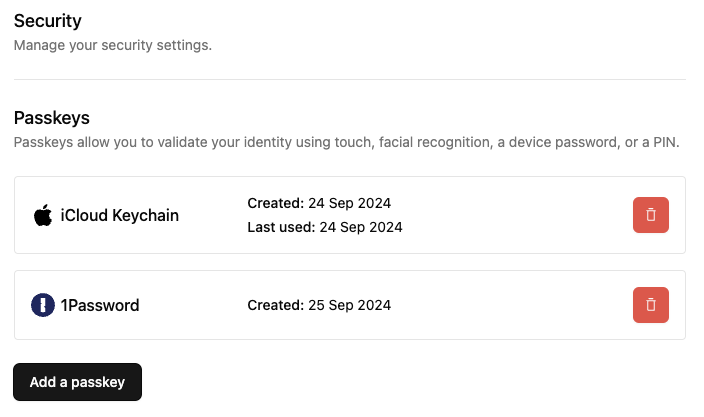 See our complete guides for [web](/authentication-methods/passkey/best-practices-web#creating-passkeys) and [mobile](/authentication-methods/passkey/best-practices-mobile) implementation strategies.
**Best practice: Create backup authentication first, then passkeys.**
Unlike web where users can easily switch between devices, mobile users often switch between iOS and Android where passkeys don't sync. Always ensure users have a backup option:
**Recommended flow:**
1. User signs up and completes email OTP or SMS OTP enrollment
2. After successful enrollment, prompt to create a passkey
3. User now has both a backup method and a convenient passkey
This approach prevents users from getting locked out when switching between platforms or devices where their passkey isn't available.
This parameter controls whether to show the passkey prompt when no credentials are available on the device.
**When set to `true` (recommended):**
* Only shows passkey prompt if credentials exist on the current device
* Avoids confusing QR code prompts for users without passkeys
* Enables smooth fallback to email/SMS authentication
**When set to `false`:**
* Always shows passkey prompt, even with no local credentials
* May display QR code for cross-device authentication
* Can be confusing for users unfamiliar with passkey cross-device flows
**Best practice:** Keep this `true` for most mobile apps to ensure users aren't presented with QR codes when they don't have passkeys available locally.
Passkeys are designed to work seamlessly across your devices and are typically synced through password managers like iCloud Keychain or Google Password Manager.
Security keys are physical hardware devices (like YubiKeys) that require manual insertion or proximity to authenticate. While both use similar underlying technology, passkeys provide a more convenient user experience for most applications.
## Push notifications
It's a common misconception that Push Authentication relies on push notifications (like FCM or APNs) to function. In fact, Authsignal's Push Authentication is built to work even without them.
Push authentication uses device credentials and public key cryptography - the push notification is only used to prompt users to open the app. If the notification doesn't arrive, users can still open the app manually and complete authentication.
Yes, Authsignal allows you to plug in your own push infrastructure. Through our [webhooks](/advanced-usage/webhooks/introduction) or [SDKs](/sdks/server/overview), you can trigger push events via your existing provider while still using Authsignal, device enrollment, and risk-based logic.
Yes, you have full control over push notifications' content, language, and appearance. Since Authsignal integrates with your existing push infrastructure via webhooks, you control all aspects of the notification including the message text, images, sounds, and branding.
When a user has multiple devices registered for push authentication, Authsignal works similar to how services like Gmail handle multi-device authentication.
**How it works:**
* **Single option in UI:** The pre-built UI shows "Push" as a single authentication option if the user has at least one registered push device, regardless of how many devices they have.
* **Any device can respond:** A push authentication challenge can be completed (accepted or denied) by any device that has been registered for that user. The mobile app calls `getChallenge()` when opened to check for pending authentication requests.
* **One response per challenge:** Once a device has responded to a push challenge, other devices are unable to respond to that same challenge.
* **Send to all devices:** You should send push notifications to all registered devices for a user. This allows the user to complete authentication by opening your app on any of their devices, providing maximum flexibility and convenience.
**Device management:**
Each registered push device appears as a separate authenticator in the Authsignal Portal and APIs. This allows you to view all devices registered for a user, remove specific devices if needed, and track which device was used for each authentication.
Yes, you can use the [Get Authenticators](/api-reference/server-api/get-authenticators) API to retrieve the list of enrolled devices for a user, and implement logic to enforce device limits. This includes de-registering existing devices when the limit is reached (for example, removing the oldest device when a user tries to add a new one beyond your limit).
## App verification
When you ship an app update that introduces app verification (push, QR code, or in-app), users who are already signed in won't go through a new sign-in flow, so you need a way to enroll them silently the next time they open the app.
The recommended pattern is a **post-launch handler** that runs after app launch:
1. If the user is authenticated (their session is still valid), call `authsignal.push.getCredential()` (or `authsignal.qr.getCredential()` / `authsignal.inapp.getCredential()` depending on the flow you're implementing).
2. If no credential exists on the device, fetch an enrollment token from your backend and call `addCredential()` on the same namespace to silently enroll the user.
3. If a credential already exists, do nothing. `getCredential` short-circuits, so the handler is safe to run on every launch.
This means users who simply update the app get enrolled invisibly, with no extra prompts or re-authentication required.
See the [enrollment lifecycle guide](/authentication-methods/app-verification/enrollment-lifecycle#handling-app-updates) for full code examples across iOS, Android, React Native, and Flutter.
## Authenticators and user management
In order to deter and protect challenge flows from abuse and high volume attacks, Authsignal has built-in rate limits for different authenticator types.
These limits are in place to deter and stop bad actors and typically will not be noticed by legitimate users on your platform.
**Rate limits for sending**
The following limits apply when sending emails or SMS to initiate a challenge.
| Authenticator type | Rate limit |
| ------------------ | -------------- |
| Email magic link | 12 per 10 mins |
| Email OTP | 12 per 10 mins |
| SMS OTP | 6 per 10 mins |
**Rate limits for verification**
The following limits apply when submitting OTP codes to complete a challenge.
| Authenticator type | Rate limit |
| --------------------- | ------------- |
| Email OTP | 10 per 5 mins |
| SMS OTP | 10 per 5 mins |
| Time-based OTP (TOTP) | 10 per 5 mins |
Yes, when you request a new OTP code for email or SMS, the previous codes remain valid for a short time window. This helps prevent user frustration when messages are delayed or multiple requests are triggered accidentally. All codes expire quickly and rate limits still apply to prevent abuse.
Yes, you can remove authenticators for users in two ways:
**Through the Authsignal Portal:**
1. Navigate to the user details page
2. Click the "Remove authenticators" button
3. Select which authenticators you want to remove and submit
See our [administrative removal guide](/advanced-usage/programmatic-authenticator-management) for detailed steps.
**Programmatically using APIs:**
You can also remove authenticators programmatically using our APIs. See our [programmatic authenticator management guide](/advanced-usage/programmatic-authenticator-management) for implementation details.
## API and integration
Please check your Server API secret key and API host are correct. You can find the values for your tenant in the Authsignal Portal under [Settings -> API keys](https://portal.authsignal.com/organisations/tenants/api). Ensure that the API host corresponds to your tenant's region.
This error is returned when no authenticators have been configured for your tenant.
If you're using the [Authsignal Web SDK](/sdks/client/web#extras), a cookie named `__as_aid` is set on the user's browser.
When tracking an action on your server, you can extract the `deviceId` from this cookie:
```ts Server {1} theme={null}
const deviceId = req.cookies["__as_aid"]; // Or however you access cookies in your framework of choice
const { url } = await authsignal.track({
action: "signIn",
userId,
attributes: {
deviceId,
},
});
```
If reading the request cookie is not an option, you can use retrieve the `deviceId` on the client via `authsignal.anonymousId`
and pass it to your server in the request body:
```ts Client {7} theme={null}
async function handleSignIn(username: string, password: string) {
const deviceId = authsignal.anonymousId;
const signInResponse = await fetch("/signIn", {
method: "POST",
body: JSON.stringify({
deviceId,
username,
password,
}),
});
}
```
## Webhooks
The most common cause is framework manipulation of the request body. The Authsignal SDK requires the **raw body** to verify signatures.
**Common issues:**
* Framework parsing JSON and converting back to string
* Body compression/decompression
* Character encoding changes
* Middleware modifying the request
**Solution:** Ensure your webhook endpoint receives the raw, unmodified request body. Many frameworks provide ways to access the raw body before parsing.
For implementation examples, see our [Server SDK webhook documentation](/sdks/server/webhooks).
## IP address allow-listing
Authsignal will send webhooks originating from the following IP addresses:
| Region | IP Addresses |
| ------------- | --------------------------------------------------------------------- |
| US (Oregon) | 44.224.97.232
See our complete guides for [web](/authentication-methods/passkey/best-practices-web#creating-passkeys) and [mobile](/authentication-methods/passkey/best-practices-mobile) implementation strategies.
**Best practice: Create backup authentication first, then passkeys.**
Unlike web where users can easily switch between devices, mobile users often switch between iOS and Android where passkeys don't sync. Always ensure users have a backup option:
**Recommended flow:**
1. User signs up and completes email OTP or SMS OTP enrollment
2. After successful enrollment, prompt to create a passkey
3. User now has both a backup method and a convenient passkey
This approach prevents users from getting locked out when switching between platforms or devices where their passkey isn't available.
This parameter controls whether to show the passkey prompt when no credentials are available on the device.
**When set to `true` (recommended):**
* Only shows passkey prompt if credentials exist on the current device
* Avoids confusing QR code prompts for users without passkeys
* Enables smooth fallback to email/SMS authentication
**When set to `false`:**
* Always shows passkey prompt, even with no local credentials
* May display QR code for cross-device authentication
* Can be confusing for users unfamiliar with passkey cross-device flows
**Best practice:** Keep this `true` for most mobile apps to ensure users aren't presented with QR codes when they don't have passkeys available locally.
Passkeys are designed to work seamlessly across your devices and are typically synced through password managers like iCloud Keychain or Google Password Manager.
Security keys are physical hardware devices (like YubiKeys) that require manual insertion or proximity to authenticate. While both use similar underlying technology, passkeys provide a more convenient user experience for most applications.
## Push notifications
It's a common misconception that Push Authentication relies on push notifications (like FCM or APNs) to function. In fact, Authsignal's Push Authentication is built to work even without them.
Push authentication uses device credentials and public key cryptography - the push notification is only used to prompt users to open the app. If the notification doesn't arrive, users can still open the app manually and complete authentication.
Yes, Authsignal allows you to plug in your own push infrastructure. Through our [webhooks](/advanced-usage/webhooks/introduction) or [SDKs](/sdks/server/overview), you can trigger push events via your existing provider while still using Authsignal, device enrollment, and risk-based logic.
Yes, you have full control over push notifications' content, language, and appearance. Since Authsignal integrates with your existing push infrastructure via webhooks, you control all aspects of the notification including the message text, images, sounds, and branding.
When a user has multiple devices registered for push authentication, Authsignal works similar to how services like Gmail handle multi-device authentication.
**How it works:**
* **Single option in UI:** The pre-built UI shows "Push" as a single authentication option if the user has at least one registered push device, regardless of how many devices they have.
* **Any device can respond:** A push authentication challenge can be completed (accepted or denied) by any device that has been registered for that user. The mobile app calls `getChallenge()` when opened to check for pending authentication requests.
* **One response per challenge:** Once a device has responded to a push challenge, other devices are unable to respond to that same challenge.
* **Send to all devices:** You should send push notifications to all registered devices for a user. This allows the user to complete authentication by opening your app on any of their devices, providing maximum flexibility and convenience.
**Device management:**
Each registered push device appears as a separate authenticator in the Authsignal Portal and APIs. This allows you to view all devices registered for a user, remove specific devices if needed, and track which device was used for each authentication.
Yes, you can use the [Get Authenticators](/api-reference/server-api/get-authenticators) API to retrieve the list of enrolled devices for a user, and implement logic to enforce device limits. This includes de-registering existing devices when the limit is reached (for example, removing the oldest device when a user tries to add a new one beyond your limit).
## App verification
When you ship an app update that introduces app verification (push, QR code, or in-app), users who are already signed in won't go through a new sign-in flow, so you need a way to enroll them silently the next time they open the app.
The recommended pattern is a **post-launch handler** that runs after app launch:
1. If the user is authenticated (their session is still valid), call `authsignal.push.getCredential()` (or `authsignal.qr.getCredential()` / `authsignal.inapp.getCredential()` depending on the flow you're implementing).
2. If no credential exists on the device, fetch an enrollment token from your backend and call `addCredential()` on the same namespace to silently enroll the user.
3. If a credential already exists, do nothing. `getCredential` short-circuits, so the handler is safe to run on every launch.
This means users who simply update the app get enrolled invisibly, with no extra prompts or re-authentication required.
See the [enrollment lifecycle guide](/authentication-methods/app-verification/enrollment-lifecycle#handling-app-updates) for full code examples across iOS, Android, React Native, and Flutter.
## Authenticators and user management
In order to deter and protect challenge flows from abuse and high volume attacks, Authsignal has built-in rate limits for different authenticator types.
These limits are in place to deter and stop bad actors and typically will not be noticed by legitimate users on your platform.
**Rate limits for sending**
The following limits apply when sending emails or SMS to initiate a challenge.
| Authenticator type | Rate limit |
| ------------------ | -------------- |
| Email magic link | 12 per 10 mins |
| Email OTP | 12 per 10 mins |
| SMS OTP | 6 per 10 mins |
**Rate limits for verification**
The following limits apply when submitting OTP codes to complete a challenge.
| Authenticator type | Rate limit |
| --------------------- | ------------- |
| Email OTP | 10 per 5 mins |
| SMS OTP | 10 per 5 mins |
| Time-based OTP (TOTP) | 10 per 5 mins |
Yes, when you request a new OTP code for email or SMS, the previous codes remain valid for a short time window. This helps prevent user frustration when messages are delayed or multiple requests are triggered accidentally. All codes expire quickly and rate limits still apply to prevent abuse.
Yes, you can remove authenticators for users in two ways:
**Through the Authsignal Portal:**
1. Navigate to the user details page
2. Click the "Remove authenticators" button
3. Select which authenticators you want to remove and submit
See our [administrative removal guide](/advanced-usage/programmatic-authenticator-management) for detailed steps.
**Programmatically using APIs:**
You can also remove authenticators programmatically using our APIs. See our [programmatic authenticator management guide](/advanced-usage/programmatic-authenticator-management) for implementation details.
## API and integration
Please check your Server API secret key and API host are correct. You can find the values for your tenant in the Authsignal Portal under [Settings -> API keys](https://portal.authsignal.com/organisations/tenants/api). Ensure that the API host corresponds to your tenant's region.
This error is returned when no authenticators have been configured for your tenant.
If you're using the [Authsignal Web SDK](/sdks/client/web#extras), a cookie named `__as_aid` is set on the user's browser.
When tracking an action on your server, you can extract the `deviceId` from this cookie:
```ts Server {1} theme={null}
const deviceId = req.cookies["__as_aid"]; // Or however you access cookies in your framework of choice
const { url } = await authsignal.track({
action: "signIn",
userId,
attributes: {
deviceId,
},
});
```
If reading the request cookie is not an option, you can use retrieve the `deviceId` on the client via `authsignal.anonymousId`
and pass it to your server in the request body:
```ts Client {7} theme={null}
async function handleSignIn(username: string, password: string) {
const deviceId = authsignal.anonymousId;
const signInResponse = await fetch("/signIn", {
method: "POST",
body: JSON.stringify({
deviceId,
username,
password,
}),
});
}
```
## Webhooks
The most common cause is framework manipulation of the request body. The Authsignal SDK requires the **raw body** to verify signatures.
**Common issues:**
* Framework parsing JSON and converting back to string
* Body compression/decompression
* Character encoding changes
* Middleware modifying the request
**Solution:** Ensure your webhook endpoint receives the raw, unmodified request body. Many frameworks provide ways to access the raw body before parsing.
For implementation examples, see our [Server SDK webhook documentation](/sdks/server/webhooks).
## IP address allow-listing
Authsignal will send webhooks originating from the following IP addresses:
| Region | IP Addresses |
| ------------- | --------------------------------------------------------------------- |
| US (Oregon) | 44.224.97.232
44.230.210.235
44.236.208.22
52.33.85.88 |
| AU (Sydney) | 13.210.81.243
3.105.80.107
54.252.129.142 |
| EU (Dublin) | 34.247.148.106
34.253.116.90
54.171.116.55 |
| CA (Montreal) | 16.52.98.180
16.54.49.43
16.54.18.28 |
Make sure to whitelist the IP addresses for your tenant's region.
## Error handling and troubleshooting
There are currently only two scenarios where this can occur:
1. In push notification auth when the user presses "Deny" instead of "Accept" in the in-app notification
2. In SMS or email OTP auth when the number of code submission attempts exceeds rate limit thresholds
In other cases when an action is incomplete or abandoned it will remain in a `CHALLENGE_FAILED` state.
**`invalid_configuration`:** Your tenant configuration is invalid. Check that authenticators are properly configured in the Authsignal Portal.
**`invalid_credential`:** The credential (e.g., passkey) is invalid for the user. This may happen if the credential was deleted or is being used on the wrong device.
**`invalid_request`:** Request failed due to invalid parameters. Check your request payload and ensure all required fields are provided.
**`too_many_requests`:** Rate limit exceeded. Implement back-off and retry logic.
**`unauthorized`:** Invalid tenant credentials or wrong region. Verify your API secret key and API URL match your tenant's region.
See our [error handling documentation](/sdks/server/error-handling) for implementation examples.
You can find your region information in the Authsignal Portal under [Settings -> API Keys](https://portal.authsignal.com/organisations/tenants/api). The API URL will indicate your region:
* **US (Oregon):** `https://api.authsignal.com/v1`
* **AU (Sydney):** `https://au.api.authsignal.com/v1`
* **EU (Ireland):** `https://eu.api.authsignal.com/v1`
* **CA (Montreal):** `https://ca.api.authsignal.com/v1`
Make sure your Server SDK and API calls use the correct URL for your region to avoid `unauthorized` errors.
Authsignal's [Server API](/api-reference/server-api/overview) / [Server SDKs](/sdks/server/overview) are designed to be called from your backend, not directly from frontend JavaScript in browsers.
Alternatively the Authsignal [Client API](/api-reference/client-api/overview) / [Client SDKs](/implementation-options/web-sdk/overview) are designed to be called in frontend or mobile authentication flows, as an alternative to the [pre-built UI](/implementation-options/prebuilt-ui/overview) for those who want full UI customisation.
**Correct flow:**
1. Frontend sends request to your backend
2. Your backend calls the Authsignal [Server API](/api-reference/server-api/overview)
3. Your backend returns response to frontend
**For frontend authentication challenges:**
* Use the [pre-built UI](/implementation-options/prebuilt-ui/overview) (hosted by Authsignal, no CORS issues)
* Use our [Client SDKs](/implementation-options/web-sdk/overview) for custom UI implementations
Direct browser calls to Authsignal APIs will fail due to CORS restrictions.