> ## Documentation Index
> Fetch the complete documentation index at: https://docs.authsignal.com/llms.txt
> Use this file to discover all available pages before exploring further.
# Verifying customers with ServiceNow
> Learn how a ServiceNow agent uses Authsignal Call Connect to verify a customer's identity during a support interaction.
Once [Call Connect is configured](/integrations/service-now/overview), agents can verify the identity of the person they are speaking with directly from a ServiceNow record. The agent sends a secure verification challenge to the customer's own device, and the record's verification status updates automatically as the customer responds.
## Roles
| Role | Description |
| -------------- | --------------------------------------------------------------------------------------------- |
| **Agent** | The service-desk or contact-center agent handling the record and initiating verification. |
| **Customer** | The account holder being verified. They receive the challenge on their own registered device. |
| **Authsignal** | The verification service that issues the secure challenge and hosts the approval page. |
## Where it appears
Customer verification is available on supported record types, including Interaction, Incident, Ticket, and Task records. Two elements surface it on the record:
* A **Start Customer Verification** button in the record toolbar, used to launch a verification.
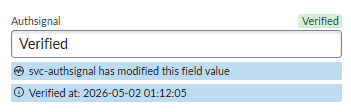
 * A read-only **Authsignal** status field on the record, which shows the current verification state at a glance.
 ## The verification flow
### Agent steps (in ServiceNow)
From the Interaction, Incident, Ticket, or Task, open the record for the customer you are assisting.
The Authsignal Customer Identity Verification dialog opens.
## The verification flow
### Agent steps (in ServiceNow)
From the Interaction, Incident, Ticket, or Task, open the record for the customer you are assisting.
The Authsignal Customer Identity Verification dialog opens.
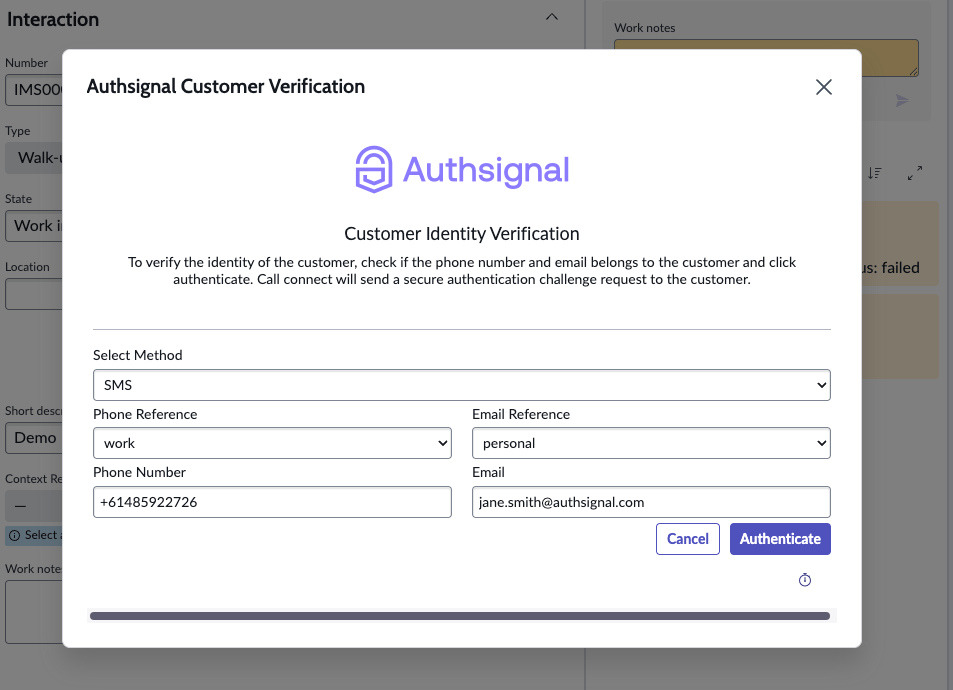 Select a method (SMS, Email, WhatsApp, or Slack) and the contact reference to use, for example a personal or work phone number, or a personal or work email address, confirming the displayed details belong to the customer.
A secure request is sent to the customer, and the record's Authsignal status moves to Verifying.
### Customer steps (on their device)
The customer receives a message on the chosen channel containing a secure verification link.
Select a method (SMS, Email, WhatsApp, or Slack) and the contact reference to use, for example a personal or work phone number, or a personal or work email address, confirming the displayed details belong to the customer.
A secure request is sent to the customer, and the record's Authsignal status moves to Verifying.
### Customer steps (on their device)
The customer receives a message on the chosen channel containing a secure verification link.
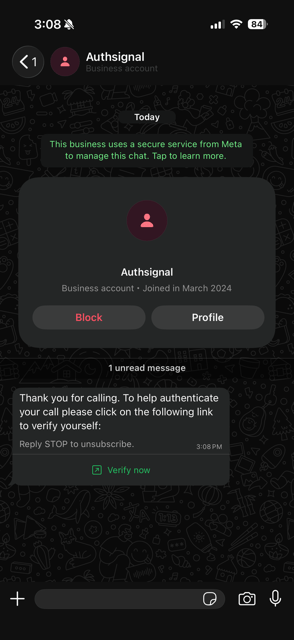 The link opens an Authsignal-hosted page that describes the request, for example "Verify you are calling the support desk".
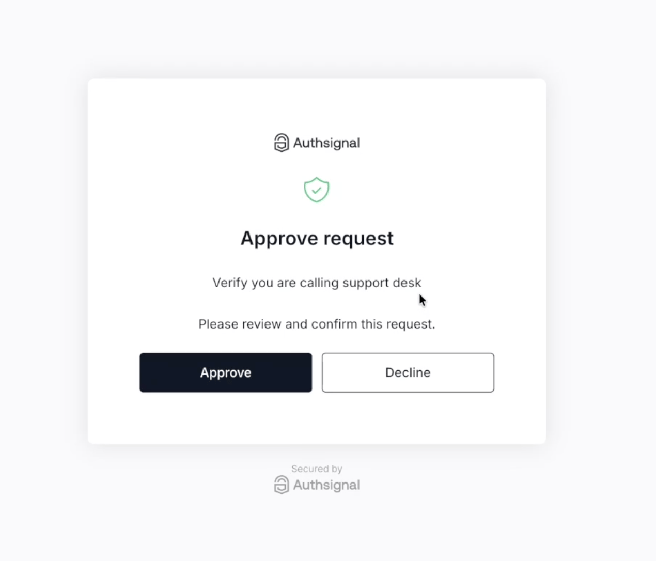 The customer taps **Approve** to confirm, or **Decline** to reject the request.
On approval, the customer sees a confirmation message and can close the page.
### Result
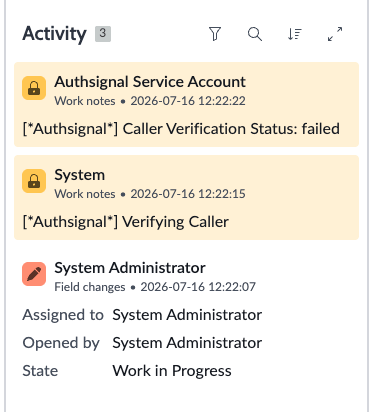
The record's Authsignal status updates in near real time: it becomes **Verified** when the customer approves, or **Failed** if the customer declines or the challenge is not completed. The agent proceeds with the request once the status shows Verified.
An audit log is included on the record so a timestamped history of verification is available.
The customer taps **Approve** to confirm, or **Decline** to reject the request.
On approval, the customer sees a confirmation message and can close the page.
### Result
The record's Authsignal status updates in near real time: it becomes **Verified** when the customer approves, or **Failed** if the customer declines or the challenge is not completed. The agent proceeds with the request once the status shows Verified.
An audit log is included on the record so a timestamped history of verification is available.
 ## Delivery channels
The agent chooses how the verification challenge reaches the customer. All channels deliver a secure link to the same approve request page.
| Channel | How the customer receives the challenge |
| ------------ | ---------------------------------------------------------------------------------------------------------------------------------------- |
| **SMS** | A text message containing a secure verification link, sent to the selected mobile number. |
| **Email** | An email containing a secure verification link, sent to the selected address. |
| **WhatsApp** | A WhatsApp message containing a secure verification link, sent to the selected number. |
| **Slack** | A DM to the user's Slack account containing a secure verification link. Select the customer's work email address when using this option. |
## Verification status
The Authsignal field on the record reflects the live state of the verification:
| Status | Meaning | What the agent does |
| --------------- | ------------------------------------------------------------------ | ------------------------------------------------------------------------- |
| **Not started** | No verification has been initiated on this record. | Start verification when the caller's identity needs confirming. |
| **Verifying** | A challenge has been sent and is awaiting the customer's response. | Wait for the customer to approve, and follow up on the call if needed. |
| **Verified** | The customer approved the challenge; identity is confirmed. | Proceed with the request. |
| **Failed** | The customer declined, or the challenge was not completed. | Do not proceed on a verified basis; retry or follow your fallback policy. |
The same Start Customer Verification action is available across all supported record types, so agents follow a consistent process regardless of where the request originates. Contact references, such as personal and work phone numbers, are drawn from the customer's profile mapping, and the agent selects which one to challenge. See [custom mapping](/integrations/service-now/table-mapping) to configure which fields are offered.
## Delivery channels
The agent chooses how the verification challenge reaches the customer. All channels deliver a secure link to the same approve request page.
| Channel | How the customer receives the challenge |
| ------------ | ---------------------------------------------------------------------------------------------------------------------------------------- |
| **SMS** | A text message containing a secure verification link, sent to the selected mobile number. |
| **Email** | An email containing a secure verification link, sent to the selected address. |
| **WhatsApp** | A WhatsApp message containing a secure verification link, sent to the selected number. |
| **Slack** | A DM to the user's Slack account containing a secure verification link. Select the customer's work email address when using this option. |
## Verification status
The Authsignal field on the record reflects the live state of the verification:
| Status | Meaning | What the agent does |
| --------------- | ------------------------------------------------------------------ | ------------------------------------------------------------------------- |
| **Not started** | No verification has been initiated on this record. | Start verification when the caller's identity needs confirming. |
| **Verifying** | A challenge has been sent and is awaiting the customer's response. | Wait for the customer to approve, and follow up on the call if needed. |
| **Verified** | The customer approved the challenge; identity is confirmed. | Proceed with the request. |
| **Failed** | The customer declined, or the challenge was not completed. | Do not proceed on a verified basis; retry or follow your fallback policy. |
The same Start Customer Verification action is available across all supported record types, so agents follow a consistent process regardless of where the request originates. Contact references, such as personal and work phone numbers, are drawn from the customer's profile mapping, and the agent selects which one to challenge. See [custom mapping](/integrations/service-now/table-mapping) to configure which fields are offered.