> ## Documentation Index
> Fetch the complete documentation index at: https://docs.authsignal.com/llms.txt
> Use this file to discover all available pages before exploring further.
# Viewing user activity
> Learn how a customer support agent can use the Authsignal Portal to understand user activity
## Prerequisites
* Access to the [Authsignal Portal](https://portal.authsignal.com).
* Correct permissions to allow managing authenticators (`Support analyst` or `Admin`).
## Finding user activity data
There are two ways to find user activity data, either:
* searching for the user first
* searching within the activity for a given Action
### Finding user activity data by email address or User ID
In the Authsignal Portal, click on the **Users** tab.
Using the search box, enter the user's **Email address** or **User ID** and click **Search**.
The user list will be filtered to show all users with the address or ID you entered.
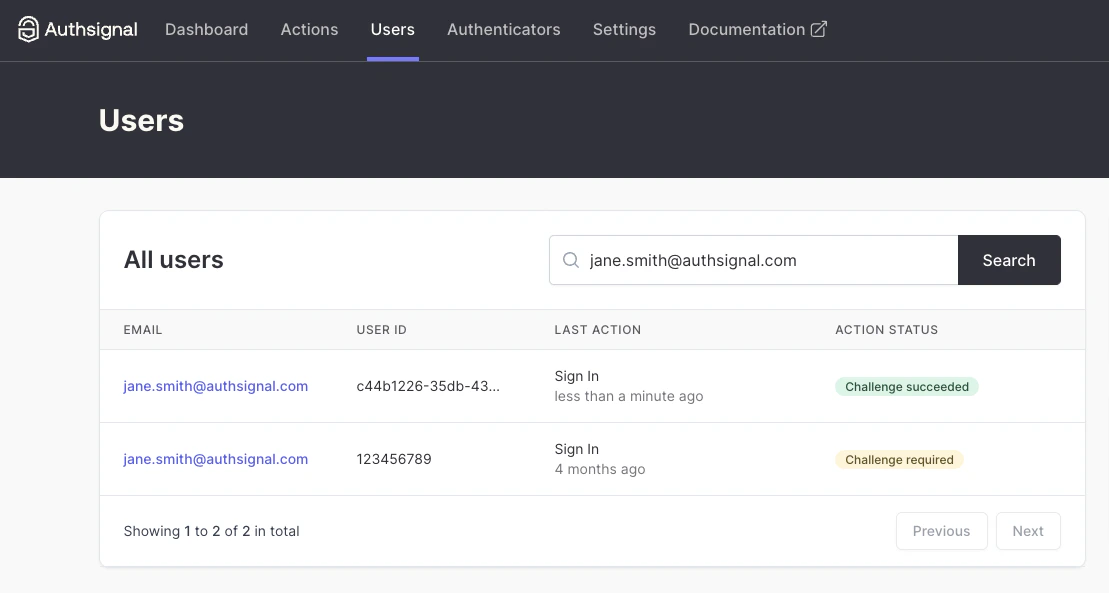 Click on the relevant user.
You will be presented with an overview of key details of the user, including their **Authenticators** and **Latest activity**.
Click on the relevant user.
You will be presented with an overview of key details of the user, including their **Authenticators** and **Latest activity**.
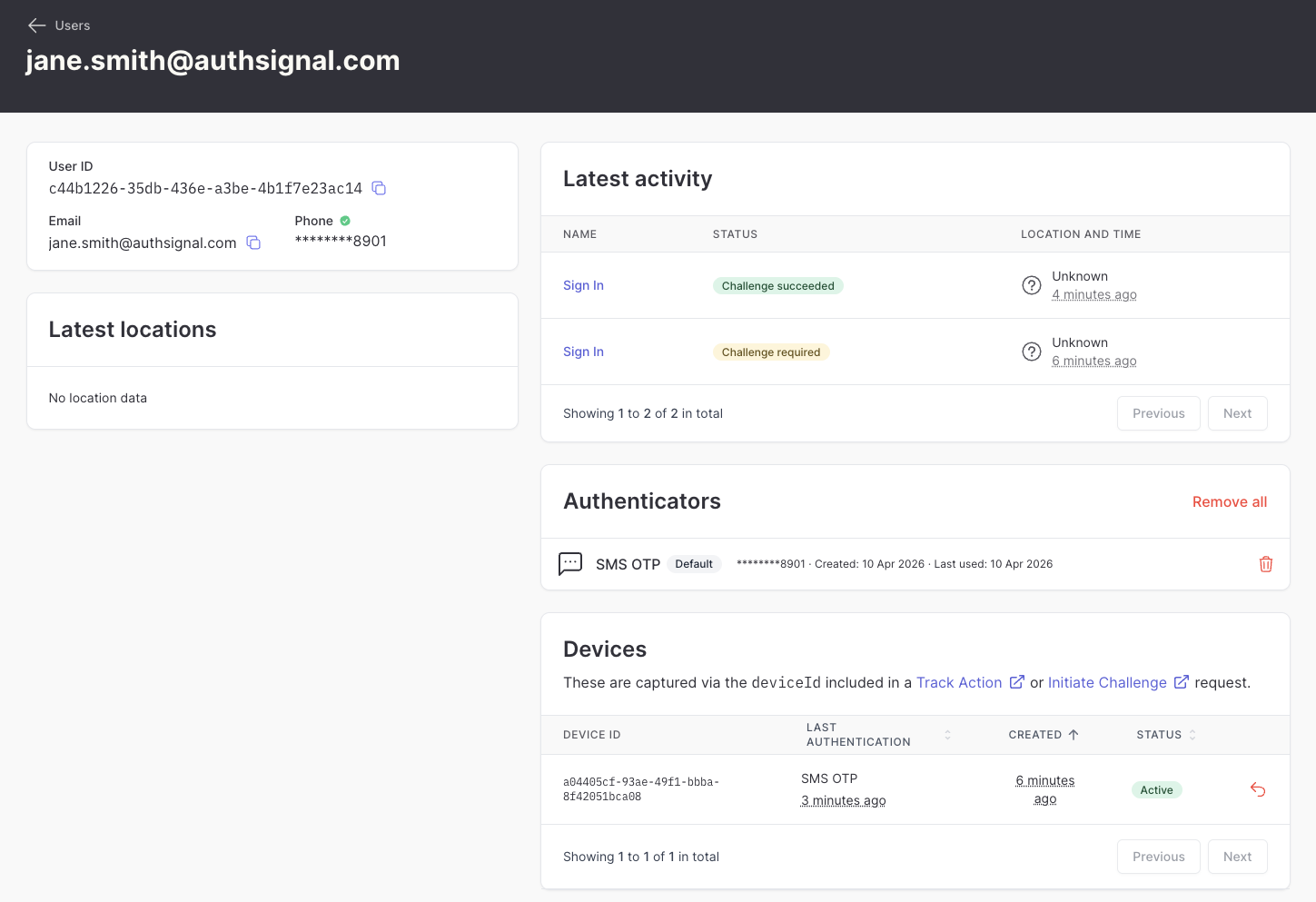 After you have navigated to the user's latest activity, select an action from the list to see more details.
### Finding activity for a given action
In the Authsignal Portal, click on the **Actions** tab.
From the list, select an Action.
From the **Latest activity** tab you are presented a list of recent actions.
After you have navigated to the user's latest activity, select an action from the list to see more details.
### Finding activity for a given action
In the Authsignal Portal, click on the **Actions** tab.
From the list, select an Action.
From the **Latest activity** tab you are presented a list of recent actions.
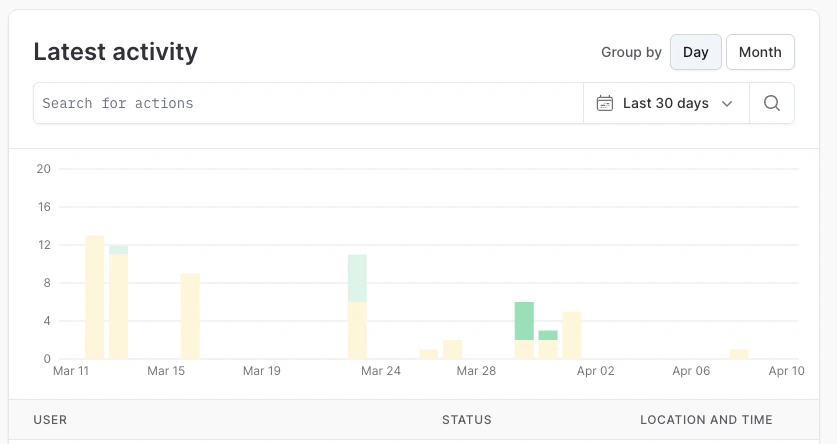 Use the **Group by** selector to alter the graph's grouping.
 Select the time period you want to search.
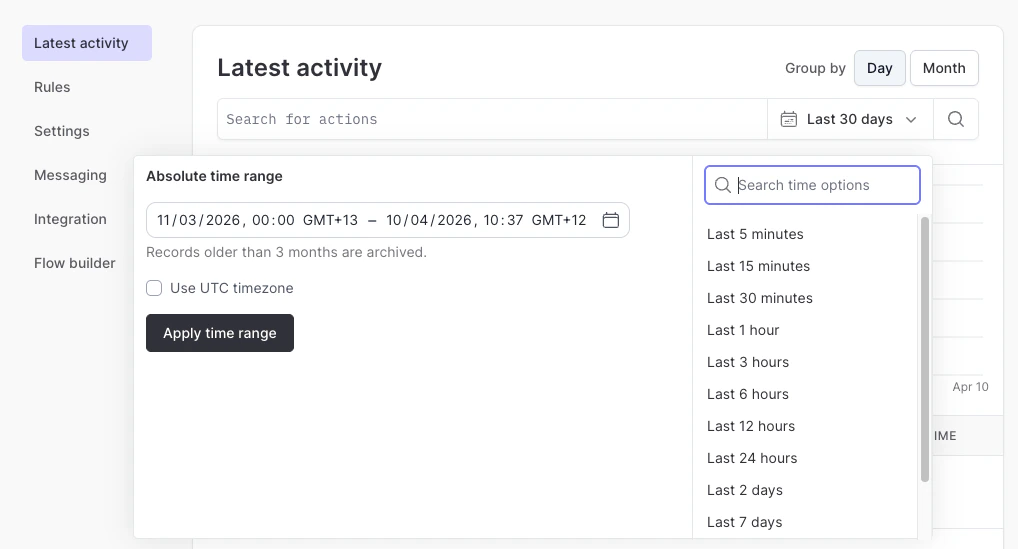 The Authsignal Portal will surface the previous 3 months of action data.
Use the **search box** to filter the list.
For example, filter the list to only include actions which have not been completed:
The Authsignal Portal will surface the previous 3 months of action data.
Use the **search box** to filter the list.
For example, filter the list to only include actions which have not been completed:
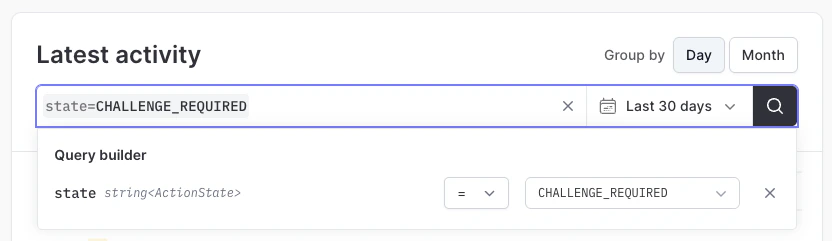 Click the **Search** button.
Select the action from the result list.
## User action details
### Overview
The overview provides a quick snapshot of key details about the action, including device information (if available), authentication methods, and timestamp.
Click the **Search** button.
Select the action from the result list.
## User action details
### Overview
The overview provides a quick snapshot of key details about the action, including device information (if available), authentication methods, and timestamp.
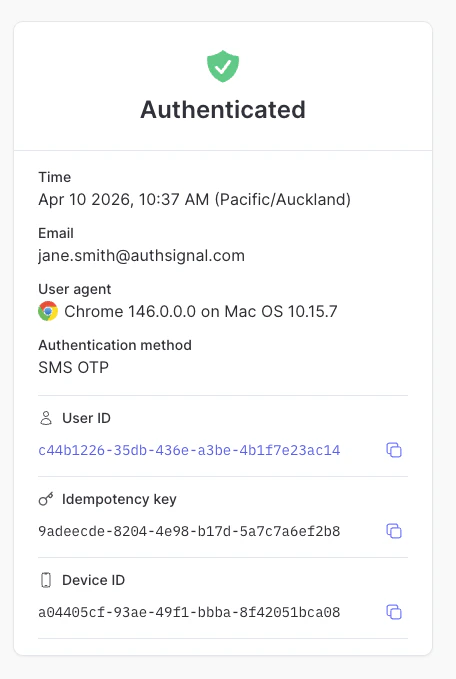 Click the **User ID** to see other events for this same user.
### Triggered rules
This will show any rules that were triggered, helping provide understanding on why a user was challenged or not.
### Event timeline
Use the event timeline to understand the steps the user took to complete any challenges.
Click the **User ID** to see other events for this same user.
### Triggered rules
This will show any rules that were triggered, helping provide understanding on why a user was challenged or not.
### Event timeline
Use the event timeline to understand the steps the user took to complete any challenges.
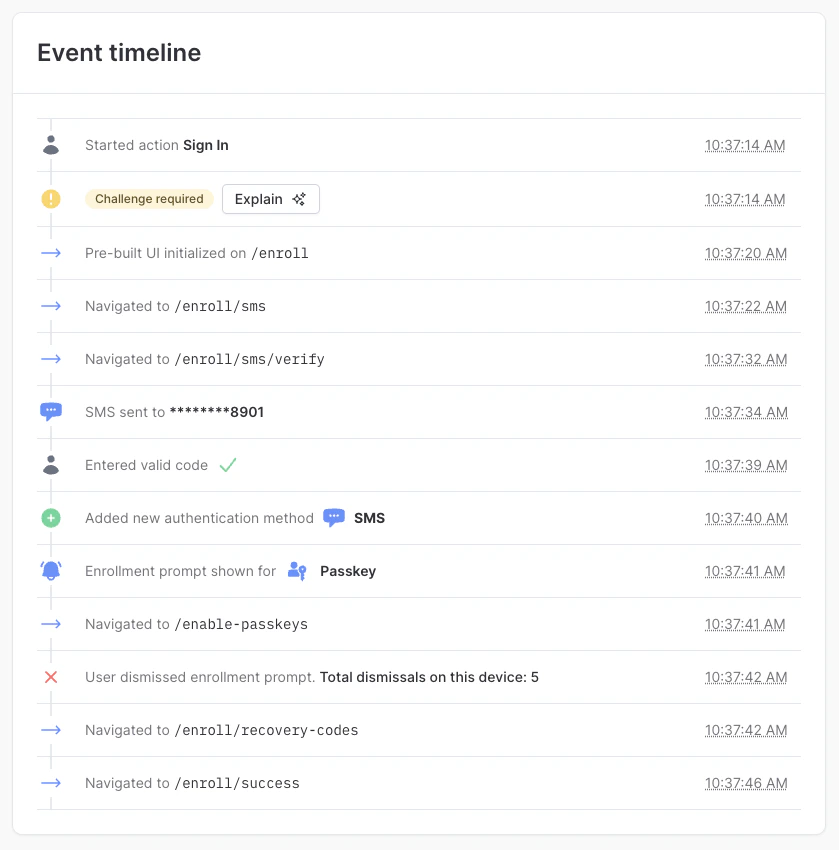 **Explaining action decisions**
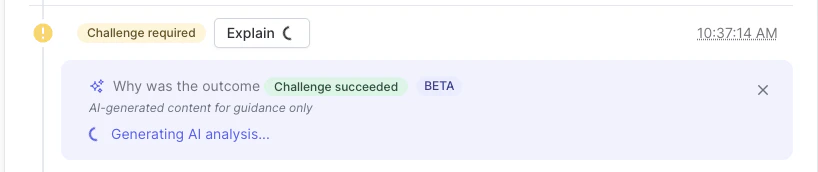
Next to the action response click the **Explain** button to get an AI-generated response explaining why the action state is set to where it is.
AI-generated content for guidance only
**Explaining action decisions**
Next to the action response click the **Explain** button to get an AI-generated response explaining why the action state is set to where it is.
AI-generated content for guidance only
 **Failure cases**
The event timeline is useful for understanding where a user may have had an issue.
Common failure reasons include:
* entering an incorrect code
* rate limits being hit
* the session expiring
* third party SMS/Email provider rejecting the request
### Action response
This provides a behind-the-scenes view at the context the Rules engine uses to make a determination.
Expand sections to identify more information about the user's device, IP Address, etc.
**Failure cases**
The event timeline is useful for understanding where a user may have had an issue.
Common failure reasons include:
* entering an incorrect code
* rate limits being hit
* the session expiring
* third party SMS/Email provider rejecting the request
### Action response
This provides a behind-the-scenes view at the context the Rules engine uses to make a determination.
Expand sections to identify more information about the user's device, IP Address, etc.