> ## Documentation Index
> Fetch the complete documentation index at: https://docs.authsignal.com/llms.txt
> Use this file to discover all available pages before exploring further.
# Resetting a user's authenticators
> Learn how a customer support agent can use the Authsignal Portal to reset a user's multi-factor authenticators.
The Authsignal Portal is useful for many customer support use cases, such as resetting a user's authenticators.
This can be useful for helping customers re-gain access to an account in the scenario where they have lost a device, passkey, etc.
It is expected the agent performing this administrator action has independently verified the user's identity before doing so.
## Prerequisites
* Access to the [Authsignal Portal](https://portal.authsignal.com).
* Correct permissions to allow managing authenticators (`Support analyst` or `Admin`).
## Steps
### Find user
In the Authsignal Portal, click on the **Users** tab.
Using the search box, enter the user's **Email address** or **User ID** and click **Search**.
The user list will be filtered to show all users with the address or ID you entered.
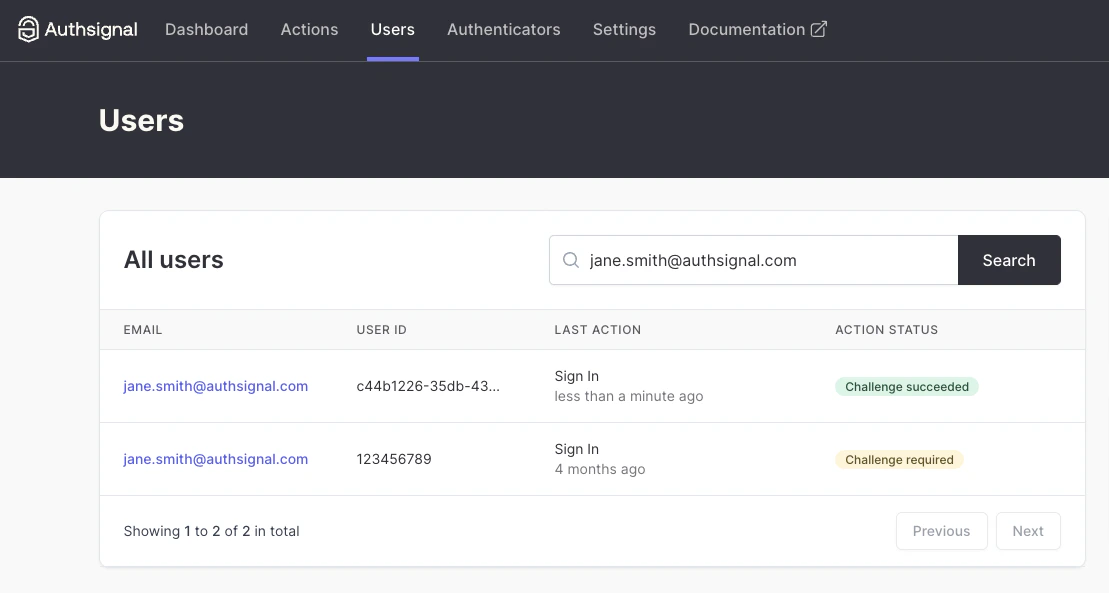 Click on the relevant user.
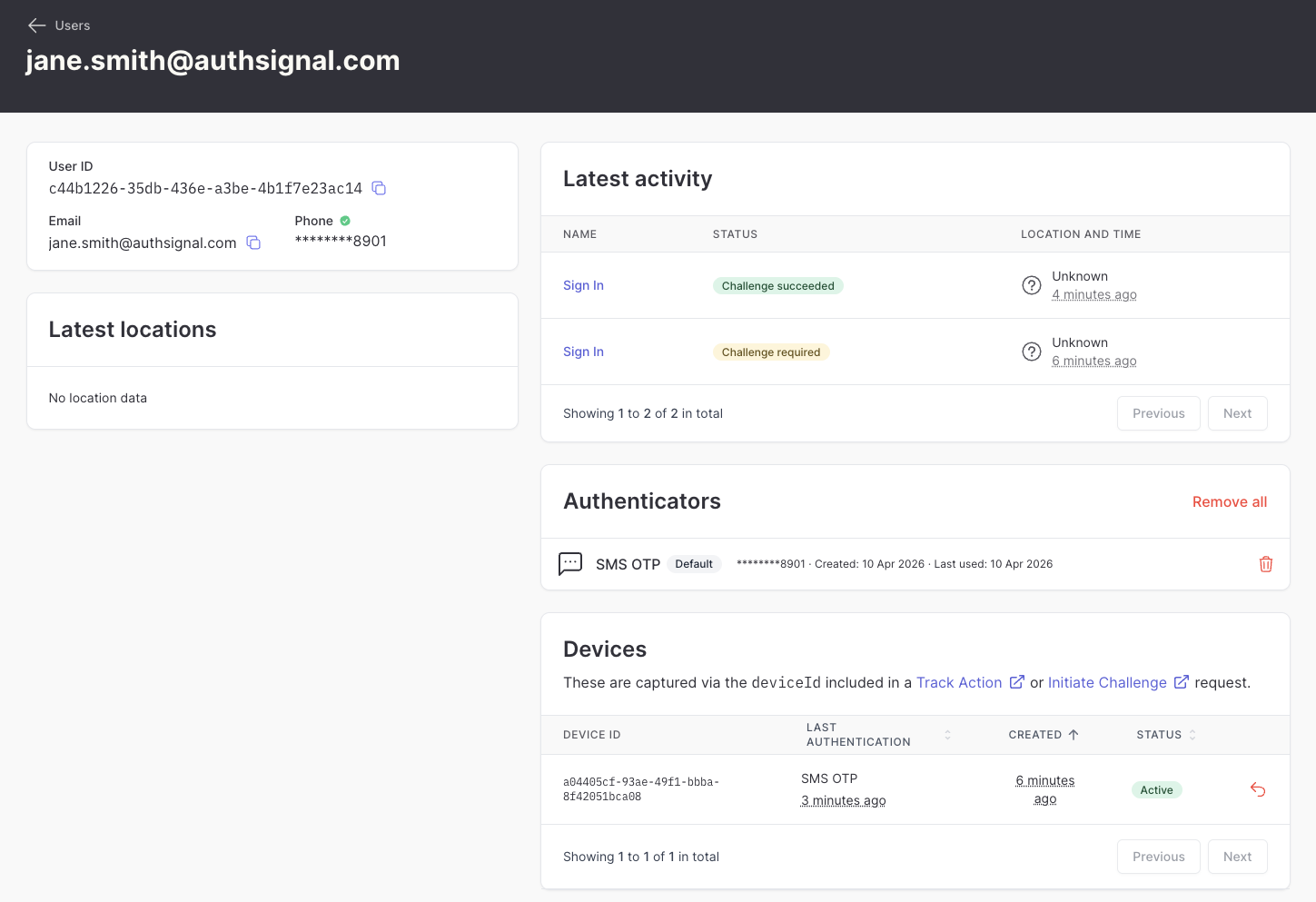
You will be presented with an overview of key details of the user, including their **Authenticators** and **Latest activity**.
Click on the relevant user.
You will be presented with an overview of key details of the user, including their **Authenticators** and **Latest activity**.
 ### Delete relevant authenticator
Under **Authenticators**, find the relevant Authenticator for the method you want to remove.
Click the **trash can** button. Alternatively, you can use the **Remove all** to reset the user back to a fresh state.
In the dialog that pops up, select **Continue**.
### Delete relevant authenticator
Under **Authenticators**, find the relevant Authenticator for the method you want to remove.
Click the **trash can** button. Alternatively, you can use the **Remove all** to reset the user back to a fresh state.
In the dialog that pops up, select **Continue**.
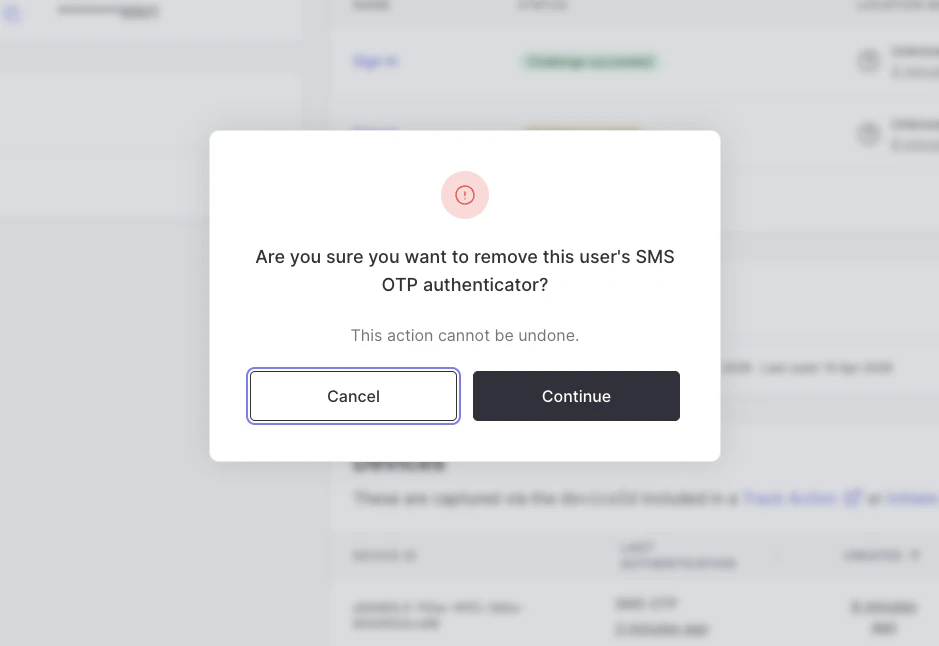 The authenticator will now be deleted. Check that the authentication method has been removed from the list.
## Conclusion
The user's authenticator has now been removed.
If the user has no more authentication methods left, and configured for your tenant, the user may now enroll themselves with a new authentication method.
The authenticator will now be deleted. Check that the authentication method has been removed from the list.
## Conclusion
The user's authenticator has now been removed.
If the user has no more authentication methods left, and configured for your tenant, the user may now enroll themselves with a new authentication method.