> ## Documentation Index
> Fetch the complete documentation index at: https://docs.authsignal.com/llms.txt
> Use this file to discover all available pages before exploring further.
# Using Authsignal with WSO2 Identity Platform
> Learn how to add MFA to your WSO2 Identity Platform login flow with Authsignal.
This guide shows how to add MFA to a [WSO2 Identity Platform](https://wso2.com/asgardeo/) login flow using Authsignal. The integration is configured as a **Custom Authentication** connection in WSO2 Identity Platform that points to an Authsignal-hosted adapter endpoint.
## Overview
WSO2 Identity Platform's Custom Authentication lets you plug in an external authentication service as a step in any login flow. The Authsignal adapter implements that contract and delegates challenge orchestration to Authsignal, so users are redirected to the Authsignal [pre-built UI](/implementation-options/prebuilt-ui/overview) to complete an MFA challenge before being returned to WSO2 Identity Platform to finish signing in.
## Prerequisites
* A WSO2 Identity Platform organization with an application configured for login.
* An Authsignal tenant with at least one authenticator enabled.
## Authsignal configuration
In the [Authenticators section of the Authsignal Portal](https://portal.authsignal.com/organisations/tenants/authenticators), enable the authentication methods you want to offer as MFA factors (for example, SMS OTP, Email OTP, or Passkeys).
In the [API Keys section of the Authsignal Portal](https://portal.authsignal.com/organisations/tenants/api), copy your tenant's **Server API key**. You will paste this into the WSO2 Identity Platform connection in the next section.
## WSO2 Identity Platform configuration
### 1. Create the Authsignal connection
In the WSO2 Identity Platform Console, go to **Connections**, click **New Connection**, and choose **Custom Authenticator (Service-based)**. This opens the **Custom Authentication** wizard, which has three steps.
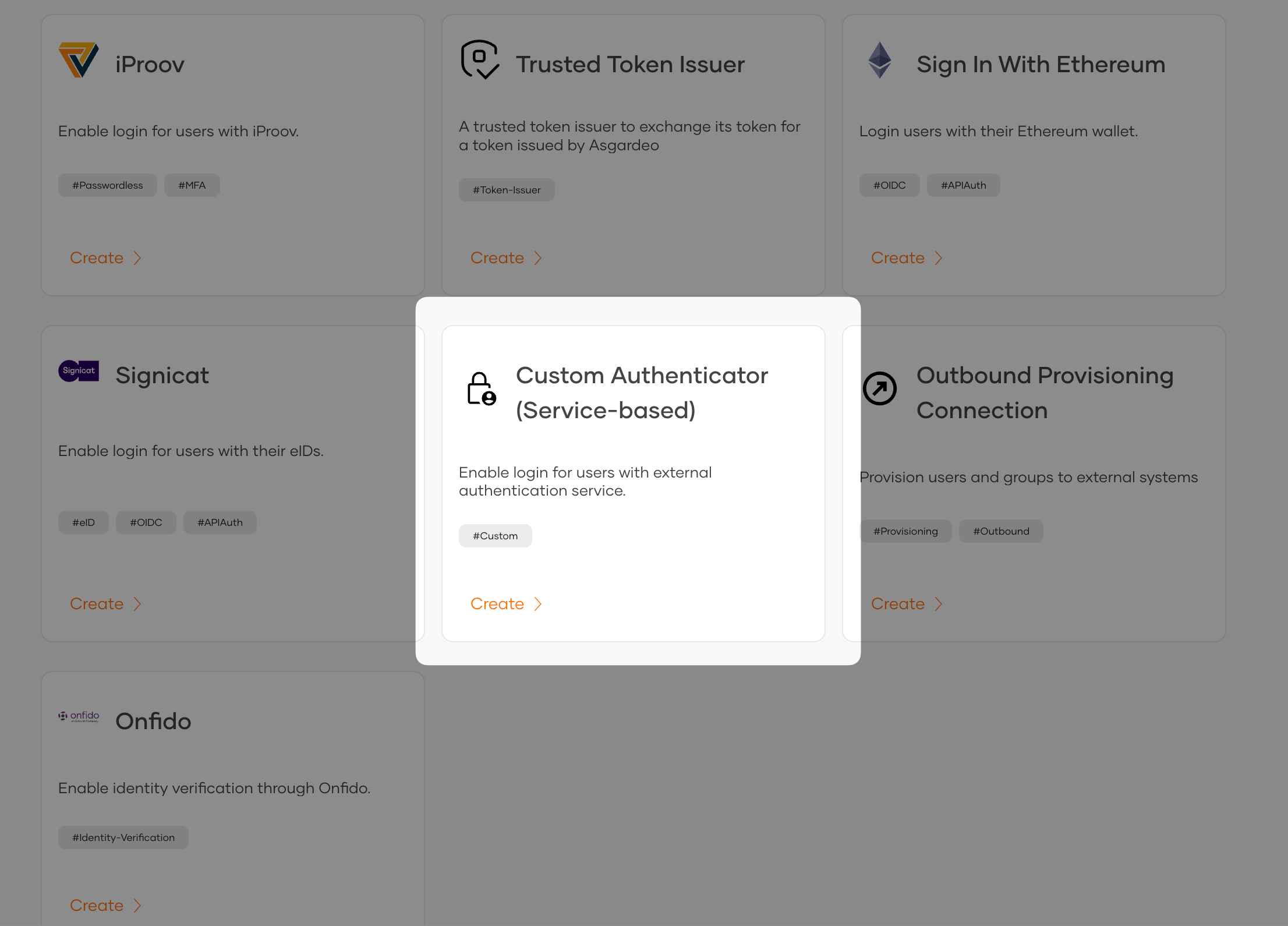 Select **2FA Authentication** and click **Next**.
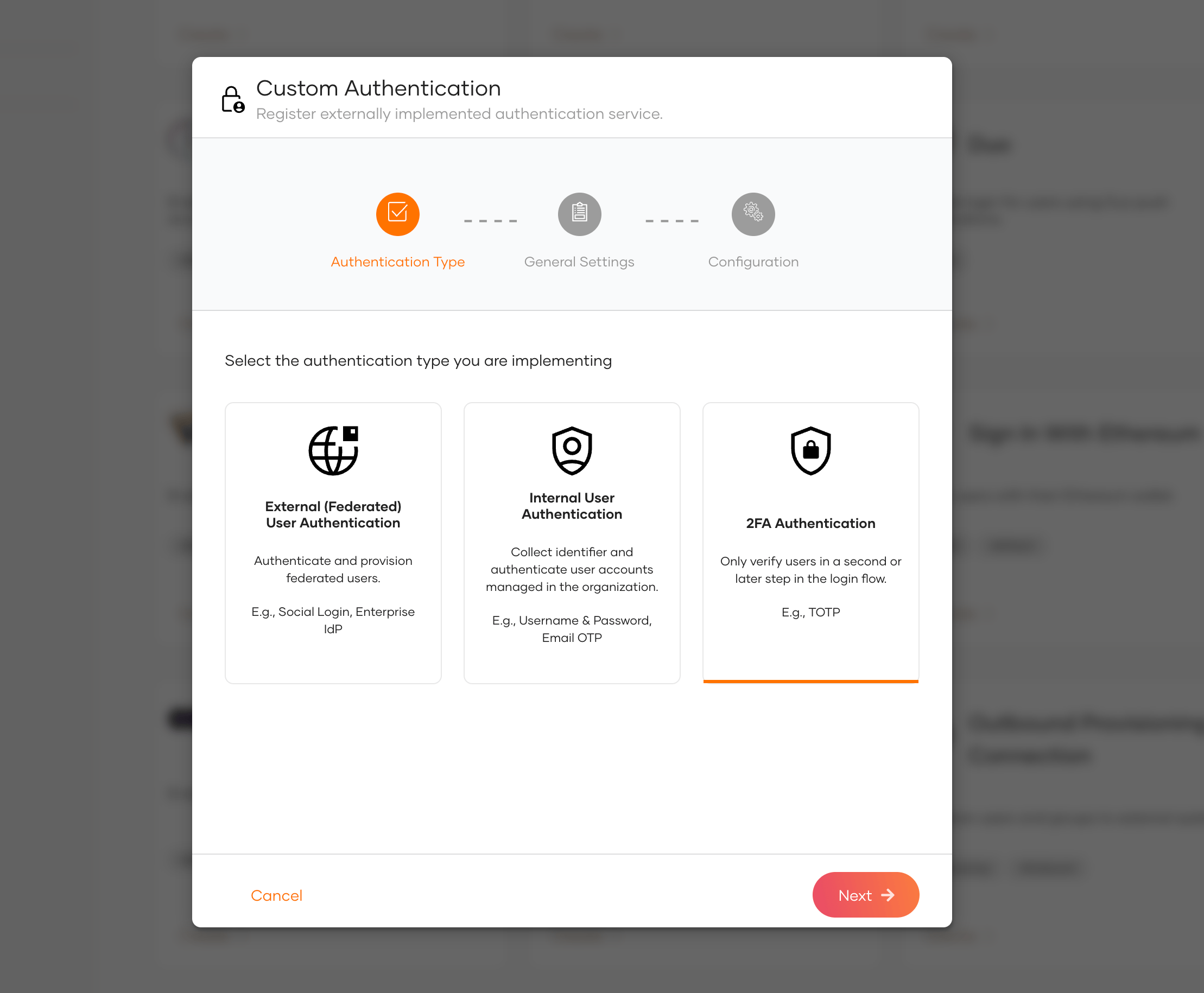 Provide an **Identifier** and a **Display Name**.
Set the **Endpoint** to the Authsignal adapter URL for your tenant's region:
```text US (Oregon) theme={null}
https://us-connect.authsignal.com/integrations/wso2-asgardeo/authenticate
```
```text EU (Ireland) theme={null}
https://eu-connect.authsignal.com/integrations/wso2-asgardeo/authenticate
```
```text AU (Sydney) theme={null}
https://au-connect.authsignal.com/integrations/wso2-asgardeo/authenticate
```
```text CA (Montreal) theme={null}
https://ca-connect.authsignal.com/integrations/wso2-asgardeo/authenticate
```
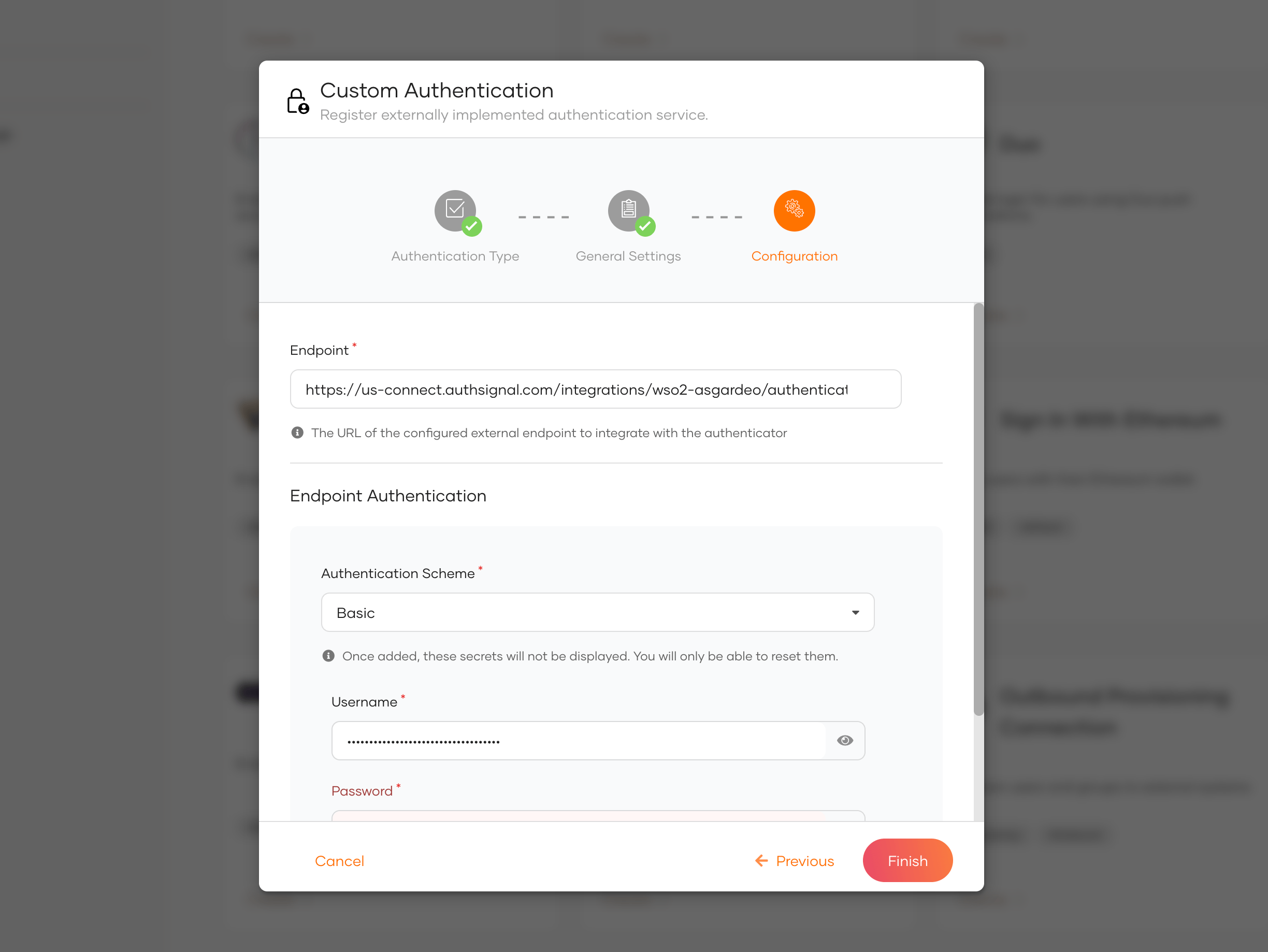
Under **Endpoint Authentication**, select **Basic** as the scheme. Paste your Authsignal tenant's **Server API key** into the **Username** field. The **Password** field is required by WSO2 Identity Platform but is not used by the adapter - enter any non-empty placeholder value. Click **Finish**.
Provide an **Identifier** and a **Display Name**.
Set the **Endpoint** to the Authsignal adapter URL for your tenant's region:
```text US (Oregon) theme={null}
https://us-connect.authsignal.com/integrations/wso2-asgardeo/authenticate
```
```text EU (Ireland) theme={null}
https://eu-connect.authsignal.com/integrations/wso2-asgardeo/authenticate
```
```text AU (Sydney) theme={null}
https://au-connect.authsignal.com/integrations/wso2-asgardeo/authenticate
```
```text CA (Montreal) theme={null}
https://ca-connect.authsignal.com/integrations/wso2-asgardeo/authenticate
```
Under **Endpoint Authentication**, select **Basic** as the scheme. Paste your Authsignal tenant's **Server API key** into the **Username** field. The **Password** field is required by WSO2 Identity Platform but is not used by the adapter - enter any non-empty placeholder value. Click **Finish**.
 ### 2. Add the connection to your login flow
In the WSO2 Identity Platform Console, go to **Applications** and select the application you want to add MFA to.
On the **Login Flow** tab, keep your existing first step (for example, username and password) and add a new step.
### 2. Add the connection to your login flow
In the WSO2 Identity Platform Console, go to **Applications** and select the application you want to add MFA to.
On the **Login Flow** tab, keep your existing first step (for example, username and password) and add a new step.
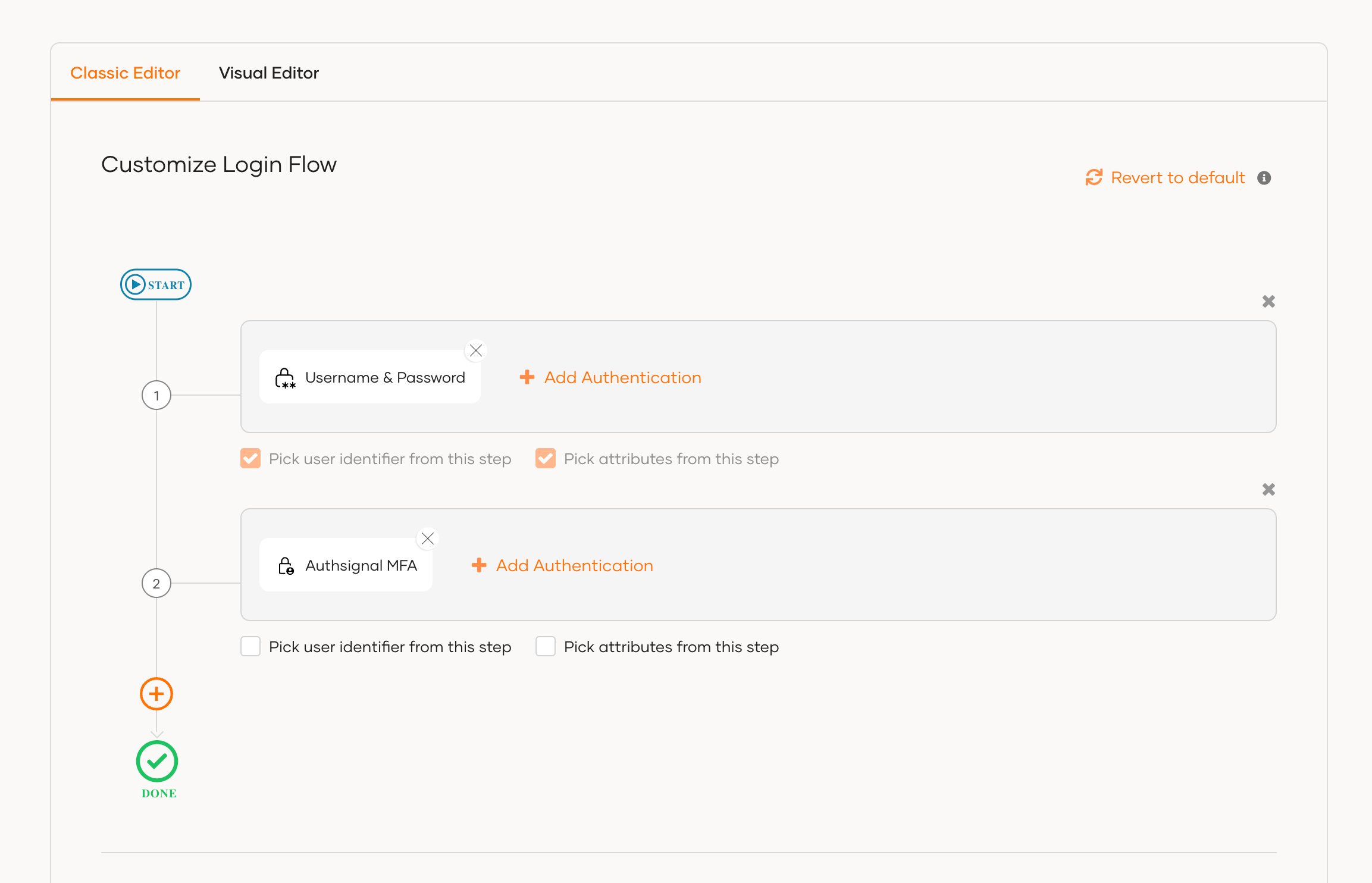 In the new step, add the `Authsignal MFA` connection you created. This step will run after the user completes the first factor. Then click **Update** to save the flow.