> ## Documentation Index
> Fetch the complete documentation index at: https://docs.authsignal.com/llms.txt
> Use this file to discover all available pages before exploring further.

# NextAuth.js (now known as Auth.js)

> Learn how to integrate Authsignal with your Next.js app when using NextAuth.

This guide shows how to add a passkey sign-in option to [NextAuth](https://next-auth.js.org/) using Authsignal. We have used email magic link for demo purposes, but the same flow can be used for other authentication methods.

<Card title="Example Repository" icon="github" href="https://github.com/authsignal/next-auth-passkeys-example" horizontal>
  Authsignal Passkeys with NextAuth in a Next.js Pages Router app.
</Card>

## Create a new Next.js application

<CodeGroup>
  ```bash npm theme={null}
  npm create next-app@latest
  ```

  ```bash pnpm theme={null}
  pnpm create next-app
  ```

  ```bash yarn theme={null}
  yarn create next-app
  ```

  ```bash bun theme={null}
  bun create next-app
  ```
</CodeGroup>

## Setup NextAuth with Email Magic Link Sign In

Users will need to create an account and sign in before they can create a passkey. To set up NextAuth with email magic link sign in, follow the NextAuth [Email Provider Docs](https://next-auth.js.org/configuration/providers/email).

## Install Authsignal SDKs

Install the Authsignal [web](/sdks/client/web/setup) and [node](/sdks/server/overview) SDKs:

<CodeGroup>
  ```bash npm theme={null}
  npm install @authsignal/browser @authsignal/node
  ```

  ```bash yarn theme={null}
  yarn add @authsignal/browser @authsignal/node
  ```

  ```bash pnpm theme={null}
  pnpm add @authsignal/browser @authsignal/node
  ```

  ```bash bun theme={null}
  bun add @authsignal/browser @authsignal/node
  ```
</CodeGroup>

<Tip>
  We recommend disabling 1Password browser extensions during development as they can intercept error
  messages from Authsignal's SDKs.
</Tip>

## Add Authsignal secret key, tenant ID, and region API host

Get the Server API secret key, tenant ID, and region API host to your from [Authsignal Portal](https://portal.authsignal.com/organisations/tenants/api) and add them to your `.env.local` file.

```bash .env.local theme={null}
NEXT_PUBLIC_AUTHSIGNAL_TENANT_ID=YOUR_TENANT_ID
AUTHSIGNAL_SERVER_API_SECRET=YOUR_TENANT_SERVER_API_SECRET
NEXT_PUBLIC_AUTHSIGNAL_API_HOST=YOUR_REGION_API_HOST
```

## Creating a passkey

<Steps>
  <Step title="Backend - Track an action">
    Create a protected endpoint that tracks an action using Authsignal's [Node Server SDK](/sdks/server/actions#track-action). In our example, we've created
    an endpoint called `enroll-passkey` that checks the session token before tracking an action. Pass the token returned by the `track` call to your frontend.

    ```tsx pages/api/auth/enroll-passkey.ts theme={null}
    import { Authsignal } from "@authsignal/node";
    import { NextApiRequest, NextApiResponse } from "next";
    import { getToken } from "next-auth/jwt";

    const authsignal = new Authsignal({
      apiSecretKey: process.env.AUTHSIGNAL_SERVER_API_SECRET!,
      apiUrl: process.env.NEXT_PUBLIC_AUTHSIGNAL_API_HOST!,
    });

    export default async function enrollPasskey(
      req: NextApiRequest,
      res: NextApiResponse
    ) {
      const sessionToken = await getToken({ req });

      if (!sessionToken || !sessionToken.sub) {
        return res.status(401).json("Unauthenticated");
      }

      const { token } = await authsignal.track({
        userId: sessionToken.sub,
        action: "enroll-passkey",
        attributes: {
          scope: "add:authenticators",
        },
      });

      res.status(200).json(token);

    }

    ```
  </Step>

  <Step title="Frontend - Initiate the passkey enrollment flow">
    In your app's frontend, call the `signUp` function using Authsignal's [Web SDK](/sdks/client/web/setup), passing the token returned in step 1.

    ```tsx pages/index.tsx theme={null}
    const authsignal = useAuthsignal();
    // Get a short lived token by tracking an action
    const enrollPasskey = async () => {

    // Get a short lived token by tracking an action
    const enrollPasskeyResponse = await fetch(
      "/api/auth/enroll-passkey"
    );

    const token = await enrollPasskeyResponse.json();

    // Initiate the passkey enrollment flow
    const username = session.user.email;

    const resultToken = await authsignal.passkey.signUp({
       token,
       username,
    });
    };
    ```
  </Step>

  <Step title="Backend - Validate the result">
    Create a protected endpoint that validates the result token from step 2.

    Pass the result token returned from Authsignal's [passkey.signUp](/sdks/client/web/passkeys#creating-a-passkey) in step 2 to your backend, validating the result of the enrollment server-side. In our example, we've
    created an API route called `callback` that checks the NextAuth session token, then validates the result token passed in from step 2.

    ```tsx pages/api/auth/callback.ts theme={null}
    import { Authsignal } from "@authsignal/node";
    import { NextApiRequest, NextApiResponse } from "next";
    import { getToken } from "next-auth/jwt";

    const authsignal = new Authsignal({
      apiSecretKey: process.env.AUTHSIGNAL_SERVER_API_SECRET!,
      apiUrl: process.env.NEXT_PUBLIC_AUTHSIGNAL_API_HOST!,
    });

     export default async function callback(req: NextApiRequest, res: NextApiResponse) {
     const sessionToken = await getToken({ req })

     if (!sessionToken) {
       return res.status(401).json('Unauthenticated');
     }

     const { token } = req.query;

     if (!token || Array.isArray(token)) {
       res.status(400).json("Invalid token");
       return;
     }

     const data = await authsignal.validateChallenge({ token });

     res.status(200).json(data);

    };

    ```
  </Step>

  <Step title="Frontend - Handle result">
    Notify the user of the success or failure of the passkey addition.

    ```tsx pages/index.tsx theme={null}
     const { success } = await callbackResponse.json();

    if (success) {
      alert("Successfully added passkey");
    } else {
      alert("Failed to add passkey");
    }
    ```

    The full frontend enrollment logic is shown below:

    ```tsx pages/index.tsx theme={null}
    import { useRouter } from "next/router";
    import { useSession, signOut } from "next-auth/react";
    import { useEffect } from "react";

    import { useAuthsignal } from "../utils/authsignal";

    export default function Index() {
      const { data: session, status } = useSession();

      const router = useRouter();

      const authsignal = useAuthsignal();

      useEffect(() => {
        if (status === "unauthenticated") {
          router.push("/signin");
        }
      }, [status, router]);

      const enrollPasskey = async () => {
        if (!session?.user?.email || !session.user) {
          throw new Error("No user in session");
        }

        // Get a short lived token by tracking an action
        const enrollPasskeyResponse = await fetch("/api/auth/enroll-passkey");

        const token = await enrollPasskeyResponse.json();

        // Initiate the passkey enroll flow
        const username = session.user.email;

        const resultToken = await authsignal.passkey.signUp({
          token,
          username,
        });

        // Check that the enrollment was successful
        const callbackResponse = await fetch(`/api/auth/callback/?token=${resultToken}`);

        const { success } = await callbackResponse.json();

        if (success) {
          alert("Successfully added passkey");
        } else {
          alert("Failed to add passkey");
        }
      };

      if (status === "loading") {
        return <div>Loading...</div>;
      }

      return (
        <div className="container">
          <h3>Welcome, {session?.user?.email}</h3>
          <p>You now have a NextAuth session.</p>
          <button onClick={() => signOut({ callbackUrl: "/signin" })}>Sign out</button>
          <button onClick={enrollPasskey}>Create passkey</button>
        </div>
      );
    }
    ```

    <Tip>
      You can remove passkeys along with other authenticators in the [Authsignal
      Portal](https://portal.authsignal.com/users). You will also need to remove it from your device,
      e.g. in chrome://settings/passkeys.
    </Tip>
  </Step>
</Steps>

## Signing in with a passkey

Now that the user has enrolled a passkey, the next time they sign in we would like to give them the option to use their passkey instead of email magic link.

<Steps>
  <Step title="Frontend - Enable passkey autofill">
    First, we need to ensure that the input field has the value `username webauthn` in the [autocomplete attribute](https://github.com/authsignal/next-auth-passkeys-example/blob/db24102a2a6be898afca1879626317fd9da0b4e7/pages/signin.tsx#L69).

    <Info>
      The `webauthn` value in the `autocomplete` attribute is required for autofill to work.

      `webauthn` can be combined with other typical `autocomplete` values, including `username` and `current-password`, but must appear at the end to consistently trigger conditional UI across browsers.
    </Info>

    ```js pages/signin.tsx theme={null}
    <input
      type="email"
      id="email"
      onChange={(input) => setEmail(input.target.value)}
      autoComplete="username webauthn"
    />
    ```

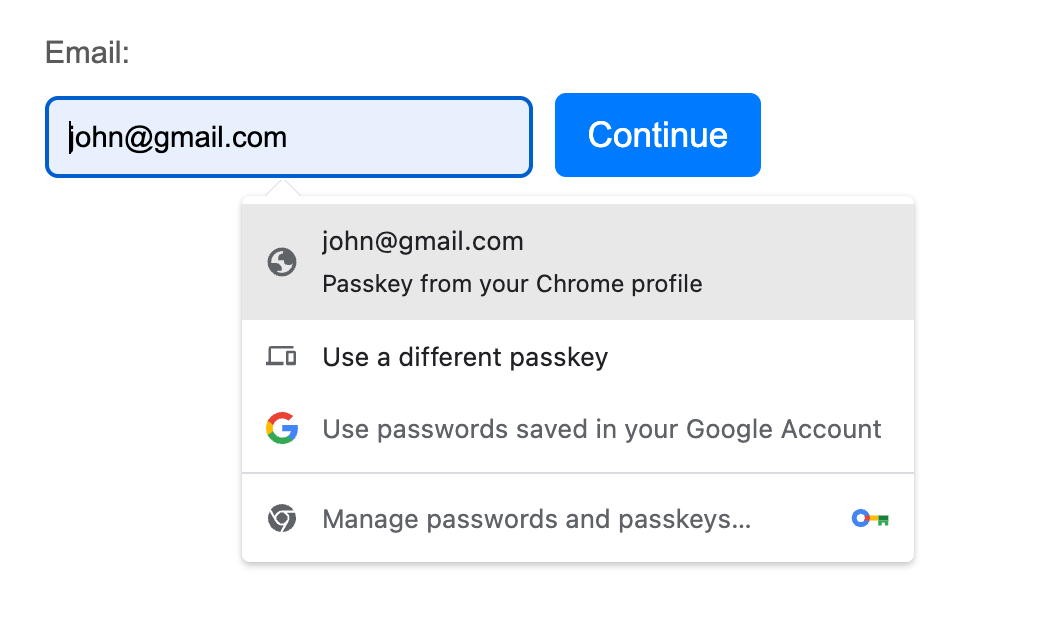
    Then we call [authsignal.passkey.signIn](/sdks/client/web/passkeys#using-a-passkey) when the page loads. This will initialize the input field for passkey autofill, which means if a user has enrolled a passkey then they should be able to select it when focusing the text field.
    On success, this will return a token that we will validate on the backend.

    ```tsx pages/signin.tsx theme={null}
    const signInToken = await authsignal.passkey.signIn({
      autofill: true,
    });
    ```

    <Frame>
      <img src="https://mintcdn.com/authsignal-23/8bvDamO56aVu-Ay2/images/docs/integrations/next-auth/autofill.png?fit=max&auto=format&n=8bvDamO56aVu-Ay2&q=85&s=ddd3edd2d460b5203bf283a8ac02dc35" alt="" width="1044" height="640" data-path="images/docs/integrations/next-auth/autofill.png" />
    </Frame>

    We pass this token to NextAuth's `signIn` method, specifying that we want to use the `credentials` provider. This uses the token to validate the result of the challenge server-side and logs in the user.
    We've set `redirect: false` so that we can handle errors manually, on the current page.

    ```tsx pages/signin.tsx theme={null}
    import { signIn } from "next-auth/react";

    const result = await signIn("credentials", {
      signInToken,
      redirect: false,
    });
    ```

    The full sign in logic code is shown below:

    ```tsx pages/signin.tsx theme={null}
    useEffect(() => {
      const handlePasskeySignIn = async () => {
        try {
          // Initialize the input for passkey autofill
          const response = await authsignal.passkey.signIn({
            autofill: true,
          });

          // Extract token from response.data.token
          let signInToken = null;

          if (response && response.data && response.data.token) {
            signInToken = response.data.token;
          }

          // Run NextAuth's sign in flow. This will run if the user selects one of their passkeys from the Webauthn dropdown.
          if (signInToken && typeof signInToken === "string") {
            const result = await signIn("credentials", {
              signInToken,
              redirect: false,
            });

            if (result?.error) {
              alert("Failed to sign in with passkey");
            } else {
              router.push("/");
            }
          } else {
            alert("Failed to sign in with passkey: Invalid token format");
          }
        } catch (err: any) {
          if (err.name === "AbortError") {
            // Ignore
          } else {
            console.error("Passkey sign-in error:", err);
            throw err;
          }
        }
      };

      if (status === "unauthenticated") {
        handlePasskeySignIn();
      }
    }, [status, authsignal.passkey, router]);
    ```
  </Step>

  <Step title="Backend - Create NextAuth session">
    We need to add a [CredentialsProvider](https://next-auth.js.org/providers/credentials) to the providers array in `authOptions` within the `[...nextauth]` API route.
    This will validate the signInToken from step 1 using Authsignal's `validateChallenge` method.
    On successful validation, NextAuth will create a session containing user information that you specify. Returning `null` will throw an error.

    ```ts pages/api/auth/[...nextauth].ts theme={null}
    const authOptions = {
    adapter: PrismaAdapter(prisma),
    session: {
      strategy: "jwt" as SessionStrategy,
    },
    providers: [
      EmailProvider({
        server: {
          host: process.env.SMTP_HOST,
          port: Number(process.env.SMTP_PORT),
          auth: {
            user: process.env.SMTP_USER,
            pass: process.env.SMTP_PASSWORD,
          },
        },
       from: process.env.SMTP_FROM,
     }),
     CredentialsProvider({
       name: "webauthn",
       credentials: {},
       async authorize(cred) {
        const { signInToken } = cred as { signInToken: string };

        if (!signInToken) {
          return null;
        }

        try {
          const result = await authsignal.validateChallenge({
            token: signInToken,
          });

          const userId = result.userId;
          if (!userId) {
            return null;
          }

          const user = await prisma.user.findUnique({
            where: { id: userId },
          });

          if (!user) {
            return null;
          }

          const state = result.state;
          if (state === "CHALLENGE_SUCCEEDED") {
            return { id: user.id, email: user.email };
          }
        } catch {
          return null;
        }

        return null;
      },
    }),

    ],
    secret: process.env.NEXTAUTH_SECRET,
    };

    ```

    You'll notice that we've also added a JWT strategy to the session option. We need to enable JWT session tokens for NextAuth's CredentialsProvider to work,
    according to [NextAuth's documentation](https://next-auth.js.org/providers/credentials).
  </Step>
</Steps>
