> ## Documentation Index
> Fetch the complete documentation index at: https://docs.authsignal.com/llms.txt
> Use this file to discover all available pages before exploring further.

# Passwordless login with Microsoft Azure AD B2C

> Learn how to use Authsignal for passwordless login with Microsoft Azure AD B2C.

This guide extends our previous guide where we showed you how to [integrate Authsignal with Microsoft Azure AD B2C](/integrations/azure-ad-b2c/azure-ad-b2c-mfa) for multi-factor authentication.

In this guide, we will show you how to use Authsignal for passwordless login with Microsoft Azure AD B2C.

<CardGroup cols={2}>
  <Card title="Try a live demo!" icon="link" href="https://as-azure-ad-b2c-passwordless-example.vercel.app/" horizontal>
    Note that the live demo is using the same underlying Azure B2C Tenant as the previous guide. You
    can use the same email address to sign in.
  </Card>
</CardGroup>

## Code example

A [full code example and starter template](https://github.com/authsignal/azure-ad-b2c-passwordless-example) referenced in this guide can be found on Github.

You can also refer to the [code diff between the previous guide](https://github.com/authsignal/azure-ad-b2c-example/compare/main...authsignal:azure-ad-b2c-passwordless-example:main?expand=1) if you only want to see the changes.

## Step by step guide

### Step 1: Create sign up technical profiles without passwords

The following technical profiles are a copy of the [LocalAccountSignUpWithLogonEmail](https://github.com/Azure-Samples/active-directory-b2c-custom-policy-starterpack/blob/fc39b7dbf7648dcfbcd5d511b49da6583671128c/LocalAccounts/TrustFrameworkBase.xml#L663-L694) and [AAD-UserWriteUsingLogonEmail](https://github.com/Azure-Samples/active-directory-b2c-custom-policy-starterpack/blob/fc39b7dbf7648dcfbcd5d511b49da6583671128c/LocalAccounts/TrustFrameworkBase.xml#L501-L530) technical profiles from the `TrustFrameworkBase.xml` file provided by Microsoft with the password claims removed.

This removes the need for the user to provide a password on sign up, but still collects some data from the user such as display name, first name and last name.

```xml theme={null}
 <TechnicalProfile Id="LocalAccountSignUpWithLogonEmail_Passwordless">
    <DisplayName>Email signup</DisplayName>
    <Protocol Name="Proprietary" Handler="Web.TPEngine.Providers.SelfAssertedAttributeProvider, Web.TPEngine, Version=1.0.0.0, Culture=neutral, PublicKeyToken=null" />
    <Metadata>
        <Item Key="IpAddressClaimReferenceId">IpAddress</Item>
        <Item Key="ContentDefinitionReferenceId">api.localaccountsignup</Item>
        <Item Key="EnforceEmailVerification">false</Item>
    </Metadata>
    <CryptographicKeys>
        <Key Id="issuer_secret" StorageReferenceId="B2C_1A_TokenSigningKeyContainer" />
    </CryptographicKeys>
    <InputClaims>
        <InputClaim ClaimTypeReferenceId="email" />
    </InputClaims>
    <OutputClaims>
        <OutputClaim ClaimTypeReferenceId="objectId" />
        <OutputClaim ClaimTypeReferenceId="email" PartnerClaimType="Verified.Email" Required="true" />
        <OutputClaim ClaimTypeReferenceId="executed-SelfAsserted-Input" DefaultValue="true" />
        <OutputClaim ClaimTypeReferenceId="authenticationSource" />
        <OutputClaim ClaimTypeReferenceId="newUser" />

        <!-- Optional claims, to be collected from the user -->
        <OutputClaim ClaimTypeReferenceId="displayName" />
        <OutputClaim ClaimTypeReferenceId="givenName" />
        <OutputClaim ClaimTypeReferenceId="surName" />
    </OutputClaims>
    <ValidationTechnicalProfiles>
        <ValidationTechnicalProfile ReferenceId="AAD-UserWriteUsingLogonEmail_Passwordless" />
    </ValidationTechnicalProfiles>
    <UseTechnicalProfileForSessionManagement ReferenceId="SM-AAD" />
</TechnicalProfile>

<TechnicalProfile Id="AAD-UserWriteUsingLogonEmail_Passwordless">
    <Metadata>
        <Item Key="Operation">Write</Item>
        <Item Key="RaiseErrorIfClaimsPrincipalAlreadyExists">true</Item>
    </Metadata>
    <IncludeInSso>false</IncludeInSso>
    <InputClaims>
        <InputClaim ClaimTypeReferenceId="email" PartnerClaimType="signInNames.emailAddress" Required="true" />
    </InputClaims>
    <PersistedClaims>
        <!-- Required claims -->
        <PersistedClaim ClaimTypeReferenceId="email" PartnerClaimType="signInNames.emailAddress" />

        <!-- Optional claims. -->
        <PersistedClaim ClaimTypeReferenceId="displayName" DefaultValue="unknown" />
        <PersistedClaim ClaimTypeReferenceId="givenName" />
        <PersistedClaim ClaimTypeReferenceId="surname" />
    </PersistedClaims>
    <OutputClaims>
        <OutputClaim ClaimTypeReferenceId="objectId" />
        <OutputClaim ClaimTypeReferenceId="newUser" PartnerClaimType="newClaimsPrincipalCreated" />
        <OutputClaim ClaimTypeReferenceId="authenticationSource" DefaultValue="localAccountAuthentication" />
        <OutputClaim ClaimTypeReferenceId="userPrincipalName" />
        <OutputClaim ClaimTypeReferenceId="signInNames.emailAddress" />
    </OutputClaims>
    <IncludeTechnicalProfile ReferenceId="AAD-Common" />
    <UseTechnicalProfileForSessionManagement ReferenceId="SM-AAD" />
</TechnicalProfile>
```

### Step 2: Update the sign up orchestration step in your user journey to use the new technical profile

```xml theme={null}
<ClaimsExchange Id="SignUpWithLogonEmailExchange" TechnicalProfileReferenceId="LocalAccountSignUpWithLogonEmail_Passwordless" />
```

### Step 3: Create sign in technical profiles to look up the user from email address without passwords

The following technical profiles are a copy of the [SelfAsserted-LocalAccountSignin-Email](https://github.com/Azure-Samples/active-directory-b2c-custom-policy-starterpack/blob/fc39b7dbf7648dcfbcd5d511b49da6583671128c/LocalAccounts/TrustFrameworkBase.xml#L697-L720) and [AAD-UserReadUsingEmailAddress](https://github.com/Azure-Samples/active-directory-b2c-custom-policy-starterpack/blob/fc39b7dbf7648dcfbcd5d511b49da6583671128c/LocalAccounts/TrustFrameworkBase.xml#L532-L557) technical profiles from the `TrustFrameworkBase.xml` file provided by Microsoft adjusted to look up the user without utilising passwords.

```xml theme={null}
<TechnicalProfile Id="AAD-UserReadUsingEmailAddress_Passwordless">
    <Metadata>
        <Item Key="Operation">Read</Item>
        <Item Key="RaiseErrorIfClaimsPrincipalDoesNotExist">true</Item>
    </Metadata>
    <IncludeInSso>false</IncludeInSso>
    <InputClaims>
        <InputClaim ClaimTypeReferenceId="signInName" PartnerClaimType="signInNames.emailAddress" Required="true" />
    </InputClaims>
    <OutputClaims>
        <!-- Required claims -->
        <OutputClaim ClaimTypeReferenceId="objectId" />
        <OutputClaim ClaimTypeReferenceId="authenticationSource" DefaultValue="localAccountAuthentication" />

        <!-- Optional claims -->
        <OutputClaim ClaimTypeReferenceId="userPrincipalName" />
        <OutputClaim ClaimTypeReferenceId="displayName" />
        <OutputClaim ClaimTypeReferenceId="otherMails" />
        <OutputClaim ClaimTypeReferenceId="signInNames.emailAddress" />
    </OutputClaims>
    <IncludeTechnicalProfile ReferenceId="AAD-Common" />
</TechnicalProfile>

<TechnicalProfile Id="SelfAsserted-LocalAccountSignin-Email_Passwordless">
    <DisplayName>Local Account Signin</DisplayName>
    <Protocol Name="Proprietary" Handler="Web.TPEngine.Providers.SelfAssertedAttributeProvider, Web.TPEngine, Version=1.0.0.0, Culture=neutral, PublicKeyToken=null" />
    <Metadata>
        <Item Key="SignUpTarget">SignUpWithLogonEmailExchange</Item>
        <Item Key="setting.operatingMode">Email</Item>
        <Item Key="ContentDefinitionReferenceId">api.localaccountsignin</Item>
        <Item Key="IncludeClaimResolvingInClaimsHandling">true</Item>
    </Metadata>
    <IncludeInSso>false</IncludeInSso>
    <InputClaims>
        <InputClaim ClaimTypeReferenceId="signInName" DefaultValue="{OIDC:LoginHint}" AlwaysUseDefaultValue="true" />
    </InputClaims>
    <OutputClaims>
        <OutputClaim ClaimTypeReferenceId="signInName" Required="true" />
        <OutputClaim ClaimTypeReferenceId="objectId" />
        <OutputClaim ClaimTypeReferenceId="authenticationSource" />
    </OutputClaims>
    <ValidationTechnicalProfiles>
        <ValidationTechnicalProfile ReferenceId="AAD-UserReadUsingEmailAddress_Passwordless" />
    </ValidationTechnicalProfiles>
    <UseTechnicalProfileForSessionManagement ReferenceId="SM-AAD" />
</TechnicalProfile>
```

### Step 4: Update the login orchestration step in your user journey to use the new technical profile

```xml theme={null}
<ClaimsExchange Id="LocalAccountSigninEmailExchange" TechnicalProfileReferenceId="SelfAsserted-LocalAccountSignin-Email_Passwordless" />
```

### Step 5: Upload your custom policy and test your integration

You can now test your integration by navigating to your custom policy in the Azure AD B2C portal and clicking "Run now".

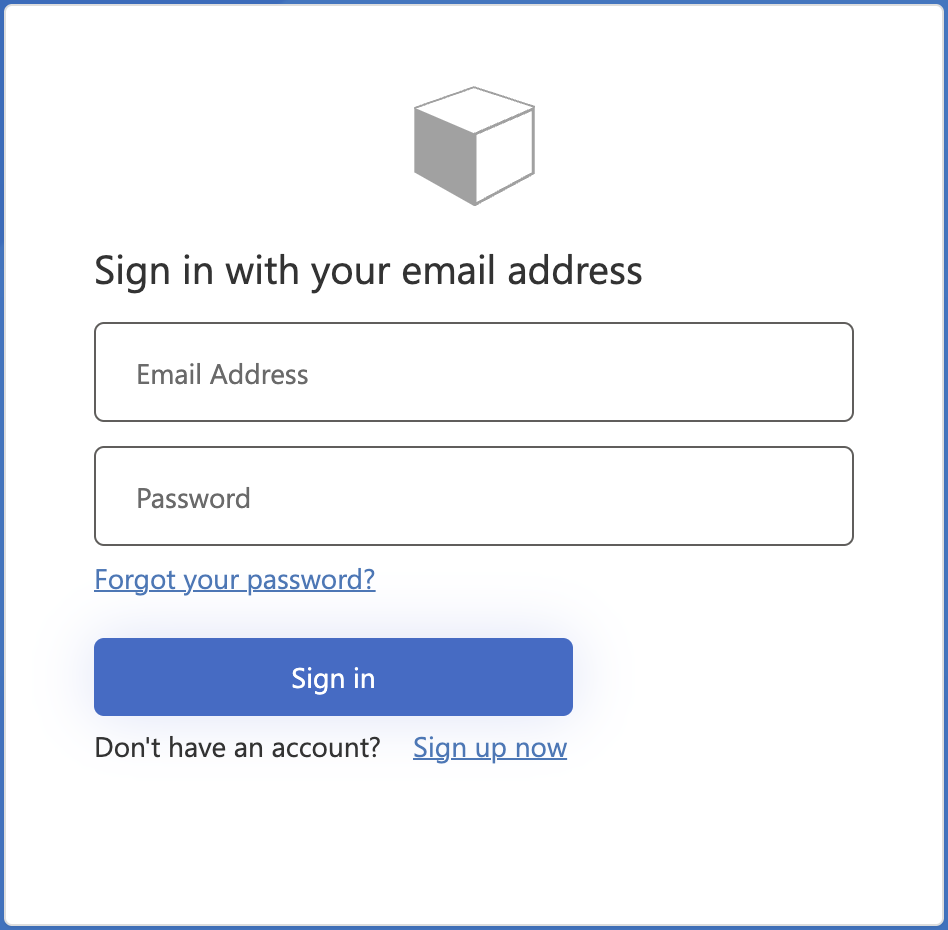
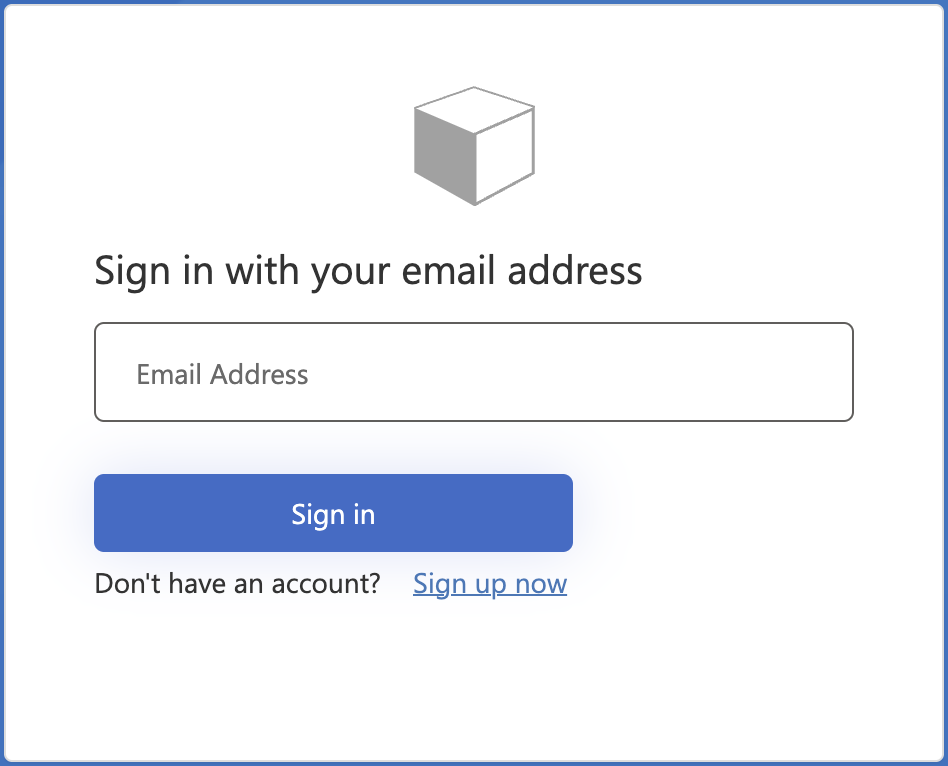
You should see both the Azure AD B2C login and sign up screens without password inputs with the user being redirected to Authsignal to complete their authentication.

<Frame caption="Login screen after removing the password input">
  <div
    style={{
    display: "flex",
    flexDirection: "row",
    justifyContent: "center",
    alignItems: "center",
    height: "100%", // Ensure the frame takes full height of its container
}}
  >
    <img src="https://mintcdn.com/authsignal-23/8bvDamO56aVu-Ay2/images/docs/azure-ad-b2c/b2c-login-password.png?fit=max&auto=format&n=8bvDamO56aVu-Ay2&q=85&s=913cc818a7bf7f4e3e70e04a583384f7" alt="Screenshot of the Azure AD B2C login screen with password" width="948" height="930" data-path="images/docs/azure-ad-b2c/b2c-login-password.png" />

    <div style={{margin: "10px"}}>
      <Icon icon="arrow-right" size={32} />
    </div>

    <img src="https://mintcdn.com/authsignal-23/8bvDamO56aVu-Ay2/images/docs/azure-ad-b2c/b2c-login-passwordless.png?fit=max&auto=format&n=8bvDamO56aVu-Ay2&q=85&s=a1f071a570f8926cb071416af5694947" alt="Screenshot of the Azure AD B2C login screen without password" width="948" height="766" data-path="images/docs/azure-ad-b2c/b2c-login-passwordless.png" />
  </div>
</Frame>

## Congratulations!

You have successfully integrated Authsignal with Azure AD B2C for passwordless authentication.

## Next steps

* [How to add passkey autofill to the Azure AD B2C login page](/integrations/azure-ad-b2c/azure-ad-b2c-passkey)