> ## Documentation Index
> Fetch the complete documentation index at: https://docs.authsignal.com/llms.txt
> Use this file to discover all available pages before exploring further.

# Using Authsignal for MFA with Microsoft Azure AD B2C

> Learn how to integrate Authsignal for MFA when using Microsoft Azure AD B2C.

Authsignal provides a simple integration with Azure AD B2C via our [Open ID Connect (OIDC)](/integrations/oidc) endpoints.

With this integration you can use Azure AD B2C's [custom policies](https://learn.microsoft.com/en-us/azure/active-directory-b2c/user-flow-overview#custom-policies) and [technical profiles](https://learn.microsoft.com/en-us/azure/active-directory-b2c/technicalprofiles) to orchestrate passwordless login and adaptive MFA through Authsignal's pre-built UI.

The guide below outlines how to use Authsignal as a MFA provider for Azure AD B2C. Authsignal provides other utility endpoints to achieve further customization, see [Authsignal's custom policy code snippets](/integrations/azure-ad-b2c/azure-ad-b2c-snippets).

<Info>
  Authsignal integrates with Azure AD B2C by acting as an [OIDC provider](/integrations/oidc) - this
  integration model can also be used for other platforms which support OIDC.
</Info>

## Prerequisites

This guide assumes that you have already set up an Azure AD B2C tenant and are using custom policies. If not, it is recommended to familiarize yourself with [Azure AD B2C custom policies](https://learn.microsoft.com/en-us/azure/active-directory-b2c/custom-policy-overview) and to follow Microsoft's official [getting started with custom policies guide](https://learn.microsoft.com/en-us/azure/active-directory-b2c/tutorial-create-user-flows?pivots=b2c-custom-policy) before continuing.

We also assume that you have an Authsignal tenant created, with at least one Authenticator enabled. [Enable an Authenticator on your Authsignal tenant here.](https://portal.authsignal.com/organisations/tenants/authenticators)

<CardGroup cols={3}>
  <Card title="Try a live demo!" icon="link" href="https://as-azure-ad-b2c-example.vercel.app/" horizontal />
</CardGroup>

## Sequence

The following sequence diagram demonstrates the necessary orchestration steps and corresponding requests when using Authsignal as an MFA provider for Azure AD B2C.

```mermaid theme={null}
sequenceDiagram
    participant F as Your frontend
    participant AAD as Azure AD B2C
    participant AS as Authsignal
    F->>AAD: User clicks the "Sign in" button
    Note over AAD: User enters their login details
    Note over AAD: User identifier is stored in the objectId claim

    critical User Journey Step A
    AAD->>AS: POST /init-auth
    activate AS
    AS->>AAD: token
    deactivate AS
    end

    critical User Journey Step B
    AAD->>AS: GET /oidc/auth with token
    activate AS
    Note over AS: Redirect to Authsignal's pre-built UI
    Note over AS: User completes authentication challenge
    AS->>AAD: Return auth code
    deactivate AS

    AAD->>AS: POST /oidc/token with auth code
    activate AS
    AS->>AAD: Return id_token
    deactivate AS
    end

    critical User Journey Step C, D, E
    Note over AAD: Validate result of challenge
    end
    AAD->>F: Return session token
```

## Code example

You can find a [full code example and starter template](https://github.com/authsignal/azure-ad-b2c-example) referenced in this guide on Github.

This guide builds on top of the [SignUpOrSignIn policy from the Azure AD B2C starter pack](https://github.com/Azure-Samples/active-directory-b2c-custom-policy-starterpack/blob/main/LocalAccounts/TrustFrameworkBase.xml#L875-L910).

## Step by step guide

### Step 1: Add orchestration steps to your user journey

Add the following five steps to your user journey. These steps should be performed after the user has been identified, but before the user is authenticated and issued a token.

```xml theme={null}
<!-- NOTE: Change the Order attribute accordingly, adjusting other orchestration steps in your user journey as necessary -->

<!-- A. Call Authsignal's OIDC init auth endpoint to generate a short lived token representing the user.
This is a prerequisite before federating the flows to Authsignal via the OIDC Authorize technical profile in the step below  -->
<OrchestrationStep Order="4" Type="ClaimsExchange">
    <ClaimsExchanges>
        <ClaimsExchange Id="AuthsignalOidcInitAuth" TechnicalProfileReferenceId="authsignalOidcInitAuth"/>
    </ClaimsExchanges>
</OrchestrationStep>

<!-- B. Feed the token returned by the init auth endpoint to Authsignal's OIDC authorize endpoint -->
<OrchestrationStep Order="5" Type="ClaimsExchange">
    <ClaimsExchanges>
        <ClaimsExchange Id="AuthsignalOidcAuth" TechnicalProfileReferenceId="authsignalOidcAuth"/>
    </ClaimsExchanges>
</OrchestrationStep>

<!-- C. Defensively check that the id token sub (aka the Authsignal userId) matches the objectId we are currently processing -->
<OrchestrationStep Order="6" Type="ClaimsExchange">
  <Preconditions>
    <Precondition Type="ClaimEquals" ExecuteActionsIf="true">
      <Value>isMatchingUserId</Value>
      <Value>True</Value>
      <Action>SkipThisOrchestrationStep</Action>
    </Precondition>
  </Preconditions>
  <ClaimsExchanges>
    <ClaimsExchange Id="ShowUserIdMismatchErrorPage" TechnicalProfileReferenceId="SelfAsserted-AuthenticationError" />
  </ClaimsExchanges>
</OrchestrationStep>

<!-- D. Check that the authentication challenge has been successful -->
<OrchestrationStep Order="7" Type="ClaimsExchange">
  <Preconditions>
    <Precondition Type="ClaimEquals" ExecuteActionsIf="true">
      <Value>isChallengeSuccessful</Value>
      <Value>true</Value>
      <Action>SkipThisOrchestrationStep</Action>
    </Precondition>
  </Preconditions>
  <ClaimsExchanges>
    <ClaimsExchange Id="ShowChallengeFailedPage" TechnicalProfileReferenceId="SelfAsserted-AuthenticationError" />
  </ClaimsExchanges>
</OrchestrationStep>

<!-- E. Check that the user has enrolled an authenticator -->
<!-- Note that this step is only necessary if you want to enforce MFA or use Authsignal for passwordless login -->
<OrchestrationStep Order="8" Type="ClaimsExchange">
  <Preconditions>
    <Precondition Type="ClaimEquals" ExecuteActionsIf="true">
      <Value>authsignalEnrolled</Value>
      <Value>true</Value>
      <Action>SkipThisOrchestrationStep</Action>
    </Precondition>
  </Preconditions>
  <ClaimsExchanges>
    <ClaimsExchange Id="ShowUserAuthenticatorNotEnrolledErrorPage" TechnicalProfileReferenceId="SelfAsserted-NotEnrolledError" />
  </ClaimsExchanges>
</OrchestrationStep>
```

### Step 2: Add the base technical profile

This is the base technical profile that is used to connect to the Authsignal Connect (OIDC) API by setting the authorization header, request body and other necessary configuration for the [Azure AD B2C's RestfulProvider](https://learn.microsoft.com/en-us/azure/active-directory-b2c/restful-technical-profile). It is referenced by other technical profiles.

```xml theme={null}
<TechnicalProfile Id="AuthsignalConnectApiBase">
    <DisplayName>Authsignal Connect API Base</DisplayName>
    <Protocol Name="Proprietary" Handler="Web.TPEngine.Providers.RestfulProvider, Web.TPEngine, Version=1.0.0.0, Culture=neutral, PublicKeyToken=null" />
    <Metadata>
        <Item Key="SendClaimsIn">Body</Item>
        <Item Key="AuthenticationType">Basic</Item>
        <Item Key="AllowInsecureAuthInProduction">false</Item>
        <Item Key="ResolveJsonPathsInJsonTokens">true</Item>
        <Item Key="ClaimUsedForRequestPayload">requestBody</Item>
        <Item Key="DefaultUserMessageIfRequestFailed">Cannot process your request right now, please try again later.</Item>
    </Metadata>
    <CryptographicKeys>
        <Key Id="BasicAuthenticationUsername" StorageReferenceId="B2C_1A_AuthsignalSecret" />
        <Key Id="BasicAuthenticationPassword" StorageReferenceId="B2C_1A_AuthsignalSecret" />
    </CryptographicKeys>
    <InputClaims>
        <InputClaim ClaimTypeReferenceId="requestBody" />
    </InputClaims>
</TechnicalProfile>
```

### Step 3: Add the init auth technical profile and corresponding input claims transformation

Replace the `AUTHSIGNAL_CONNECT_HOSTNAME` and `INSERT_AUTHSIGNAL_ACTION` placeholders with the appropriate values.

A list of available hostnames can be found in the [OIDC documentation](/integrations/oidc#regions). You should use the hostname where your Authsignal tenant is located.

**Technical profile:**

```xml theme={null}
<TechnicalProfile Id="AuthsignalOidcInitAuth">
    <DisplayName>Authsignal OIDC Init Auth API</DisplayName>
    <Protocol Name="Proprietary" Handler="Web.TPEngine.Providers.RestfulProvider, Web.TPEngine, Version=1.0.0.0, Culture=neutral, PublicKeyToken=null"/>
    <!-- NOTE: Change the host name below -->
    <Metadata>
        <Item Key="ServiceUrl">https://AUTHSIGNAL_CONNECT_HOSTNAME/init-auth</Item>
    </Metadata>
    <InputClaimsTransformations>
        <InputClaimsTransformation ReferenceId="AuthsignalCreateInitAuthRequestBody"/>
    </InputClaimsTransformations>
    <InputClaims>
        <InputClaim ClaimTypeReferenceId="requestBody"/>
    </InputClaims>
    <OutputClaims>
        <OutputClaim ClaimTypeReferenceId="bearerToken" PartnerClaimType="token"/>
    </OutputClaims>
    <IncludeTechnicalProfile ReferenceId="AuthsignalConnectApiBase"/>
</TechnicalProfile>
```

**Input Claims Transformation:**

Replace the `INSERT_AUTHSIGNAL_ACTION` placeholder with the desired Authsignal action.

```xml theme={null}
<ClaimsTransformation Id="AuthsignalCreateInitAuthRequestBody" TransformationMethod="GenerateJson">
    <InputClaims>
        <InputClaim ClaimTypeReferenceId="objectId" TransformationClaimType="userId" />
        <InputClaim ClaimTypeReferenceId="signInNames.emailAddress" TransformationClaimType="email" />
    </InputClaims>
    <InputParameters>
        <!-- NOTE: Change the action value here to the corresponding Authsignal action your user is performing. This may be signIn, signUp, manageSettings etc. -->
        <InputParameter Id="action" DataType="string" Value="INSERT_AUTHSIGNAL_ACTION" />
        <InputParameter Id="redirectToSettings" DataType="boolean" Value="false" />
        <!-- When true, syncs the user's email authenticator to the email address verified by Azure AD B2C -->
        <InputParameter Id="emailVerified" DataType="boolean" Value="true" />
    </InputParameters>
    <OutputClaims>
        <OutputClaim ClaimTypeReferenceId="requestBody" TransformationClaimType="outputClaim" />
    </OutputClaims>
</ClaimsTransformation>
```

### Step 4: Add the OIDC authorize technical profile and corresponding output claims transformations

Replace the `AUTHSIGNAL_CONNECT_HOSTNAME` and `INSERT_AUTHSIGNAL_TENANT_ID` placeholders with the appropriate values.

**Technical profile:**

```xml theme={null}
<TechnicalProfile Id="AuthsignalOidcAuth">
    <DisplayName>Authsignal OIDC Authorize API</DisplayName>
    <Protocol Name="OpenIdConnect" />
    <Metadata>
        <!-- NOTE: Change the host name and tenant id below -->
        <Item Key="METADATA">https://AUTHSIGNAL_CONNECT_HOSTNAME/oidc/.well-known/openid-configuration</Item>
        <Item Key="client_id">INSERT_AUTHSIGNAL_TENANT_ID</Item>
        <Item Key="authorization_endpoint">https://AUTHSIGNAL_CONNECT_HOSTNAME/oidc/auth</Item>
        <Item Key="AccessTokenEndpoint">https://AUTHSIGNAL_CONNECT_HOSTNAME/oidc/token</Item>
        <Item Key="response_types">code</Item>
        <Item Key="scope">openid</Item>
        <Item Key="HttpBinding">POST</Item>
        <Item Key="response_mode">form_post</Item>
        <Item Key="token_endpoint_auth_method">client_secret_post</Item>
        <Item Key="UsePolicyInRedirectUri">false</Item>
        <Item Key="IncludeClaimResolvingInClaimsHandling">true</Item>
        <Item Key="ResolveJsonPathsInJsonTokens">true</Item>
    </Metadata>
    <CryptographicKeys>
        <Key Id="client_secret" StorageReferenceId="B2C_1A_AuthsignalSecret" />
    </CryptographicKeys>
    <InputClaims>
        <InputClaim ClaimTypeReferenceId="bearerToken" PartnerClaimType="token" />
    </InputClaims>
    <OutputClaims>
        <OutputClaim ClaimTypeReferenceId="actionCode" PartnerClaimType="action_code" />
        <OutputClaim ClaimTypeReferenceId="actionState" PartnerClaimType="action_state" />
        <OutputClaim ClaimTypeReferenceId="authsignalUserId" PartnerClaimType="sub" />
        <OutputClaim ClaimTypeReferenceId="authsignalEnrolled" PartnerClaimType="is_enrolled" />
    </OutputClaims>
    <OutputClaimsTransformations>
        <OutputClaimsTransformation ReferenceId="AuthsignalCheckIsChallengeSuccessful" />
        <OutputClaimsTransformation ReferenceId="AuthsignalCheckMatchingUserId" />
    </OutputClaimsTransformations>
</TechnicalProfile>
```

**Output Claims Transformations:**

```xml theme={null}
<ClaimsTransformation Id="AuthsignalCheckMatchingUserId" TransformationMethod="CompareClaims">
    <InputClaims>
        <InputClaim ClaimTypeReferenceId="objectId" TransformationClaimType="inputClaim1" />
        <InputClaim ClaimTypeReferenceId="authsignalUserId" TransformationClaimType="inputClaim2" />
    </InputClaims>
    <InputParameters>
        <InputParameter Id="operator" DataType="string" Value="EQUAL" />
        <InputParameter Id="ignoreCase" DataType="string" Value="true" />
    </InputParameters>
    <OutputClaims>
        <OutputClaim ClaimTypeReferenceId="isMatchingUserId" TransformationClaimType="outputClaim" />
    </OutputClaims>
</ClaimsTransformation>

<ClaimsTransformation Id="AuthsignalCheckIsChallengeSuccessful" TransformationMethod="LookupValue">
    <InputClaims>
        <InputClaim ClaimTypeReferenceId="actionState" TransformationClaimType="inputParameterId" />
    </InputClaims>
    <InputParameters>
        <InputParameter Id="ALLOW" DataType="string" Value="true" />
        <InputParameter Id="CHALLENGE_SUCCEEDED" DataType="string" Value="true" />
        <InputParameter Id="CHALLENGE_FAILED" DataType="string" Value="false" />
        <InputParameter Id="BLOCK" DataType="string" Value="false" />
        <InputParameter Id="errorOnFailedLookup" DataType="boolean" Value="false" />
    </InputParameters>
    <OutputClaims>
        <OutputClaim ClaimTypeReferenceId="isChallengeSuccessful" TransformationClaimType="outputClaim" />
    </OutputClaims>
</ClaimsTransformation>
```

### Step 5: Add technical profiles for the error pages

These are basic error pages shown when the authentication challenge is failed. It is using the default `api.selfasserted` content definition. You may want to customize this page to suit your branding.

```xml theme={null}
<TechnicalProfile Id="SelfAsserted-NotEnrolledError">
  <DisplayName>Not enrolled error</DisplayName>
  <Protocol Name="Proprietary" Handler="Web.TPEngine.Providers.SelfAssertedAttributeProvider, Web.TPEngine, Version=1.0.0.0, Culture=neutral, PublicKeyToken=null"/>
  <Metadata>
    <Item Key="ContentDefinitionReferenceId">api.selfasserted</Item>
    <Item Key="setting.showContinueButton">false</Item>
    <Item Key="setting.showCancelButton">false</Item>
  </Metadata>
  <InputClaims>
    <InputClaim ClaimTypeReferenceId="errorMessage" DefaultValue="You must register an authentication method to continue."/>
  </InputClaims>
  <OutputClaims>
    <OutputClaim ClaimTypeReferenceId="errorMessage" Required="true"/>
  </OutputClaims>
</TechnicalProfile>

<TechnicalProfile Id="SelfAsserted-AuthenticationError">
  <DisplayName>Authentication failed</DisplayName>
  <Protocol Name="Proprietary" Handler="Web.TPEngine.Providers.SelfAssertedAttributeProvider, Web.TPEngine, Version=1.0.0.0, Culture=neutral, PublicKeyToken=null"/>
  <Metadata>
    <Item Key="ContentDefinitionReferenceId">api.selfasserted</Item>
    <Item Key="setting.showContinueButton">false</Item>
    <Item Key="setting.showCancelButton">false</Item>
  </Metadata>
  <InputClaims>
    <InputClaim ClaimTypeReferenceId="errorMessage" DefaultValue="Authentication challenge failed. Please try again."/>
  </InputClaims>
  <OutputClaims>
    <OutputClaim ClaimTypeReferenceId="errorMessage" Required="true"/>
  </OutputClaims>
  </TechnicalProfile>
</TechnicalProfiles>
```

### Step 6: Declare the claims used by the technical profiles

```xml theme={null}
<ClaimType Id="requestBody">
    <DisplayName>requestBody</DisplayName>
    <DataType>string</DataType>
</ClaimType>

<ClaimType Id="bearerToken">
    <DisplayName>bearerToken</DisplayName>
    <DataType>string</DataType>
</ClaimType>

<ClaimType Id="actionCode">
    <DisplayName>actionCode</DisplayName>
    <DataType>string</DataType>
</ClaimType>

<ClaimType Id="actionState">
    <DisplayName>actionState</DisplayName>
    <DataType>string</DataType>
</ClaimType>

<ClaimType Id="isMatchingUserId">
    <DataType>boolean</DataType>
</ClaimType>

<ClaimType Id="isChallengeSuccessful">
    <DataType>string</DataType>
</ClaimType>

<ClaimType Id="authsignalUserId">
    <DataType>string</DataType>
</ClaimType>

<ClaimType Id="authsignalEnrolled">
    <DataType>boolean</DataType>
</ClaimType>

<ClaimType Id="errorMessage">
    <DisplayName></DisplayName>
    <DataType>string</DataType>
    <UserInputType>Paragraph</UserInputType>
</ClaimType>
```

### Step 7: Store your Authsignal Server API secret key on Azure AD B2C

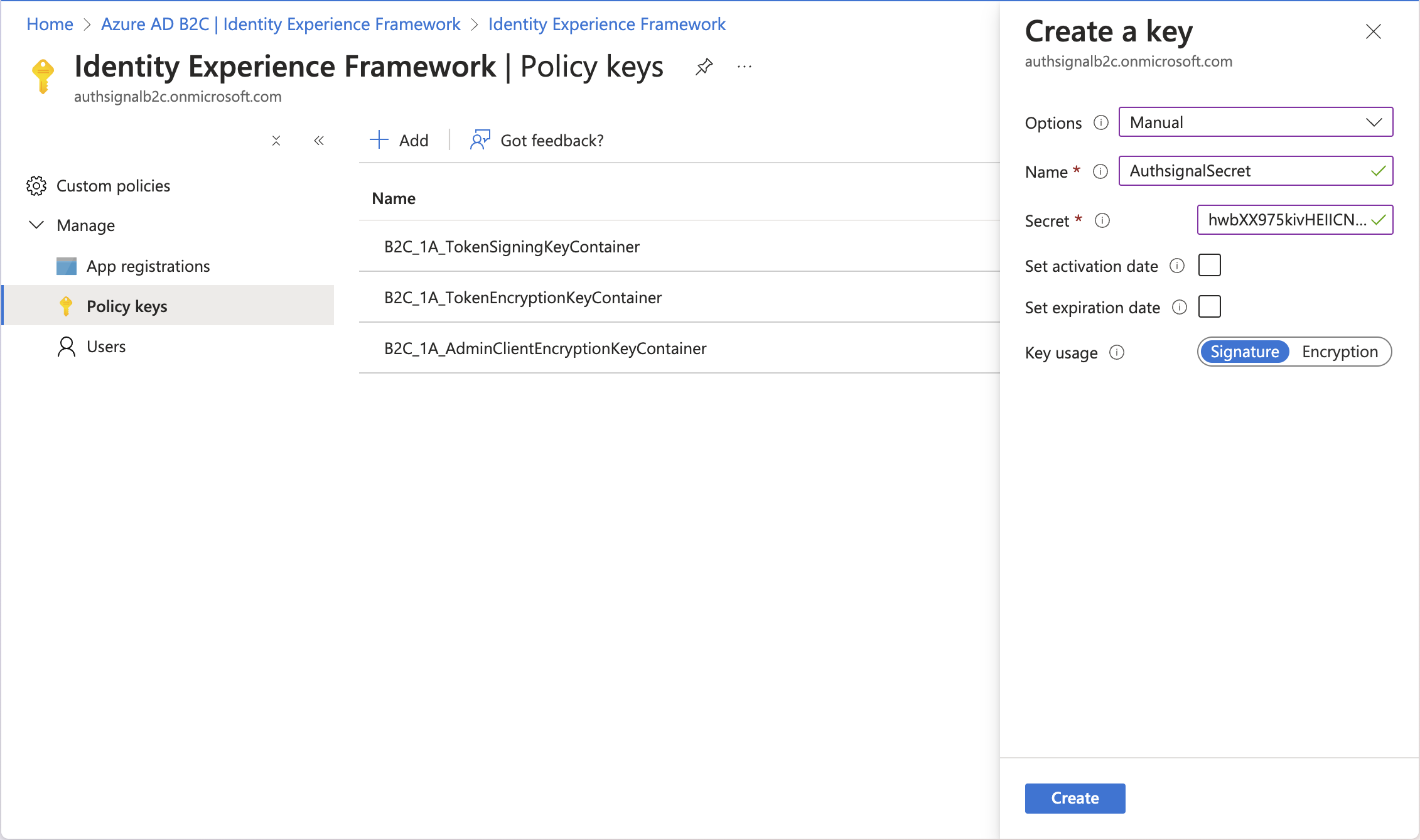
Your Authsignal Server API secret key is stored as a policy key on Azure AD B2C's Identity Experience Framework and referenced by our technical profile with the Id `B2C_1A_AuthsignalSecret`.

You can find the Server API secret key for your tenant in the [API keys page](https://portal.authsignal.com/organisations/tenants/api) and add it to your Azure AD B2C tenant as a policy key via the [Azure Portal](https://portal.azure.com).
<Frame>
  <img
    src="https://mintcdn.com/authsignal-23/8bvDamO56aVu-Ay2/images/docs/azure-ad-b2c/add-tenant-secret.png?fit=max&auto=format&n=8bvDamO56aVu-Ay2&q=85&s=32698d09ca6032758968a20d624440c6"
    alt="Screenshot of adding Authsignal Server API secret key to Azure AD B2C policy
keys"
    width="2262"
    height="1338"
    data-path="images/docs/azure-ad-b2c/add-tenant-secret.png"
  />
</Frame>

### Step 8: Upload your custom policy and test your integration

You can now test your integration by navigating to your custom policy in the Azure AD B2C portal and clicking "Run now". You should see the Authsignal UI for MFA after enrolling your user and for subsequent login attempts.

## Congratulations!

You have successfully integrated Authsignal with Azure AD B2C for MFA.

## Next steps

* [How to use Authsignal for passwordless login with Azure AD B2C](/integrations/azure-ad-b2c/azure-ad-b2c-passwordless)
* [How to add passkey autofill to the Azure AD B2C login page](/integrations/azure-ad-b2c/azure-ad-b2c-passkey)
