> ## Documentation Index
> Fetch the complete documentation index at: https://docs.authsignal.com/llms.txt
> Use this file to discover all available pages before exploring further.
# Integrating Authsignal with Amazon Cognito
> Learn how to integrate Authsignal with Amazon Cognito to rapidly implement passwordless authentication.
Amazon Cognito offers two approaches for authentication: a [managed login](https://docs.aws.amazon.com/cognito/latest/developerguide/cognito-user-pools-managed-login.html) with a hosted UI, or integration via [Custom authentication challenge Lambda triggers](https://docs.aws.amazon.com/cognito/latest/developerguide/user-pool-lambda-challenge.html) when you need more control over the authentication UI and user experience.
To integrate Authsignal with Cognito, you'll use the second approach. Authsignal offers two ways of integrating with Cognito's custom authentication challenge Lambda triggers:
1. **Custom UI** - Build your own UI using our Client SDKs for [web](/sdks/client/web/setup) and [mobile](/sdks/client/mobile/setup) when you need complete control over the user experience.
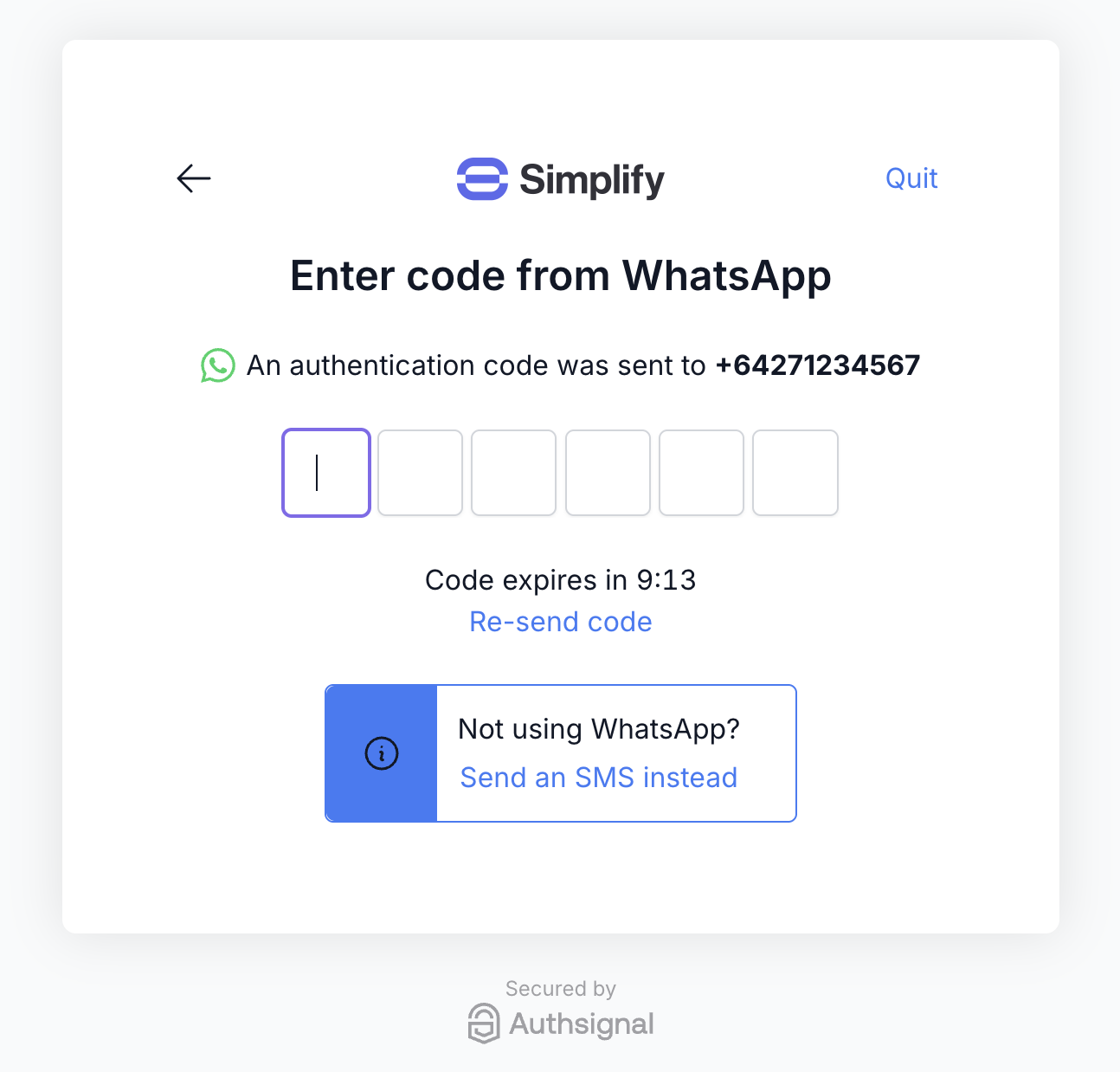
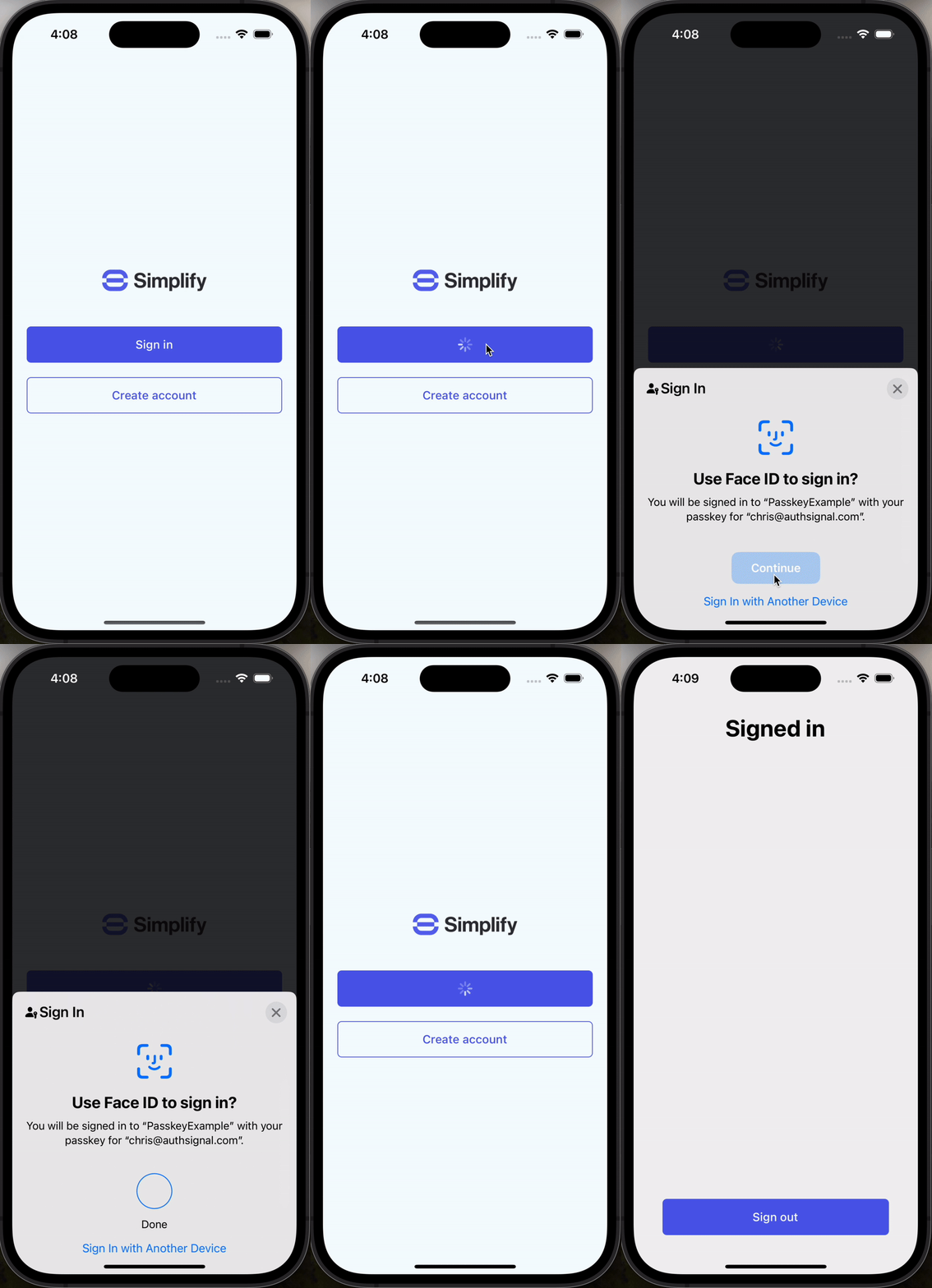 2. **Pre-built UI** - Drop in our ready-to-use hosted UI that supports passkeys, SMS and WhatsApp OTP, and more. You can customize the design to match your brand.
 ## Github example code
## Lambda integration steps
### 1. Create auth challenge
The first lambda trigger which we will use is [Create auth challenge](https://docs.aws.amazon.com/cognito/latest/developerguide/user-pool-lambda-create-auth-challenge.html).
We will use the Authsignal Server SDK in this lambda to return a short-lived **challenge token**.
We'll also return whether the user is enrolled or not, so we know which Client SDK method to use in a subsequent step.
```ts theme={null}
export const handler: CreateAuthChallengeTriggerHandler = async (event) => {
const userId = event.request.userAttributes.sub;
// Only required when authenticating with email
const email = event.request.userAttributes.email;
// Only required when authenticating with SMS or WhatsApp
const phoneNumber = event.request.userAttributes.phone_number;
const { token } = await authsignal.track({
action: "cognitoAuth",
userId,
attributes: {
email,
phoneNumber,
},
});
event.response.publicChallengeParameters = { token };
return event;
};
```
We will use the Authsignal Server SDK in this lambda to return a short-lived **pre-built UI URL**.
```ts theme={null}
export const handler: CreateAuthChallengeTriggerHandler = async (event) => {
const userId = event.request.userAttributes.sub;
// Only required when authenticating with email
const email = event.request.userAttributes.email;
// Only required when authenticating with SMS or WhatsApp
const phoneNumber = event.request.userAttributes.phone_number;
// Required if launching the pre-built UI in redirect mode
// Authsignal will redirect back here after the user completes the challenge
const redirectUrl = "https://www.yourapp.com/callback";
const { url } = await authsignal.track({
action: "cognitoAuth",
userId,
attributes: {
email,
phoneNumber,
redirectUrl,
},
});
event.response.publicChallengeParameters = {
url,
};
return event;
};
```
### 2. Verify auth challenge response
The second lambda trigger which we will use is [Verify auth challenge response](https://docs.aws.amazon.com/cognito/latest/developerguide/user-pool-lambda-verify-auth-challenge-response.html).
In this lambda we will take the **validation token** obtained from the Authsignal Client SDK and pass it to the Authsignal Server SDK to verify the challenge.
```ts theme={null}
export const handler: VerifyAuthChallengeResponseTriggerHandler = async (event) => {
const userId = event.request.userAttributes.sub;
const token = event.request.challengeAnswer;
const { isValid } = await authsignal.validateChallenge({
action: "cognitoAuth",
userId,
token,
});
event.response.answerCorrect = isValid;
return event;
};
```
In this lambda we will take the **validation token** obtained when redirecting back from the Authsignal pre-built UI and pass it to the Authsignal Server SDK to verify the challenge.
```ts theme={null}
export const handler: VerifyAuthChallengeResponseTriggerHandler = async (event) => {
const userId = event.request.userAttributes.sub;
const token = event.request.challengeAnswer;
const { isValid } = await authsignal.validateChallenge({
action: "cognitoAuth",
userId,
token,
});
event.response.answerCorrect = isValid;
return event;
};
```
## App integration steps
### 1. Obtain a username
Once the user has inputted their email address or phone number you can either:
* Use this value as the Cognito username, or
* Use this value to find the user record in your database and obtain their username
The approach will depend on your user pool configuration.
For more detail on Cognito usernames refer to the [AWS documentation](https://docs.aws.amazon.com/cognito/latest/developerguide/user-pool-settings-attributes.html#user-pool-settings-usernames).
Passkeys represent a new paradigm of \[device-initiated authentication where a username is not
required as the first step. For this reason the integration steps are slightly different - see our
guide on [implementing passkeys with Cognito](/integrations/aws-cognito/passkeys).
### 2. Call SignUp (if required)
You can call [SignUp](https://docs.aws.amazon.com/cognito-user-identity-pools/latest/APIReference/API_SignUp.html) either as part of a separate account registration flow, or "just-in-time" before every sign-in attempt (ignoring if the user already exists).
```ts AWS SDK theme={null}
import {
CognitoIdentityProviderClient,
SignUpCommand,
} from "@aws-sdk/client-cognito-identity-provider";
const client = new CognitoIdentityProviderClient({
region: "YOUR_AWS_REGION",
});
// If a password is required, generate a dummy value
// It will never be used for passwordless authentication
const password = Math.random().toString(36).slice(-16) + "X";
const command = new SignUpCommand({
ClientId: "YOUR_USER_POOL_CLIENT_ID",
Username: username,
Password: password,
UserAttributes: [
// Include email attribute if obtained in step 1
{
Name: "email",
Value: email,
},
// Include phone_number attribute if obtained in step 1
{
Name: "phone_number",
Value: phoneNumber,
},
],
});
await client.send(command);
```
```ts Amplify theme={null}
import { signUp, SignUpInput } from "aws-amplify/auth";
// If a password is required, generate a dummy value
// It will never be used for passwordless authentication
const password = Math.random().toString(36).slice(-16) + "X";
const signUpInput: SignUpInput = {
username: username,
password: password,
options: {
userAttributes: {
// Include email attribute if obtained in step 1
email: email,
// Include phone_number attribute if obtained in step 1
phoneNumber: phoneNumber,
},
},
};
await signUp(signUpInput);
```
Alternately you can handle the sign-up logic in your backend using Cognito's AdminCreateUserCommand as in [this example](https://github.com/authsignal/cognito-lambdas/blob/main/api/start-sign-in.ts).
### 3. Call InitiateAuth
The next step in authenticating with Cognito from your web or mobile app is to call [InitiateAuth](https://docs.aws.amazon.com/cognito-user-identity-pools/latest/APIReference/API_InitiateAuth.html).
This will invoke the Create auth challenge lambda which we have [implemented above](#1-create-auth-challenge) to return an Authsignal challenge token.
Here we obtain a challenge token to pass to an Authsignal Client SDK.
```ts AWS SDK theme={null}
import {
CognitoIdentityProviderClient,
InitiateAuthCommand,
} from "@aws-sdk/client-cognito-identity-provider";
const client = new CognitoIdentityProviderClient({
region: "YOUR_AWS_REGION",
});
const command = new InitiateAuthCommand({
ClientId: "YOUR_USER_POOL_CLIENT_ID",
AuthFlow: AuthFlowType.CUSTOM_AUTH,
AuthParameters: {
USERNAME: username,
},
});
const output = await client.send(command);
// We will pass this challenge token to an Authsignal Client SDK
const token = output.ChallengeParameters?.token;
```
```ts Amplify theme={null}
import { signIn, SignInInput } from "aws-amplify/auth";
const signInInput: SignInInput = {
username: username,
options: {
authFlowType: "CUSTOM_WITHOUT_SRP",
},
};
const { nextStep } = await signIn(signInInput);
// We will pass this challenge token to an Authsignal Client SDK
const token = nextStep.additionalInfo?.token;
```
Here we obtain a short-lived URL for the Authsignal pre-built UI.
```ts AWS SDK theme={null}
import {
CognitoIdentityProviderClient,
InitiateAuthCommand,
} from "@aws-sdk/client-cognito-identity-provider";
const client = new CognitoIdentityProviderClient({
region: "YOUR_AWS_REGION",
});
const command = new InitiateAuthCommand({
ClientId: "YOUR_USER_POOL_CLIENT_ID",
AuthFlow: AuthFlowType.CUSTOM_AUTH,
AuthParameters: {
USERNAME: username,
},
});
const output = await client.send(command);
// We will launch the Authsignal pre-built UI using this url
const url = output.ChallengeParameters?.url;
// Keep a reference to the session
// We will pass this back when calling RespondToAuthChallenge
const session = output.Session;
```
```ts Amplify theme={null}
import { signIn, SignInInput } from "aws-amplify/auth";
const signInInput: SignInInput = {
username: username,
options: {
authFlowType: "CUSTOM_WITHOUT_SRP",
},
};
const { nextStep } = await signIn(signInInput);
// We will launch the Authsignal pre-built UI using this url
const url = nextStep.additionalInfo?.url;
```
### 4. Use Authsignal
The next step is to use Authsignal to handle presenting the user with a challenge.
Use an [Authsignal Client SDK](/sdks/client) to present the user with a challenge.
Here we show **email OTP** but our SDKs support a variety of methods including SMS or WhatsApp OTP, email magic link, authenticator app, and more.
```ts Web theme={null}
// 1. Set the challenge token obtained from the InitiateAuth call
authsignal.setToken(token);
// 2. Send the user an OTP code via email
await authsignal.email.challenge();
// 3. Verify the code inputted by the user matches the original code
const response = await authsignal.email.verify({ code: "123456" });
// 4. Obtain a validation token for the next step
const validationToken = response.data?.token;
```
```swift iOS theme={null}
// 1. Set the challenge token obtained from the InitiateAuth call
authsignal.setToken(token)
// 2. Send the user an OTP code via email
await authsignal.email.challenge()
// 3. Verify the code inputted by the user matches the original code
let response = await authsignal.email.verify(code: "123456")
// 4. Obtain a validation token for the next step
let validationToken = response.data?.token
```
```kotlin Android theme={null}
// 1. Set the challenge token obtained from the InitiateAuth call
authsignal.setToken(token)
// 2. Send the user an OTP code via email
authsignal.email.challenge().get()
// 3. Verify the code inputted by the user matches the original code
val response = authsignal.email.verify(code = "123456").get()
// 4. Obtain a validation token for the next step
val validationToken = response.data.token
```
```ts React Native theme={null}
// 1. Set the challenge token obtained from the InitiateAuth call
await authsignal.setToken(token);
// 2. Send the user an OTP code via email
await authsignal.email.challenge();
// 3. Verify the code inputted by the user matches the original code
const response = await authsignal.email.verify({ code: "123456" });
// 4. Obtain a validation token for the next step
const validationToken = response.data?.token;
```
```dart Flutter theme={null}
// 1. Set the challenge token obtained from the InitiateAuth call
await authsignal.setToken(token);
// 2. Send the user an OTP code via email
await authsignal.email.challenge();
// 3. Verify the code inputted by the user matches the original code
final response = await authsignal.email.verify(code: "123456");
// 4. Obtain a validation token for the next step
final validationToken = response.data.token;
```
Use the **Authsignal pre-built UI** to present the user with a challenge.
The [Authsignal Web SDK](/sdks/client/web/prebuilt-ui) can be used to launch the pre-built UI in [redirect or popup mode](/implementation-options/prebuilt-ui/presentation-modes).
```ts Redirect theme={null}
// Redirect user to the pre-built UI
// They will be redirected back to your app's redirect URL
// A validation token will be appended as a URL query param
authsignal.launch(url);
```
```ts Popup theme={null}
// This promise will resolve with a new token when the popup closes
const { token } = await authsignal.launch(url, { mode: "popup" });
```
### 5. Call RespondToAuthChallenge
The final step of your app integration is to call [RespondToAuthChallenge](https://docs.aws.amazon.com/cognito-user-identity-pools/latest/APIReference/API_RespondToAuthChallenge.html).
This will invoke the Verify auth challenge response lambda which we have [implemented above](#1-verify-auth-challenge-response) to complete authentication using our Authsignal validation token.
Pass the validation token obtained from the Authsignal Client SDK to Cognito as the challenge answer.
```ts AWS SDK theme={null}
import {
CognitoIdentityProviderClient,
RespondToAuthChallengeCommand,
} from "@aws-sdk/client-cognito-identity-provider";
const client = new CognitoIdentityProviderClient({
region: "YOUR_AWS_REGION",
});
const command = new RespondToAuthChallengeCommand({
ClientId: "YOUR_USER_POOL_CLIENT_ID",
ChallengeName: ChallengeNameType.CUSTOM_CHALLENGE,
Session: session,
ChallengeResponses: {
USERNAME: username,
ANSWER: token, // The Authsignal validation token
},
});
const output = await client.send(command);
const accessToken = output.AuthenticationResult?.AccessToken;
```
```ts Amplify theme={null}
import { confirmSignIn } from "aws-amplify/auth";
const { isSignedIn } = await confirmSignIn({
challengeResponse: token, // The Authsignal validation token
});
```
Pass the validation token obtained from the Authsignal pre-built UI to Cognito as the challenge answer.
```ts AWS SDK theme={null}
import {
CognitoIdentityProviderClient,
RespondToAuthChallengeCommand,
} from "@aws-sdk/client-cognito-identity-provider";
const client = new CognitoIdentityProviderClient({
region: "YOUR_AWS_REGION",
});
const command = new RespondToAuthChallengeCommand({
ClientId: "YOUR_USER_POOL_CLIENT_ID",
ChallengeName: ChallengeNameType.CUSTOM_CHALLENGE,
Session: session,
ChallengeResponses: {
USERNAME: username,
ANSWER: token, // The Authsignal validation token
},
});
const output = await client.send(command);
const accessToken = output.AuthenticationResult?.AccessToken;
```
```ts Amplify theme={null}
import { confirmSignIn } from "aws-amplify/auth";
const { isSignedIn } = await confirmSignIn({
challengeResponse: token, // The Authsignal validation token
});
```
## Next steps
* [Managing authenticators](/integrations/aws-cognito/authenticators)
* [Adding passkeys](/integrations/aws-cognito/passkeys)
* [Adaptive MFA](/integrations/aws-cognito/rules)
* [Uber app example](/integrations/aws-cognito/example-app)
## Github example code
## Lambda integration steps
### 1. Create auth challenge
The first lambda trigger which we will use is [Create auth challenge](https://docs.aws.amazon.com/cognito/latest/developerguide/user-pool-lambda-create-auth-challenge.html).
We will use the Authsignal Server SDK in this lambda to return a short-lived **challenge token**.
We'll also return whether the user is enrolled or not, so we know which Client SDK method to use in a subsequent step.
```ts theme={null}
export const handler: CreateAuthChallengeTriggerHandler = async (event) => {
const userId = event.request.userAttributes.sub;
// Only required when authenticating with email
const email = event.request.userAttributes.email;
// Only required when authenticating with SMS or WhatsApp
const phoneNumber = event.request.userAttributes.phone_number;
const { token } = await authsignal.track({
action: "cognitoAuth",
userId,
attributes: {
email,
phoneNumber,
},
});
event.response.publicChallengeParameters = { token };
return event;
};
```
We will use the Authsignal Server SDK in this lambda to return a short-lived **pre-built UI URL**.
```ts theme={null}
export const handler: CreateAuthChallengeTriggerHandler = async (event) => {
const userId = event.request.userAttributes.sub;
// Only required when authenticating with email
const email = event.request.userAttributes.email;
// Only required when authenticating with SMS or WhatsApp
const phoneNumber = event.request.userAttributes.phone_number;
// Required if launching the pre-built UI in redirect mode
// Authsignal will redirect back here after the user completes the challenge
const redirectUrl = "https://www.yourapp.com/callback";
const { url } = await authsignal.track({
action: "cognitoAuth",
userId,
attributes: {
email,
phoneNumber,
redirectUrl,
},
});
event.response.publicChallengeParameters = {
url,
};
return event;
};
```
### 2. Verify auth challenge response
The second lambda trigger which we will use is [Verify auth challenge response](https://docs.aws.amazon.com/cognito/latest/developerguide/user-pool-lambda-verify-auth-challenge-response.html).
In this lambda we will take the **validation token** obtained from the Authsignal Client SDK and pass it to the Authsignal Server SDK to verify the challenge.
```ts theme={null}
export const handler: VerifyAuthChallengeResponseTriggerHandler = async (event) => {
const userId = event.request.userAttributes.sub;
const token = event.request.challengeAnswer;
const { isValid } = await authsignal.validateChallenge({
action: "cognitoAuth",
userId,
token,
});
event.response.answerCorrect = isValid;
return event;
};
```
In this lambda we will take the **validation token** obtained when redirecting back from the Authsignal pre-built UI and pass it to the Authsignal Server SDK to verify the challenge.
```ts theme={null}
export const handler: VerifyAuthChallengeResponseTriggerHandler = async (event) => {
const userId = event.request.userAttributes.sub;
const token = event.request.challengeAnswer;
const { isValid } = await authsignal.validateChallenge({
action: "cognitoAuth",
userId,
token,
});
event.response.answerCorrect = isValid;
return event;
};
```
## App integration steps
### 1. Obtain a username
Once the user has inputted their email address or phone number you can either:
* Use this value as the Cognito username, or
* Use this value to find the user record in your database and obtain their username
The approach will depend on your user pool configuration.
For more detail on Cognito usernames refer to the [AWS documentation](https://docs.aws.amazon.com/cognito/latest/developerguide/user-pool-settings-attributes.html#user-pool-settings-usernames).
Passkeys represent a new paradigm of \[device-initiated authentication where a username is not
required as the first step. For this reason the integration steps are slightly different - see our
guide on [implementing passkeys with Cognito](/integrations/aws-cognito/passkeys).
### 2. Call SignUp (if required)
You can call [SignUp](https://docs.aws.amazon.com/cognito-user-identity-pools/latest/APIReference/API_SignUp.html) either as part of a separate account registration flow, or "just-in-time" before every sign-in attempt (ignoring if the user already exists).
```ts AWS SDK theme={null}
import {
CognitoIdentityProviderClient,
SignUpCommand,
} from "@aws-sdk/client-cognito-identity-provider";
const client = new CognitoIdentityProviderClient({
region: "YOUR_AWS_REGION",
});
// If a password is required, generate a dummy value
// It will never be used for passwordless authentication
const password = Math.random().toString(36).slice(-16) + "X";
const command = new SignUpCommand({
ClientId: "YOUR_USER_POOL_CLIENT_ID",
Username: username,
Password: password,
UserAttributes: [
// Include email attribute if obtained in step 1
{
Name: "email",
Value: email,
},
// Include phone_number attribute if obtained in step 1
{
Name: "phone_number",
Value: phoneNumber,
},
],
});
await client.send(command);
```
```ts Amplify theme={null}
import { signUp, SignUpInput } from "aws-amplify/auth";
// If a password is required, generate a dummy value
// It will never be used for passwordless authentication
const password = Math.random().toString(36).slice(-16) + "X";
const signUpInput: SignUpInput = {
username: username,
password: password,
options: {
userAttributes: {
// Include email attribute if obtained in step 1
email: email,
// Include phone_number attribute if obtained in step 1
phoneNumber: phoneNumber,
},
},
};
await signUp(signUpInput);
```
Alternately you can handle the sign-up logic in your backend using Cognito's AdminCreateUserCommand as in [this example](https://github.com/authsignal/cognito-lambdas/blob/main/api/start-sign-in.ts).
### 3. Call InitiateAuth
The next step in authenticating with Cognito from your web or mobile app is to call [InitiateAuth](https://docs.aws.amazon.com/cognito-user-identity-pools/latest/APIReference/API_InitiateAuth.html).
This will invoke the Create auth challenge lambda which we have [implemented above](#1-create-auth-challenge) to return an Authsignal challenge token.
Here we obtain a challenge token to pass to an Authsignal Client SDK.
```ts AWS SDK theme={null}
import {
CognitoIdentityProviderClient,
InitiateAuthCommand,
} from "@aws-sdk/client-cognito-identity-provider";
const client = new CognitoIdentityProviderClient({
region: "YOUR_AWS_REGION",
});
const command = new InitiateAuthCommand({
ClientId: "YOUR_USER_POOL_CLIENT_ID",
AuthFlow: AuthFlowType.CUSTOM_AUTH,
AuthParameters: {
USERNAME: username,
},
});
const output = await client.send(command);
// We will pass this challenge token to an Authsignal Client SDK
const token = output.ChallengeParameters?.token;
```
```ts Amplify theme={null}
import { signIn, SignInInput } from "aws-amplify/auth";
const signInInput: SignInInput = {
username: username,
options: {
authFlowType: "CUSTOM_WITHOUT_SRP",
},
};
const { nextStep } = await signIn(signInInput);
// We will pass this challenge token to an Authsignal Client SDK
const token = nextStep.additionalInfo?.token;
```
Here we obtain a short-lived URL for the Authsignal pre-built UI.
```ts AWS SDK theme={null}
import {
CognitoIdentityProviderClient,
InitiateAuthCommand,
} from "@aws-sdk/client-cognito-identity-provider";
const client = new CognitoIdentityProviderClient({
region: "YOUR_AWS_REGION",
});
const command = new InitiateAuthCommand({
ClientId: "YOUR_USER_POOL_CLIENT_ID",
AuthFlow: AuthFlowType.CUSTOM_AUTH,
AuthParameters: {
USERNAME: username,
},
});
const output = await client.send(command);
// We will launch the Authsignal pre-built UI using this url
const url = output.ChallengeParameters?.url;
// Keep a reference to the session
// We will pass this back when calling RespondToAuthChallenge
const session = output.Session;
```
```ts Amplify theme={null}
import { signIn, SignInInput } from "aws-amplify/auth";
const signInInput: SignInInput = {
username: username,
options: {
authFlowType: "CUSTOM_WITHOUT_SRP",
},
};
const { nextStep } = await signIn(signInInput);
// We will launch the Authsignal pre-built UI using this url
const url = nextStep.additionalInfo?.url;
```
### 4. Use Authsignal
The next step is to use Authsignal to handle presenting the user with a challenge.
Use an [Authsignal Client SDK](/sdks/client) to present the user with a challenge.
Here we show **email OTP** but our SDKs support a variety of methods including SMS or WhatsApp OTP, email magic link, authenticator app, and more.
```ts Web theme={null}
// 1. Set the challenge token obtained from the InitiateAuth call
authsignal.setToken(token);
// 2. Send the user an OTP code via email
await authsignal.email.challenge();
// 3. Verify the code inputted by the user matches the original code
const response = await authsignal.email.verify({ code: "123456" });
// 4. Obtain a validation token for the next step
const validationToken = response.data?.token;
```
```swift iOS theme={null}
// 1. Set the challenge token obtained from the InitiateAuth call
authsignal.setToken(token)
// 2. Send the user an OTP code via email
await authsignal.email.challenge()
// 3. Verify the code inputted by the user matches the original code
let response = await authsignal.email.verify(code: "123456")
// 4. Obtain a validation token for the next step
let validationToken = response.data?.token
```
```kotlin Android theme={null}
// 1. Set the challenge token obtained from the InitiateAuth call
authsignal.setToken(token)
// 2. Send the user an OTP code via email
authsignal.email.challenge().get()
// 3. Verify the code inputted by the user matches the original code
val response = authsignal.email.verify(code = "123456").get()
// 4. Obtain a validation token for the next step
val validationToken = response.data.token
```
```ts React Native theme={null}
// 1. Set the challenge token obtained from the InitiateAuth call
await authsignal.setToken(token);
// 2. Send the user an OTP code via email
await authsignal.email.challenge();
// 3. Verify the code inputted by the user matches the original code
const response = await authsignal.email.verify({ code: "123456" });
// 4. Obtain a validation token for the next step
const validationToken = response.data?.token;
```
```dart Flutter theme={null}
// 1. Set the challenge token obtained from the InitiateAuth call
await authsignal.setToken(token);
// 2. Send the user an OTP code via email
await authsignal.email.challenge();
// 3. Verify the code inputted by the user matches the original code
final response = await authsignal.email.verify(code: "123456");
// 4. Obtain a validation token for the next step
final validationToken = response.data.token;
```
Use the **Authsignal pre-built UI** to present the user with a challenge.
The [Authsignal Web SDK](/sdks/client/web/prebuilt-ui) can be used to launch the pre-built UI in [redirect or popup mode](/implementation-options/prebuilt-ui/presentation-modes).
```ts Redirect theme={null}
// Redirect user to the pre-built UI
// They will be redirected back to your app's redirect URL
// A validation token will be appended as a URL query param
authsignal.launch(url);
```
```ts Popup theme={null}
// This promise will resolve with a new token when the popup closes
const { token } = await authsignal.launch(url, { mode: "popup" });
```
### 5. Call RespondToAuthChallenge
The final step of your app integration is to call [RespondToAuthChallenge](https://docs.aws.amazon.com/cognito-user-identity-pools/latest/APIReference/API_RespondToAuthChallenge.html).
This will invoke the Verify auth challenge response lambda which we have [implemented above](#1-verify-auth-challenge-response) to complete authentication using our Authsignal validation token.
Pass the validation token obtained from the Authsignal Client SDK to Cognito as the challenge answer.
```ts AWS SDK theme={null}
import {
CognitoIdentityProviderClient,
RespondToAuthChallengeCommand,
} from "@aws-sdk/client-cognito-identity-provider";
const client = new CognitoIdentityProviderClient({
region: "YOUR_AWS_REGION",
});
const command = new RespondToAuthChallengeCommand({
ClientId: "YOUR_USER_POOL_CLIENT_ID",
ChallengeName: ChallengeNameType.CUSTOM_CHALLENGE,
Session: session,
ChallengeResponses: {
USERNAME: username,
ANSWER: token, // The Authsignal validation token
},
});
const output = await client.send(command);
const accessToken = output.AuthenticationResult?.AccessToken;
```
```ts Amplify theme={null}
import { confirmSignIn } from "aws-amplify/auth";
const { isSignedIn } = await confirmSignIn({
challengeResponse: token, // The Authsignal validation token
});
```
Pass the validation token obtained from the Authsignal pre-built UI to Cognito as the challenge answer.
```ts AWS SDK theme={null}
import {
CognitoIdentityProviderClient,
RespondToAuthChallengeCommand,
} from "@aws-sdk/client-cognito-identity-provider";
const client = new CognitoIdentityProviderClient({
region: "YOUR_AWS_REGION",
});
const command = new RespondToAuthChallengeCommand({
ClientId: "YOUR_USER_POOL_CLIENT_ID",
ChallengeName: ChallengeNameType.CUSTOM_CHALLENGE,
Session: session,
ChallengeResponses: {
USERNAME: username,
ANSWER: token, // The Authsignal validation token
},
});
const output = await client.send(command);
const accessToken = output.AuthenticationResult?.AccessToken;
```
```ts Amplify theme={null}
import { confirmSignIn } from "aws-amplify/auth";
const { isSignedIn } = await confirmSignIn({
challengeResponse: token, // The Authsignal validation token
});
```
## Next steps
* [Managing authenticators](/integrations/aws-cognito/authenticators)
* [Adding passkeys](/integrations/aws-cognito/passkeys)
* [Adaptive MFA](/integrations/aws-cognito/rules)
* [Uber app example](/integrations/aws-cognito/example-app)