> ## Documentation Index
> Fetch the complete documentation index at: https://docs.authsignal.com/llms.txt
> Use this file to discover all available pages before exploring further.
# Passkey uplift prompt
> Accelerate passkey adoption by prompting users to create passkeys.
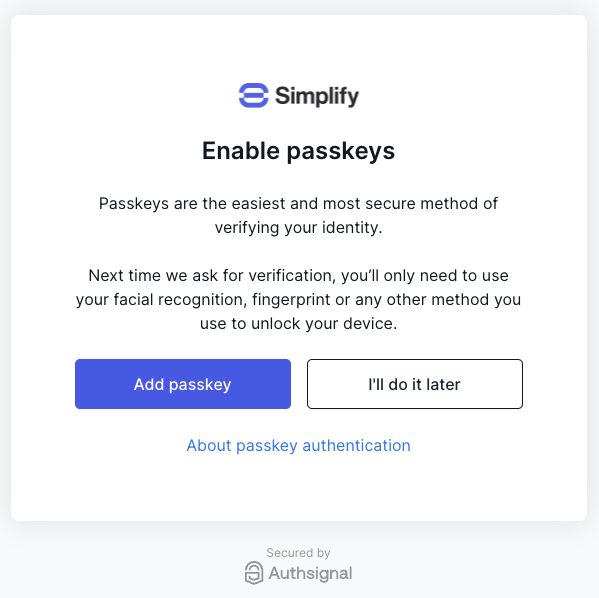
The passkey uplift prompt is how a user who doesn't yet have a passkey gets one. It's the equivalent of an "add a new passkey" flow, optimized for passkey adoption: instead of asking users to find a setting and manually enroll, Authsignal automatically prompts them to create a passkey at the right moment.
To accelerate adoption, Authsignal will automatically prompt users who have enrolled a [recovery method](/authentication-methods/passkey/prebuilt-ui#choose-recovery-methods) to create a passkey. This includes users signing in on a new device that doesn't have a passkey available yet, so the same flow covers improving passkey coverage across a user's devices.
 ## Controlling the prompt frequency
By default, the passkey uplift prompt will be shown after every successful authentication. You can change the frequency
of the prompt in the [pre-built UI passkey settings](https://portal.authsignal.com/organisations/tenants/authenticators/passkey).
## Disabling the prompt
To opt out of the passkey uplift prompt, you can disable it in the [pre-built UI passkey settings](https://portal.authsignal.com/organisations/tenants/authenticators/passkey).
## Advanced configuration
If you want finer control over when the passkey uplift prompt is shown, you can configure it on a per-action or per-rule basis.
First, make sure to opt out of the default behavior by disabling the passkey uplift prompt in the pre-built UI passkey settings.
To configure the prompt for an action:
* Navigate to your action's configuration settings in the [Authsignal Portal](https://portal.authsignal.com/actions).
* Go to the **Settings** tab.
* Toggle the **Prompt users to add a passkey** switch to **on**.
To configure the prompt for a rule:
* Navigate to your action's configuration settings in the [Authsignal Portal](https://portal.authsignal.com/actions).
* Go to the **Rules** tab.
* View your rule and go to the **Settings** tab.
* Toggle the **Prompt users to add a passkey** switch to **on**.
## Troubleshooting visibility
There are a few reasons a user may not see the uplift prompt:
* **Device doesn't support passkeys** — the prompt is only shown on devices that support passkeys.
* **Passkey already enrolled on the device** — if the user has already set up a passkey on their current device, the prompt will not be shown.
* **Prompt frequency hasn't elapsed** — if **Prompt frequency** is set to anything other than "Every Challenge", the prompt will only reappear once the configured interval has passed since the user last dismissed it.
## Controlling the prompt frequency
By default, the passkey uplift prompt will be shown after every successful authentication. You can change the frequency
of the prompt in the [pre-built UI passkey settings](https://portal.authsignal.com/organisations/tenants/authenticators/passkey).
## Disabling the prompt
To opt out of the passkey uplift prompt, you can disable it in the [pre-built UI passkey settings](https://portal.authsignal.com/organisations/tenants/authenticators/passkey).
## Advanced configuration
If you want finer control over when the passkey uplift prompt is shown, you can configure it on a per-action or per-rule basis.
First, make sure to opt out of the default behavior by disabling the passkey uplift prompt in the pre-built UI passkey settings.
To configure the prompt for an action:
* Navigate to your action's configuration settings in the [Authsignal Portal](https://portal.authsignal.com/actions).
* Go to the **Settings** tab.
* Toggle the **Prompt users to add a passkey** switch to **on**.
To configure the prompt for a rule:
* Navigate to your action's configuration settings in the [Authsignal Portal](https://portal.authsignal.com/actions).
* Go to the **Rules** tab.
* View your rule and go to the **Settings** tab.
* Toggle the **Prompt users to add a passkey** switch to **on**.
## Troubleshooting visibility
There are a few reasons a user may not see the uplift prompt:
* **Device doesn't support passkeys** — the prompt is only shown on devices that support passkeys.
* **Passkey already enrolled on the device** — if the user has already set up a passkey on their current device, the prompt will not be shown.
* **Prompt frequency hasn't elapsed** — if **Prompt frequency** is set to anything other than "Every Challenge", the prompt will only reappear once the configured interval has passed since the user last dismissed it.