> ## Documentation Index
> Fetch the complete documentation index at: https://docs.authsignal.com/llms.txt
> Use this file to discover all available pages before exploring further.
# Contextual messaging
> Add custom messaging to the pre-built UI to give your users more context.
The contextual messaging feature allows you to provide additional information to users when they're completing a challenge in the pre-built UI.
## Creating a contextual message
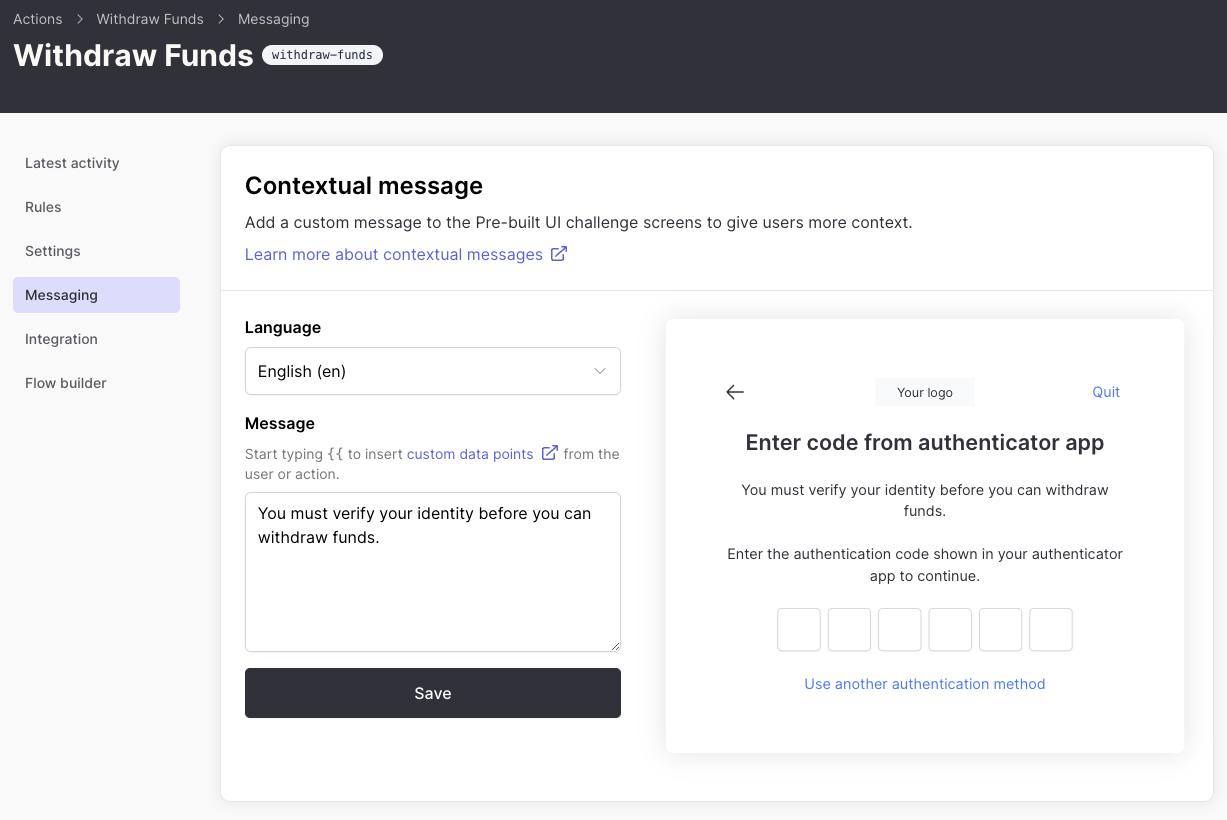
To configure messaging for your action:
1. Navigate to the [Authsignal Portal actions page](https://portal.authsignal.com/actions)
2. Select your action
3. Go to the **Messaging** tab
 ## Dynamic content with custom data points
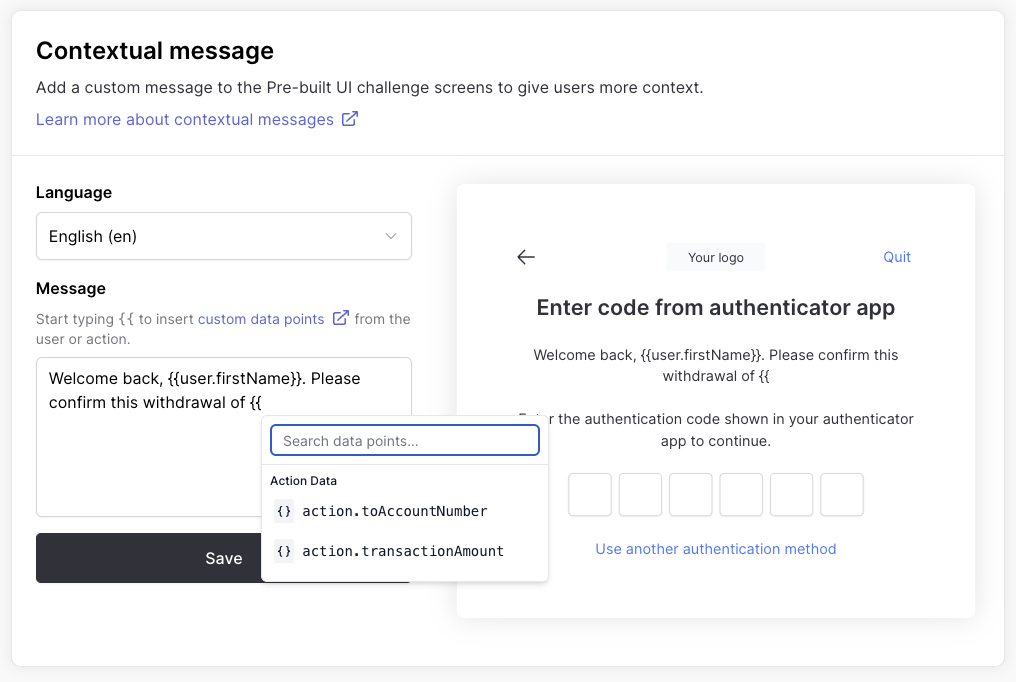
You can enrich your messages with dynamic data using the syntax: `{{.}}`
## Dynamic content with custom data points
You can enrich your messages with dynamic data using the syntax: `{{.}}`
 ### Using action data
To include transaction-specific information (such as withdrawal amount):
```
You will be withdrawing {{action.withdrawalAmount}}
```
Make sure to include these custom data points in your [track action
payload](/actions-rules/rules/custom-data-points#3-send-the-custom-data-in-your-code).
### Using user data
To include user-specific information:
```
Welcome back, {{user.firstName}}. Please confirm this withdrawal of {{action.withdrawalAmount}}.
```
Ensure you have [updated your user profile](/api-reference/server-api/update-user) with these
custom data points before referencing them.
## Pre-built UI
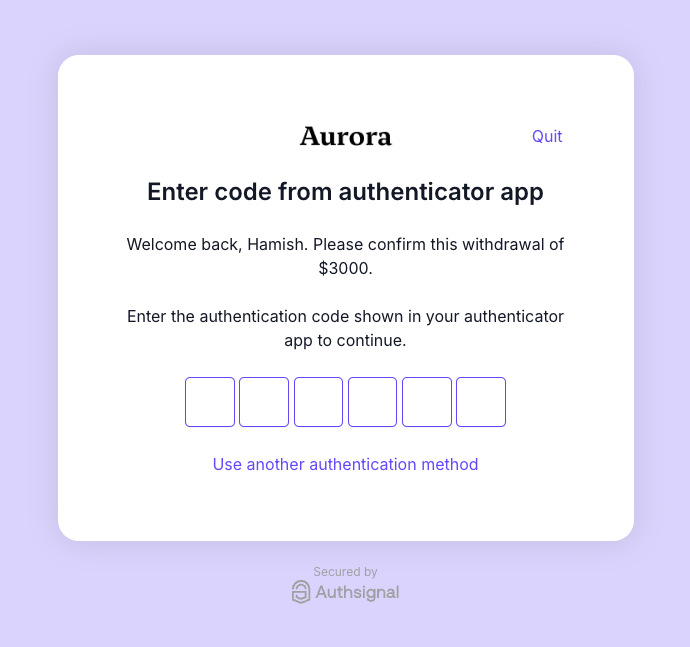
Once you've created a contextual message, it will be displayed in the pre-built UI when the user is completing the challenge.
If any of the data points you're referencing are not available, the message will not be displayed.
### Using action data
To include transaction-specific information (such as withdrawal amount):
```
You will be withdrawing {{action.withdrawalAmount}}
```
Make sure to include these custom data points in your [track action
payload](/actions-rules/rules/custom-data-points#3-send-the-custom-data-in-your-code).
### Using user data
To include user-specific information:
```
Welcome back, {{user.firstName}}. Please confirm this withdrawal of {{action.withdrawalAmount}}.
```
Ensure you have [updated your user profile](/api-reference/server-api/update-user) with these
custom data points before referencing them.
## Pre-built UI
Once you've created a contextual message, it will be displayed in the pre-built UI when the user is completing the challenge.
If any of the data points you're referencing are not available, the message will not be displayed.