> ## Documentation Index
> Fetch the complete documentation index at: https://docs.authsignal.com/llms.txt
> Use this file to discover all available pages before exploring further.
# Passkeys using Authsignal's pre-built UI
> Rapidly implement passkeys with Authsignal's pre-built UI.
Authsignal's pre-built UI provides an out-of-the-box solution for implementing passkeys. This includes:
* Recovery flows for when a user doesn't have a passkey available.
* Uplift flows to accelerate passkey adoption.
* Advanced controls for customizing the passkey experience.
## Setup
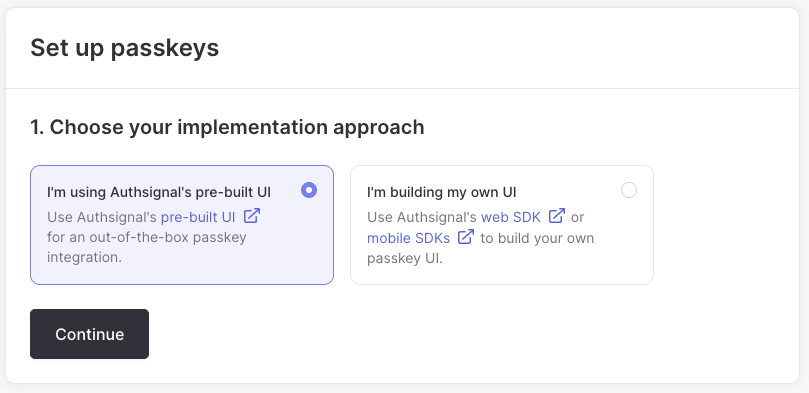
To set up passkeys for your tenant, head to the [passkey setup wizard](https://portal.authsignal.com/organisations/tenants/authenticators/passkey) in the Authsignal Portal.
When asked to choose your implementation approach, select **I'm using Authsignal's pre-built UI**.
 ### Set up a custom domain
If you do not already have a [custom domain](/implementation-options/prebuilt-ui/custom-domains), you will be prompted to add one.
### Set up a custom domain
If you do not already have a [custom domain](/implementation-options/prebuilt-ui/custom-domains), you will be prompted to add one.
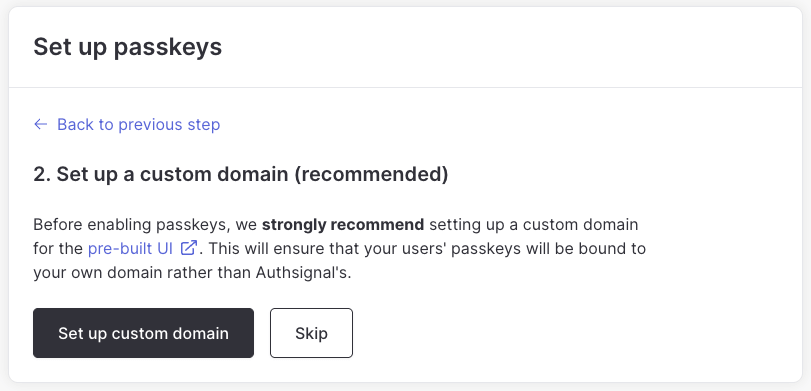 It is **strongly recommended** to use a custom domain for your passkey implementation.
If you proceed without a custom domain, your users' passkeys will be associated with Authsignal's domain and **will not work outside of the pre-built UI**.
This can be problematic if you want to use passkeys for other applications e.g. in your sign in page as an alternative to username and password.
### Choose recovery methods
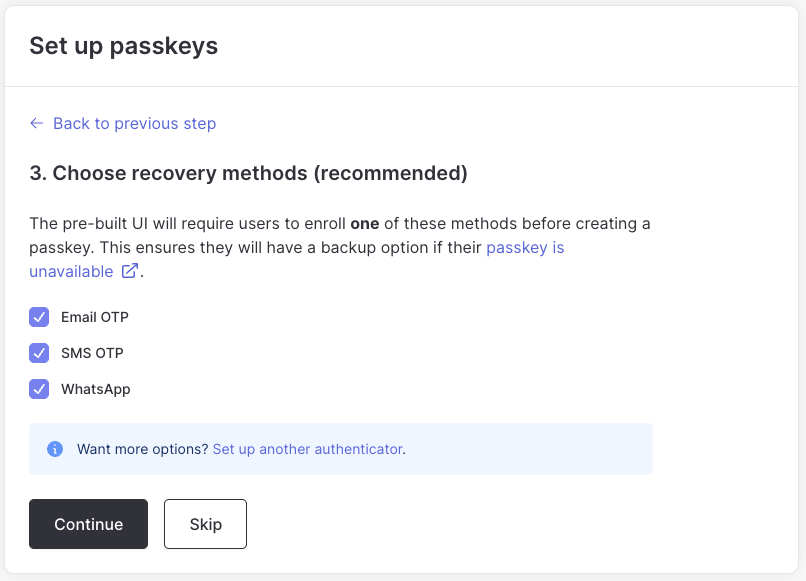
To avoid a user being locked out of their account if they don't have a [passkey available](/authentication-methods/passkey/best-practices-web#availability-across-devices),
we **strongly recommend** setting up recovery methods.
If enabled, a user has to have at least **one** recovery method enrolled before they can create a passkey.
It is **strongly recommended** to use a custom domain for your passkey implementation.
If you proceed without a custom domain, your users' passkeys will be associated with Authsignal's domain and **will not work outside of the pre-built UI**.
This can be problematic if you want to use passkeys for other applications e.g. in your sign in page as an alternative to username and password.
### Choose recovery methods
To avoid a user being locked out of their account if they don't have a [passkey available](/authentication-methods/passkey/best-practices-web#availability-across-devices),
we **strongly recommend** setting up recovery methods.
If enabled, a user has to have at least **one** recovery method enrolled before they can create a passkey.
 ## Uplifting users to passkeys
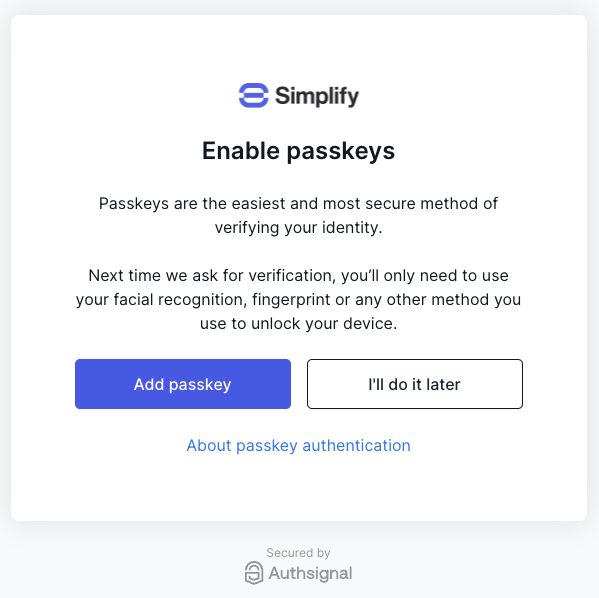
The uplift flow is how a user without a passkey adds one. It's the equivalent of an "add a new passkey" flow, optimized for passkey adoption. To accelerate adoption, Authsignal will automatically prompt users who have enrolled a recovery method to create a passkey, including when they sign in on a new device that doesn't have a passkey available yet.
## Uplifting users to passkeys
The uplift flow is how a user without a passkey adds one. It's the equivalent of an "add a new passkey" flow, optimized for passkey adoption. To accelerate adoption, Authsignal will automatically prompt users who have enrolled a recovery method to create a passkey, including when they sign in on a new device that doesn't have a passkey available yet.
 You can opt out of this behavior by [disabling the passkey uplift prompt](/implementation-options/prebuilt-ui/passkey-uplift-prompt#disabling-the-prompt), or you can [customize when it appears with actions/rules](/implementation-options/prebuilt-ui/passkey-uplift-prompt#advanced-configuration).
## Advanced configuration
The pre-built UI comes with default settings optimized for the best passkey user experience. To customize the passkey experience, you can configure the following settings:
* **Authenticator attachment**: Control which categories of authenticators can be used to create passkeys.
* **Platform**: How the user unlocks their device (e.g. Touch ID, Face ID).
* **Cross-platform**: Security keys or external devices via a QR code.
* **Registration hints**: Communicate hints to the browser to help it determine the best authenticator to use during passkey creation.
* **Client device**: Platform authenticators built into the device e.g. Touch ID, Face ID or passcode.
* **Security key**: External security keys and hardware tokens.
* **Hybrid**: Cross-device authenticators like smartphones.
For example, if you wanted to encourage users to use a physical security key you could set the authenticator attachment to **Cross-platform** and the registration hints to **Security key**.
When creating a passkey, a user would first be prompted to use a security key and would not have the option to use a platform authenticator like Touch ID or Face ID.
Registration hints are currently an experimental feature and may not work in all browsers. [Check browser support](https://passkeys.dev/device-support/#advanced) for more information.
## Using in-app browsers on iOS and Android apps
To deliver the best passkey UX on iOS and Android apps we recommend using our [Mobile SDKs](/sdks/client/mobile/setup).
However, if you need to launch the pre-built UI inside an app-based browser then passkeys are also supported under the following conditions:
* If using [Android Custom Tabs](https://developer.android.com/develop/ui/views/layout/webapps/overview-of-android-custom-tabs) then passkeys will work in the pre-built UI with no additional steps required.
* If using [SFSafariViewController](https://developer.apple.com/documentation/safariservices/sfsafariviewcontroller) or [ASWebAuthenticationSession](https://developer.apple.com/documentation/authenticationservices/aswebauthenticationsession) on iOS then passkeys will work in the pre-built UI with no additional steps required.
* If using an embedded webview on iOS like [WKWebView](https://developer.apple.com/documentation/webkit/wkwebview) then passkeys will work in the pre-built UI provided you set up an [associated domain](https://developer.apple.com/documentation/authenticationservices/supporting-passkeys#Use-passkeys-in-a-web-view). For more information on the steps required to configure your associated domain refer to the [Mobile SDK documentation](/sdks/client/mobile/passkeys).
* If using an embedded webview on Android like [WebView](https://developer.android.com/reference/android/webkit/WebView) then passkeys in the pre-built UI are **not supported**.
You can opt out of this behavior by [disabling the passkey uplift prompt](/implementation-options/prebuilt-ui/passkey-uplift-prompt#disabling-the-prompt), or you can [customize when it appears with actions/rules](/implementation-options/prebuilt-ui/passkey-uplift-prompt#advanced-configuration).
## Advanced configuration
The pre-built UI comes with default settings optimized for the best passkey user experience. To customize the passkey experience, you can configure the following settings:
* **Authenticator attachment**: Control which categories of authenticators can be used to create passkeys.
* **Platform**: How the user unlocks their device (e.g. Touch ID, Face ID).
* **Cross-platform**: Security keys or external devices via a QR code.
* **Registration hints**: Communicate hints to the browser to help it determine the best authenticator to use during passkey creation.
* **Client device**: Platform authenticators built into the device e.g. Touch ID, Face ID or passcode.
* **Security key**: External security keys and hardware tokens.
* **Hybrid**: Cross-device authenticators like smartphones.
For example, if you wanted to encourage users to use a physical security key you could set the authenticator attachment to **Cross-platform** and the registration hints to **Security key**.
When creating a passkey, a user would first be prompted to use a security key and would not have the option to use a platform authenticator like Touch ID or Face ID.
Registration hints are currently an experimental feature and may not work in all browsers. [Check browser support](https://passkeys.dev/device-support/#advanced) for more information.
## Using in-app browsers on iOS and Android apps
To deliver the best passkey UX on iOS and Android apps we recommend using our [Mobile SDKs](/sdks/client/mobile/setup).
However, if you need to launch the pre-built UI inside an app-based browser then passkeys are also supported under the following conditions:
* If using [Android Custom Tabs](https://developer.android.com/develop/ui/views/layout/webapps/overview-of-android-custom-tabs) then passkeys will work in the pre-built UI with no additional steps required.
* If using [SFSafariViewController](https://developer.apple.com/documentation/safariservices/sfsafariviewcontroller) or [ASWebAuthenticationSession](https://developer.apple.com/documentation/authenticationservices/aswebauthenticationsession) on iOS then passkeys will work in the pre-built UI with no additional steps required.
* If using an embedded webview on iOS like [WKWebView](https://developer.apple.com/documentation/webkit/wkwebview) then passkeys will work in the pre-built UI provided you set up an [associated domain](https://developer.apple.com/documentation/authenticationservices/supporting-passkeys#Use-passkeys-in-a-web-view). For more information on the steps required to configure your associated domain refer to the [Mobile SDK documentation](/sdks/client/mobile/passkeys).
* If using an embedded webview on Android like [WebView](https://developer.android.com/reference/android/webkit/WebView) then passkeys in the pre-built UI are **not supported**.