> ## Documentation Index
> Fetch the complete documentation index at: https://docs.authsignal.com/llms.txt
> Use this file to discover all available pages before exploring further.
# Passkeys using Mobile SDKs
> Implement passkeys in native mobile apps using Authsignal Mobile SDKs for Swift, Kotlin, React Native, and Flutter
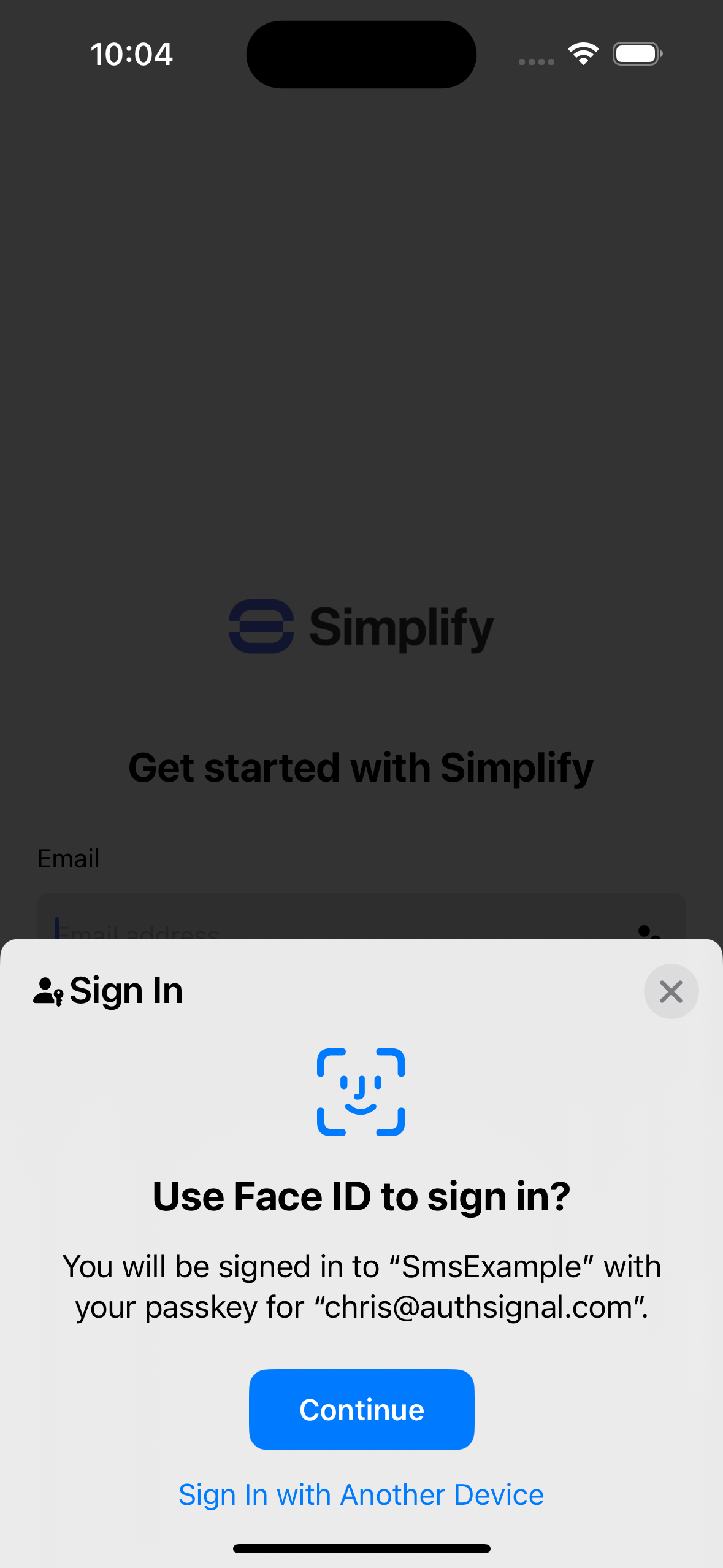
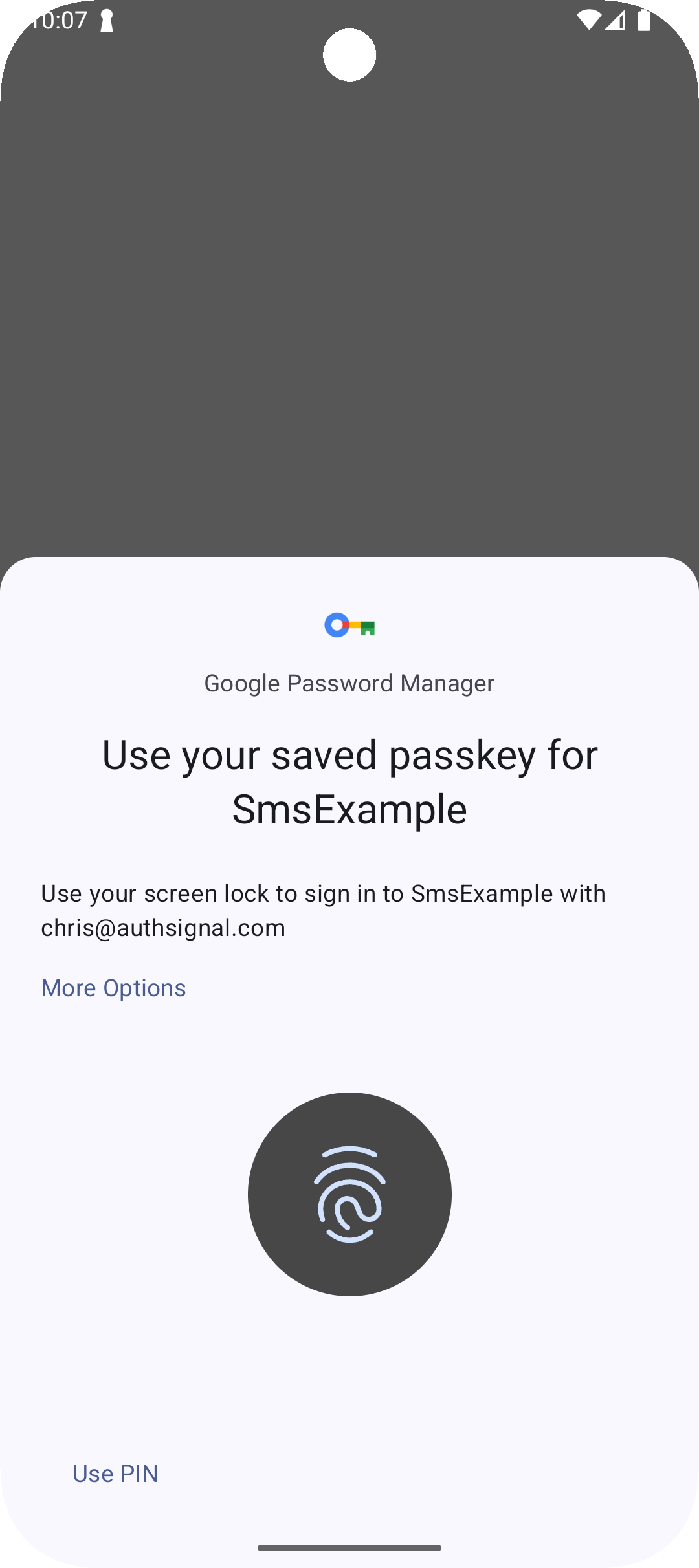
Authsignal's [Mobile SDKs](/sdks/client/mobile/setup) let you rapidly implement passkeys in your mobile apps using fully native iOS and Android UI.
 ## Portal setup
1. Navigate to the [passkey setup wizard](https://portal.authsignal.com/organisations/tenants/authenticators/passkey) in the Authsignal Portal.
2. Select **I'm building my own UI**.
3. Enter your primary domain. This value should correspond to the web domain associated with your mobile app. For more information refer to our [Mobile SDK documentation](/sdks/client/mobile/passkeys). Click **Continue**.
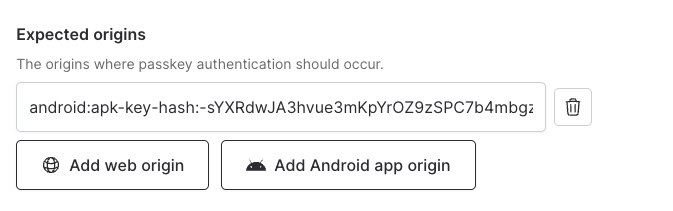
4. If targeting Android, then go to your **Expected origins** settings, click **Add Android app origin** and enter your app's SHA-256 fingerprint value. For more information on how to obtain this value refer to our [Mobile SDK documentation](/sdks/client/mobile/passkeys).
## Portal setup
1. Navigate to the [passkey setup wizard](https://portal.authsignal.com/organisations/tenants/authenticators/passkey) in the Authsignal Portal.
2. Select **I'm building my own UI**.
3. Enter your primary domain. This value should correspond to the web domain associated with your mobile app. For more information refer to our [Mobile SDK documentation](/sdks/client/mobile/passkeys). Click **Continue**.
4. If targeting Android, then go to your **Expected origins** settings, click **Add Android app origin** and enter your app's SHA-256 fingerprint value. For more information on how to obtain this value refer to our [Mobile SDK documentation](/sdks/client/mobile/passkeys).
 ## SDK setup
Passkeys require integration from your backend server and your mobile app.
1. Get your tenant's credentials from the [API keys page](https://portal.authsignal.com/organisations/tenants/api).
2. Follow the setup instructions for one of our [Server SDKs](/sdks/server/setup) - or integrate via REST with our [Server API](/api-reference/server-api/overview).
3. Follow the setup instructions for our [Mobile SDKs](/sdks/client/mobile/passkeys) for Swift, Kotlin, React Native, or Flutter.
## Creating passkeys
In Authsignal, you define an [action](/actions-rules/actions/getting-started) to let users create passkeys. This does two things:
1. It provides observability for all passkey creation events in the [Authsignal Portal](https://portal.authsignal.com).
2. It ensures that the passkey is securely bound to an existing user.
### 1. Backend - Generate token
In your backend, track an action using a [Server SDK](/sdks/server) to generate a short-lived enrollment token.
```ts Node.js theme={null}
const request = {
userId: "dc58c6dc-a1fd-4a4f-8e2f-846636dd4833",
action: "createPasskey",
attributes: {
scope: "add:authenticators",
},
};
const response = await authsignal.track(request);
const token = response.token;
```
```csharp C# theme={null}
var request = new TrackRequest(
UserId: "dc58c6dc-a1fd-4a4f-8e2f-846636dd4833",
Action: "createPasskey",
Attributes: new TrackAttributes(
Scope: "add:authenticators"
)
);
var response = await authsignal.Track(request);
var token = response.Token;
```
```java Java theme={null}
TrackRequest request = new TrackRequest();
request.userId = "dc58c6dc-a1fd-4a4f-8e2f-846636dd4833";
request.action = "createPasskey";
request.attributes = new TrackAttributes();
request.attributes.scope = "add:authenticators";
TrackResponse response = authsignal.track(request).get();
String token = response.token;
```
```ruby Ruby theme={null}
response = Authsignal.track({
user_id: "dc58c6dc-a1fd-4a4f-8e2f-846636dd4833"
action: "createPasskey",
attributes: {
scope: "add:authenticators"
}
})
token = response[:token]
```
```python Python theme={null}
response = authsignal.track(
user_id="dc58c6dc-a1fd-4a4f-8e2f-846636dd4833",
action="createPasskey",
attributes={
"scope": "add:authenticators"
}
)
token = response["token"]
```
```php PHP theme={null}
$response = Authsignal::track([
'userId' => "dc58c6dc-a1fd-4a4f-8e2f-846636dd4833",
'action' => "createPasskey",
'attributes' => [
'scope' => "add:authenticators"
]
]);
$token = $response["token"];
```
```go Go theme={null}
response, err := client.Track(
TrackRequest{
UserId: "dc58c6dc-a1fd-4a4f-8e2f-846636dd4833",
Action: "createPasskey",
Attributes: &TrackAttributes{
Scope: "add:authenticators",
},
},
)
token := response.Token
```
This token includes the **add:authenticators** scope to authorize binding a passkey to an existing user so you should only generate it when the user is [strongly authenticated](/advanced-usage/authenticator-binding).
### 2. App - Create passkey
In your app, call the [signUp](/sdks/client/mobile/passkeys#creating-a-passkey) method using one of our [Mobile SDKs](/sdks/client/mobile/setup), passing the token generated in step 1.
```swift Swift theme={null}
let response = await authsignal.passkey.signUp(
token: "eyJhbGciOiJIUzI....",
username: "jane.smith@authsignal.com",
displayName: "Jane Smith"
)
```
```kotlin Kotlin theme={null}
val response = authsignal.passkey.signUp(
token = "eyJhbGciOiJIUzI....",
username = "jane.smith@authsignal.com",
displayName = "Jane Smith",
)
```
```ts React Native theme={null}
const response = await authsignal.passkey.signUp({
token: "eyJhbGciOiJIUzI....",
username: "jane.smith@authsignal.com",
displayName: "Jane Smith",
});
```
```dart Flutter theme={null}
var response = await authsignal.passkey.signUp(
"eyJhbGciOiJIUzI....",
"jane.smith@authsignal.com",
"Jane Smith",
);
```
You can also use our SDK to help determine **when to display a passkey creation prompt** based on whether or not the user has an existing passkey available on their device.
```swift Swift theme={null}
let showPrompt = await authsignal.passkey.shouldPromptToCreatePasskey()
if showPrompt {
let response = await authsignal.passkey.signUp(
token: "eyJhbGciOiJIUzI....",
username: "jane.smith@authsignal.com",
ignorePasskeyAlreadyExistsError: true,
)
}
```
```kotlin Kotlin theme={null}
val showPrompt = authsignal.passkey.shouldPromptToCreatePasskey()
if (showPrompt) {
val response = authsignal.passkey.signUp(
token = "eyJhbGciOiJIUzI....",
username = "jane.smith@authsignal.com",
ignorePasskeyAlreadyExistsError: true,
)
}
```
```ts React Native theme={null}
const showPrompt = await authsignal.passkey.shouldPromptToCreatePasskey();
if (showPrompt) {
const response = await authsignal.passkey.signUp({
token: "eyJhbGciOiJIUzI....",
username: "jane.smith@authsignal.com",
ignorePasskeyAlreadyExistsError: true,
});
}
```
To learn more about how to conditionally create passkeys refer to the [section below on passkey availability](#passkey-availability).
## Authenticating with passkeys
You can define another [action](/actions-rules/actions/getting-started) to let users authenticate with their passkeys.
This action will be used for observability and to authenticate the user on the server.
### 1. App - Sign in with passkey
In your app, call the [signIn](/sdks/client/mobile/passkeys#using-a-passkey) method using one of our [Mobile SDKs](/sdks/client/mobile/setup).
```swift Swift theme={null}
let response = await authsignal.passkey.signIn(action: "signInWithPasskey")
if let token = response.data?.token {
// Send token to your backend for validation
}
```
```kotlin Kotlin theme={null}
val response = authsignal.passkey.signIn(action = "signInWithPasskey")
if (response.data?.token != null) {
// Send token to your backend for validation
}
```
```ts React Native theme={null}
const response = await authsignal.passkey.signIn({ action: "signInWithPasskey" });
if (response.data?.token) {
// Send token to your backend for validation
}
```
```dart Flutter theme={null}
final response = await authsignal.passkey.signIn(action: "signInWithPasskey");
if (response.data?.token != null) {
// Send token to your backend for validation
}
```
Because some users **may not have a passkey available**, you can conditionally present a fallback authentication method by handling error codes returned by the SDK.
```swift Swift theme={null}
let response = await authsignal.passkey.signIn(action: "signInWithPasskey")
if response.errorCode == "user_canceled" {
// Present fallback authentication method
}
```
```kotlin Kotlin theme={null}
val response = authsignal.passkey.signIn(action = "signInWithPasskey")
if (response.errorCode == "user_canceled" ||
response.errorCode == "no_credential") {
// Present fallback authentication method
}
```
```ts React Native theme={null}
const response = await authsignal.passkey.signIn({ action: "signInWithPasskey" });
if (
response.errorCode === ErrorCode.user_canceled ||
response.errorCode === ErrorCode.no_credential
) {
// Present fallback authentication method
}
```
```dart Flutter theme={null}
final response = await authsignal.passkey.signIn(action: "signInWithPasskey");
if (response.errorCode == ErrorCode.userCanceled.value ||
response.errorCode == ErrorCode.noCredential.value) {
// Present fallback authentication method
}
```
To learn more about how to handle if passkeys are available when authenticating refer to the [section below on passkey availability](#passkey-availability).
### 2. Backend - Validate action
Pass the token returned in the previous step to your backend, validating the result of the authentication server-side.
```ts Node.js theme={null}
const response = await authsignal.validateChallenge({
action: "signInWithPasskey",
token: "eyJhbGciOiJIUzI....",
});
if (response.state === "CHALLENGE_SUCCEEDED") {
// User successfully authenticated with passkey
const userId = response.userId;
} else {
// Authentication failed
}
```
```csharp C# theme={null}
var request = new ValidateChallengeRequest(
Action: "signInWithPasskey",
Token: "eyJhbGciOiJIUzI...."
);
var response = await authsignal.ValidateChallenge(request);
if (response.State == UserActionState.CHALLENGE_SUCCEEDED) {
// User successfully authenticated with passkey
var userId = response.UserId;
} else {
// Authentication failed
}
```
```java Java theme={null}
ValidateChallengeRequest request = new ValidateChallengeRequest();
request.action = "signInWithPasskey";
request.token = "eyJhbGciOiJIUzI....";
ValidateChallengeResponse response = authsignal.validateChallenge(request).get();
if (response.state == UserActionState.CHALLENGE_SUCCEEDED) {
// The user authenticated successfully
String userId = response.userId;
}
```
```ruby Ruby theme={null}
response = Authsignal.validate_challenge(action: "signInWithPasskey", token: "eyJhbGciOiJIUzI....")
if response[:state] == "CHALLENGE_SUCCEEDED"
# The user authenticated successfully
user_id = response[:user_id]
end
```
```python Python theme={null}
response = authsignal.validate_challenge(action="signInWithPasskey", token="eyJhbGciOiJIUzI....")
if response["state"] == "CHALLENGE_SUCCEEDED":
# User successfully authenticated with passkey
user_id = response["user_id"]
else:
# Authentication failed
```
```php PHP theme={null}
$response = Authsignal::validateChallenge(action: "signInWithPasskey", token: "eyJhbGciOiJIUzI....");
if ($response["state"] === "CHALLENGE_SUCCEEDED") {
# The user authenticated successfully
$user_id = $response["user_id"];
}
```
```go Go theme={null}
response, err := client.ValidateChallenge(
ValidateChallengeRequest{
Action: "signInWithPasskey",
Token: "eyJhbGciOiJ...",
},
)
if response.State == "CHALLENGE_SUCCEEDED" {
// The user authenticated successfully
userId := response.UserId
}
```
This server-side validation step can be used within one of our [popular IdP integrations](/getting-started/overview#popular-integrations) or with our [session APIs](/advanced-usage/session-management) to issue access tokens and refresh tokens.
## Passkey availability
Due to security restrictions in the design of passkeys, iOS and Android don't expose an API to query if a passkey is available on a device.
This means we need to handle the UX around passkey availability carefully both when creating and authenticating with passkeys.
### Creating passkeys
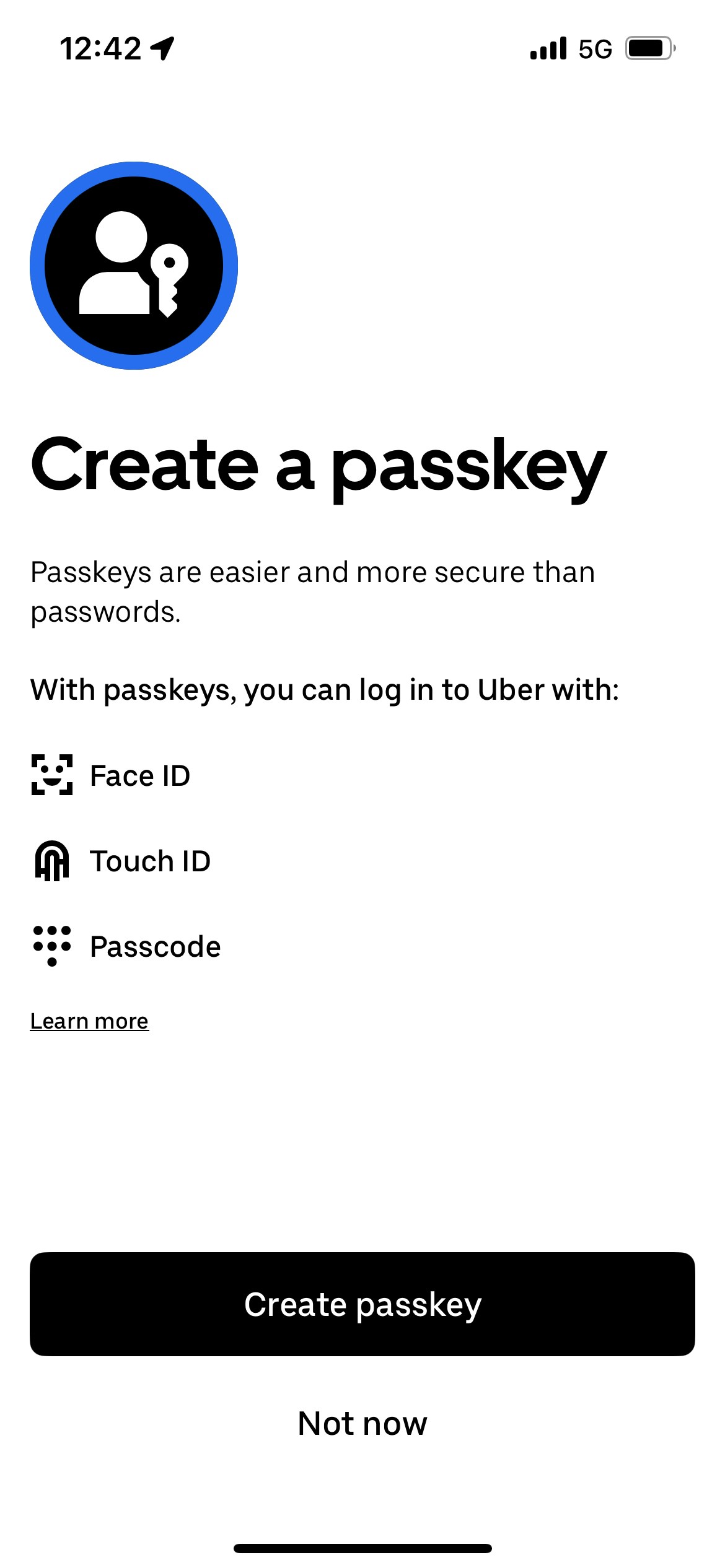
Prompting users to create a passkey proactively is a great way of increasing adoption.
## SDK setup
Passkeys require integration from your backend server and your mobile app.
1. Get your tenant's credentials from the [API keys page](https://portal.authsignal.com/organisations/tenants/api).
2. Follow the setup instructions for one of our [Server SDKs](/sdks/server/setup) - or integrate via REST with our [Server API](/api-reference/server-api/overview).
3. Follow the setup instructions for our [Mobile SDKs](/sdks/client/mobile/passkeys) for Swift, Kotlin, React Native, or Flutter.
## Creating passkeys
In Authsignal, you define an [action](/actions-rules/actions/getting-started) to let users create passkeys. This does two things:
1. It provides observability for all passkey creation events in the [Authsignal Portal](https://portal.authsignal.com).
2. It ensures that the passkey is securely bound to an existing user.
### 1. Backend - Generate token
In your backend, track an action using a [Server SDK](/sdks/server) to generate a short-lived enrollment token.
```ts Node.js theme={null}
const request = {
userId: "dc58c6dc-a1fd-4a4f-8e2f-846636dd4833",
action: "createPasskey",
attributes: {
scope: "add:authenticators",
},
};
const response = await authsignal.track(request);
const token = response.token;
```
```csharp C# theme={null}
var request = new TrackRequest(
UserId: "dc58c6dc-a1fd-4a4f-8e2f-846636dd4833",
Action: "createPasskey",
Attributes: new TrackAttributes(
Scope: "add:authenticators"
)
);
var response = await authsignal.Track(request);
var token = response.Token;
```
```java Java theme={null}
TrackRequest request = new TrackRequest();
request.userId = "dc58c6dc-a1fd-4a4f-8e2f-846636dd4833";
request.action = "createPasskey";
request.attributes = new TrackAttributes();
request.attributes.scope = "add:authenticators";
TrackResponse response = authsignal.track(request).get();
String token = response.token;
```
```ruby Ruby theme={null}
response = Authsignal.track({
user_id: "dc58c6dc-a1fd-4a4f-8e2f-846636dd4833"
action: "createPasskey",
attributes: {
scope: "add:authenticators"
}
})
token = response[:token]
```
```python Python theme={null}
response = authsignal.track(
user_id="dc58c6dc-a1fd-4a4f-8e2f-846636dd4833",
action="createPasskey",
attributes={
"scope": "add:authenticators"
}
)
token = response["token"]
```
```php PHP theme={null}
$response = Authsignal::track([
'userId' => "dc58c6dc-a1fd-4a4f-8e2f-846636dd4833",
'action' => "createPasskey",
'attributes' => [
'scope' => "add:authenticators"
]
]);
$token = $response["token"];
```
```go Go theme={null}
response, err := client.Track(
TrackRequest{
UserId: "dc58c6dc-a1fd-4a4f-8e2f-846636dd4833",
Action: "createPasskey",
Attributes: &TrackAttributes{
Scope: "add:authenticators",
},
},
)
token := response.Token
```
This token includes the **add:authenticators** scope to authorize binding a passkey to an existing user so you should only generate it when the user is [strongly authenticated](/advanced-usage/authenticator-binding).
### 2. App - Create passkey
In your app, call the [signUp](/sdks/client/mobile/passkeys#creating-a-passkey) method using one of our [Mobile SDKs](/sdks/client/mobile/setup), passing the token generated in step 1.
```swift Swift theme={null}
let response = await authsignal.passkey.signUp(
token: "eyJhbGciOiJIUzI....",
username: "jane.smith@authsignal.com",
displayName: "Jane Smith"
)
```
```kotlin Kotlin theme={null}
val response = authsignal.passkey.signUp(
token = "eyJhbGciOiJIUzI....",
username = "jane.smith@authsignal.com",
displayName = "Jane Smith",
)
```
```ts React Native theme={null}
const response = await authsignal.passkey.signUp({
token: "eyJhbGciOiJIUzI....",
username: "jane.smith@authsignal.com",
displayName: "Jane Smith",
});
```
```dart Flutter theme={null}
var response = await authsignal.passkey.signUp(
"eyJhbGciOiJIUzI....",
"jane.smith@authsignal.com",
"Jane Smith",
);
```
You can also use our SDK to help determine **when to display a passkey creation prompt** based on whether or not the user has an existing passkey available on their device.
```swift Swift theme={null}
let showPrompt = await authsignal.passkey.shouldPromptToCreatePasskey()
if showPrompt {
let response = await authsignal.passkey.signUp(
token: "eyJhbGciOiJIUzI....",
username: "jane.smith@authsignal.com",
ignorePasskeyAlreadyExistsError: true,
)
}
```
```kotlin Kotlin theme={null}
val showPrompt = authsignal.passkey.shouldPromptToCreatePasskey()
if (showPrompt) {
val response = authsignal.passkey.signUp(
token = "eyJhbGciOiJIUzI....",
username = "jane.smith@authsignal.com",
ignorePasskeyAlreadyExistsError: true,
)
}
```
```ts React Native theme={null}
const showPrompt = await authsignal.passkey.shouldPromptToCreatePasskey();
if (showPrompt) {
const response = await authsignal.passkey.signUp({
token: "eyJhbGciOiJIUzI....",
username: "jane.smith@authsignal.com",
ignorePasskeyAlreadyExistsError: true,
});
}
```
To learn more about how to conditionally create passkeys refer to the [section below on passkey availability](#passkey-availability).
## Authenticating with passkeys
You can define another [action](/actions-rules/actions/getting-started) to let users authenticate with their passkeys.
This action will be used for observability and to authenticate the user on the server.
### 1. App - Sign in with passkey
In your app, call the [signIn](/sdks/client/mobile/passkeys#using-a-passkey) method using one of our [Mobile SDKs](/sdks/client/mobile/setup).
```swift Swift theme={null}
let response = await authsignal.passkey.signIn(action: "signInWithPasskey")
if let token = response.data?.token {
// Send token to your backend for validation
}
```
```kotlin Kotlin theme={null}
val response = authsignal.passkey.signIn(action = "signInWithPasskey")
if (response.data?.token != null) {
// Send token to your backend for validation
}
```
```ts React Native theme={null}
const response = await authsignal.passkey.signIn({ action: "signInWithPasskey" });
if (response.data?.token) {
// Send token to your backend for validation
}
```
```dart Flutter theme={null}
final response = await authsignal.passkey.signIn(action: "signInWithPasskey");
if (response.data?.token != null) {
// Send token to your backend for validation
}
```
Because some users **may not have a passkey available**, you can conditionally present a fallback authentication method by handling error codes returned by the SDK.
```swift Swift theme={null}
let response = await authsignal.passkey.signIn(action: "signInWithPasskey")
if response.errorCode == "user_canceled" {
// Present fallback authentication method
}
```
```kotlin Kotlin theme={null}
val response = authsignal.passkey.signIn(action = "signInWithPasskey")
if (response.errorCode == "user_canceled" ||
response.errorCode == "no_credential") {
// Present fallback authentication method
}
```
```ts React Native theme={null}
const response = await authsignal.passkey.signIn({ action: "signInWithPasskey" });
if (
response.errorCode === ErrorCode.user_canceled ||
response.errorCode === ErrorCode.no_credential
) {
// Present fallback authentication method
}
```
```dart Flutter theme={null}
final response = await authsignal.passkey.signIn(action: "signInWithPasskey");
if (response.errorCode == ErrorCode.userCanceled.value ||
response.errorCode == ErrorCode.noCredential.value) {
// Present fallback authentication method
}
```
To learn more about how to handle if passkeys are available when authenticating refer to the [section below on passkey availability](#passkey-availability).
### 2. Backend - Validate action
Pass the token returned in the previous step to your backend, validating the result of the authentication server-side.
```ts Node.js theme={null}
const response = await authsignal.validateChallenge({
action: "signInWithPasskey",
token: "eyJhbGciOiJIUzI....",
});
if (response.state === "CHALLENGE_SUCCEEDED") {
// User successfully authenticated with passkey
const userId = response.userId;
} else {
// Authentication failed
}
```
```csharp C# theme={null}
var request = new ValidateChallengeRequest(
Action: "signInWithPasskey",
Token: "eyJhbGciOiJIUzI...."
);
var response = await authsignal.ValidateChallenge(request);
if (response.State == UserActionState.CHALLENGE_SUCCEEDED) {
// User successfully authenticated with passkey
var userId = response.UserId;
} else {
// Authentication failed
}
```
```java Java theme={null}
ValidateChallengeRequest request = new ValidateChallengeRequest();
request.action = "signInWithPasskey";
request.token = "eyJhbGciOiJIUzI....";
ValidateChallengeResponse response = authsignal.validateChallenge(request).get();
if (response.state == UserActionState.CHALLENGE_SUCCEEDED) {
// The user authenticated successfully
String userId = response.userId;
}
```
```ruby Ruby theme={null}
response = Authsignal.validate_challenge(action: "signInWithPasskey", token: "eyJhbGciOiJIUzI....")
if response[:state] == "CHALLENGE_SUCCEEDED"
# The user authenticated successfully
user_id = response[:user_id]
end
```
```python Python theme={null}
response = authsignal.validate_challenge(action="signInWithPasskey", token="eyJhbGciOiJIUzI....")
if response["state"] == "CHALLENGE_SUCCEEDED":
# User successfully authenticated with passkey
user_id = response["user_id"]
else:
# Authentication failed
```
```php PHP theme={null}
$response = Authsignal::validateChallenge(action: "signInWithPasskey", token: "eyJhbGciOiJIUzI....");
if ($response["state"] === "CHALLENGE_SUCCEEDED") {
# The user authenticated successfully
$user_id = $response["user_id"];
}
```
```go Go theme={null}
response, err := client.ValidateChallenge(
ValidateChallengeRequest{
Action: "signInWithPasskey",
Token: "eyJhbGciOiJ...",
},
)
if response.State == "CHALLENGE_SUCCEEDED" {
// The user authenticated successfully
userId := response.UserId
}
```
This server-side validation step can be used within one of our [popular IdP integrations](/getting-started/overview#popular-integrations) or with our [session APIs](/advanced-usage/session-management) to issue access tokens and refresh tokens.
## Passkey availability
Due to security restrictions in the design of passkeys, iOS and Android don't expose an API to query if a passkey is available on a device.
This means we need to handle the UX around passkey availability carefully both when creating and authenticating with passkeys.
### Creating passkeys
Prompting users to create a passkey proactively is a great way of increasing adoption.
 The [Mobile SDKs](/sdks/client/mobile/setup) include a helper method to determine whether prompting the user to create a passkey is recommended.
```swift Swift theme={null}
let showPrompt = await authsignal.passkey.shouldPromptToCreatePasskey()
```
```kotlin Kotlin theme={null}
val showPrompt = authsignal.passkey.shouldPromptToCreatePasskey()
```
```ts React Native theme={null}
const showPrompt = await authsignal.passkey.shouldPromptToCreatePasskey();
```
This method will return true if the following conditions are met:
* A passkey has not been created on the current device.
* A passkey has not been used on the current device after it was created on another device.
* A passkey has been removed in the Authsignal Portal after it was created or used on the current device.
The method will also return true as a "false positive" in the following edge case:
* A passkey is available which was created on another device and has not yet been used on the current device.
This case can be handled by ignoring any errors thrown because a valid passkey already exists.
```swift Swift highlight={4} theme={null}
let response = await authsignal.passkey.signUp(
token: "eyJhbGciOiJIUzI....",
username: "jane.smith@authsignal.com",
ignorePasskeyAlreadyExistsError: true,
)
if !response.error {
// Alert the user that the passkey was successfully created
}
```
```kotlin Kotlin highlight={4} theme={null}
val response = authsignal.passkey.signUp(
token = "eyJhbGciOiJIUzI....",
username = "jane.smith@authsignal.com",
ignorePasskeyAlreadyExistsError: true,
)
if (!response.error) {
// Alert the user that the passkey was successfully created
}
```
```ts React Native highlight={4} theme={null}
const response = await authsignal.passkey.signUp({
token: "eyJhbGciOiJIUzI....",
username: "jane.smith@authsignal.com",
ignorePasskeyAlreadyExistsError: true,
});
if (!response.error) {
// Alert the user that the passkey was successfully created
}
```
### Authenticating with passkeys
Since we can't query up front whether a passkey is available or not, the recommended pattern is to attempt passkey sign-in for all users and then provide a fallback option by **handling error codes**.
```swift Swift theme={null}
let response = await authsignal.passkey.signIn(action: "signInWithPasskey")
if response.errorCode == "user_canceled" {
// Present fallback authentication method
}
```
```kotlin Kotlin theme={null}
val response = authsignal.passkey.signIn(action = "signInWithPasskey")
if (response.errorCode == "user_canceled" ||
response.errorCode == "no_credential") {
// Present fallback authentication method
}
```
```ts React Native theme={null}
const response = await authsignal.passkey.signIn({ action: "signInWithPasskey" });
if (
response.errorCode === ErrorCode.user_canceled ||
response.errorCode === ErrorCode.no_credential
) {
// Present fallback authentication method
}
```
```dart Flutter theme={null}
final response = await authsignal.passkey.signIn(action: "signInWithPasskey");
if (response.errorCode == ErrorCode.userCanceled.value ||
response.errorCode == ErrorCode.noCredential.value) {
// Present fallback authentication method
}
```
iOS imposes an additional privacy restriction which prevents apps from determining if the user canceled the passkey flow or if they didn't have a passkey available.
For this reason we recommend presenting an alternative authentication method in both cases.
To learn more about handling error codes refer to the [Mobile SDK documentation](/sdks/client/mobile/error-handling).
## Passkey support
Passkeys are supported on iOS devices running **iOS 15** or higher and on Android devices running **Android 9 (API level 28)** or higher.
You can use the SDK to perform this check.
```swift Swift theme={null}
let isSupported = await authsignal.passkey.isSupported()
```
```kotlin Kotlin theme={null}
val isSupported = authsignal.passkey.isSupported()
```
```ts React Native theme={null}
const isSupported = await authsignal.passkey.isSupported();
```
## Next steps
* [Passkey best practices on web](/authentication-methods/passkey/best-practices-web)
* [Passkey best practices on mobile](/authentication-methods/passkey/best-practices-mobile)
The [Mobile SDKs](/sdks/client/mobile/setup) include a helper method to determine whether prompting the user to create a passkey is recommended.
```swift Swift theme={null}
let showPrompt = await authsignal.passkey.shouldPromptToCreatePasskey()
```
```kotlin Kotlin theme={null}
val showPrompt = authsignal.passkey.shouldPromptToCreatePasskey()
```
```ts React Native theme={null}
const showPrompt = await authsignal.passkey.shouldPromptToCreatePasskey();
```
This method will return true if the following conditions are met:
* A passkey has not been created on the current device.
* A passkey has not been used on the current device after it was created on another device.
* A passkey has been removed in the Authsignal Portal after it was created or used on the current device.
The method will also return true as a "false positive" in the following edge case:
* A passkey is available which was created on another device and has not yet been used on the current device.
This case can be handled by ignoring any errors thrown because a valid passkey already exists.
```swift Swift highlight={4} theme={null}
let response = await authsignal.passkey.signUp(
token: "eyJhbGciOiJIUzI....",
username: "jane.smith@authsignal.com",
ignorePasskeyAlreadyExistsError: true,
)
if !response.error {
// Alert the user that the passkey was successfully created
}
```
```kotlin Kotlin highlight={4} theme={null}
val response = authsignal.passkey.signUp(
token = "eyJhbGciOiJIUzI....",
username = "jane.smith@authsignal.com",
ignorePasskeyAlreadyExistsError: true,
)
if (!response.error) {
// Alert the user that the passkey was successfully created
}
```
```ts React Native highlight={4} theme={null}
const response = await authsignal.passkey.signUp({
token: "eyJhbGciOiJIUzI....",
username: "jane.smith@authsignal.com",
ignorePasskeyAlreadyExistsError: true,
});
if (!response.error) {
// Alert the user that the passkey was successfully created
}
```
### Authenticating with passkeys
Since we can't query up front whether a passkey is available or not, the recommended pattern is to attempt passkey sign-in for all users and then provide a fallback option by **handling error codes**.
```swift Swift theme={null}
let response = await authsignal.passkey.signIn(action: "signInWithPasskey")
if response.errorCode == "user_canceled" {
// Present fallback authentication method
}
```
```kotlin Kotlin theme={null}
val response = authsignal.passkey.signIn(action = "signInWithPasskey")
if (response.errorCode == "user_canceled" ||
response.errorCode == "no_credential") {
// Present fallback authentication method
}
```
```ts React Native theme={null}
const response = await authsignal.passkey.signIn({ action: "signInWithPasskey" });
if (
response.errorCode === ErrorCode.user_canceled ||
response.errorCode === ErrorCode.no_credential
) {
// Present fallback authentication method
}
```
```dart Flutter theme={null}
final response = await authsignal.passkey.signIn(action: "signInWithPasskey");
if (response.errorCode == ErrorCode.userCanceled.value ||
response.errorCode == ErrorCode.noCredential.value) {
// Present fallback authentication method
}
```
iOS imposes an additional privacy restriction which prevents apps from determining if the user canceled the passkey flow or if they didn't have a passkey available.
For this reason we recommend presenting an alternative authentication method in both cases.
To learn more about handling error codes refer to the [Mobile SDK documentation](/sdks/client/mobile/error-handling).
## Passkey support
Passkeys are supported on iOS devices running **iOS 15** or higher and on Android devices running **Android 9 (API level 28)** or higher.
You can use the SDK to perform this check.
```swift Swift theme={null}
let isSupported = await authsignal.passkey.isSupported()
```
```kotlin Kotlin theme={null}
val isSupported = authsignal.passkey.isSupported()
```
```ts React Native theme={null}
const isSupported = await authsignal.passkey.isSupported();
```
## Next steps
* [Passkey best practices on web](/authentication-methods/passkey/best-practices-web)
* [Passkey best practices on mobile](/authentication-methods/passkey/best-practices-mobile)