> ## Documentation Index
> Fetch the complete documentation index at: https://docs.authsignal.com/llms.txt
> Use this file to discover all available pages before exploring further.
# Biometric auth
> Verify user identity using advanced biometric verification providers
Authsignal offers biometric authentication with advanced identity verification for high-security use cases. Choose from our integrated biometric verification partners to add an extra layer of security to your authentication flow.
## Biometric providers
### iProov
iProov provides real-time face verification technology that ensures the person is the right person, a real person, and that they are authenticating right now.
#### Enable iProov in the Portal
1. Navigate to the [Authenticators section](https://portal.authsignal.com/organisations/tenants/authenticators) in your Authsignal Portal
2. Find **iProov** in the biometric authenticators list
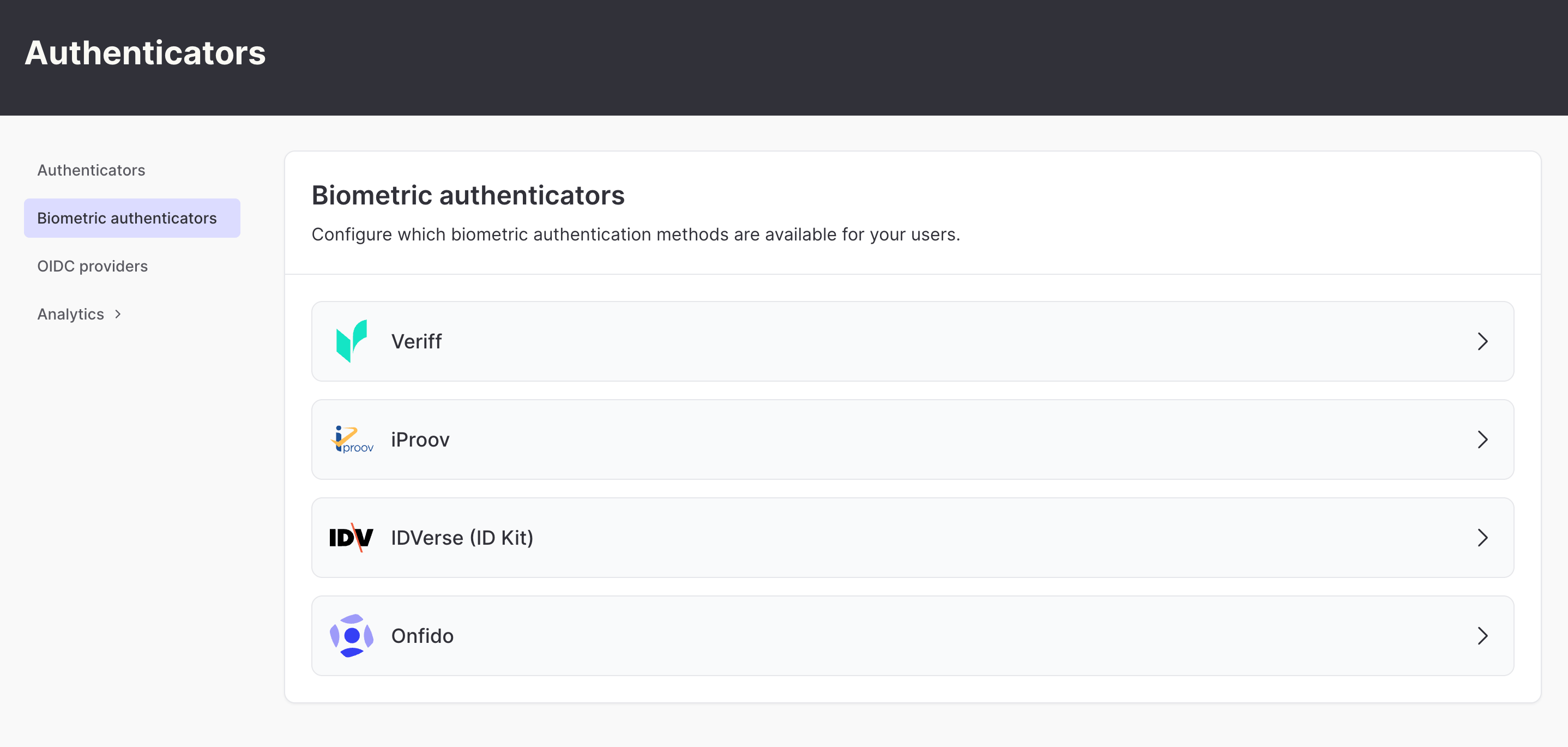 3. Click **Setup iProov**.
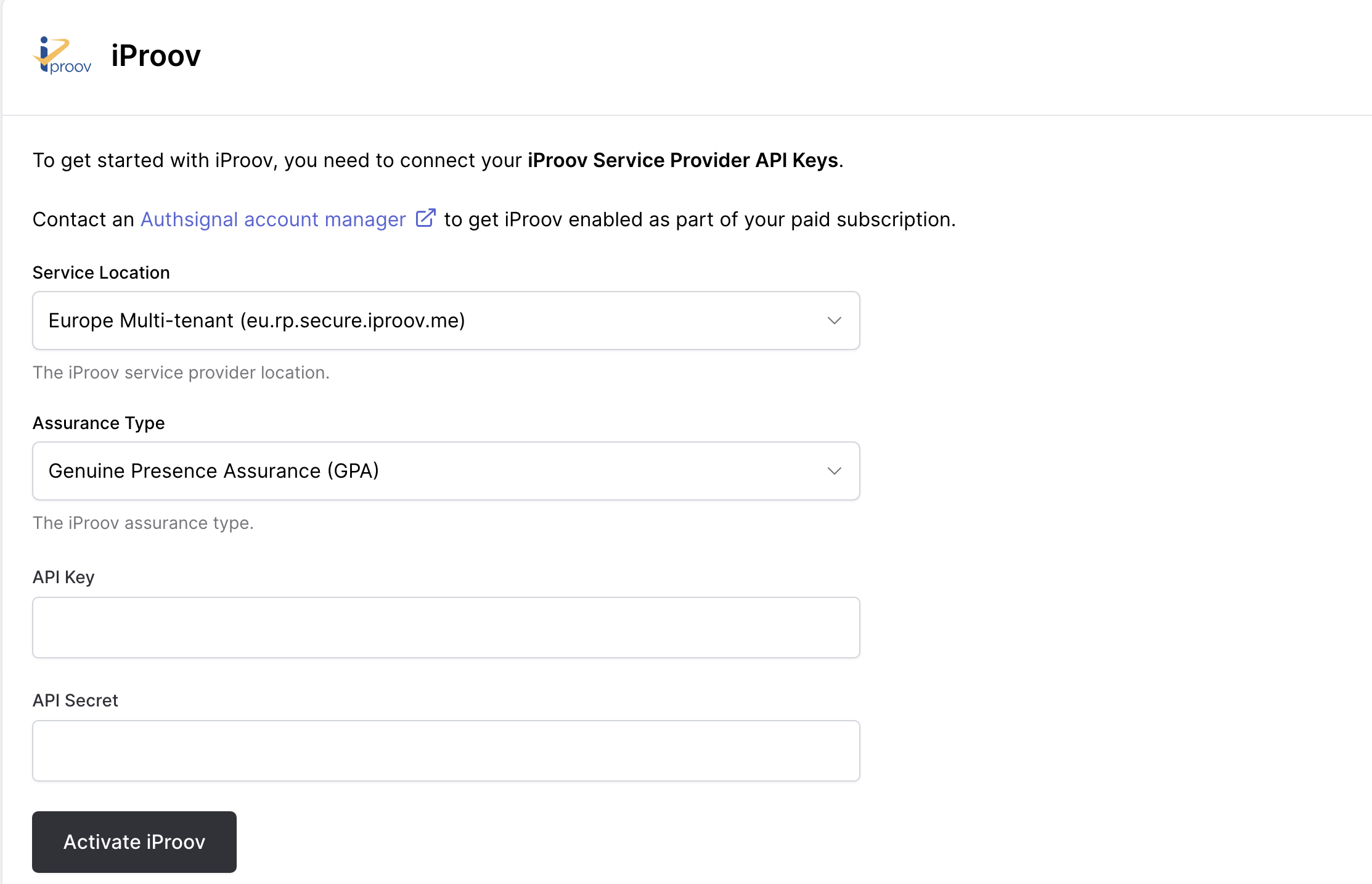
4. Enter your iProov credentials, configure your verification settings and activate the authenticator.
3. Click **Setup iProov**.
4. Enter your iProov credentials, configure your verification settings and activate the authenticator.
 #### Pre-built UI Experience
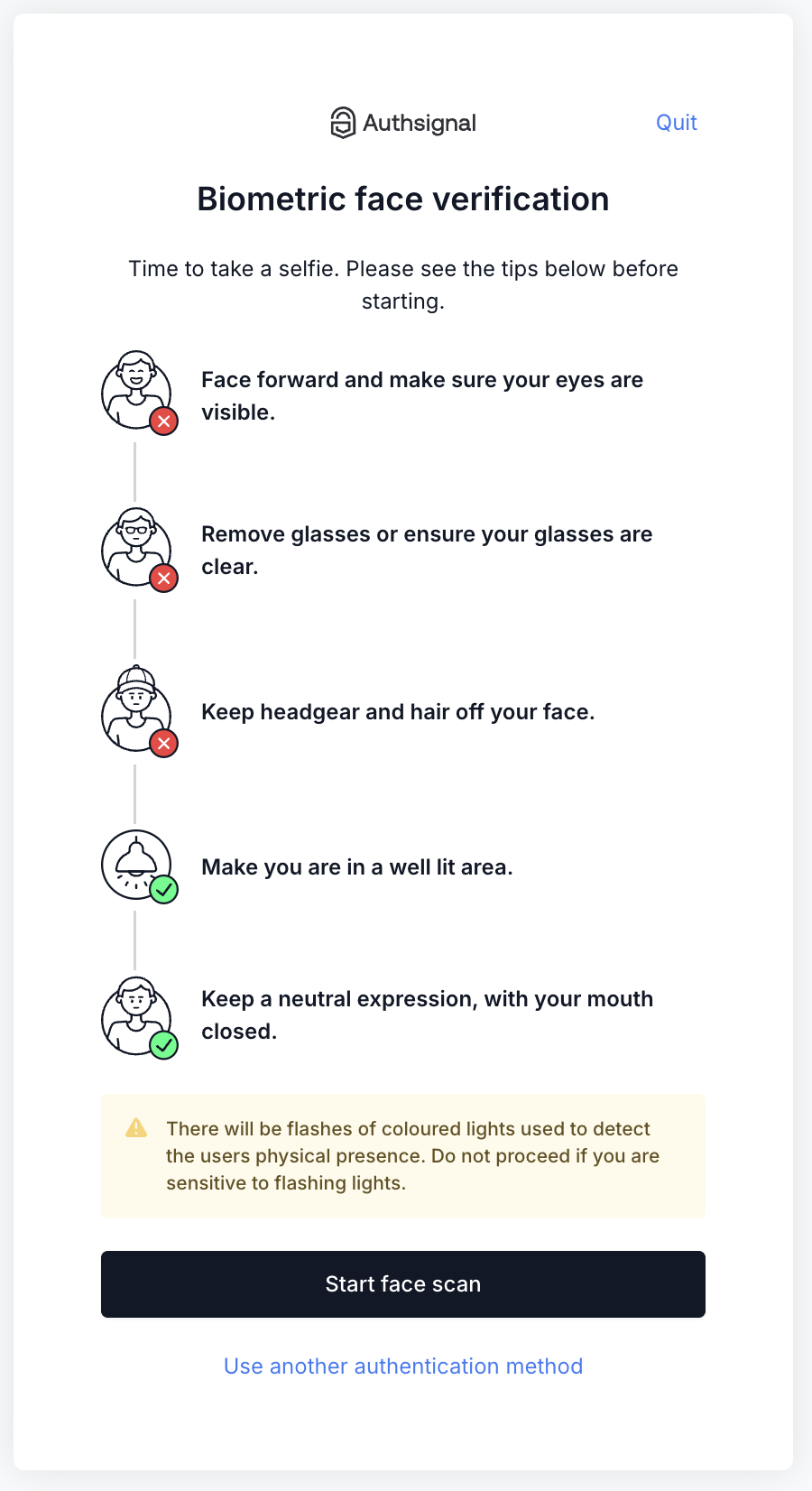
When enabled, iProov biometric verification integrates seamlessly into the Authsignal pre-built UI, providing users with a smooth face verification experience.
#### Pre-built UI Experience
When enabled, iProov biometric verification integrates seamlessly into the Authsignal pre-built UI, providing users with a smooth face verification experience.
 ***
### Veriff
Veriff offers comprehensive identity verification with advanced biometric checks, document verification, and fraud detection capabilities.
#### Enable Veriff in the Portal
1. Navigate to the [Authenticators section](https://portal.authsignal.com/organisations/tenants/authenticators) in your Authsignal Portal
2. Find **Veriff** in the biometric authenticators list
3. Click **Setup Veriff**.
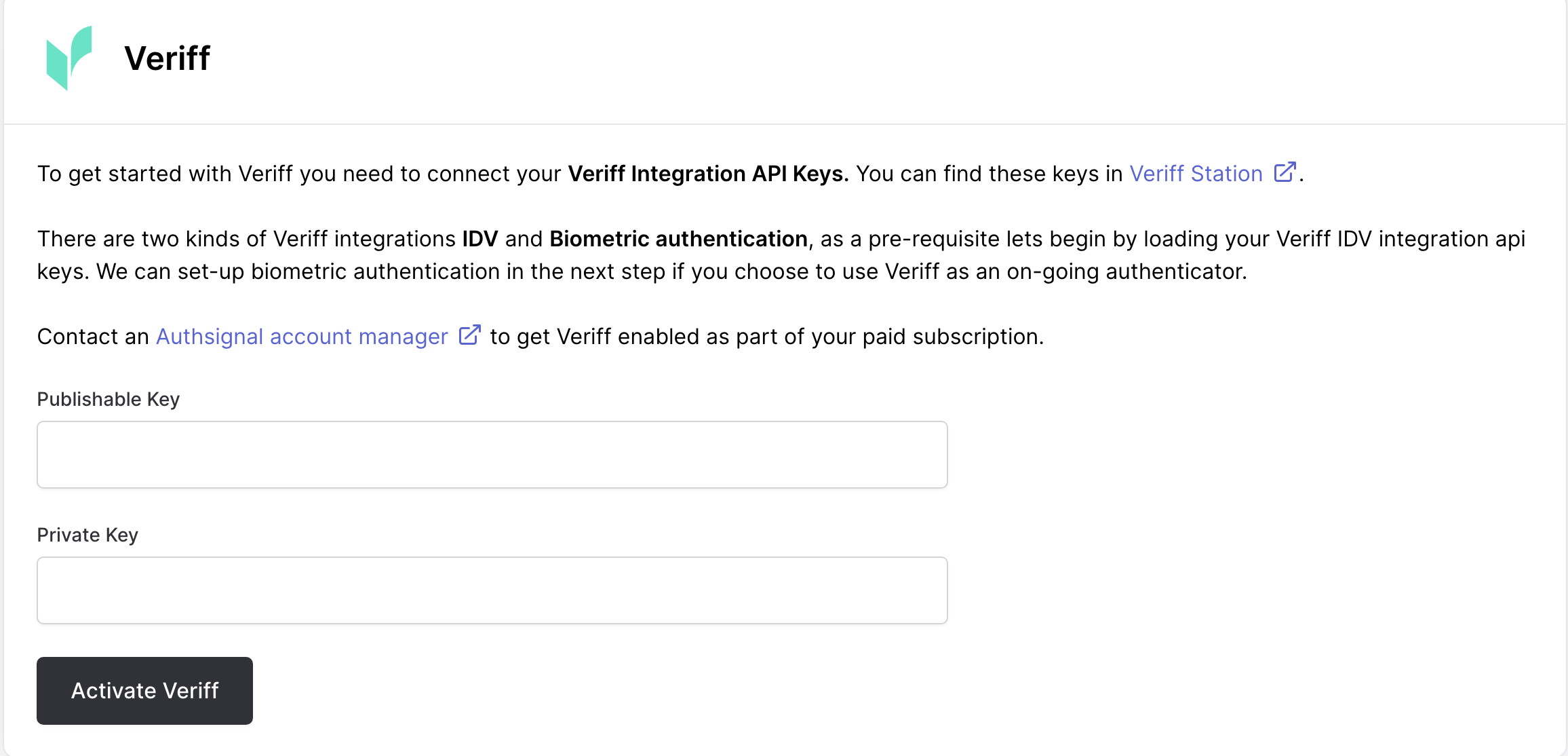
4. Enter your Veriff API credentials and activate the authenticator.
***
### Veriff
Veriff offers comprehensive identity verification with advanced biometric checks, document verification, and fraud detection capabilities.
#### Enable Veriff in the Portal
1. Navigate to the [Authenticators section](https://portal.authsignal.com/organisations/tenants/authenticators) in your Authsignal Portal
2. Find **Veriff** in the biometric authenticators list
3. Click **Setup Veriff**.
4. Enter your Veriff API credentials and activate the authenticator.
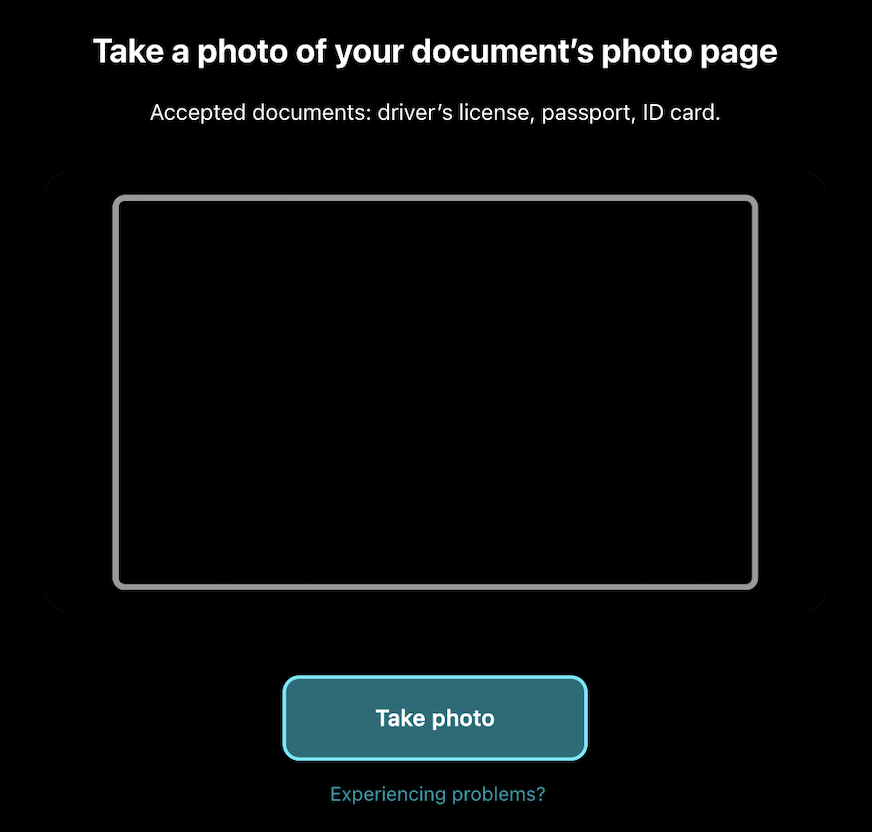
 #### Pre-built UI Experience
Veriff's verification flow integrates directly into the Authsignal pre-built UI, guiding users through document capture and biometric verification steps.
#### Pre-built UI Experience
Veriff's verification flow integrates directly into the Authsignal pre-built UI, guiding users through document capture and biometric verification steps.
 ***
### IDVerse
IDVerse provides AI-powered identity verification with biometric matching, liveness detection, and document authentication.
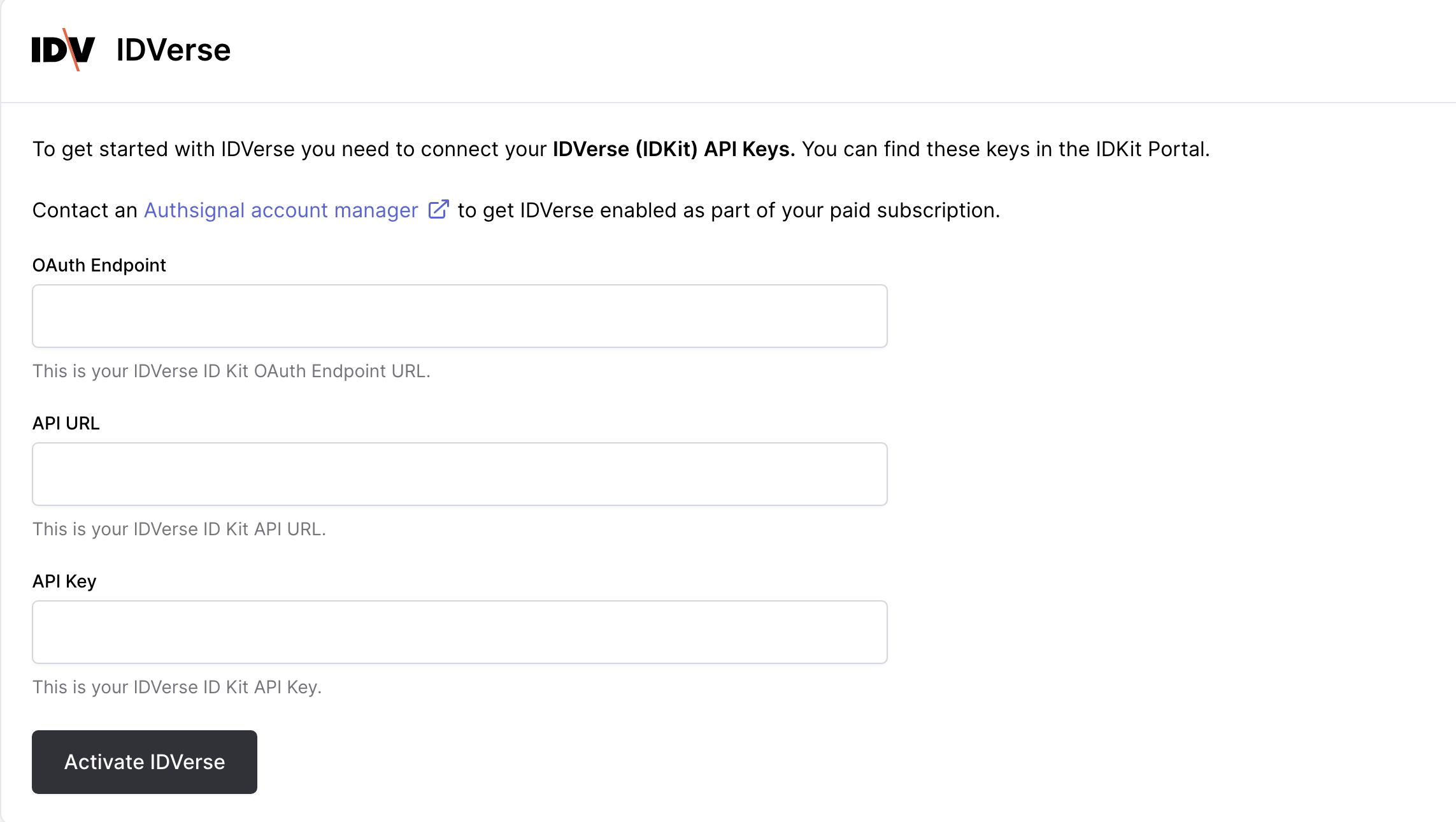
#### Enable IDVerse in the Portal
1. Navigate to the [Authenticators section](https://portal.authsignal.com/organisations/tenants/authenticators) in your Authsignal Portal
2. Find **IDVerse** in the biometric authenticators list
3. Click **Configure** and follow the setup instructions
4. Enter your IDVerse credentials and set up your verification parameters
***
### IDVerse
IDVerse provides AI-powered identity verification with biometric matching, liveness detection, and document authentication.
#### Enable IDVerse in the Portal
1. Navigate to the [Authenticators section](https://portal.authsignal.com/organisations/tenants/authenticators) in your Authsignal Portal
2. Find **IDVerse** in the biometric authenticators list
3. Click **Configure** and follow the setup instructions
4. Enter your IDVerse credentials and set up your verification parameters
 #### Pre-built UI Experience
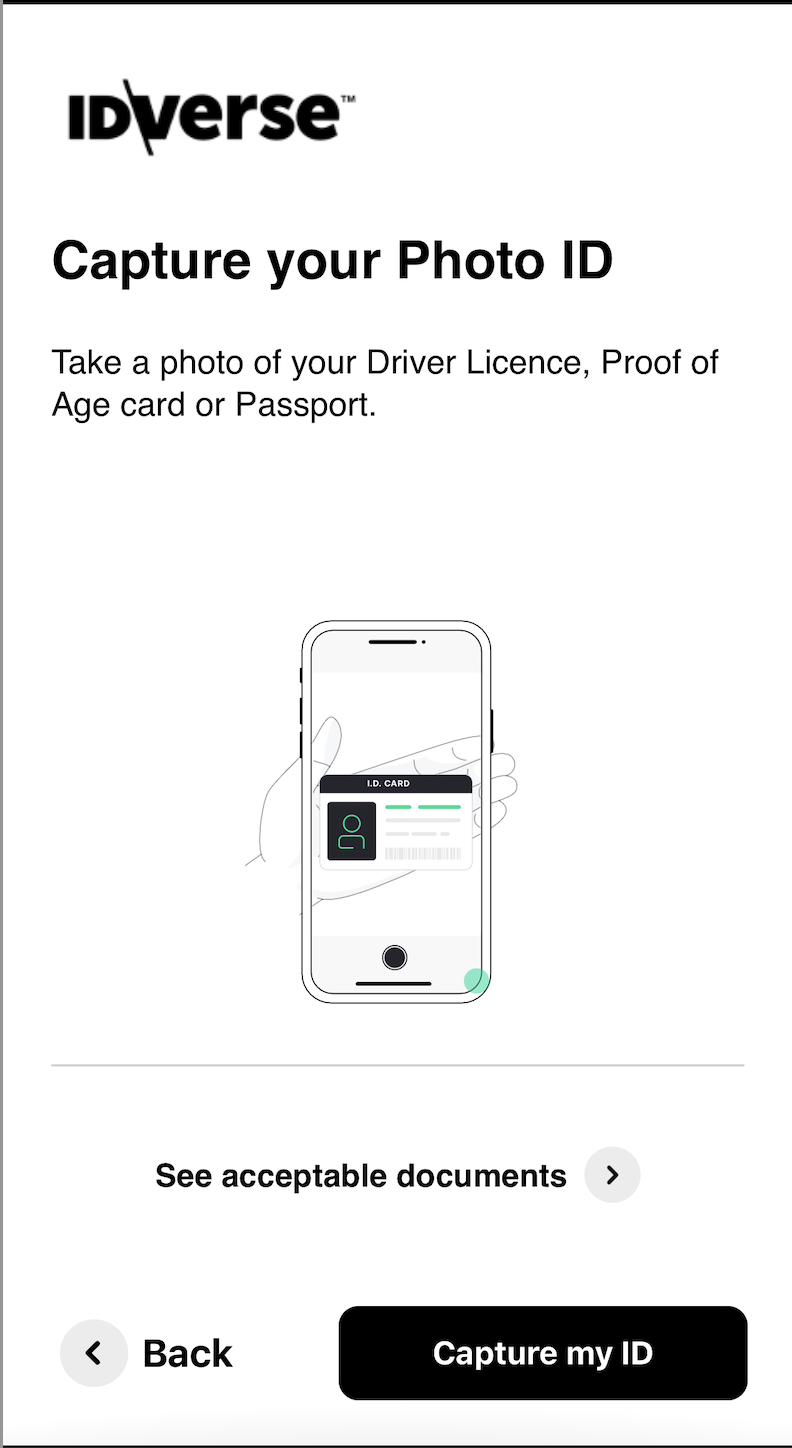
IDVerse verification is embedded in the Authsignal pre-built UI, offering users an intuitive biometric verification process with real-time feedback.
#### Pre-built UI Experience
IDVerse verification is embedded in the Authsignal pre-built UI, offering users an intuitive biometric verification process with real-time feedback.
 ***
### Onfido
Onfido (Entrust) provides document and biometric verification through [Onfido Studio](https://documentation.identity.entrust.com/) workflows. Authsignal uses Onfido's authentication pattern, which relies on two distinct workflows: an enrollment workflow that captures the user's biometric, and an authentication workflow that re-verifies the user against the stored biometric.
Onfido is enabled as part of a paid subscription. Contact your [Authsignal account manager](mailto:support@authsignal.com) to have it added to your plan.
#### Prerequisites
In your Onfido (Entrust) Dashboard, you'll need:
* An **API token** issued for your Onfido data region (EU, US, or CA).
* An activated **enrollment workflow** (Document & Motion) that enrolls the user's biometric.
* An activated **authentication workflow** that re-verifies the user against the stored biometric.
You configure both workflows in Onfido Studio. Note the workflow ID of each, since you'll need them during setup.
#### Enable Onfido in the Portal
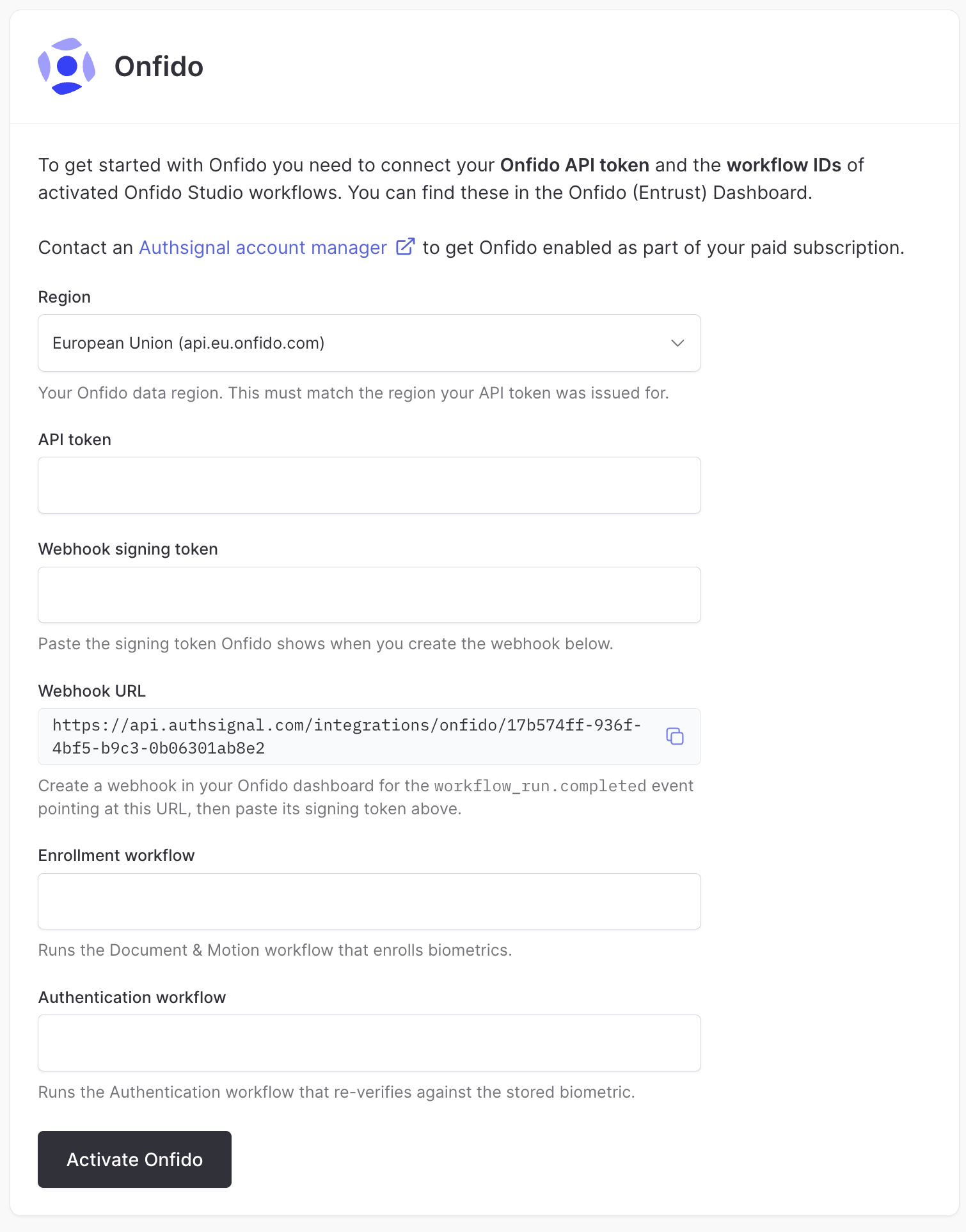
1. Navigate to the [Authenticators section](https://portal.authsignal.com/organisations/tenants/authenticators) in your Authsignal Portal
2. Find **Onfido** in the biometric authenticators list
3. Click **Setup Onfido**
4. Select your **Region**. This must match the region your API token was issued for.
5. Enter your **API token**.
6. Copy the **Webhook URL** shown in the Portal. In your Onfido dashboard, create a webhook for the `workflow_run.completed` event pointing at this URL, then paste the **webhook signing token** that Onfido shows back into the Portal.
7. Enter your **Enrollment workflow** ID and **Authentication workflow** ID.
8. Click **Activate Onfido**.
***
### Onfido
Onfido (Entrust) provides document and biometric verification through [Onfido Studio](https://documentation.identity.entrust.com/) workflows. Authsignal uses Onfido's authentication pattern, which relies on two distinct workflows: an enrollment workflow that captures the user's biometric, and an authentication workflow that re-verifies the user against the stored biometric.
Onfido is enabled as part of a paid subscription. Contact your [Authsignal account manager](mailto:support@authsignal.com) to have it added to your plan.
#### Prerequisites
In your Onfido (Entrust) Dashboard, you'll need:
* An **API token** issued for your Onfido data region (EU, US, or CA).
* An activated **enrollment workflow** (Document & Motion) that enrolls the user's biometric.
* An activated **authentication workflow** that re-verifies the user against the stored biometric.
You configure both workflows in Onfido Studio. Note the workflow ID of each, since you'll need them during setup.
#### Enable Onfido in the Portal
1. Navigate to the [Authenticators section](https://portal.authsignal.com/organisations/tenants/authenticators) in your Authsignal Portal
2. Find **Onfido** in the biometric authenticators list
3. Click **Setup Onfido**
4. Select your **Region**. This must match the region your API token was issued for.
5. Enter your **API token**.
6. Copy the **Webhook URL** shown in the Portal. In your Onfido dashboard, create a webhook for the `workflow_run.completed` event pointing at this URL, then paste the **webhook signing token** that Onfido shows back into the Portal.
7. Enter your **Enrollment workflow** ID and **Authentication workflow** ID.
8. Click **Activate Onfido**.
 #### Pre-built UI Experience
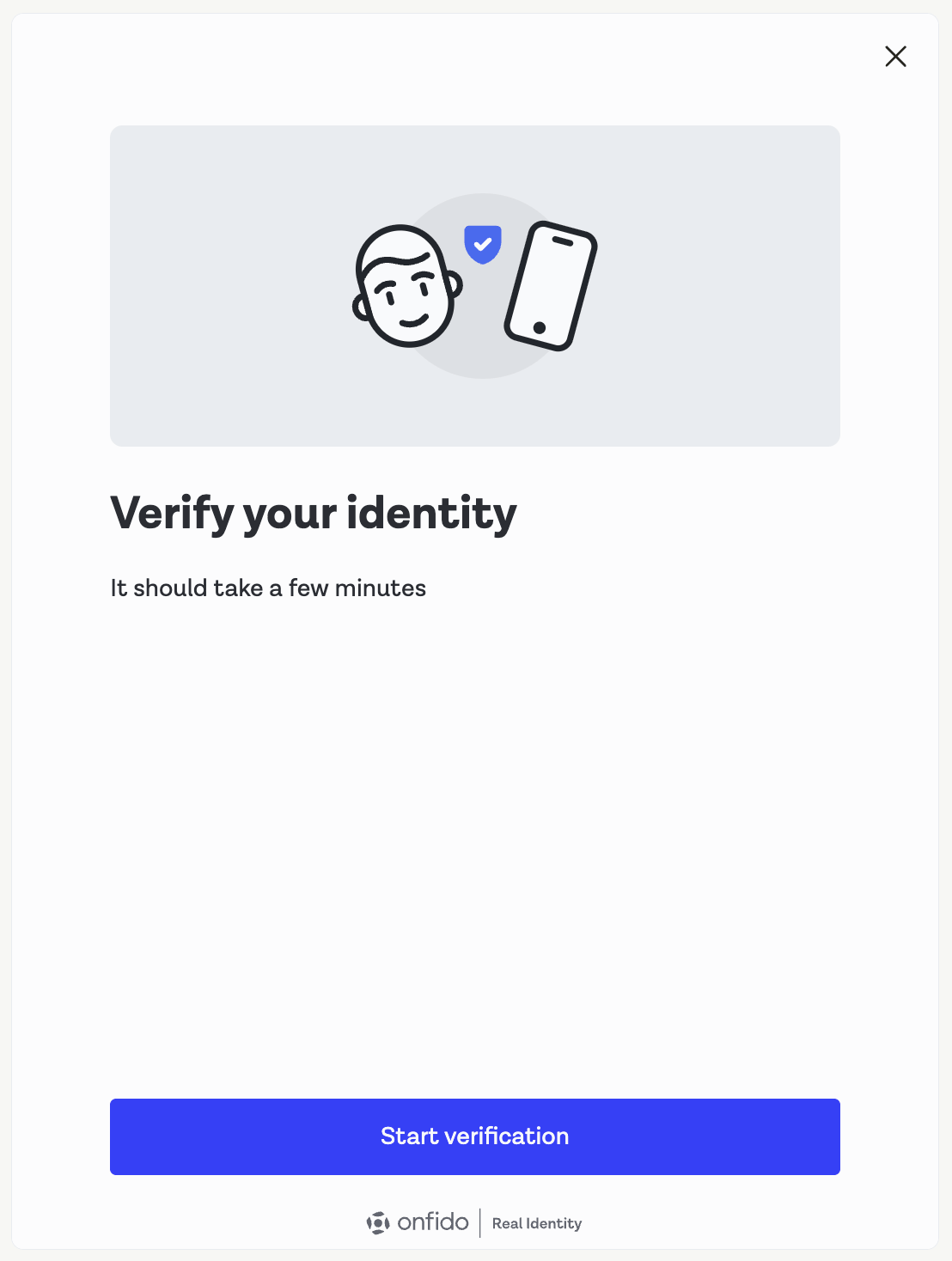
Onfido's verification flow integrates directly into the Authsignal pre-built UI, guiding users through document capture and biometric verification.
#### Pre-built UI Experience
Onfido's verification flow integrates directly into the Authsignal pre-built UI, guiding users through document capture and biometric verification.
 ## Implementation
Once you've configured your preferred biometric provider in the Portal, you can use it like any other Authsignal authenticator:
* **Track actions** that require biometric verification using our [Server SDK](/sdks/server/actions#track-action) or [Server API](/api-reference/server-api/track-action)
* **Launch the pre-built UI** to present the biometric verification challenge to users
* **Validate challenges** on your backend to confirm successful verification
The biometric verification flow integrates seamlessly with Authsignal's [rules engine](/actions-rules/rules/getting-started), allowing you to trigger biometric authentication based on risk factors, user behavior, or specific business requirements.
## Next steps
Contact us to learn more about how to implement biometric authentication.
* Email: [support@authsignal.com](mailto:support@authsignal.com)
* Schedule a demo: [Book a call with our team](https://authsignal.com/contact)
## Implementation
Once you've configured your preferred biometric provider in the Portal, you can use it like any other Authsignal authenticator:
* **Track actions** that require biometric verification using our [Server SDK](/sdks/server/actions#track-action) or [Server API](/api-reference/server-api/track-action)
* **Launch the pre-built UI** to present the biometric verification challenge to users
* **Validate challenges** on your backend to confirm successful verification
The biometric verification flow integrates seamlessly with Authsignal's [rules engine](/actions-rules/rules/getting-started), allowing you to trigger biometric authentication based on risk factors, user behavior, or specific business requirements.
## Next steps
Contact us to learn more about how to implement biometric authentication.
* Email: [support@authsignal.com](mailto:support@authsignal.com)
* Schedule a demo: [Book a call with our team](https://authsignal.com/contact)