> ## Documentation Index
> Fetch the complete documentation index at: https://docs.authsignal.com/llms.txt
> Use this file to discover all available pages before exploring further.
# Testing rules
> Learn how to test your rules with Authsignal's test action feature.
export const ActionStatePill = ({state}) => {
const pillConfig = {
CHALLENGE_FAILED: {
className: "action-state-pill__CHALLENGE_FAILED",
label: "Challenge failed"
},
BLOCK: {
className: "action-state-pill__BLOCK",
label: "Blocked"
},
CHALLENGE_REQUIRED: {
className: "action-state-pill__CHALLENGE_REQUIRED",
label: "Challenge required"
},
CHALLENGE_SUCCEEDED: {
className: "action-state-pill__CHALLENGE_SUCCEEDED",
label: "Challenge succeeded"
},
REVIEW_REQUIRED: {
className: "action-state-pill__REVIEW_REQUIRED",
label: "Review required"
},
REVIEW_SUCCEEDED: {
className: "action-state-pill__REVIEW_SUCCEEDED",
label: "Review succeeded"
},
REVIEW_FAILED: {
className: "action-state-pill__REVIEW_FAILED",
label: "Review failed"
},
ALLOW: {
className: "action-state-pill__ALLOW",
label: "Allowed"
}
};
const {className, label} = pillConfig[state];
return {label};
};
For convenience, Authsignal lets you create test actions directly in the portal, without having to track them from within your application.
## How to test your rules
### 1. Start a test action
Go to the **Latest activity** tab of your action and click **Track a test action** button.
 ### 2. Add test data
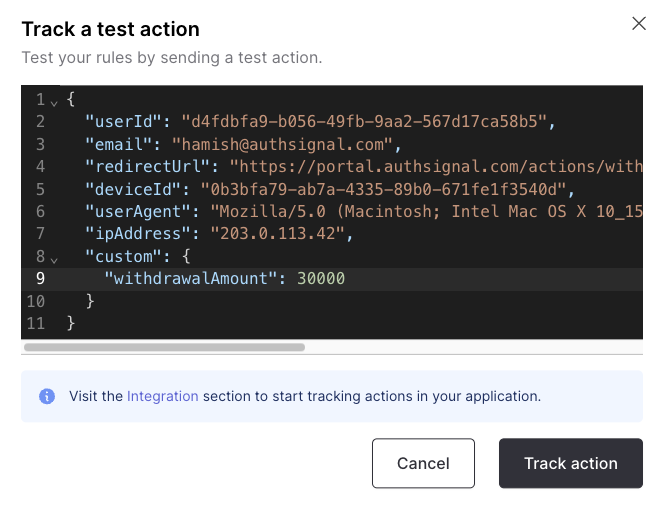
A dialog will popup with default values for `userId`, `email`, `deviceId`, `userAgent`, and `ipAddress`. You can change these to test different scenarios.
If you're using a custom data points, you can add them here too .
### 2. Add test data
A dialog will popup with default values for `userId`, `email`, `deviceId`, `userAgent`, and `ipAddress`. You can change these to test different scenarios.
If you're using a custom data points, you can add them here too .
 ### 3. Track the action
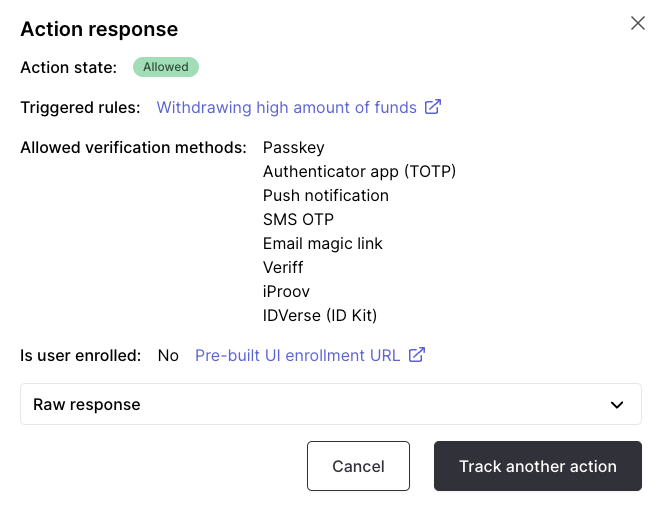
Click **Track action** and you will see a breakdown of the action response.
### 3. Track the action
Click **Track action** and you will see a breakdown of the action response.
 ## Understanding test results
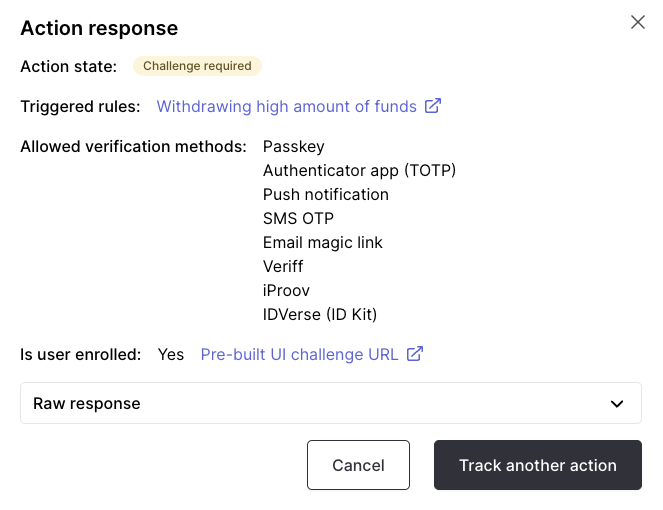
When you track a test action with our **Withdrawing high amount of funds** rule, you should see that the action state is .
### What happens next?
If the user hasn't enrolled any authenticators yet, they'll be directed to an enrollment page first, then proceed with the challenge. Click the **Pre-built UI enrollment URL** to set up authentication methods.
Once the user has enrolled authenticators, they'll be able to complete the challenge to proceed with the action.
## Understanding test results
When you track a test action with our **Withdrawing high amount of funds** rule, you should see that the action state is .
### What happens next?
If the user hasn't enrolled any authenticators yet, they'll be directed to an enrollment page first, then proceed with the challenge. Click the **Pre-built UI enrollment URL** to set up authentication methods.
Once the user has enrolled authenticators, they'll be able to complete the challenge to proceed with the action.
 ### View the action details
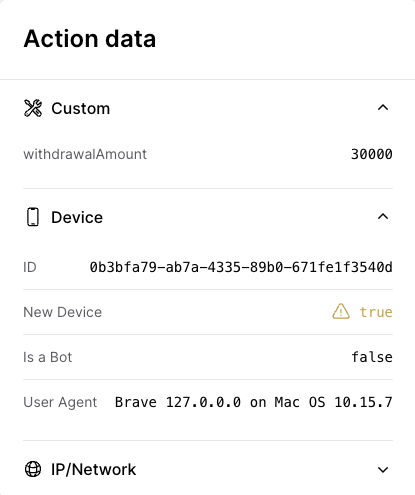
If you want to see a full breakdown of a user action, refresh the page and you should see the test action you just created in the **Latest activity** table. Click `View details` to see the full breakdown of the action.
### View the action details
If you want to see a full breakdown of a user action, refresh the page and you should see the test action you just created in the **Latest activity** table. Click `View details` to see the full breakdown of the action.