> ## Documentation Index
> Fetch the complete documentation index at: https://docs.authsignal.com/llms.txt
> Use this file to discover all available pages before exploring further.
# Custom lists
> Create lists of information to use in rules.
You can create lists of specific types of information and use them in rules. For example, you might want to create rules that use a list of:
* **User IDs for trusted users.** Use this list to automatically allow actions by these users.
* **Email addresses you have flagged as fraudulent.** Automatically block any action with an email address on this list.
* **Suspicious IP addresses.** Block actions that have a matching IP address.
Lists make rules more manageable. For example, instead of creating an individual condition for each email address, you can add all the email addresses to a list and reference the list in a single condition.
## Create a custom list
To create a custom list, head to the [Custom Lists](https://portal.authsignal.com/organisations/tenants/lists) page inside `settings > rules` in the Authsignal Portal.
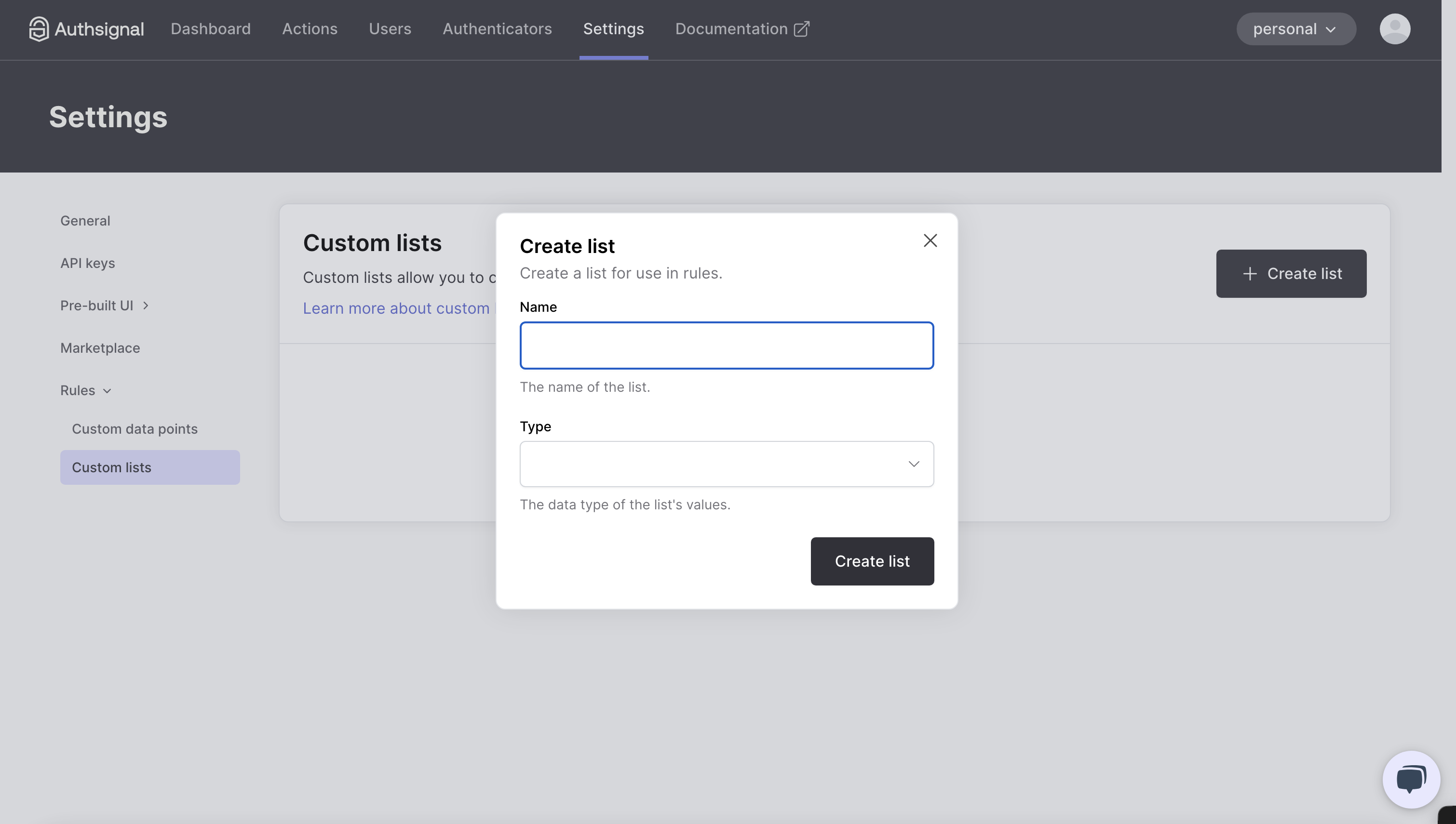
1. Click **Create list**.
2. Enter a name for the list.
3. Choose the **Type** of list and create the list. Currently only `string` and `number` lists are supported.
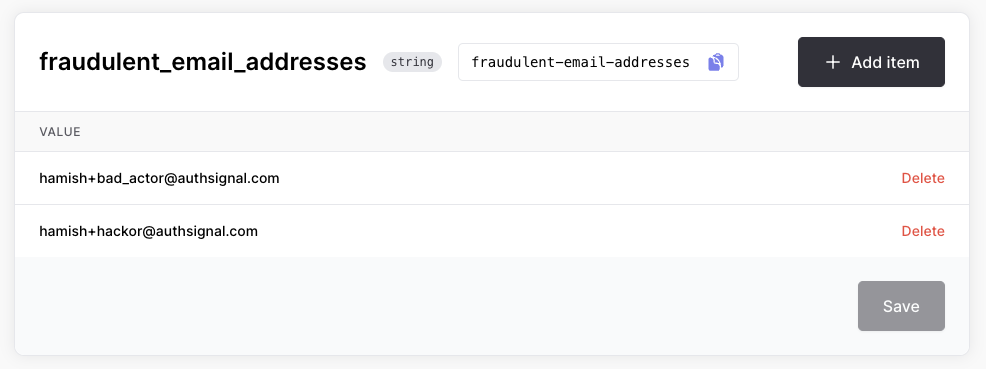
 5. Now, add values to the list by clicking **Add item**.
6. Once you have added all the items you want to add, click **Save**.
5. Now, add values to the list by clicking **Add item**.
6. Once you have added all the items you want to add, click **Save**.
 ## Use a custom list in a rule
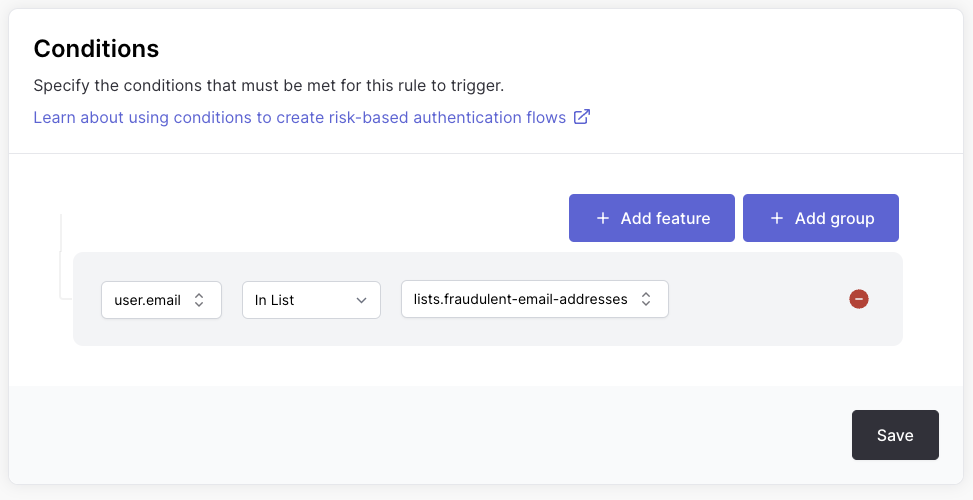
To use a custom list in your rule conditions, create or edit a rule and navigate to the **Conditions** section.
1. Click **Add feature**.
2. Select the feature you want to use in the rule.
3. Select the `In List` or `Not In List` operator.
4. Select the custom list you want to use in the rule.
## Use a custom list in a rule
To use a custom list in your rule conditions, create or edit a rule and navigate to the **Conditions** section.
1. Click **Add feature**.
2. Select the feature you want to use in the rule.
3. Select the `In List` or `Not In List` operator.
4. Select the custom list you want to use in the rule.
 Only the following features can reference a custom list:
**User features:**
* `UserId`
* `Email address`
* `Phone number`
**Device features:**
* `IP address`
**Card Bin**
* `Issuer country code`
* `Issuer name`
**Crypto features:**
* `Wallet address`
* `Asset Code`
All **custom** features can reference a custom list.
## Managing custom lists
To manage a custom list, head to the [Custom Lists](https://portal.authsignal.com/organisations/tenants/lists) page in the Authsignal Portal.
To delete a custom list, click the **Delete** button.
To add more items to a custom list, click **Edit** and then click **Add item**.
Only the following features can reference a custom list:
**User features:**
* `UserId`
* `Email address`
* `Phone number`
**Device features:**
* `IP address`
**Card Bin**
* `Issuer country code`
* `Issuer name`
**Crypto features:**
* `Wallet address`
* `Asset Code`
All **custom** features can reference a custom list.
## Managing custom lists
To manage a custom list, head to the [Custom Lists](https://portal.authsignal.com/organisations/tenants/lists) page in the Authsignal Portal.
To delete a custom list, click the **Delete** button.
To add more items to a custom list, click **Edit** and then click **Add item**.